iPhone Account & Settings Guide
Signing in, your profile, the app's preferences, notifications and the settings you set once and then forget where they were — above all scorecard source priority, the usual answer to "why is my score wrong?".
1. Signing in
MyGolf has no passwords. You sign in with a passkey — Face ID or Touch ID on your phone, backed by iCloud Keychain — and register the same way.
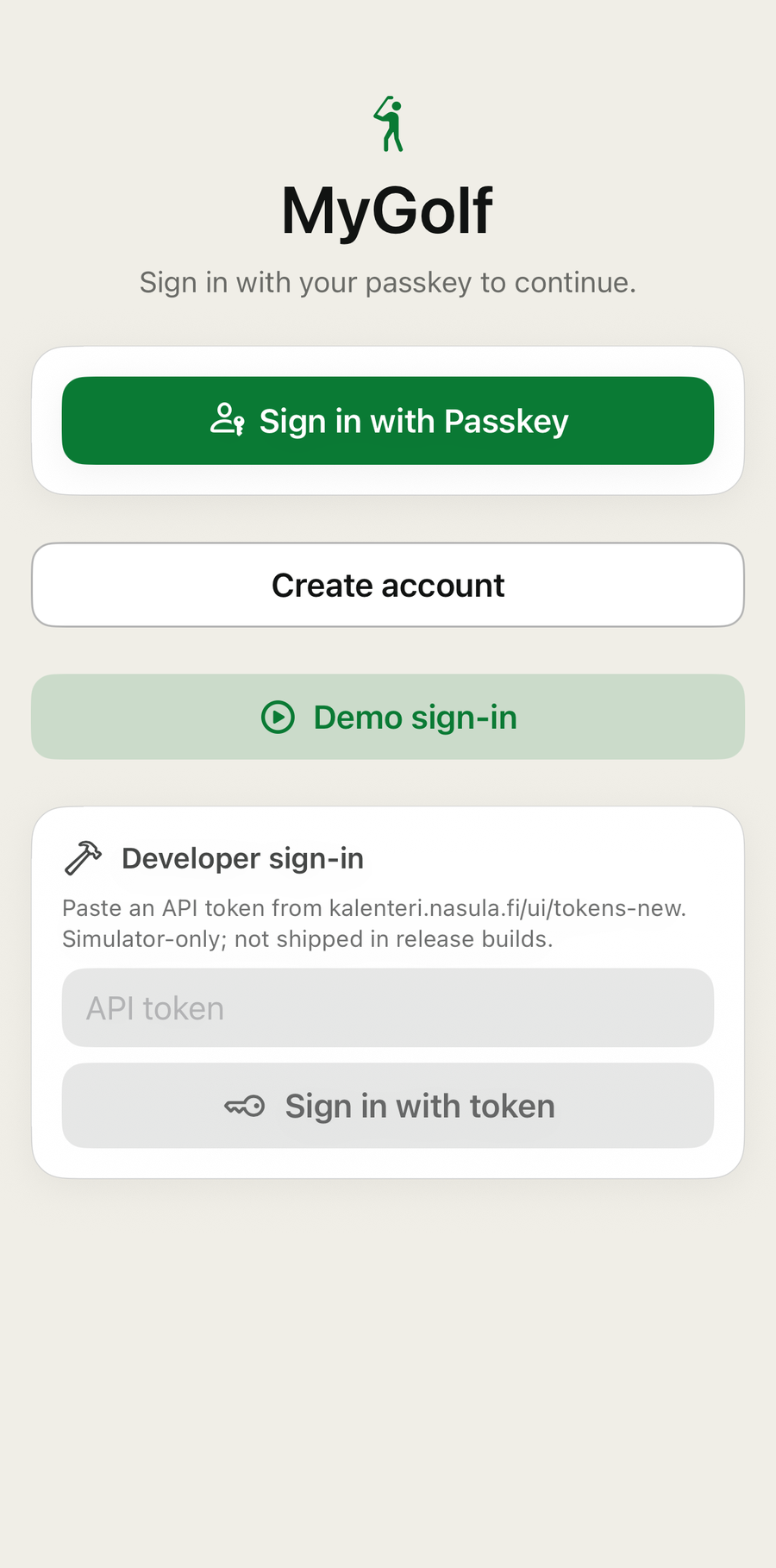 The sign-in screen. The Demo sign-in and Developer sign-in below the real buttons exist only in simulator and review builds, not in the App Store app.
- Sign in with Passkey — pick your MyGolf passkey in the system sheet and confirm with Face ID / Touch ID.
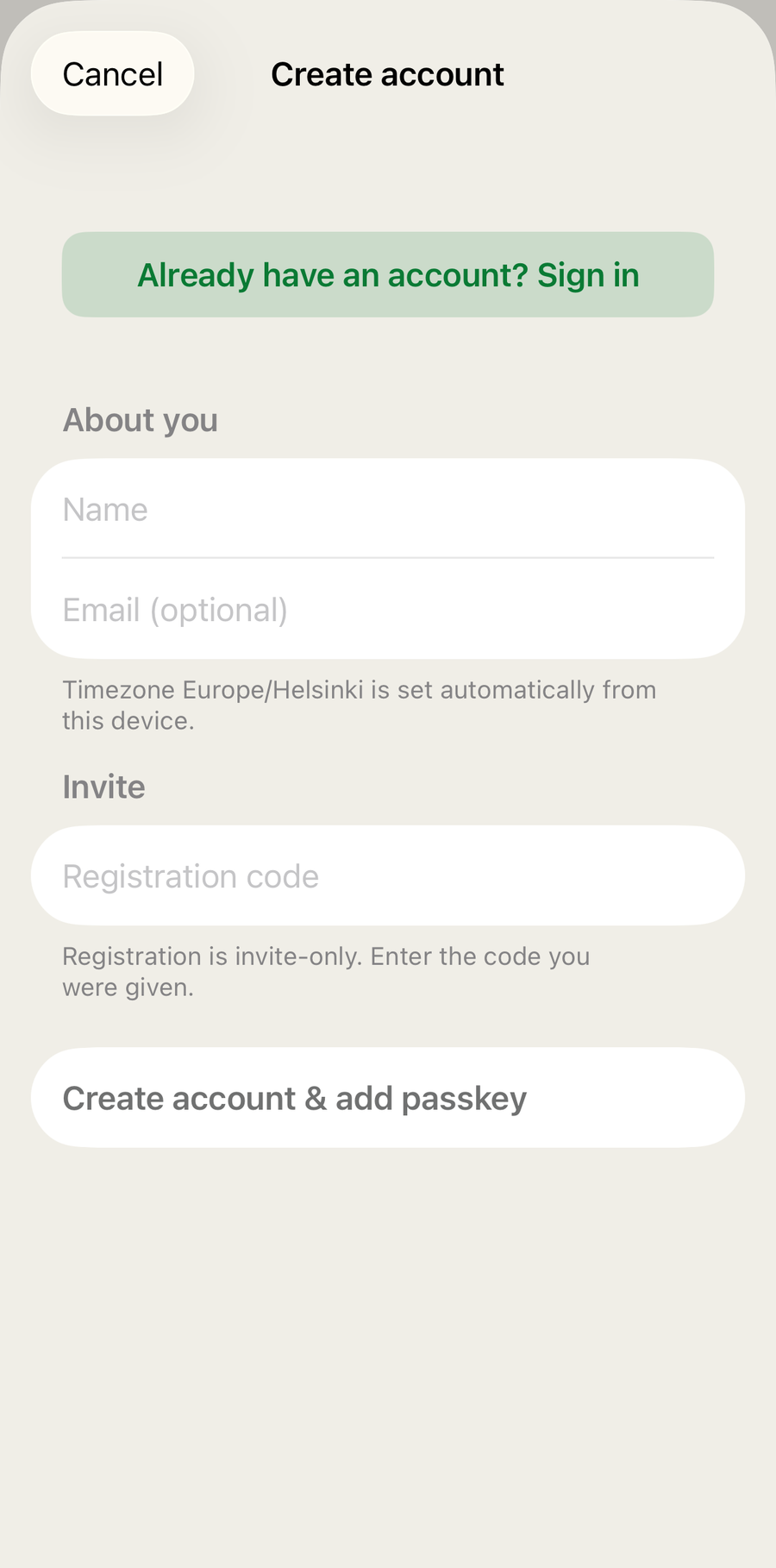
- Create account — registration is invite-only: enter your Name, an optional Email, and the Registration code you were given, then Create account & add passkey. Your timezone is taken from the device.
- Already have an account? Sign in — at the top of the Create account form. If you already have a MyGolf account, tap it to go back to the sign-in screen and sign in with your passkey; registering again would create a second, empty account.
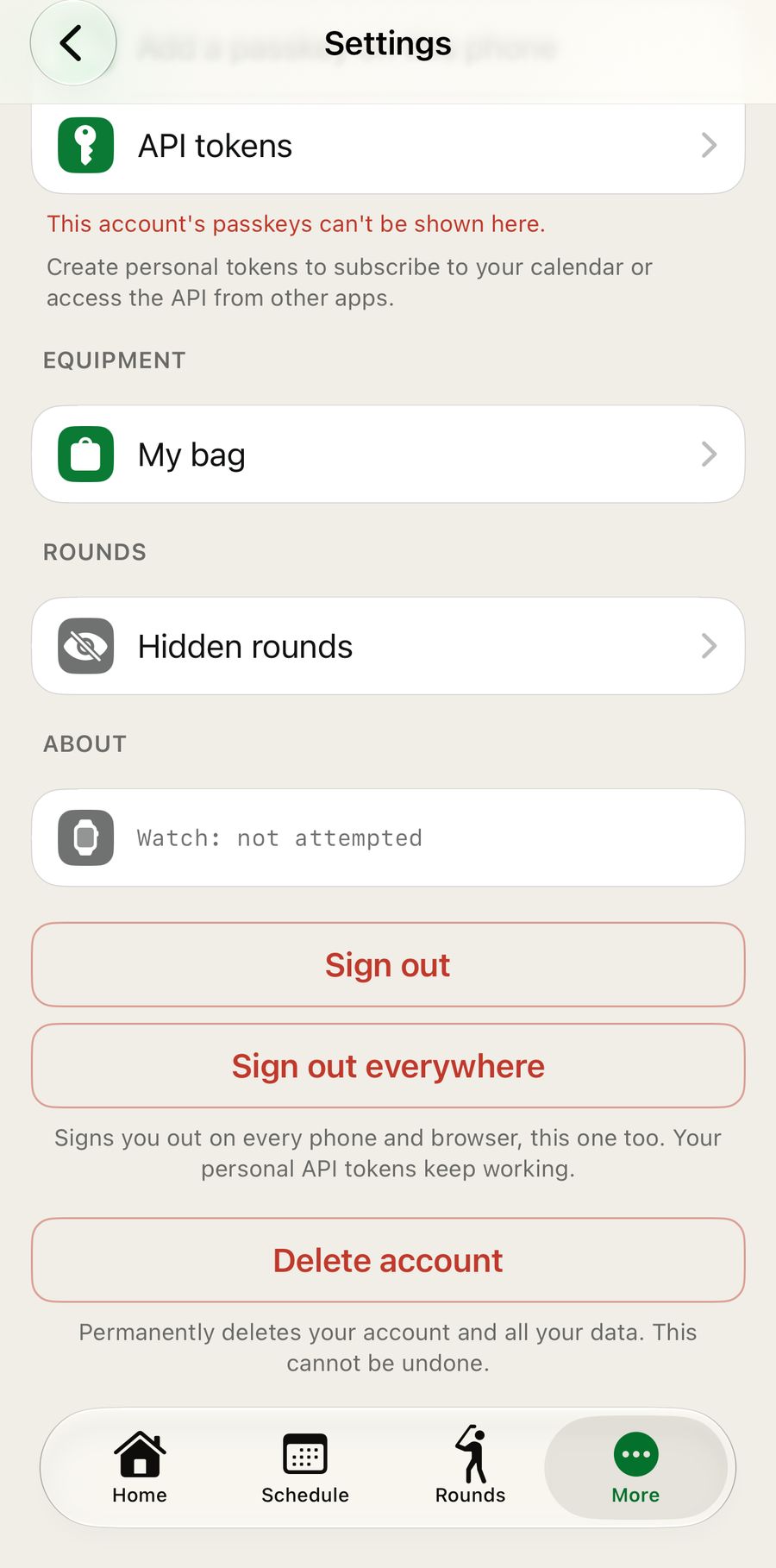
The passkey is registered for kalenteri.nasula.fi, so the one you create here also signs you in on the web. Sign out at the bottom of More › Settings; the confirmation is the only step. It takes you back to the sign-in screen and stays signed out — the phone forgets the session even when the server could not be reached. Signing out also removes the MyGolf login cookies the phone holds for the server, so the next account to sign in starts clean; nothing you entered on the phone is lost. It also tells the server to stop sending this account's notifications to the phone (when the server can't be reached, the phone signs out anyway).
Sign out everywhere, under Sign out, signs your account out on every phone and browser at once, this phone included — use it if you lost a phone or signed in somewhere you shouldn't have. After the confirmation each of them needs your passkey to sign in again. Personal API tokens (section 5) keep working. It is not offered while you are playing a round on this phone; finish the round first. If the server can't be reached, or refuses, the phone stays signed in and says why under the button.
2. Settings
More › Settings:
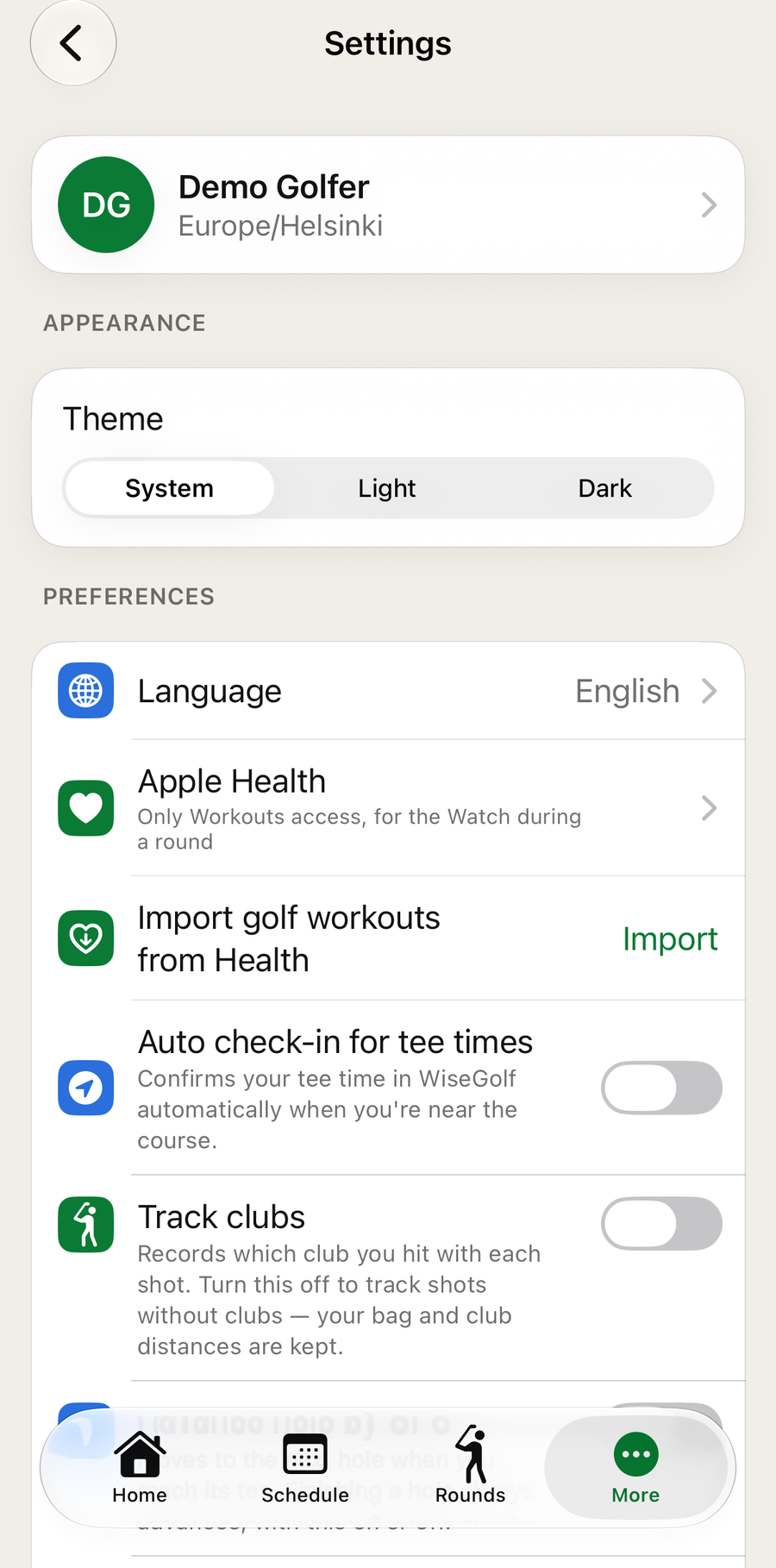
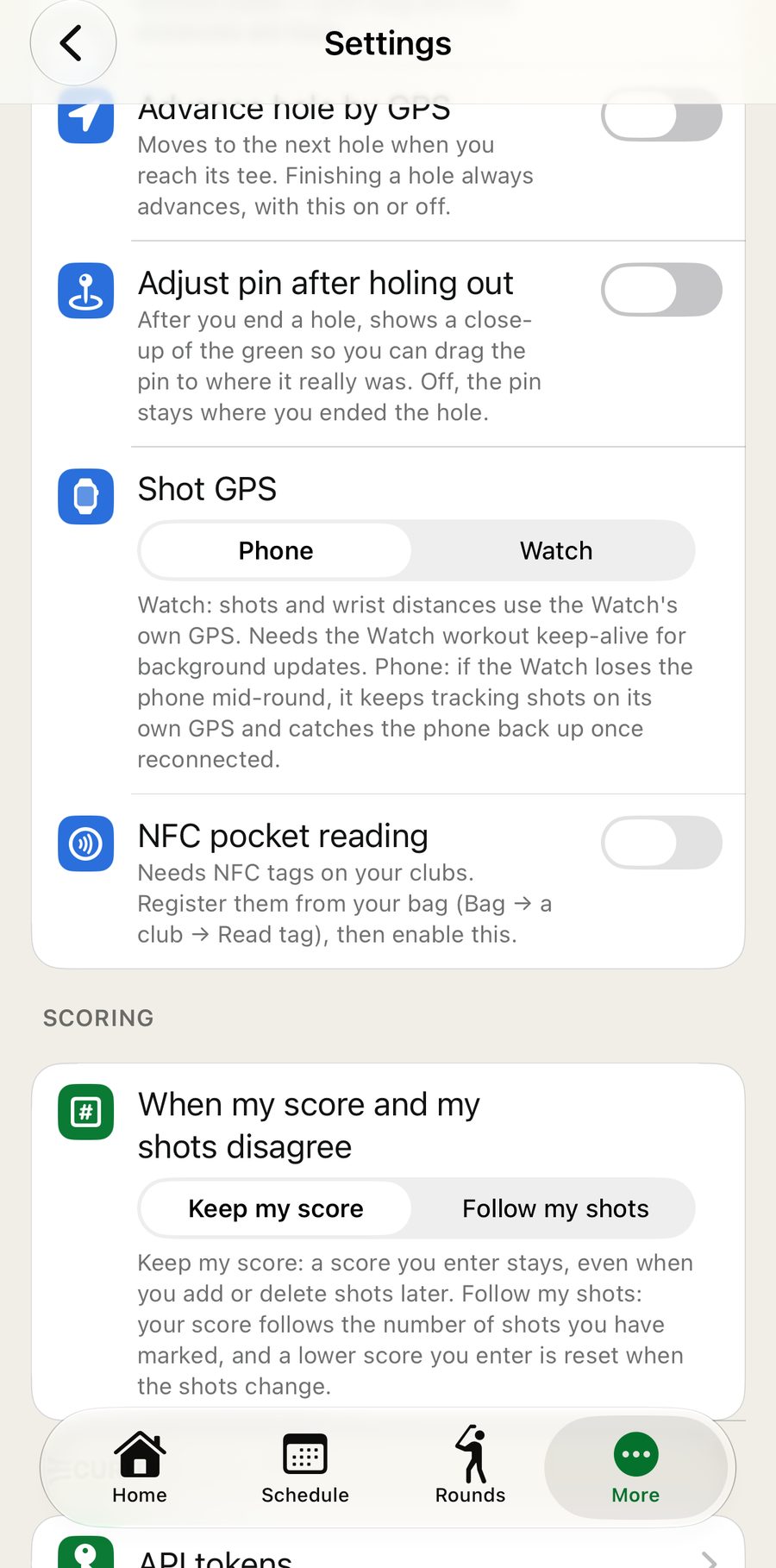
- The profile card at the top opens Edit profile (section 3).
- Appearance › Theme — System, Light or Dark.
- Language — the language the app shows, or System to follow the phone.
- Apple Health — opens the Apple Health choices, the same screen the phone shows the first time you start a round (before any Health permission sheet). To keep MyGolf on your Watch screen throughout the round, with GPS distances and shot marking, MyGolf needs Workouts access in Apple Health. This access sends nothing to MyGolf: with neither choice ticked, the Watch collects no heart rate, calories or distance, and MyGolf gets only the round's start, end and duration. If you already had rounds saved to Health, that choice starts ticked. Tick either, both or neither:
- Save rounds as workouts — your Watch saves each round in Apple Health as a golf workout, with its duration, calories and heart rate. MyGolf stores the round's duration, active and total calories, average and maximum heart rate, and walking distance with the round.
- Show stats in MyGolf — MyGolf reads what Health recorded during your round and stores it with the round: calories, average and maximum heart rate, and walking distance, so you can see them next to your score. On its own, this writes nothing to Health. Choosing it also fills in earlier Watch rounds whose workout reached MyGolf without any figures.
Continue asks Health for exactly what you ticked. The row's second line shows your choice (for example Rounds saved as workouts · stats shown, or Only Workouts access, for the Watch during a round with neither ticked). It replaces the former Save round workouts to Health switch. To take a permission back later, use the Health app (your profile › Apps › MyGolf). Health asks for each permission only once: if it was turned down before (even by an earlier version of the app), it says no again without asking. MyGolf then shows Apple Health access is off with the way to fix it — in the Health app, tap your profile picture, then Apps › MyGolf, and tap Turn On All. If the phone could not reach Health at all, it says Couldn't ask Apple Health instead — try again from this row. iOS never tells an app whether it may read from Health, so if MyGolf finds nothing to read for Watch rounds that were recorded, this row gets a third line saying it can't read your heart rate or calories, with the same fix; it goes away once figures come through. (Capture owed for this line.) The row is absent on a device without Apple Health. (Capture owed.) - Import golf workouts from Health — tap Import: the first time, the phone asks for permission to read your workouts from Health. It then reads the golf workouts already in Apple Health and attaches each to the round it matches, MyGolf or Gamebook, so their heart rate, energy and distance show on the round's detail (see the Rounds guide). The row then says how many it matched (Matched 31 workouts · 23 MyGolf rounds · 8 Gamebook rounds · 4 unmatched). Running it again adds nothing already imported (No new workouts to import) — but a Watch round whose workout reached MyGolf without any heart rate, energy or distance gets them filled in from Health; a workout that already shows any of them is left as it is. The row is absent on a device without Apple Health. (Capture owed.) - Auto check-in for tee times — confirms a WiseGolf tee time by itself when you are near the course inside the check-in window (otherwise Home shows a Check in card to tap). - Track clubs — on by default. Records which club you hit with each shot. Turn it off to track shots without clubs: no screen asks you for a club and none shows one, on the phone or on the Watch. Your bag and club distances are kept, and clubs you recorded before are still there and reappear if you turn it back on. With an empty bag there is nothing to record, so the switch is off and greyed out and the row tells you to add clubs first — add one and your own setting comes back as you left it. - Advance hole by GPS — during a round, moves to the next hole when you reach its tee. Finishing a hole always advances, with this on or off. - Adjust pin after holing out — off by default. On, ending a hole with a GPS-tracked last shot shows a close-up of the green where you can drag the pin to where it really was before it is saved. Off, the pin stays where you ended the hole and nothing offers the close-up. - Shot GPS — Phone (the default) or Watch. With Watch, your shots and the distances on your wrist come from the Watch's own GPS. Background updates on the wrist need the Watch workout keep-alive (see the Watch guide). With Phone, if the Watch loses the phone mid-round it automatically keeps tracking your shots on its own GPS, then catches the phone back up the moment you're back in range — no need to switch modes yourself. The geometry editor's survey mode always uses the phone GPS. - NFC pocket reading — with NFC tags on your clubs (see the Bag guide), the pocketed phone keeps listening: tap a club against it to record a shot with that club, one buzz confirms. - Scoring › When my score and my shots disagree — Keep my score (the default) or Follow my shots. With Keep my score, a score you enter on the score sheet stays, higher or lower than the number of shots you marked, even when shots are added, deleted or changed afterwards; the shots only fill in the score on a hole where you did not enter one. With Follow my shots, the score is floored by, and follows, your shot count: a higher score you enter sticks, a lower one is reset by the next shot change. The choice belongs to your account, works with no connection mid-round, and is also what the server uses when it recounts a hole from its shots. - Course editing › Outline model — only for editors who downloaded the geometry editor's outline model: how much space it takes (Outline model: 80 MB) and Delete to remove it from the phone, with links to the model's Apache-2.0 licence and notice under the row. The editor asks before downloading it again. - Security › Add a passkey on this phone — adds another passkey for your account to this phone. Tap the row, confirm it is you with one of your existing passkeys, then approve creating the new one; Passkey added. appears under the row. If this phone already has a passkey for your account it says so, and backing out of either prompt changes nothing. It never signs you out. - Security › your passkeys — below Add a passkey on this phone, one row for each passkey on your account: the name of the device it was added on (Passkey when it has none) and when it was added and last used. Remove asks first, then asks you to confirm it is you with one of your passkeys, and removes it; Passkey removed. appears under the group. Your only passkey can't be removed — add another one first. Like adding, removing never signs you out. If the list can't be loaded the group says so (the demo account can't show its passkeys at all). - Groups › Connected groups — the OurGolf groups you are linked to, and the groups you run there (section 9). - Security › API tokens — personal tokens for calendar subscriptions and other apps (section 5). - Equipment › My bag — your clubs and their distances (see the Bag guide); the same screen is also under More › Golf › My bag. - Rounds › Hidden rounds — rounds you hid from the Rounds list, restorable here. - Sign out, Sign out everywhere (section 1), and Delete account — permanently deletes your account and all your data; it cannot be undone.
3. Profile
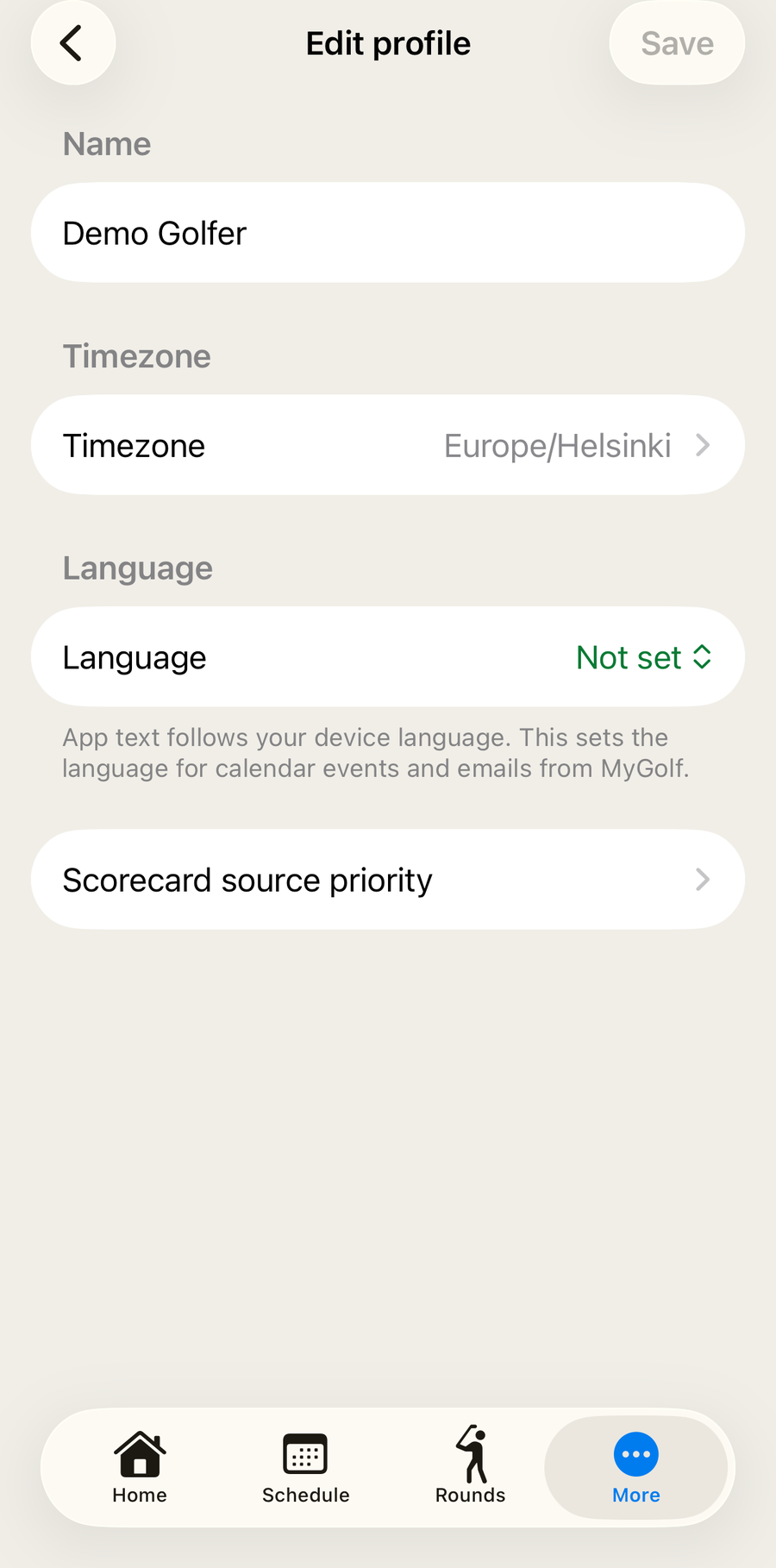
- Name — how you appear to flightmates and friends.
- Timezone — the zone your tee times are shown in, so changing it also changes the time every tee time is shown in (and when quiet hours apply, section 6).
- Language — separate from the app language above: this one sets the language of the calendar events and e-mails MyGolf sends you. If you have never chosen one, MyGolf saves the language the app is showing, so push notifications arrive in it too; a language you choose is never overwritten.
- Scorecard source priority — section 4.
Tap Save.
4. Scorecard source priority
The same round can reach MyGolf from several places: the scorecard you kept in the app, the club's system, Golf GameBook, eBirdie, Golf Pad, TrackMan. When more than one source has the round, MyGolf shows one scorecard and its score — and this list decides which.
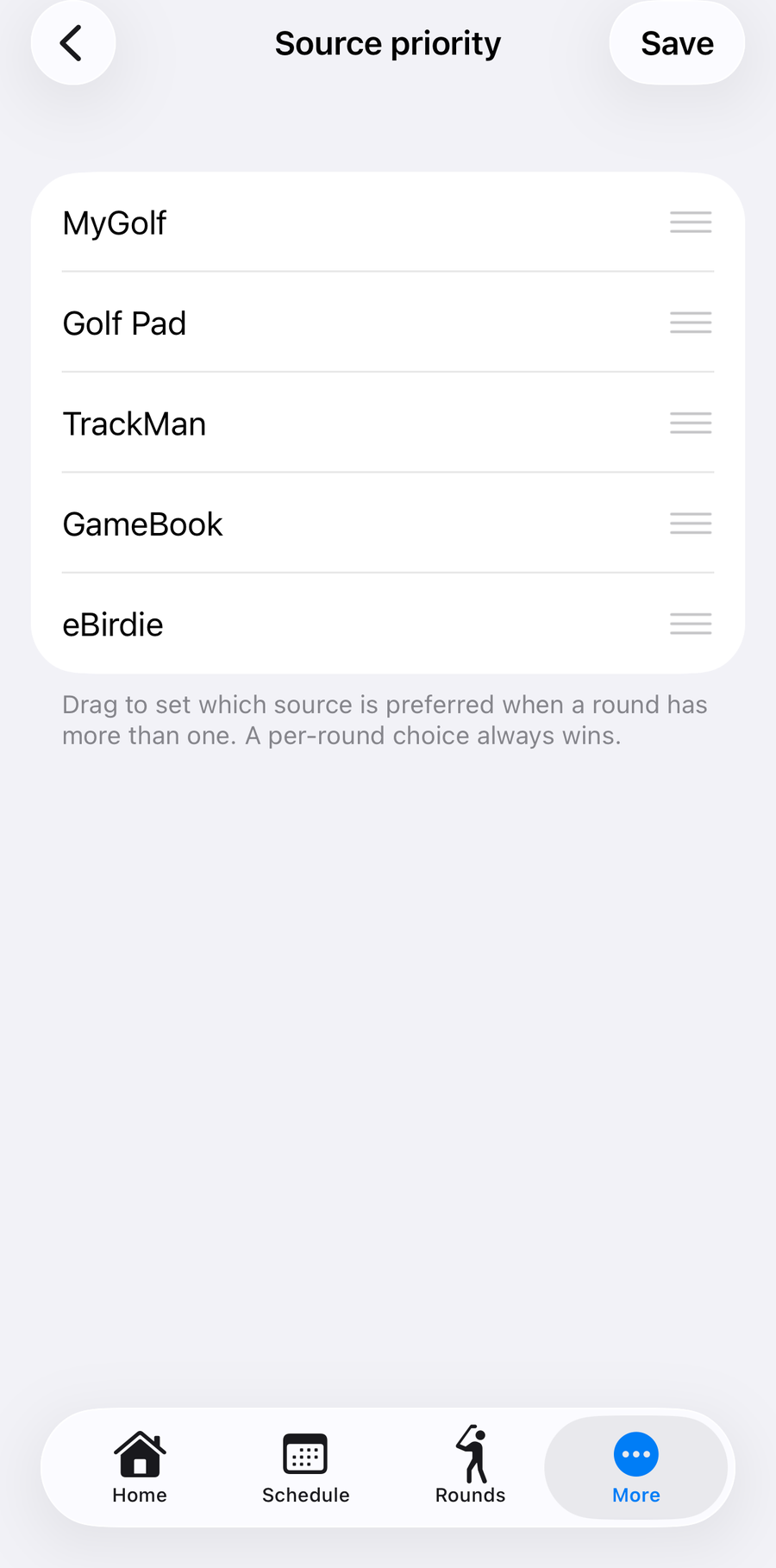 Drag the handles to order the sources. The first source that has the round wins.
- Drag a source up to prefer it. The order applies to every round with more than one source.
- A per-round choice always wins: on a round's detail page the Scorecard source picker overrides this order for that round only (see the Rounds guide, section 2).
- The order is saved with your profile and applies on the web too.
So when a score looks wrong, check first which source is showing: the round's detail names it under Scorecard source, and either the per-round picker or this list fixes it.
5. API tokens
Settings › API tokens lists the personal tokens you have created — each with its scopes and creation date — and lets you Create token with a name and the Access you want it to have (most scopes are read-only). The key is shown once, at creation; copy it then. Swipe a token left to Revoke it; apps using it lose access immediately.
The calendar feed under More › Calendar sharing has its own link and needs no token; tokens are for other apps and scripts that talk to MyGolf on your behalf.
Swipes on this screen
| Row | Swipe left | Swipe right |
|---|---|---|
| A token | Revoke (active tokens) | — |
6. Notifications
More › Notifications:
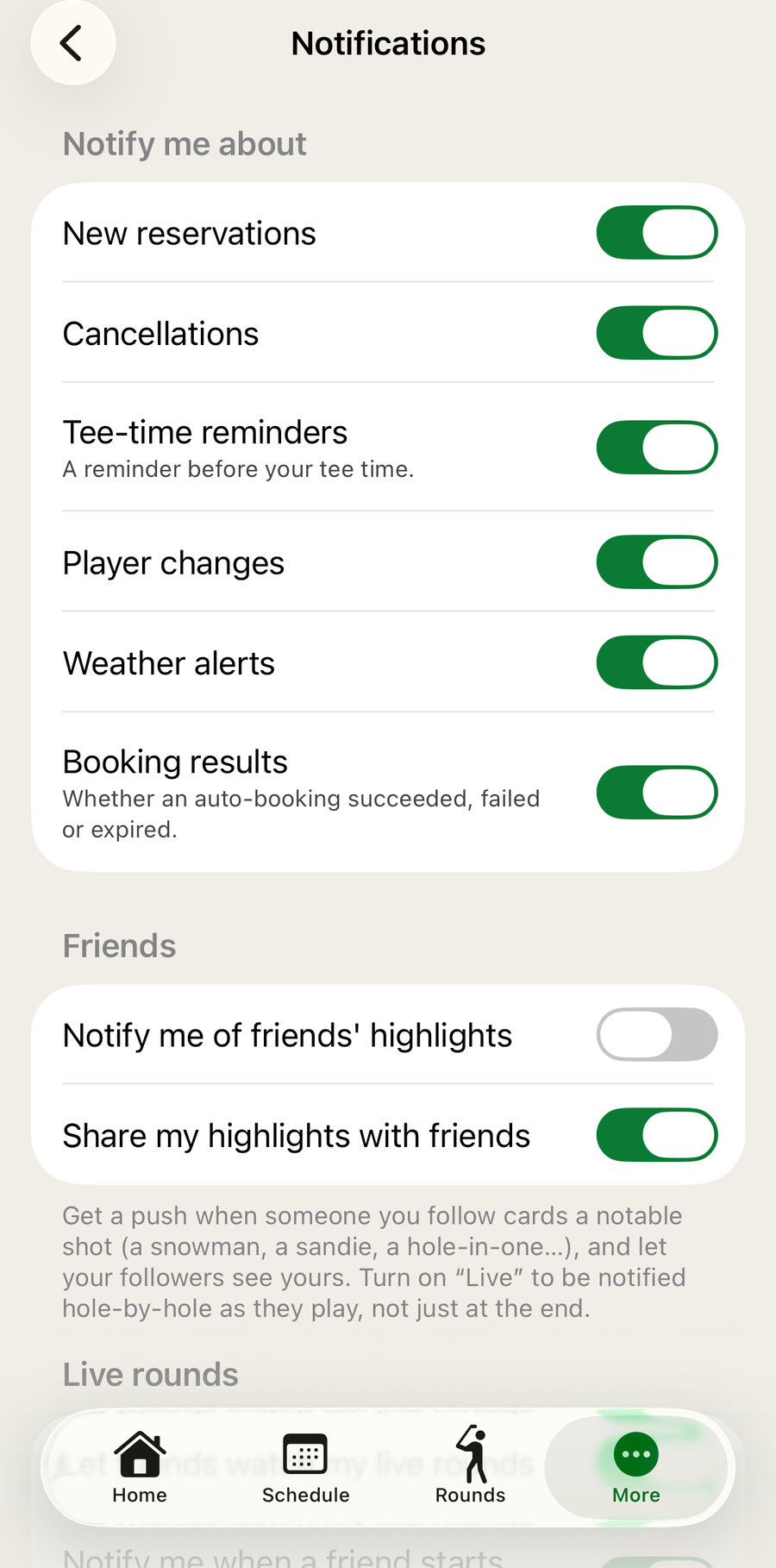
- Notify me about — New reservations, Cancellations, Tee-time reminders (a reminder before your tee time), Player changes, Weather alerts, Booking results (whether an auto-booking succeeded, failed or expired).
- Friends — Notify me of friends' highlights (a snowman, a sandie, a hole-in-one … carded by someone you follow) and Share my highlights with friends. Live, during the round notifies you hole by hole as they play, not only at the end.
- Live rounds — Let friends watch my live rounds and Notify me when a friend starts a round.
- Competitions — Notify me when I move up in the standings (on unless you turn it off). In a competition or trip run by an organiser, you get one push after a round when your place in the standings got better: You moved up — Belek 2026: you're now number 3, up from 5. It comes only once the round's results are final — when the organiser closes the round, or by itself an hour after the last card is in — never while scores are still coming in, and not after the first round (there is no earlier place to move up from). Tap it to open the competition on Standings.
- Quiet hours — a daily window in which pushes still arrive but silently: no sound, no waking the screen, and they wait in Notification Center. Security alerts (a passkey added or removed, account security) always keep their sound. The window follows the time zone saved on your account, not the phone's current one, so if you travel, change the time zone in your profile.
- Pushover — optional: your Pushover user key and application token, if you prefer its pushes to the app's own. Send test notification checks the channel. A green Connected chip beside the Pushover heading shows that keys are stored (the keys themselves are never shown again).
- Recent — the notifications you have received. Swipe an unread one left for Read.
Following someone currently turns on everything about them by default — their highlights, their live rounds, their round starts. Turn off what you don't want here.
Swipes on this screen
| Row | Swipe left | Swipe right |
|---|---|---|
| A notification under Recent | Read (unread ones) | — |
7. What's new
More › What's new lists what changed in recent versions. The same notes pop up once after an update.
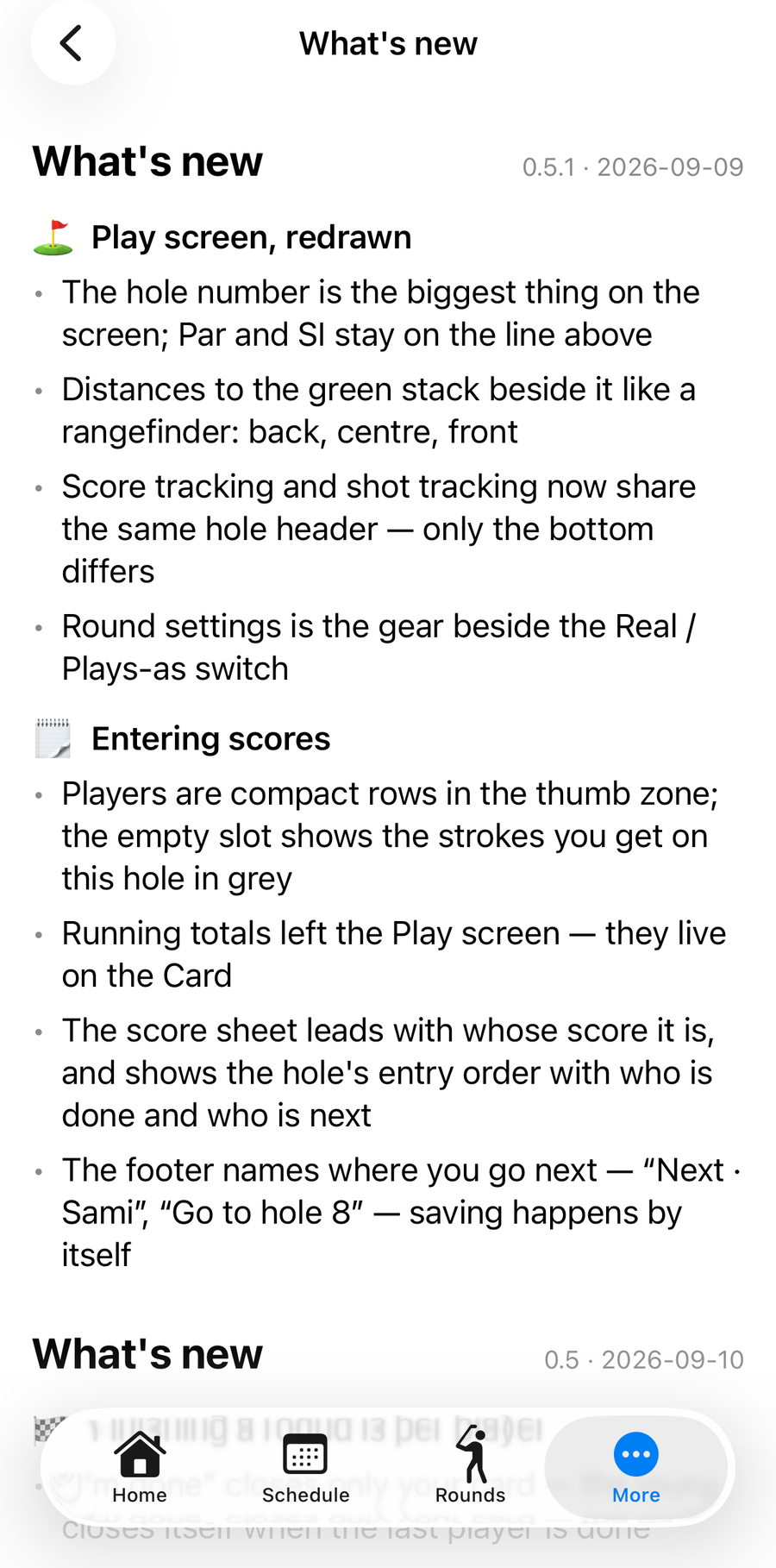
8. Help & manuals
The bottom group on More opens these guides in your browser: All manuals is the whole set (kalenteri.nasula.fi/manuals/, no sign-in needed), and the four rows under it jump straight to round setup, score tracking, and shot tracking on the iPhone and the Watch. The last row, Map data credits, stays in the app: see the Map data credits guide.
9. Your groups and the game master link
If your group runs its games on the OurGolf site and you hold an active game master or admin role there, MyGolf shows you the way to its game master pages:
- On Home: a Manage row appears under Handicap & stats ("Opens the game master pages on OurGolf"). If you manage one group, tapping Manage opens that group's game master pages inside MyGolf straight away; if you manage several groups, a sheet asks Which group do you want to manage? first.
- On Competitions: a competition you run shows Manage under its title, and Edit game on each round under All rounds (see the Round setup guide, section 8).
- In Settings › Groups › Connected groups: every OurGolf group you are linked to, with its organisation. A group you run has a Manage in OurGolf button that opens the same game master pages. Groups you run but never linked to your MyGolf are listed first, under Groups you run. A group an organiser linked for you says Connected by your group's organiser. Pull down to refresh.
- Sign-in: the first time, sign in with MyGolf (Face ID); after that you stay signed in unless 30 days pass without use. Tap Done to return to the app. You see Manage and Manage in OurGolf only while your role on OurGolf is active; if the app cannot check, they are hidden. Without a connection the list still shows the group names the phone last saw, with Couldn't refresh · showing what the phone had at …, and no buttons.
The list is read-only: to mute a group's calendar or notifications, or to disconnect it, use Settings › Connected groups on the MyGolf website. That page has the same Manage in OurGolf links (opening in a new tab) and the same Groups you run list. A MyGolf link to the Connected groups page (mygolffi://settings/connected-groups) opens this screen.
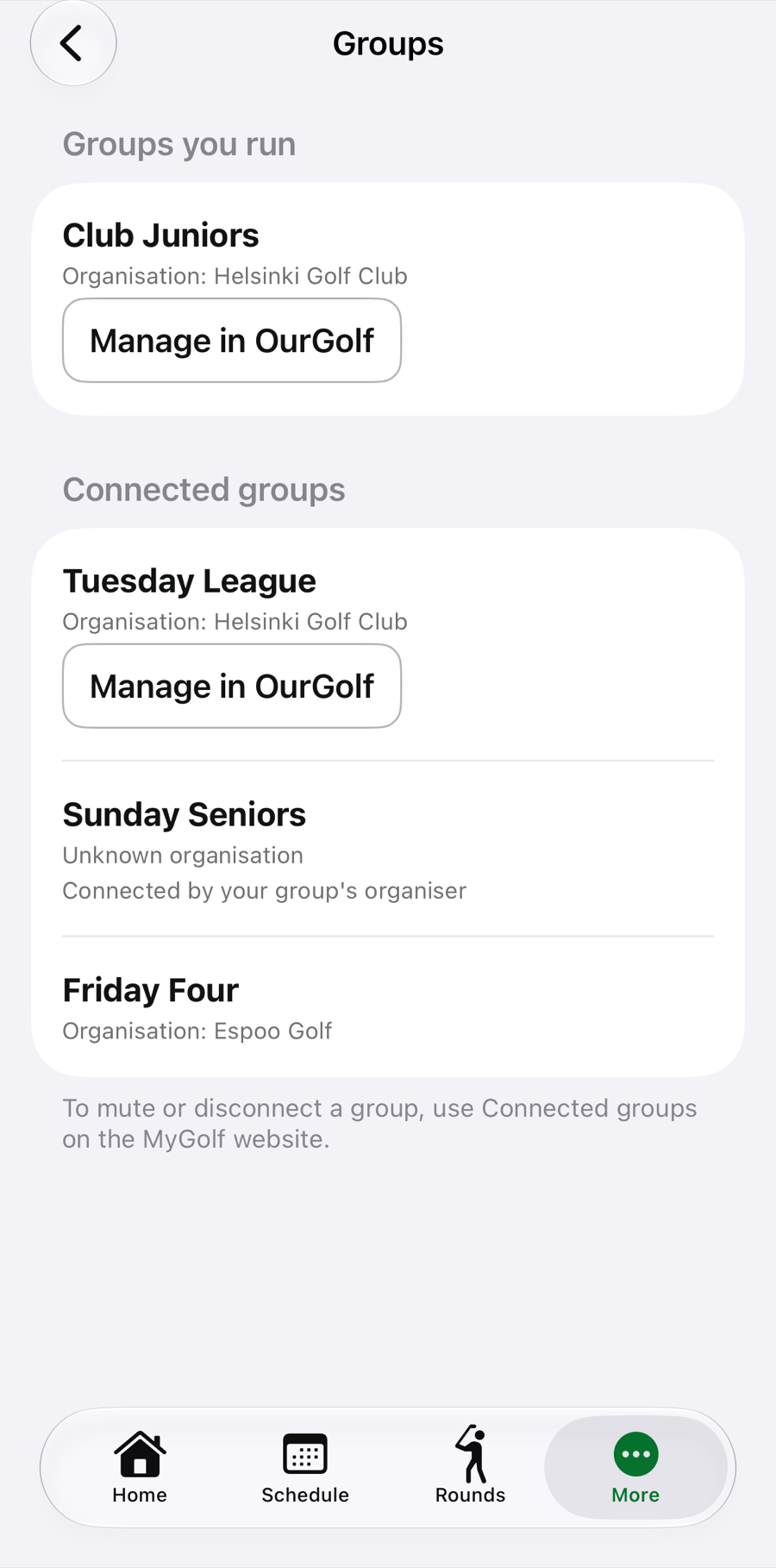
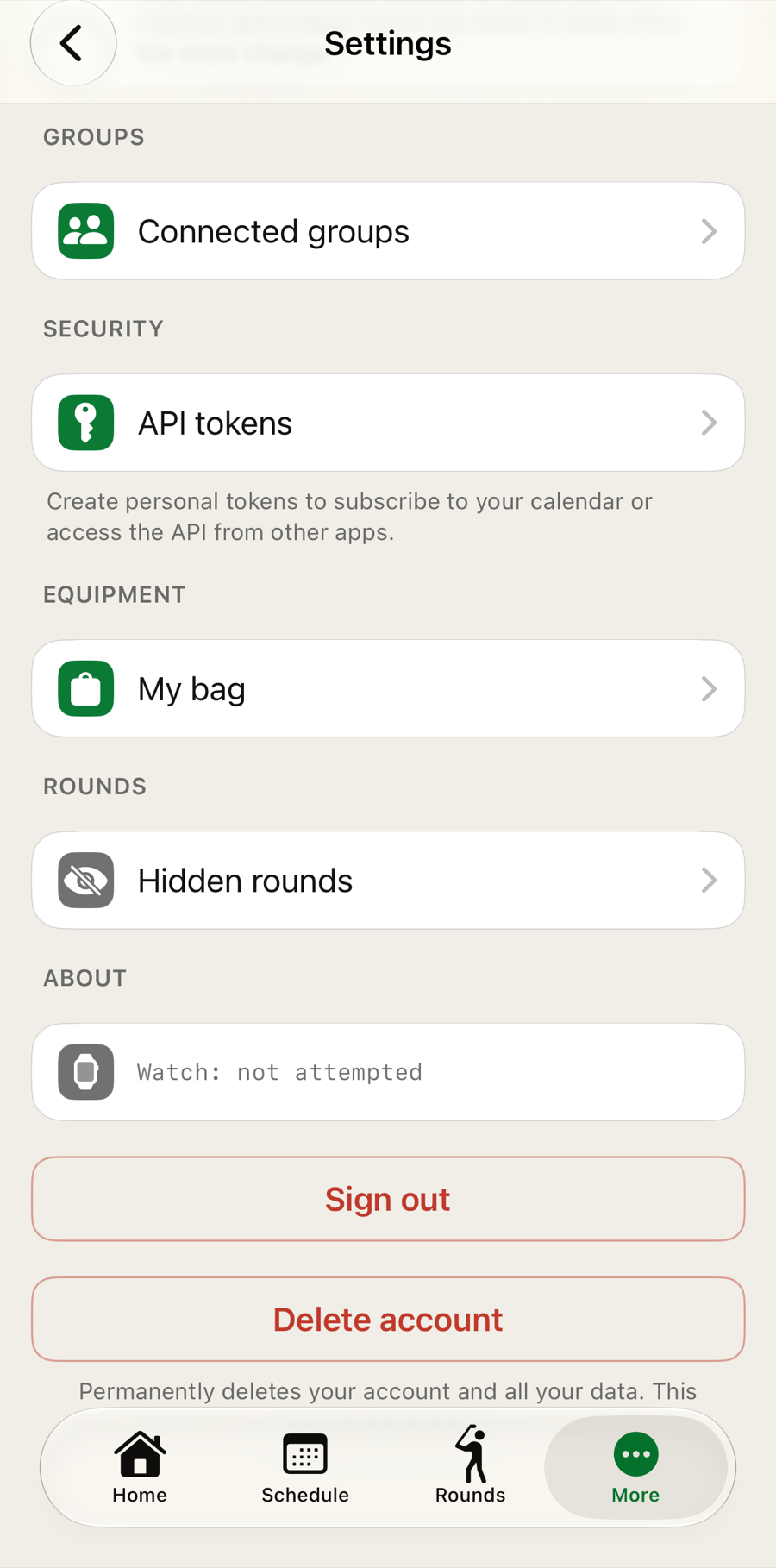
(Capture owed: the two Settings pictures in section 2 were taken before the Groups group was added; fixture data, real layout, for the pictures in this section.)
10. Links to MyGolf
A MyGolf link (https://kalenteri.nasula.fi/app/...) opens the app when you tap it in Messages, Mail, Notes, a web page of another site, a QR code or an NFC tag. It opens the thing the link names: a round, a live round you may watch, a competition (on Schedule) or a friend's page. A link never changes anything by itself: a link to a round you were added to asks Join this round? before it opens the round for scoring on this phone. If another round of yours is live, the question says the live round is paused first.
- Signed out: the link waits. The sign-in screen says Sign in to open the link, and the link opens right after you sign in (a link older than 10 minutes is dropped). If your session has expired, the link waits the same way.
- During a round: the link opens over the round and scoring carries on underneath. Close takes you back.
- Not yours, or gone: a round you may not see and a round that does not exist look the same: Not available, also for a link to watch a round live.
- A link from a newer version: This link needs a newer version of MyGolf, with an Update button.
For Shortcuts and other apps the same places also open as mygolffi:// (for example mygolffi://competitions/...); that spelling only works on a phone that has MyGolf, so share the https link instead.
11. When MyGolf must be updated
When your MyGolf is too old for the server, the app says so. It checks when it starts and each time you come back to it.
- Not in a round: Update MyGolf covers the whole app: This version of MyGolf is no longer supported. Update the app to go on. Tap Update, install the new MyGolf and open it again. Until MyGolf knows its update link, you see the same words in a banner at the top instead, without a button: update MyGolf from TestFlight yourself.
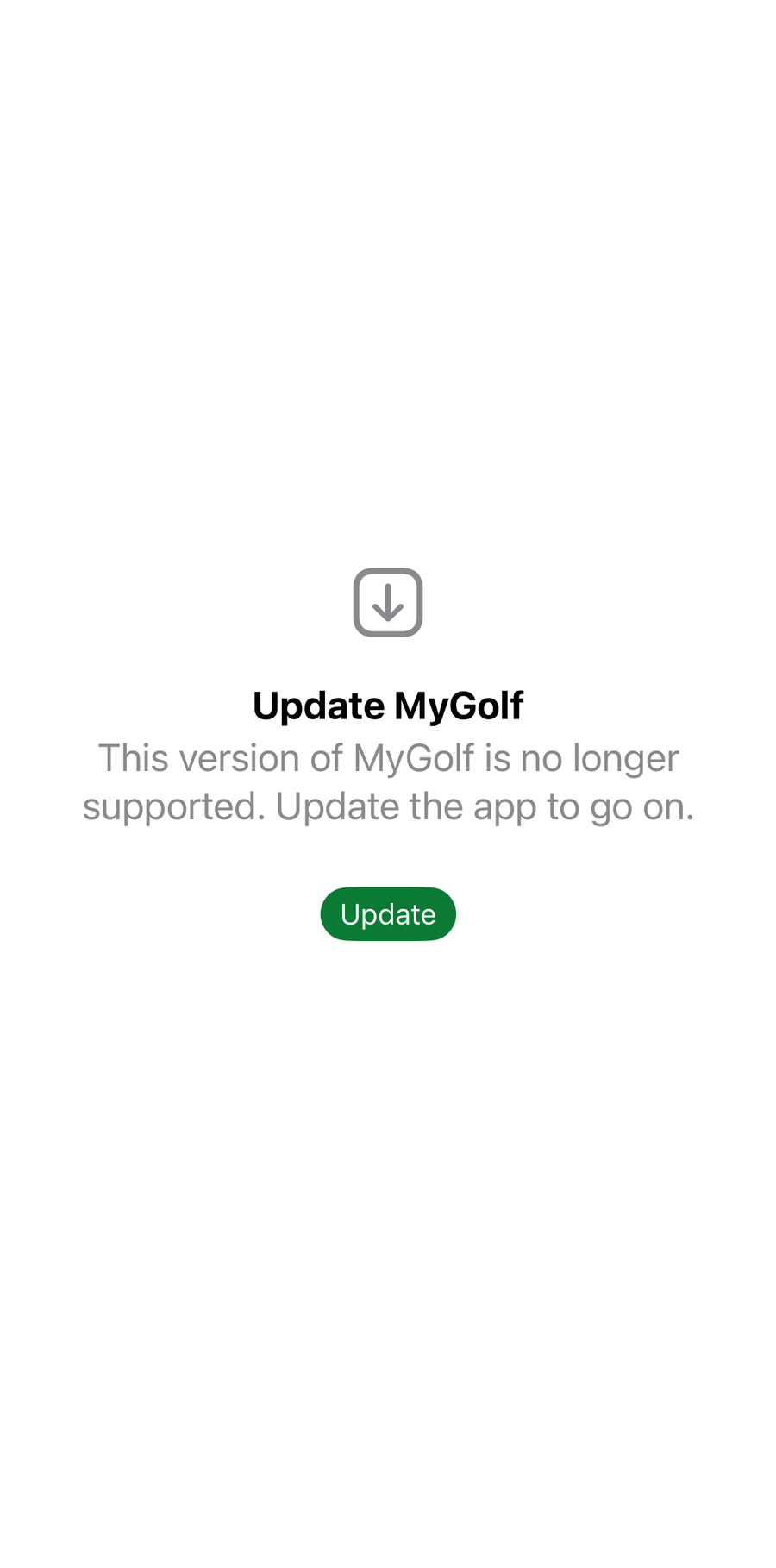
- In a round: your round is never stopped. A banner at the top says Update MyGolf after this round; scoring, shots and finishing work as usual, and your scores still sync. When the round ends, the full screen above takes over.
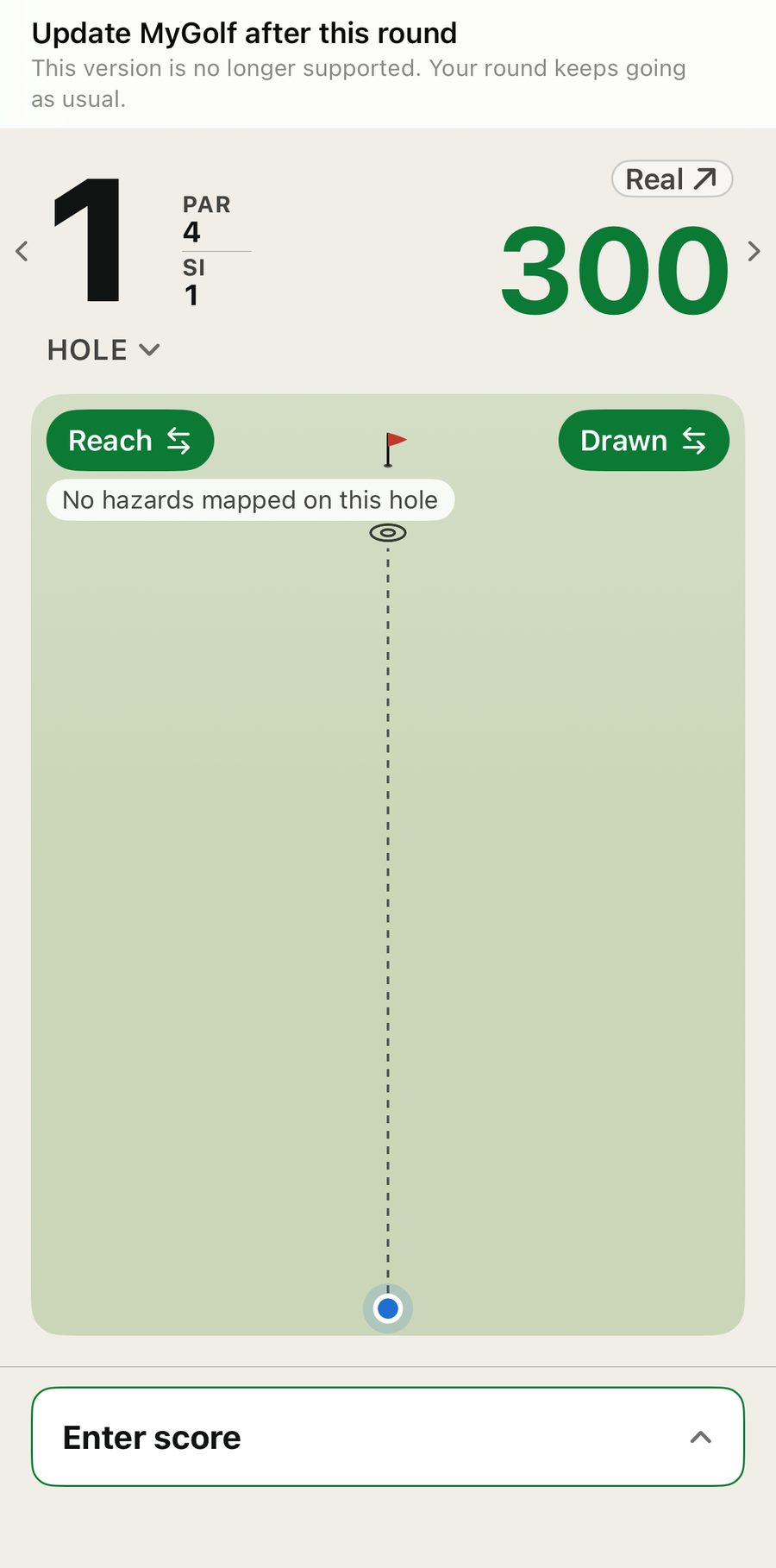
If the phone is offline, nothing is shown and the app works as before. The Android app shows the same screen and banner; its Update button opens the app's Play listing.