iPhone Friends & Spectating Guide
Follow other MyGolf golfers to see when they play, watch their rounds live, and be told about their highlights — and decide what they see of yours.
1. Following someone
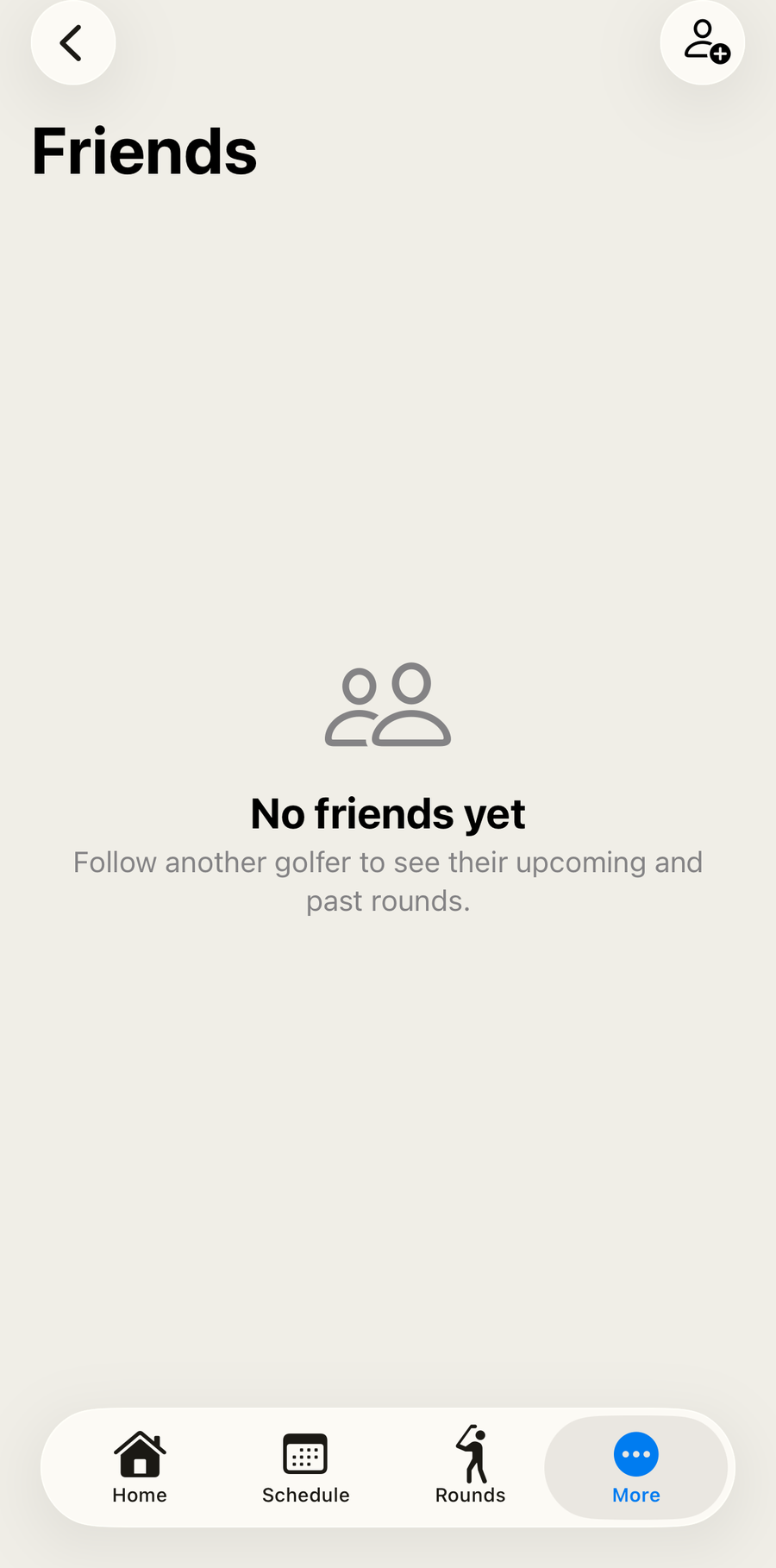
More › Friends lists everyone you follow; Follow someone (also offered on Home and on the Schedule) opens the search:
Follow someone lists the golfers who have made their calendar public (More › Calendar sharing › Public calendar) — search by name — names are all the list shows; nobody's email address is displayed anywhere in MyGolf. (No screenshot: the list is real people.) Pick a golfer and choose how much of them you want on your calendar: Full details (course, players, weather) or Times only (just when they're playing). Their tee times then appear on your Schedule under Friends playing soon, and on Home under Friends playing now while they play.
A golfer who follows you back gets a Follows you back mark on their row; swipe a row for Unfollow. A row shows the golfer's home club and handicap only while they let you see their Profile (section 2); if they turn it off, you see their name only.
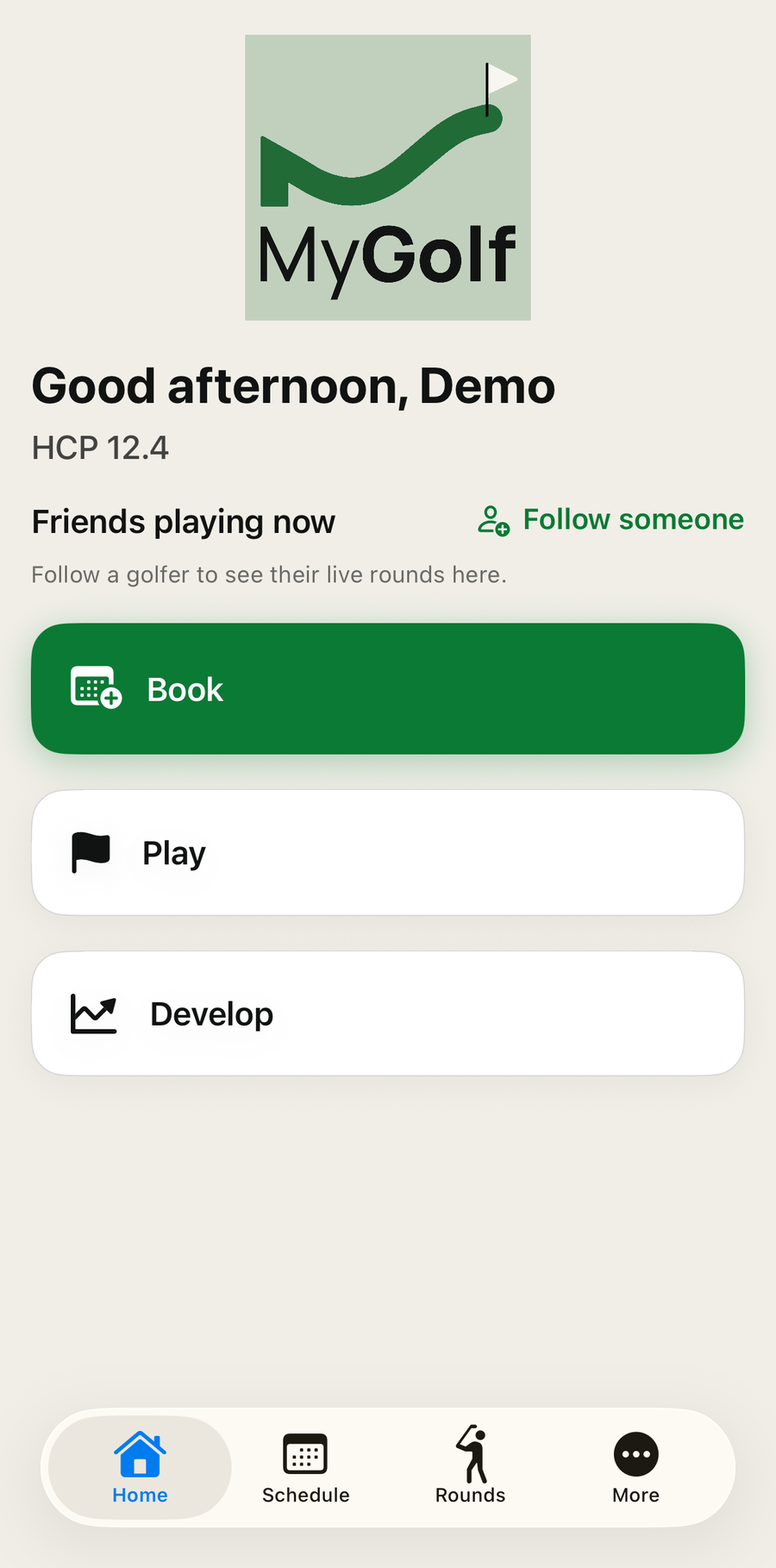 Home's Friends playing now, before anyone is followed.
Swipes on this screen
| Row | Swipe left | Swipe right |
|---|---|---|
| A golfer you follow | Unfollow | — |
2. A friend's page
Tap a friend for their Upcoming and Past rounds (pick the scope at the top), with the scorecard of a finished round when they let you see it.
Two groups of switches on the same page:
- Notify me about this friend — Live round (when they start a round), New booking (when they book a tee time), Milestones (personal bests and other highlights).
- What they can see of you — Upcoming rounds (your scheduled tee times), Live rounds (while you're playing), Past rounds (finished rounds and scores), Profile (club and handicap). These take effect once the friend follows you back.
Beta default: following someone currently switches on every notification about them. Turn off what you don't want per friend here, or for everyone under More › Notifications (see the Account & settings guide, section 6).
3. Watching a live round
When a friend who lets you watch starts a round, Home shows it under Friends playing now with the course and the hole they are on — and, if you asked for it, a push notification. Tap it to spectate:
- Scores — the leaderboard of the flight, gross or net, hole by hole; Final once the round is done, with the round's format under the title (for example Scramble · Stableford). In a team format each player's team is named; in a one-ball format such as scramble or greensome the list shows one row per team with the team's result and its members, never a personal net score; the live scorecard and the legend under the map follow the same rule, one row per team and no player's own strokes. Tap a player on Final to open their scorecard under the row: Out (holes 1–9) and In (holes 10–18), each with the hole pars and the player's scores in the same circles and squares as every other scorecard. A 9-hole round shows Out only.
- Shots — the hole map with every shot the flight has logged; tap a shot for its distance. In a multi-flight competition the Filter shots button pares the map down to the flights or teams you care about. On a round with teams or flights the colours stand for the teams (else the flights), not for each player; each dot carries the player's initials, and tapping a player in the list under the map (or one of their dots) shows only their shots brightly until you tap again. A trip or competition round's scorecard can also open this map on one flight from its Shots link (see the Schedule manual).
- Rounds where nobody logs anything in the app show No scores or shots yet.
The same page opens from a live-round notification.
Not captured yet: a friend's page and a live spectator round need a followed golfer with a round in progress. The screenshots here come from an account that follows nobody; those two screens will be added from a fixture harness or a live round.