iPhone Auto-booking Guide
Popular tee times at WiseGolf clubs open for booking at a fixed moment — the evening before, a week ahead, whatever the club's rule is — and are gone seconds later. An auto-book is a booking request MyGolf holds for you and fires at that moment: the club, the players, the day, the tee times you would take, in the order you would take them.
1. What an auto-book does — and doesn't
It does:
- Work out when the booking window opens for the slot you chose, from the club's own rules (the request card shows Booking opens and Runs at).
- Warm up shortly before: sign in to WiseGolf as you, load the day, prepare the order.
- Fire at the opening, a fraction of a second after the window opens, for your first-choice slot; if that fails, work down your alternate tee times and alternate courses, and make a few retry rounds over the next minutes.
- Book the whole group at once, with the cart if you asked for one; the tee time then appears on your Schedule like any other booking.
- Keep a timeline of every attempt — what was sent, when, how long WiseGolf took, and what it answered.
It doesn't:
- Guarantee the slot. At a hot-time release many golfers and other tools fire in the same second. If WiseGolf assigns the spots and then refuses the order at commit with the club's allowed amount rule (Finnish: Varaus ylittää sallitun määrän), the club has said no to that order; trying the same order again does not change its answer. The attempt is recorded as failed with that message.
- Book more than WiseGolf lets you book: your membership's booking rights, the group handicap-sum limit for the slot, and how many spots one booking may take at a release all apply exactly as on the club's own site.
- Change a booking after it is made. Edit the request only while it is still queued or scheduled; once it has run, manage the tee time itself.
If a hot-time release keeps failing for a full group, the practical move is to auto-book fewer spots and add the rest afterwards from the tee time.
2. Creating an auto-book
Schedule › + › New auto-book starts the wizard. Three steps, then a review.
At a GolfBox club the Date & Time step comes before Players, because GolfBox can only search for players inside a tee time you have already picked.
Club
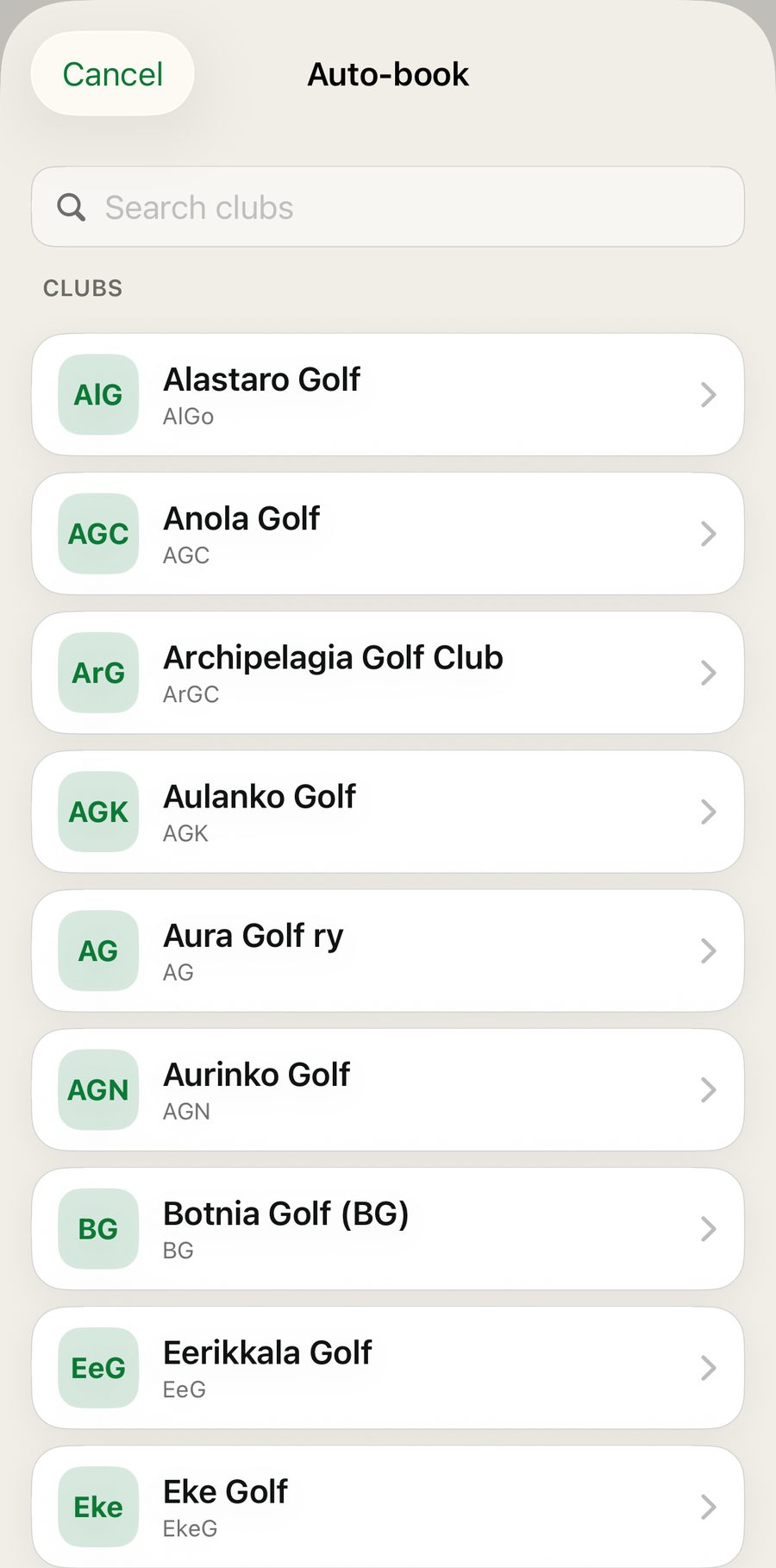 Every WiseGolf club MyGolf knows, searchable. Pick the one you are booking at.
If no clubs are available for auto-book, the step says so.
If you are a member of exactly one club, this step is skipped: that club is chosen for you and the wizard opens on the next step. With no membership or several, you pick as above.
Players
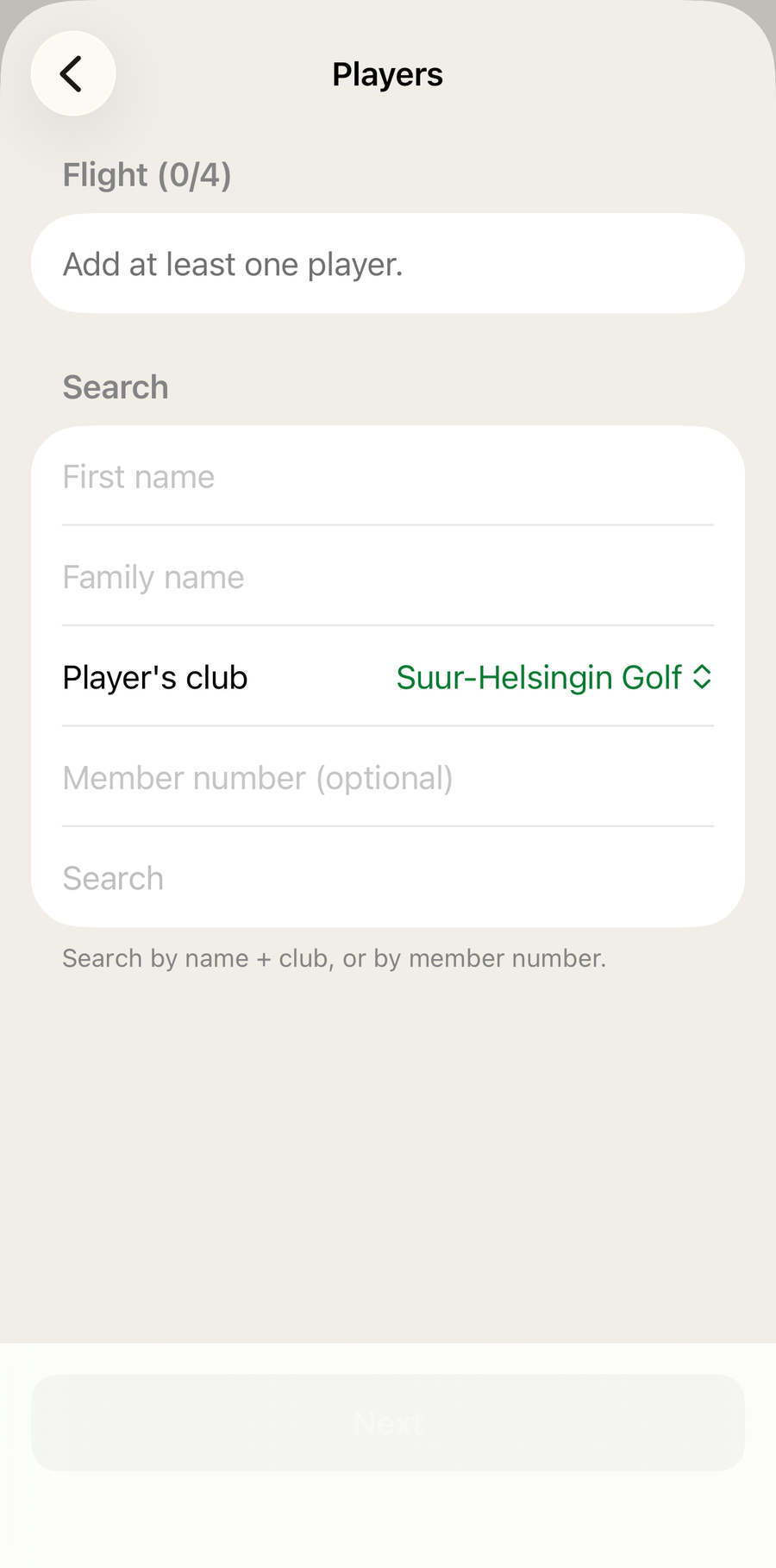
- Flight — up to four; at least one is required. Pick from Recent and Favorites once you have used the wizard, or Search: first and family name plus the Player's club, or a member number. The player's club matters — a guest is priced for their club, not the booking club.
- At a GolfBox club the search is by first or family name only (no Player's club, no member number), and the flight cannot be larger than the free spots of the tee time you picked — a line says how many are free.
- If the club refuses your login (it has expired, or no membership is linked at that club), the step says the club login could not be used and, on a second line, gives the club's reason when it sent one; you stay signed in to MyGolf.
- Your membership — shown when you belong to more than one club: which membership you book as; the price and the booking rights follow it.
Date & Time
- Date — the day you want to play; a line beneath the picker names its weekday (for example Sat 24 Oct).
- Product — the club's booking products (a round, a 9-hole loop, a member offer …); More shows the club's description.
- If the club's booking system can't be reached from MyGolf, the Product row says auto-booking isn't available for this club right now and that you can still book tee times at the club yourself; try again later.
- Course — sets the tee times on offer; Alternate courses are tried when your slots on the primary are taken.
- Tee time — tap one or more slots; they queue in the order you tap them (①②③). Slots that are already Taken or too small for your group are marked; the price per person is shown where the club publishes one.
- Cart — optional, up to two, where the club has carts to book.
Review
The summary — booking club, product, course, date, slots, players, alternates, cart — with a price card, then the submit button. If the window is already open and the slot has room, the booking is made immediately; otherwise the request is queued and appears on your Schedule as an auto-book with its opening time.
The submit button and the price wait until the app has confirmed who is booking; if that fails, a line says so with Retry (a refused club login shows its reason), and nothing is saved or priced until it succeeds.
Not captured yet: the Date & Time and Review steps load the club's product catalogue through a WiseGolf membership. The screenshots here come from an account without one; those two steps will be added from a member's account.
3. Following a request
On the Schedule the auto-book card shows the club, the day, the slots and the status: queued (waiting for its opening), scheduled (armed for a specific moment), executing, completed, failed, cancelled or expired. Tap it:
- Status, Players, and under Schedule the Booking opens and Runs at times and the number of Attempts.
- Last error — WiseGolf's message for the latest failure.
- Timeline — every step of every attempt with timestamps and WiseGolf's response times.
- Cancel auto-book removes the request. Swiping the card on the Schedule offers Edit (while it hasn't run) and Delete.
4. Auto-book history
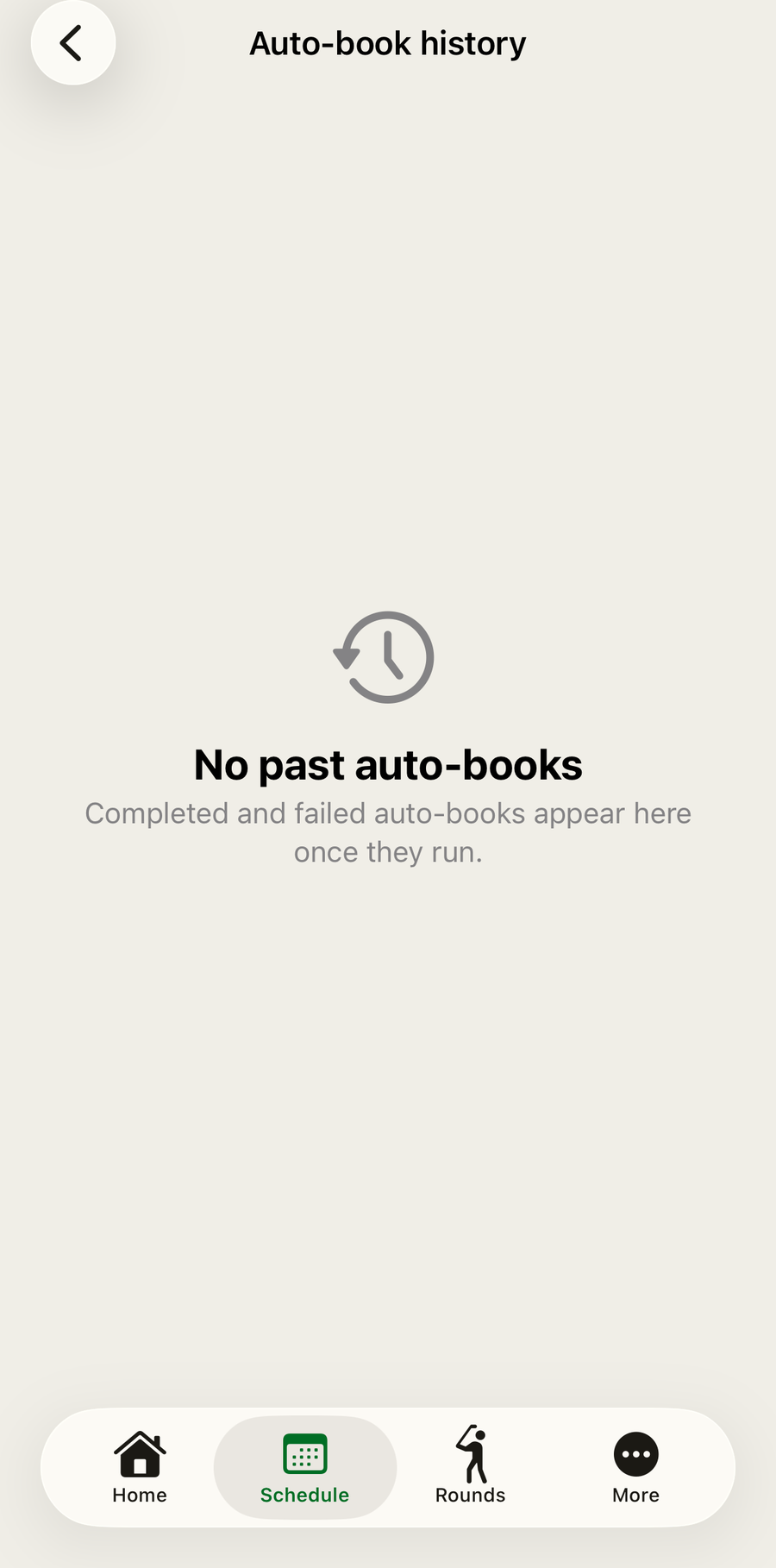
The clock button in the Schedule's top-left corner opens Auto-book history: every request that has already run, completed or failed, with its outcome.