iPhone Bag & Clubs Guide
Your bag is the list of clubs MyGolf can pick from during a round. With shot tracking, every shot you log with a club teaches MyGolf how far you hit it — and those distances are what the in-round club recommendation on the phone and on the Watch is built on. This guide covers building the bag, the distances, reviewing the odd shots that skew them, and NFC club tags.
1. Building the bag
More › Golf › My bag (or More › Settings › My bag). A Club distances row at the top of the list opens your per-club distances, the same as the ruler button in the corner:
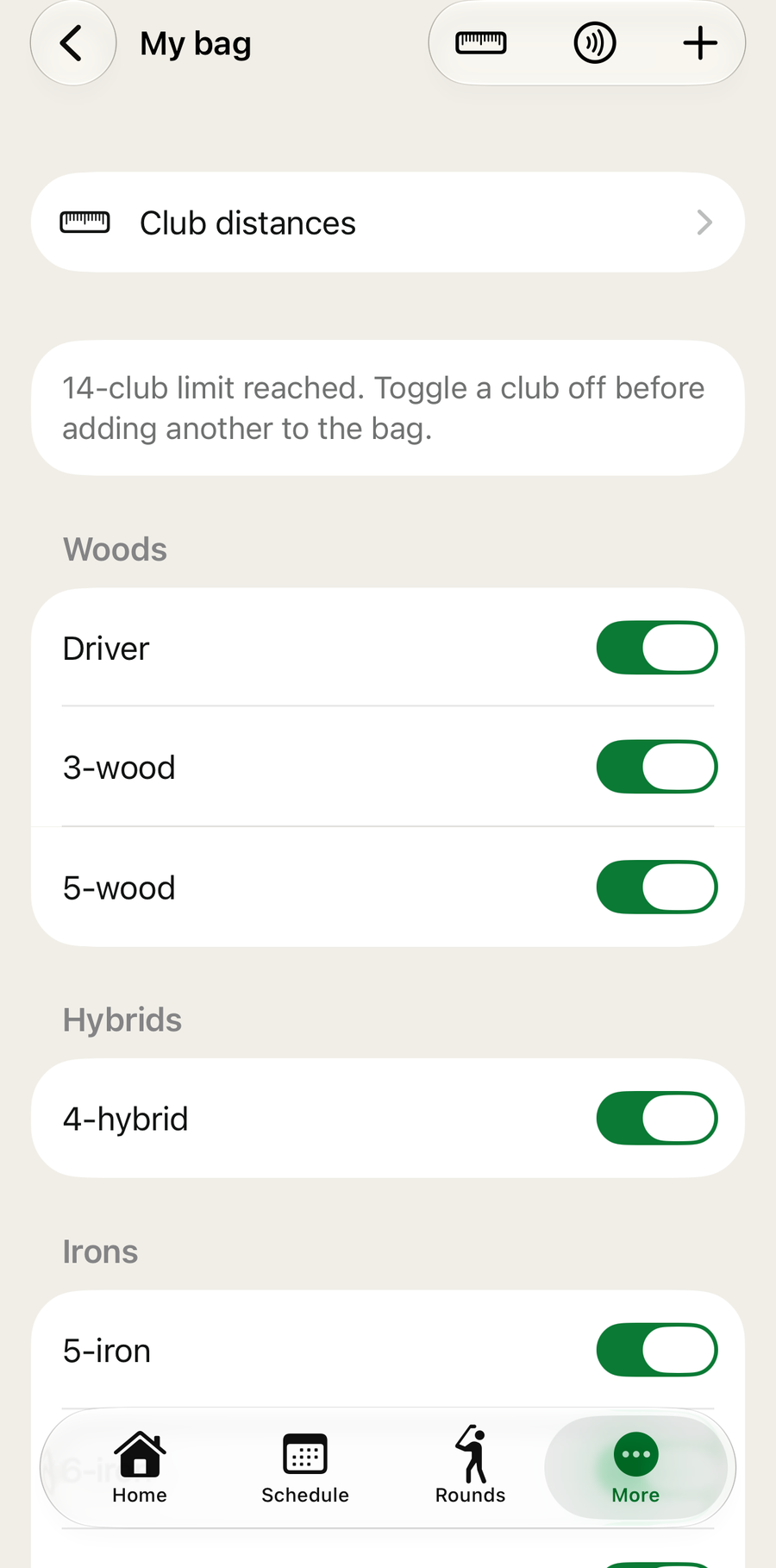 An empty bag: three buttons — Club distances, Club NFC tags, Add club.
Add club opens the club sheet:
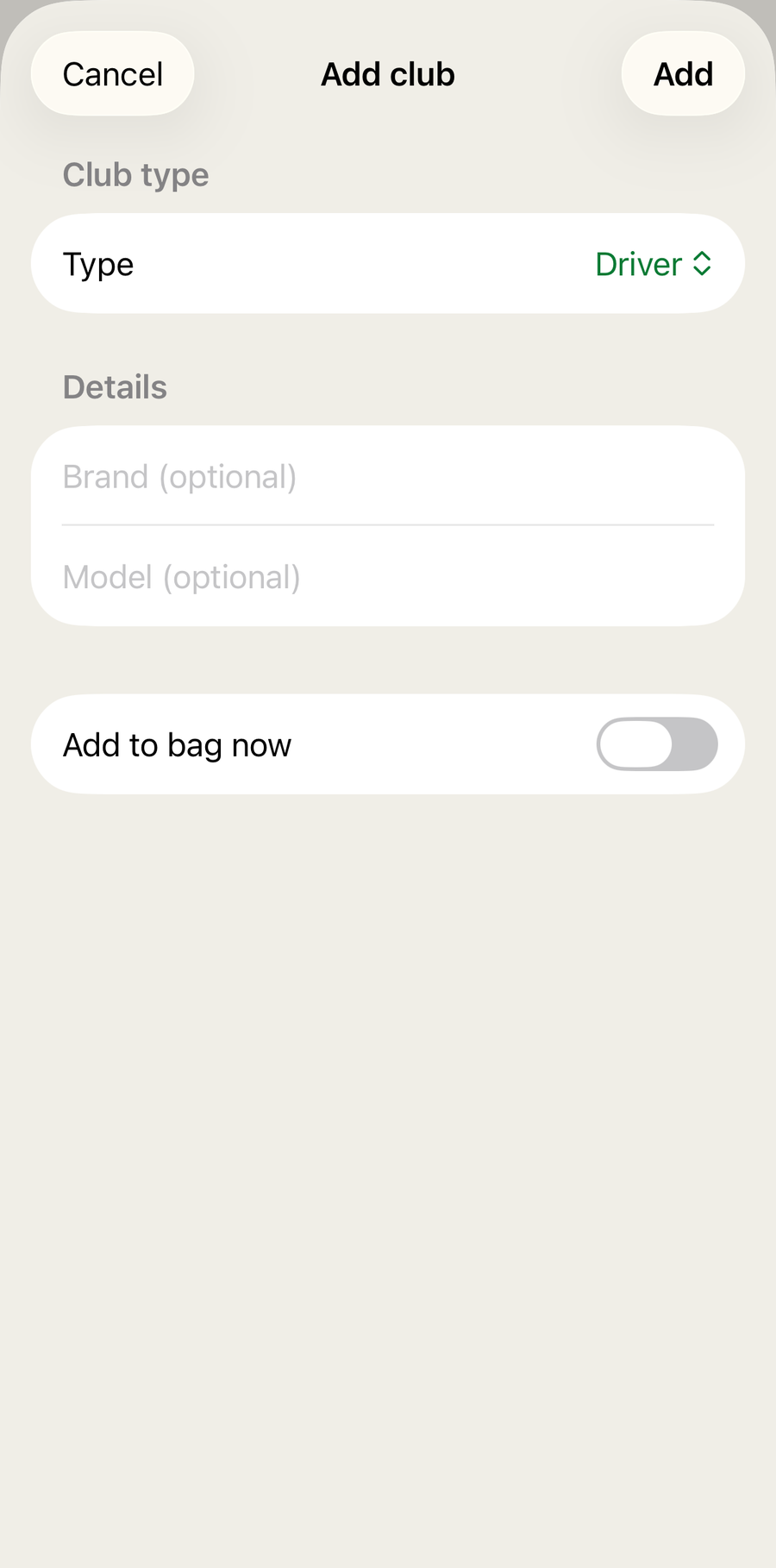
- Type — the club's kind (Driver, 3-wood, 5-iron, Pitching wedge, Putter …). This is the name MyGolf uses everywhere — on the Play screen, the Watch and the shot editor.
- Brand and Model — optional.
- Add to bag now — on to carry it from the next round; off to keep it in your inventory without carrying it.
Clubs are grouped by category, each row with an in-bag switch. A bag holds 14 clubs; the switch of a fifteenth stays off until you take one out. Swipe a row left to delete a club from the inventory; swipe right for its tag (section 4).
The round's club picker offers what you carry; with an empty bag there is nothing to recommend.
Swipes on this screen
| Row | Swipe left | Swipe right |
|---|---|---|
| A club | Delete from the inventory | Read tag / Read new tag · Remove tag |
2. Club distances
Club distances shows what MyGolf has learned:
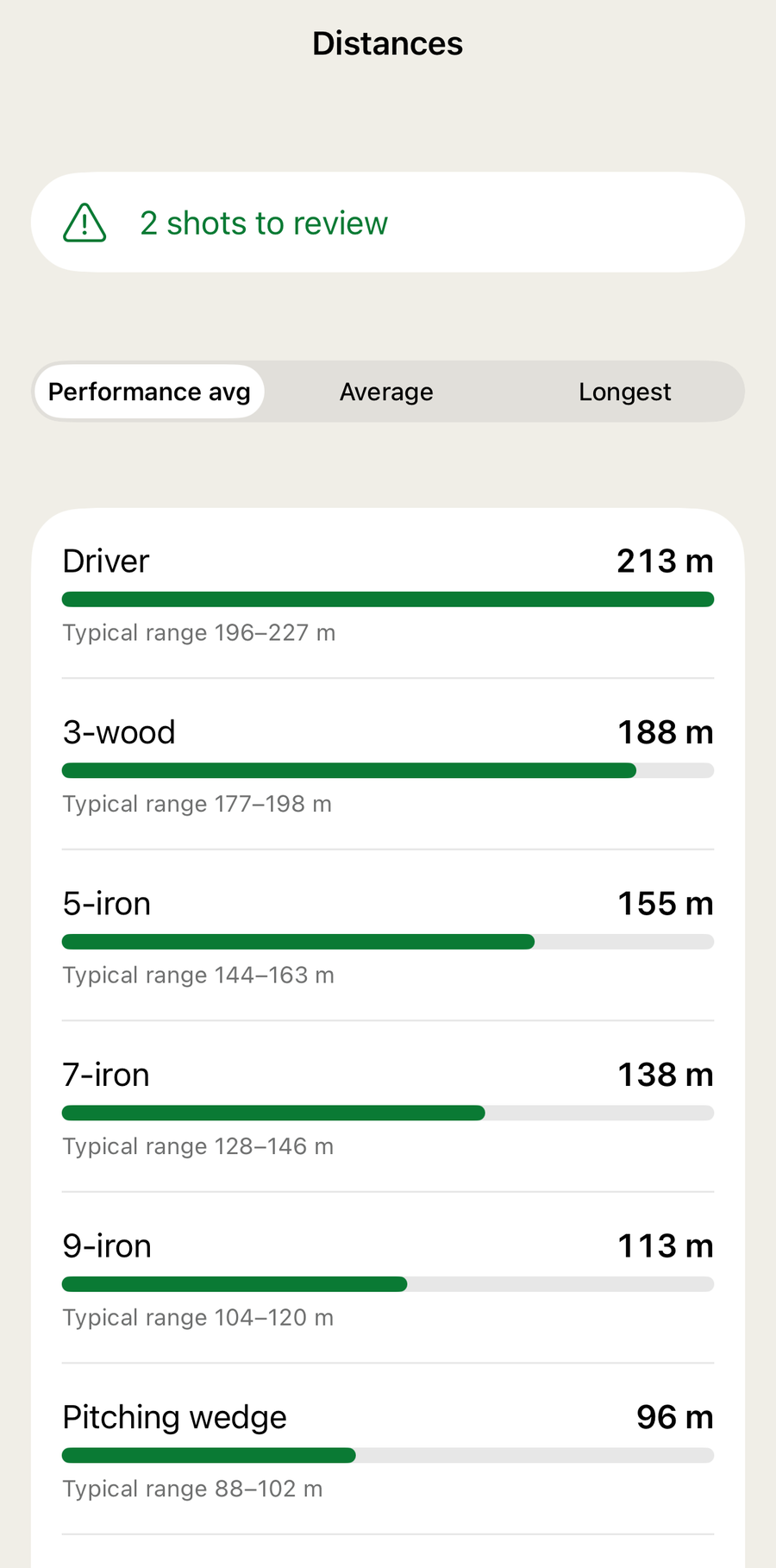 A bar per club for the chosen measure, with its typical range underneath.
- Performance avg · Average · Longest — the switch at the top picks what each club's number and bar show:
- Performance avg (the default) — the club's average with its shortest and longest tenth of shots left out, so one topped shot or one lucky bounce does not move it. A club with fewer than ten shots keeps them all.
- Average — the average of all the club's shots.
- Longest — the club's single longest shot.
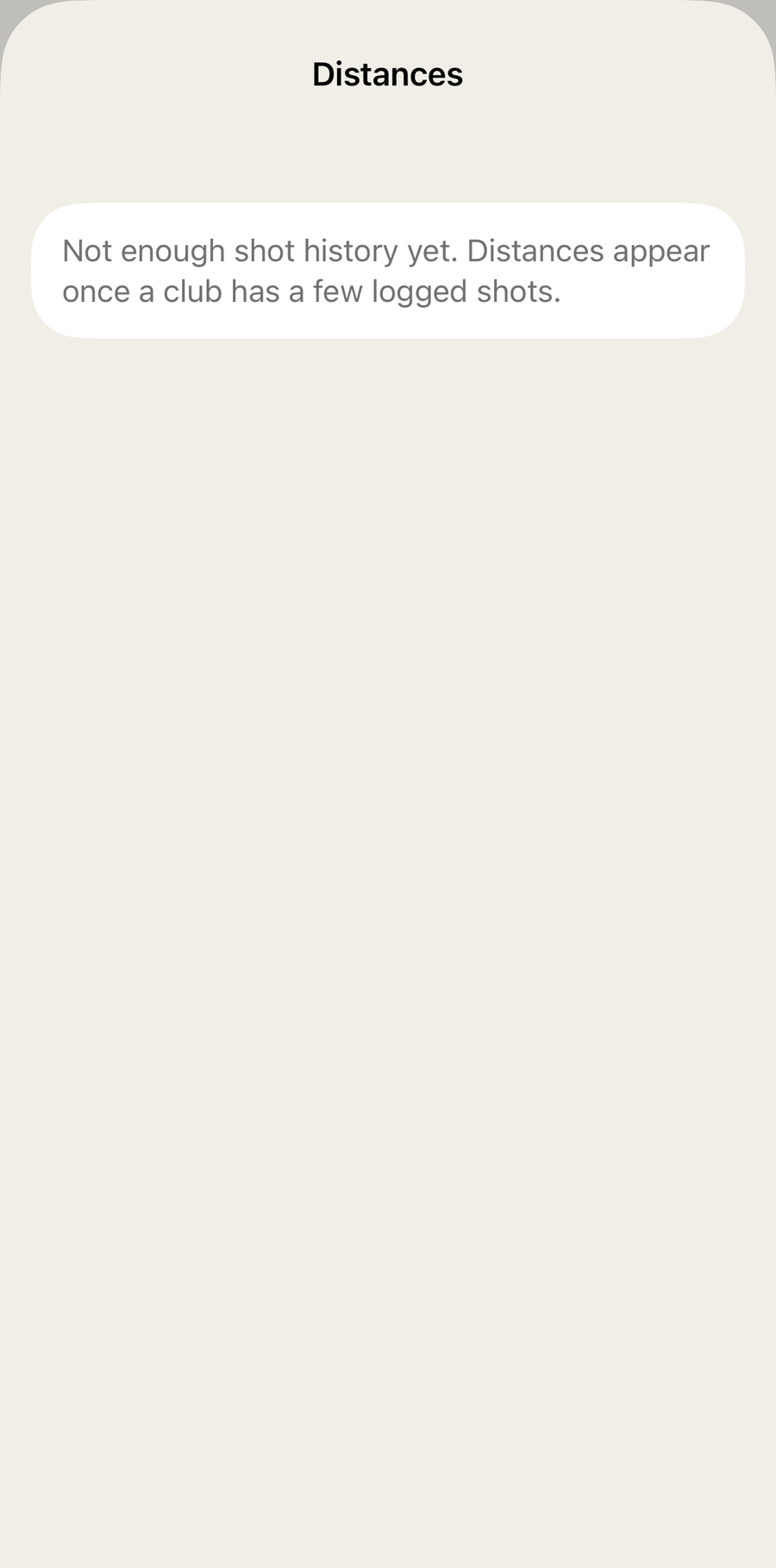
The bars share one scale: the club with the biggest number fills the row. A line under the list says what the chosen measure means. - Typical range — under each bar, the range about two in three of the club's shots fall in, in metres like everything else in the app. - Every number is how far the ball went with that club: from where you hit it to where you played your next shot on the hole, from the shots you logged in tracked rounds, each shot counted once. Putts, shots with a penalty and the shot that went in the hole are left out, because they have no landing spot of their own. A club appears once it has a few such shots; until then the sheet says so.
- During a round, the club line on the Play screen and the Watch's orange indicator recommend a club from the plays-as distance to the centre, your lie and these ranges.
3. Reviewing shots
A mis-tapped club or a wrong GPS fix can drag a range far out of shape — a "7-iron" of 210 metres. MyGolf notices statistically unusual shots and queues them. The banner at the top of Club distances — N shots to review — opens the queue:
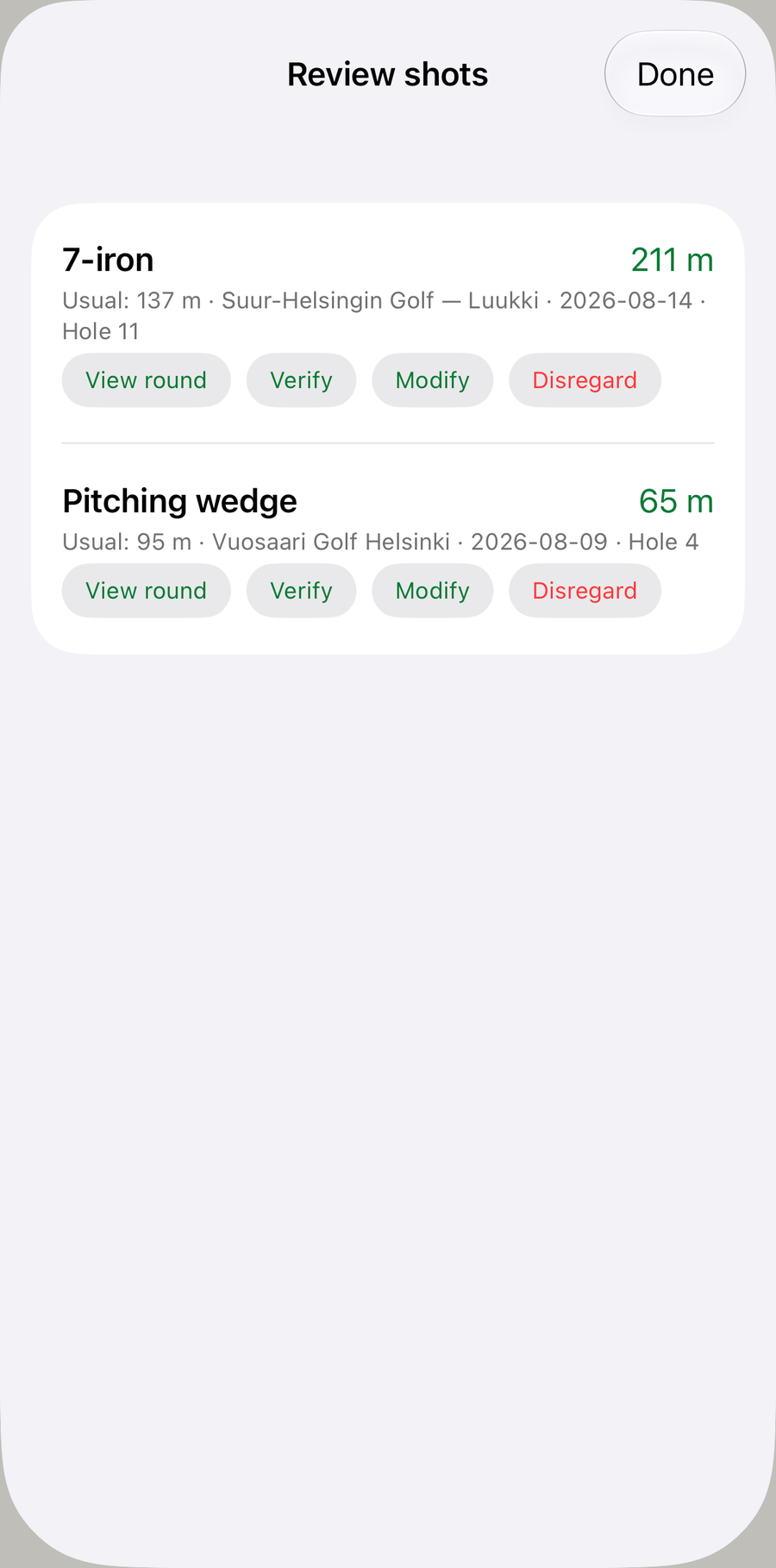
Each row names the club, the recorded distance, your usual distance and where the shot was — course, date, hole. Then:
- View round — open the round to see the shot in context.
- Verify — the shot is right (a career 7-iron); keep it in the model.
- Modify — pick the club you actually hit; the shot moves to that club's range.
- Disregard — leave the shot in the round but out of the distance model.
Done closes the queue; whatever is still in it stays for next time.
4. Club tags (NFC)
Club NFC tags lets you register an NFC tag on each club, so that during a round a tap of the club against the top of the phone records the club for the shot — the basis of Pocket reading in the Shot Tracking guide.
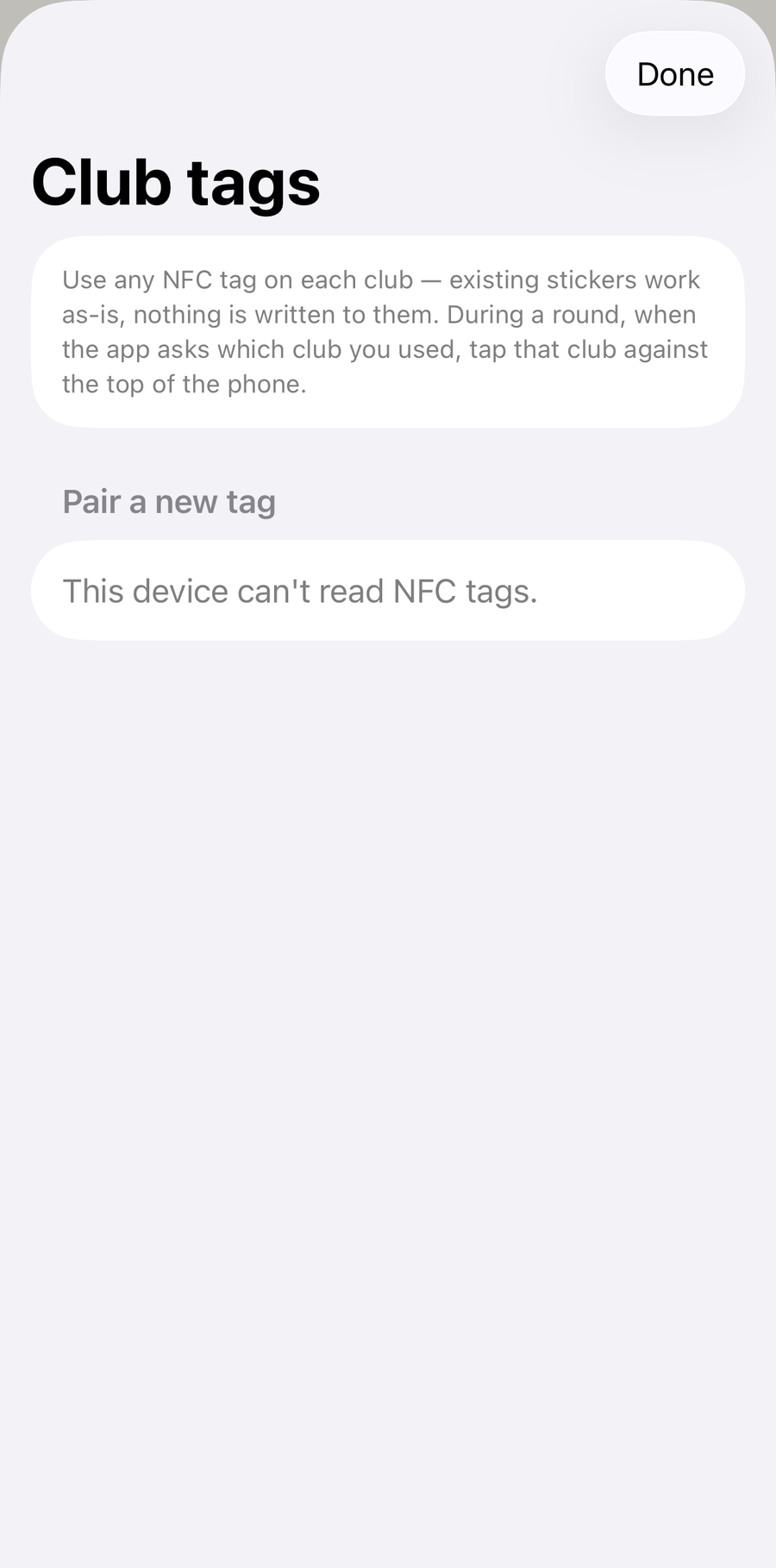 The Club tags sheet on a device without NFC — a simulator here; an iPhone lists your bag's clubs under Pair a new tag.
- Any NFC tag works — existing stickers as they are; nothing is written to them.
- Under Pair a new tag pick the club, then hold the tag to the top of the phone. In the bag list, swiping a club's row right offers the same Read tag (or Read new tag) and Remove tag.
- Reading tags needs an iPhone with NFC; the sheet says so on a device without it.
- In the sheet's list of paired tags, swipe a tag left for Unpair.
Swipes on this screen
| Row | Swipe left | Swipe right |
|---|---|---|
| A paired tag (Club tags sheet) | Unpair | — |
Once at least one club has a tag, NFC pocket reading can be turned on under More › Settings.