iPhone Round Setup Guide
Before you hit the first tee, MyGolf makes sure your round is set up: which course and tee, who is playing, how you'll keep score, and what format. If you booked through MyGolf, most of this is filled in from your reservation.
1. Starting a round
From the Home screen, tap Play.
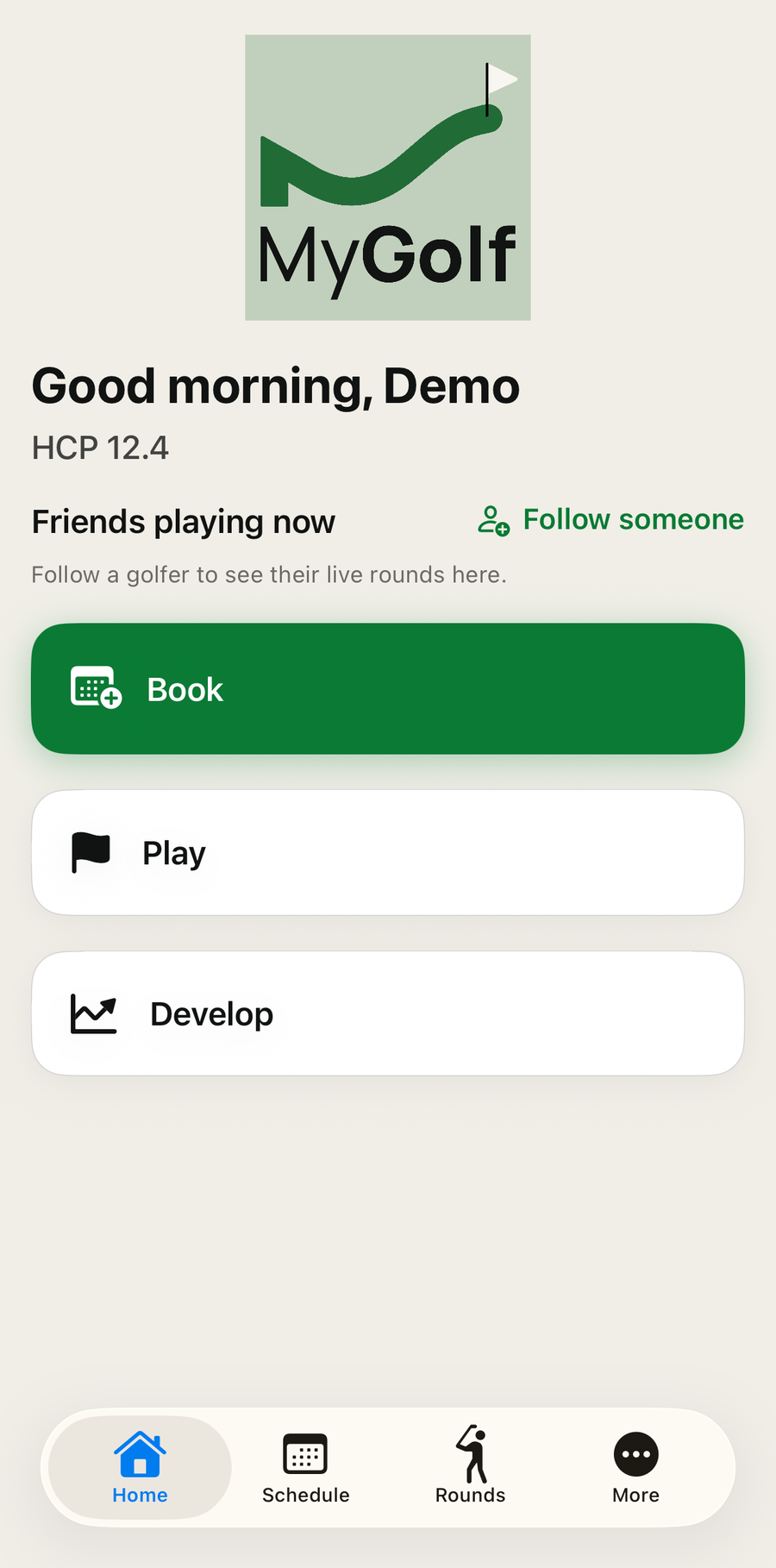 Home: Book, Play and Handicap & stats, with your friends' live rounds above.
If you run games on OurGolf: when your role as a game master or admin is active, a full-width Manage row sits directly below Handicap & stats. With one group, tap it to open that group's OurGolf game master pages inside the app, full-screen; with several, it first asks Which group do you want to manage? (tap outside it, or Cancel, to close it without opening anything). MyGolf signs you in to OurGolf for you; if that can't be done, OurGolf asks for Face ID once. The button appears only while MyGolf has just confirmed your role: if the phone can't check (offline, or a refresh fails), it stays hidden until a refresh succeeds, and it disappears at once after a refresh that finds no role. Closing the page checks again.
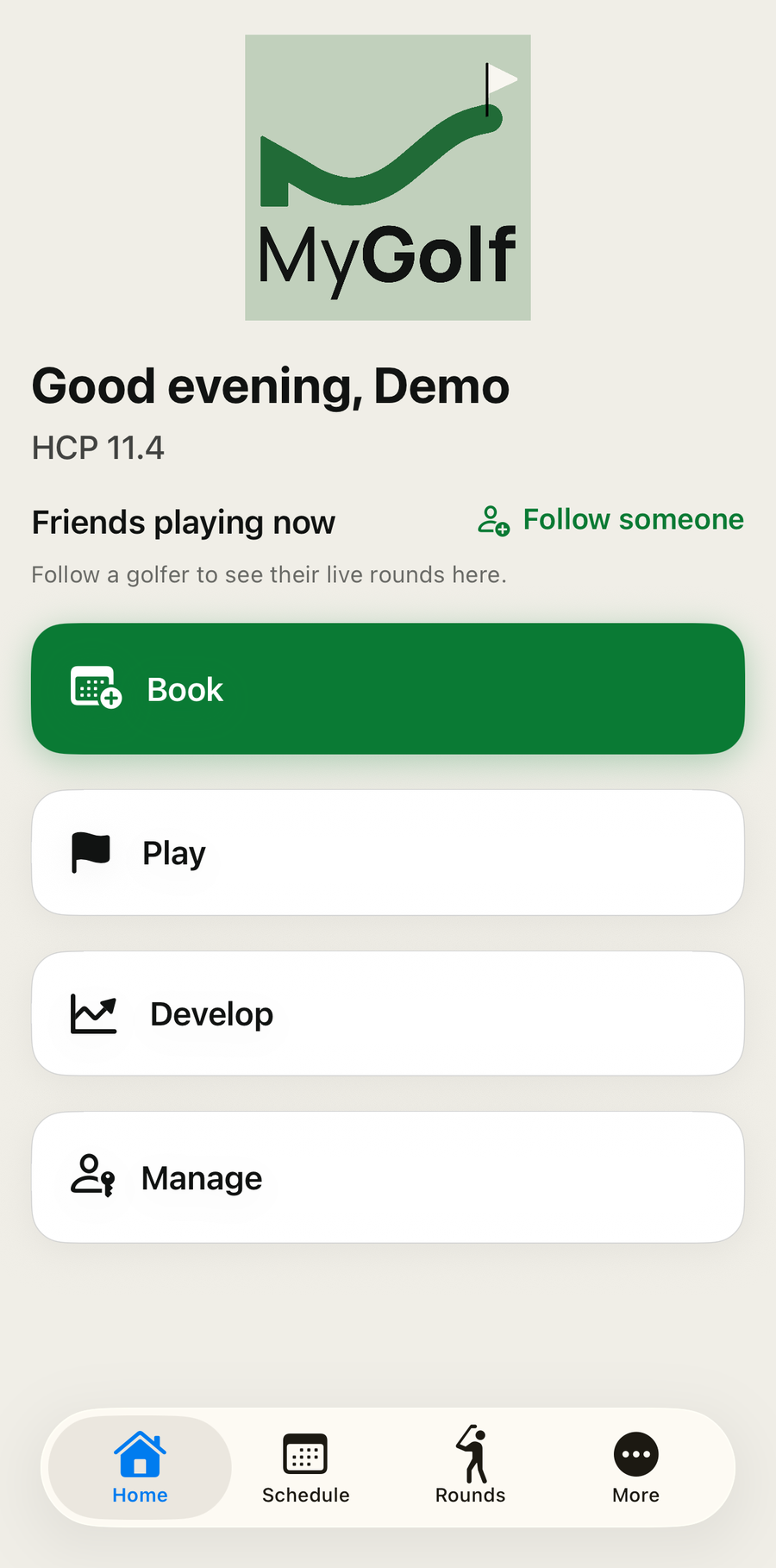 Home with one group to manage.
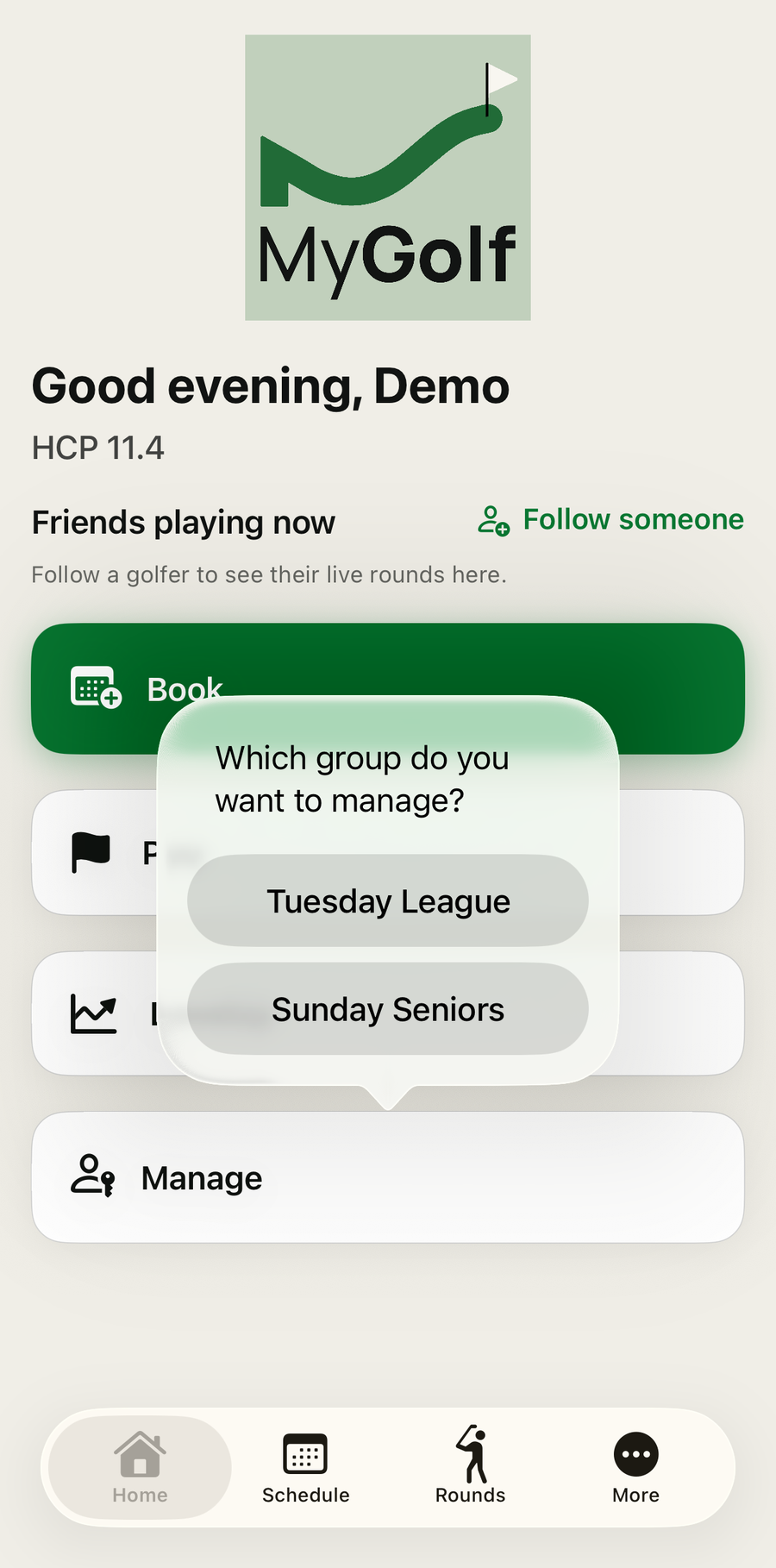 With several groups, Manage asks which one.
- With a booking: the Play a round sheet lists the tee times you can still play — including one that has already started. Home's Play card names the same booking for as long as it is playable. Once you have finished the round (a round still in progress does not count), it drops off both, even if the tee-time window has not closed. Tap one: MyGolf checks whether someone in your flight has started a game. If so, choose Join to enter their game, or choose a separate solo round. The check runs again when you tap Start round. If the phone cannot check, a failed check never stops you. With a connection that did not get an answer, Couldn't check this tee time offers Try again, Start without checking and Cancel; starting without checking is your choice, and if someone in your flight has in fact already started, MyGolf joins your round to theirs when it syncs (your format and teams are not applied to their game). With no connection at all the sheet cannot load the booking either, so it offers only Try again and Cancel; connect and try again. From Try again until the check has run again, tapping a booking does nothing, and on Round Setup Start round is disabled with the checking indicator over the screen, so a stray tap cannot start the round twice. On the Round Setup screen, where the booking is already loaded, Start without checking is also offered when you are offline. Otherwise Round Setup opens with the course, tee time and your flight in place.
- On a trip: a trip round you are playing in today or within the next 48 hours is listed first, under Trip rounds, with its club and tee time in full (the time is the club's local time, wherever your phone is); one already started is marked In progress under them. Tap it to open the trip round page (the same page as from the trip and the Schedule); Start is at the bottom. It opens a sheet that, when the trip sets flights, already shows your flight's tee time and starting hole (a shotgun start puts each flight on its own hole). Change the Starting hole if needed, and tap Start — the format, teams and handicaps come from the trip. Start opens 30 minutes before your tee time; until then the button shows when it opens (in the club's local time). A booking at about the same time reads Part of the trip round and opens the same round.
- Without a booking: with no booking, no trip round, no game to join and no competition round to play, Play goes straight to Round Setup (no empty list to tap through) and you set the round up yourself. When something else is listed (a trip round, a competition round), the sheet shows it and has Play without a booking at the bottom for the same thing; it never also says No upcoming bookings next to a trip round or competition round.
Started on the wrong hole? The starting hole is set when the round begins and cannot be changed afterwards, so the way to fix it is to begin again: open the round's finish dialog, choose Start again, then confirm Throw away and start again (Keep playing changes nothing). The round is thrown away and you are back at the list of bookings, where you can start it with the right hole. In a round you are playing with other people you leave the round — the button reads Leave and start again, and everyone else keeps playing.
When a trip round you play in has already been started by someone else, Home shows it at the top with Join — tap it, pick your starting hole and join. Once you are in it, the card goes away.
If a round is already in progress it appears under Continue a round on Home instead — tap it to jump back in. Long-press a card and choose Remove to delete the round. If other players have scores on it, Remove only takes you off the round and your scores stay with the group. If it cannot be removed, the card stays and a banner at the top of Home says why: you are not in the round; the round is no longer open (for example it was finished, so it stays in Rounds); or the phone cannot reach the server (tap Retry). To end a shared round for everyone, open it and use Delete there (it works the same way: it removes only you if others have scores). A round you have finished drops off that list, including one you closed on another device or on the Watch: the phone checks each unfinished round against the server and stops offering the ones that are done. If the phone cannot reach the server it keeps showing them all, so nothing disappears just because you are out of coverage.
2. Course & tees
Course
Round Setup first tries to detect the course from your location. If it can't (or you want another course), tap Choose a course: search for the club (for example "SHG"), pick it, then pick the course.
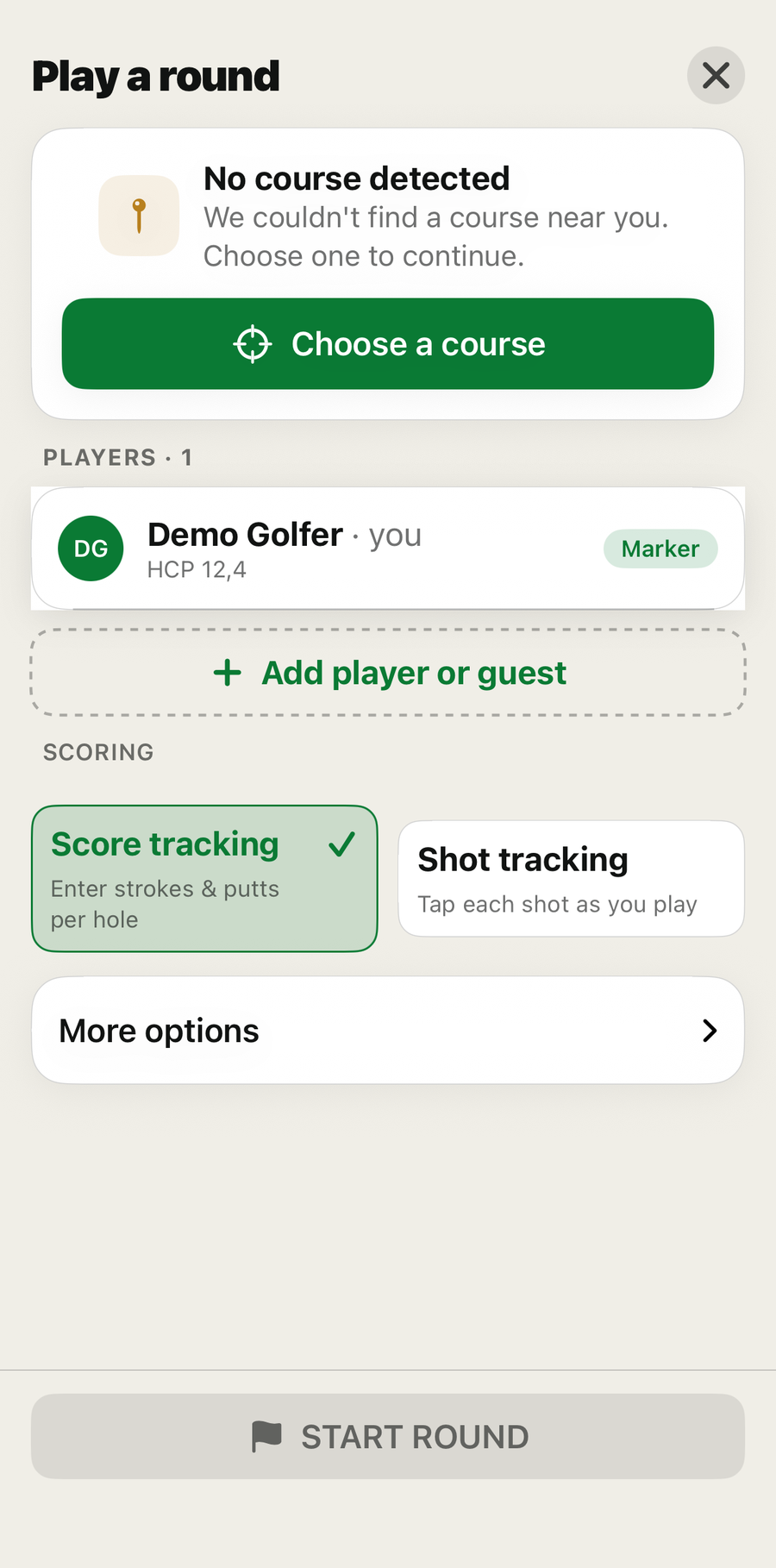 Before a course is chosen. Tap Choose a course.
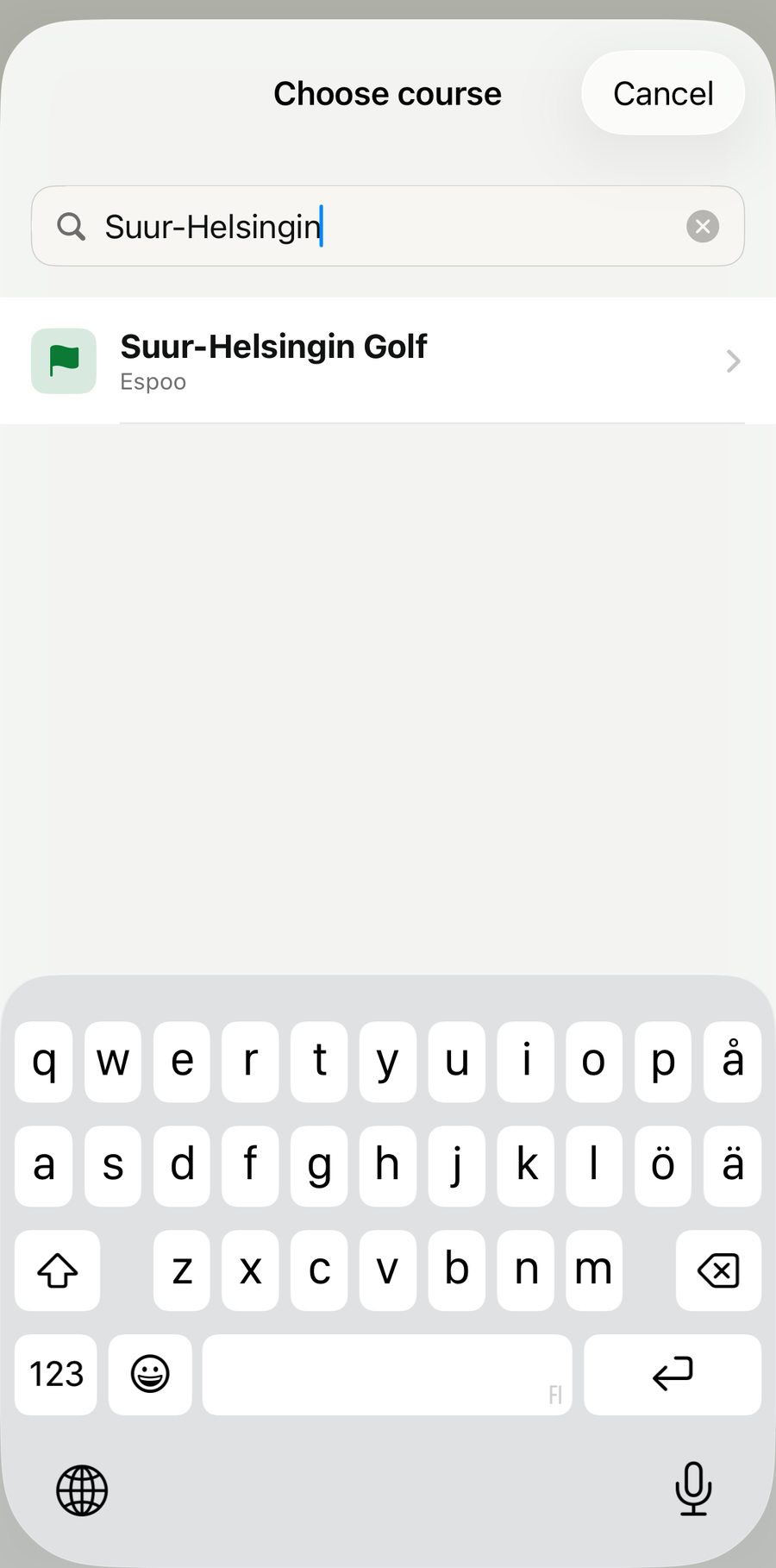 Search by club, then choose the course.
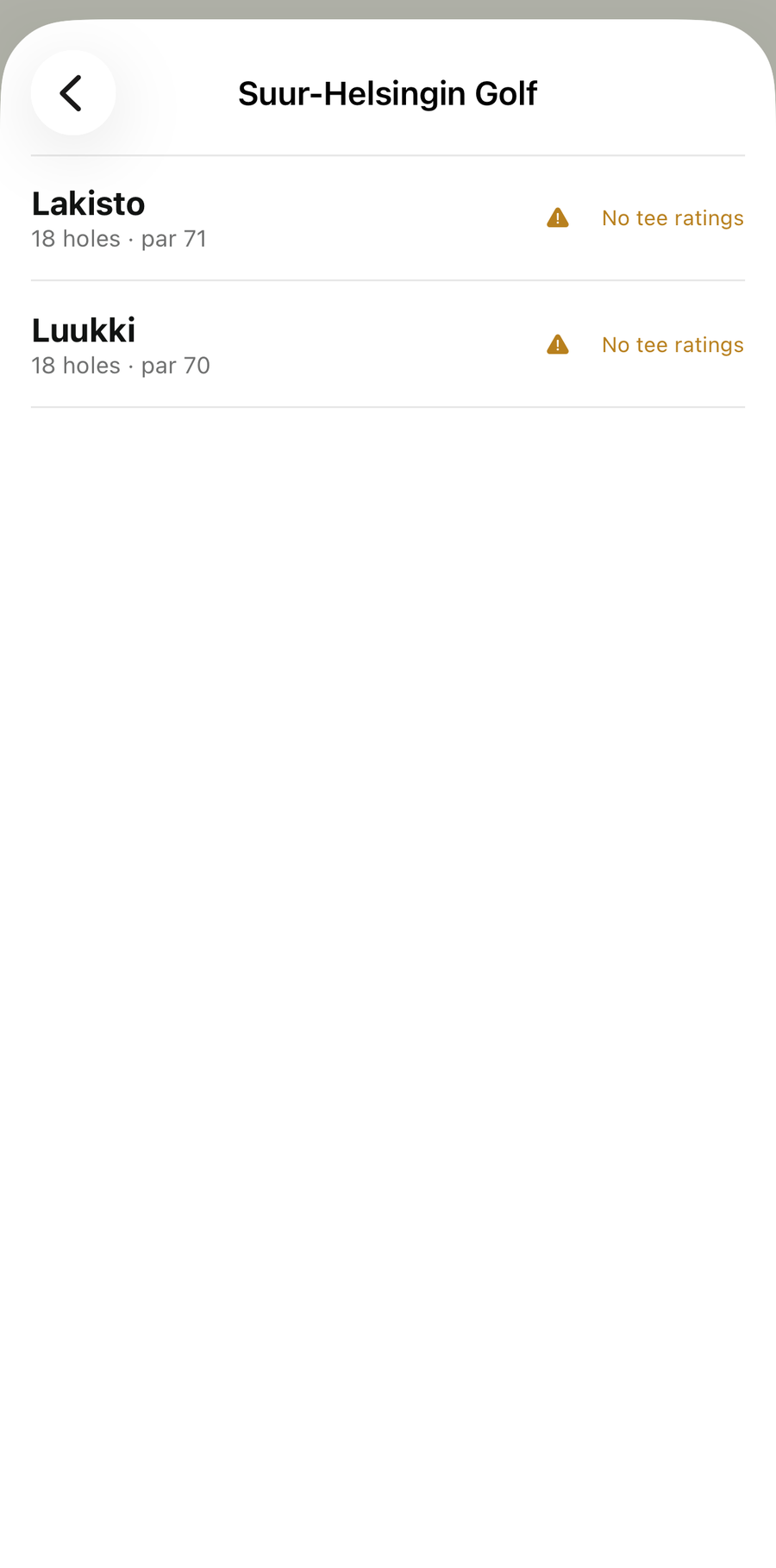
Once a course is set, its card shows the club and hole count; tap Change to pick another.
Which loop? At a club with more than one loop (a 27-hole club, or an 18 plus a 9), a booking often names only the club, not the loop. Round Setup then asks first — Your booking didn't name a specific loop. Pick the one you're playing — listing the club's loops with the 18-hole combinations above the 9-hole ones. Swiping the sheet away leaves the course to be chosen by hand, as for a round without a booking.
Tees
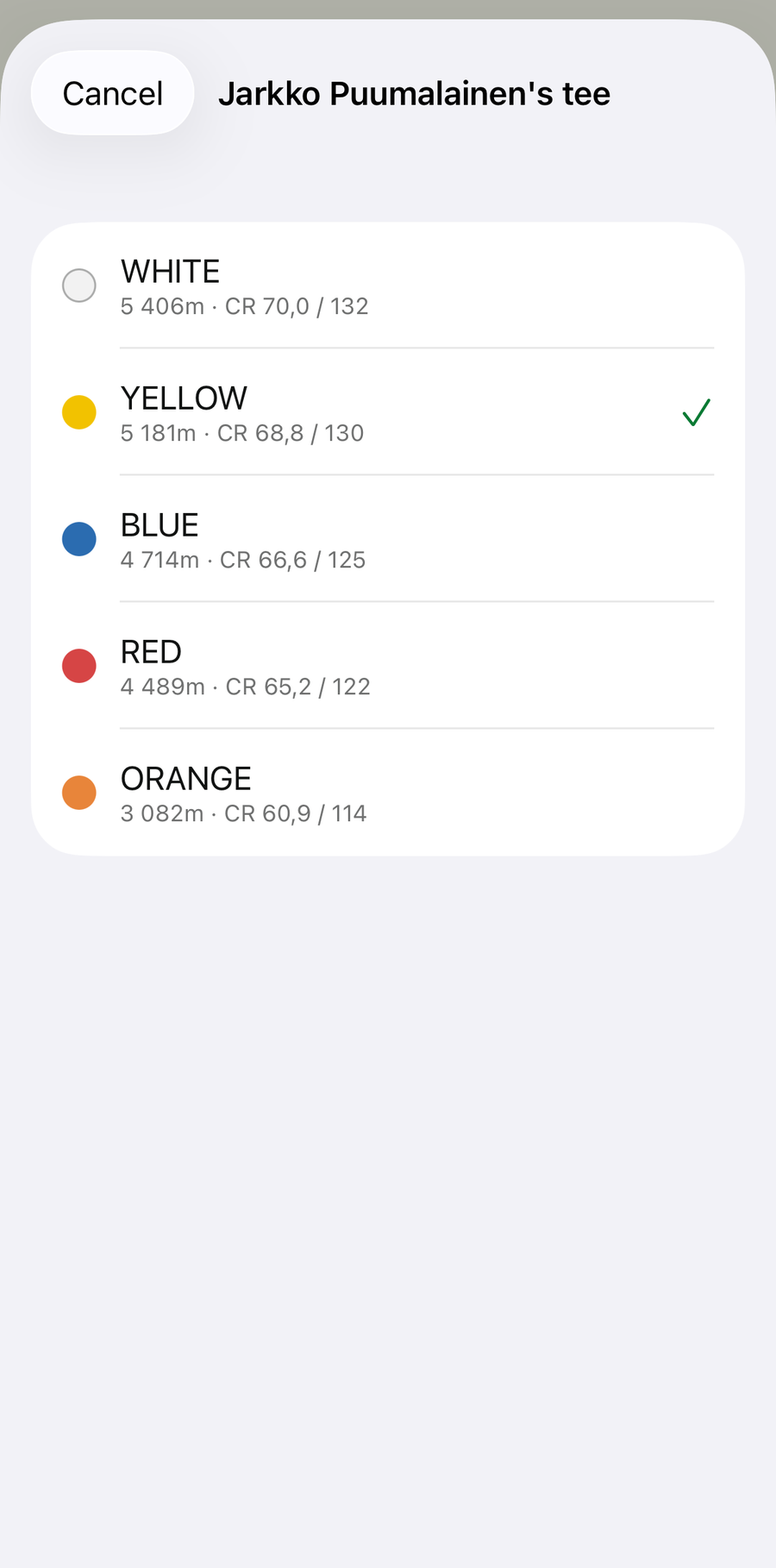
The course card shows the course name with the club, hole count and par beneath it; a long club name wraps so the hole count stays readable next to Change. The 18 holes / Front 9 / Back 9 choice sits right under the course card (a nine-hole course offers just 9 holes). The tee chips below it are the course's rated tees, each with its total distance. Tap one to put the whole group on that tee; with more than one player a line under the chips says so, and a player on a different tee has the outline of their tee pill in the accent colour. At the larger accessibility text sizes the chips wrap onto several rows, each player's tee pill sits under their name, and the two scoring-mode tiles stack — nothing is cut off.
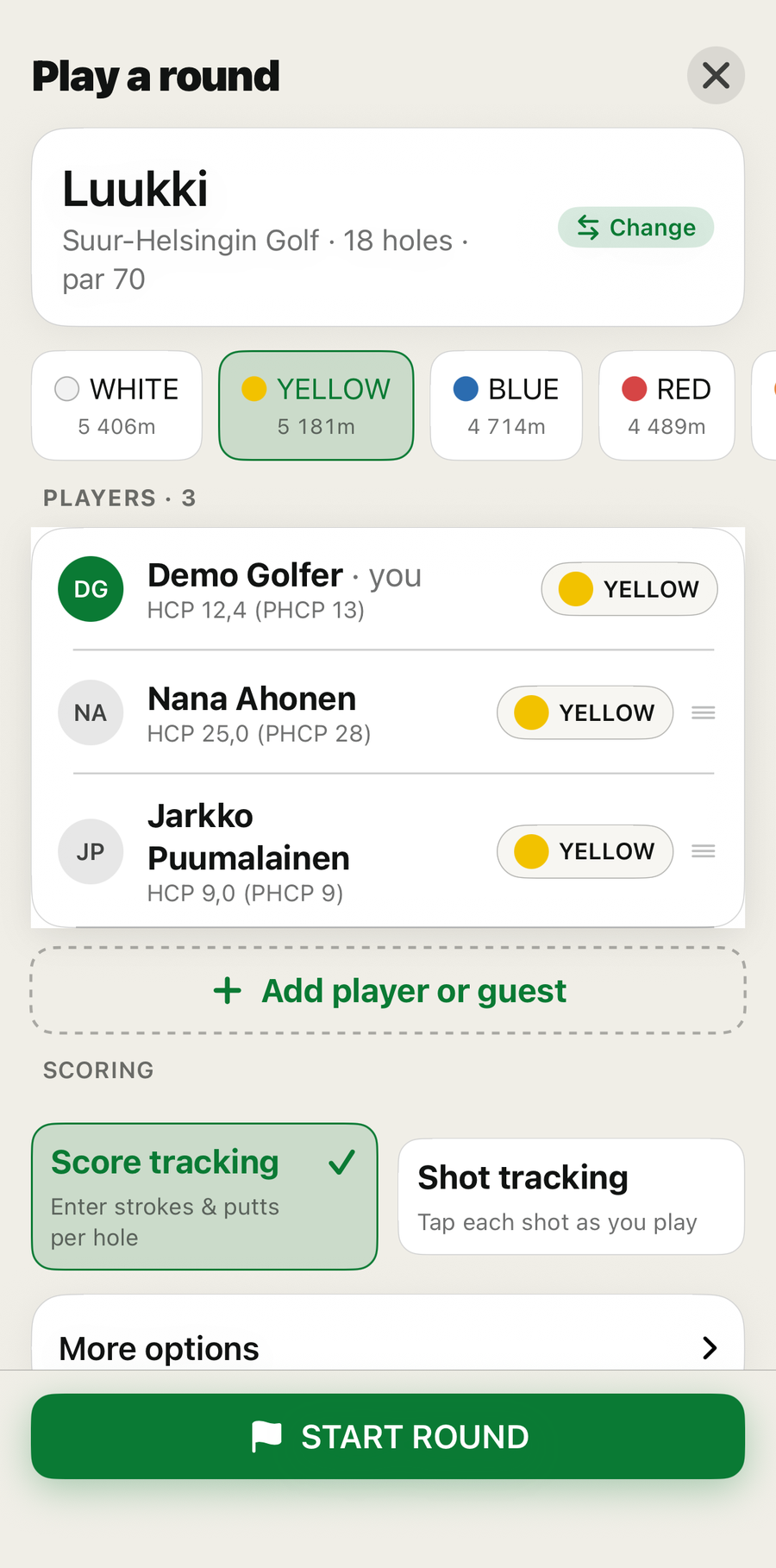 Course, tees, players and scoring mode set — ready to start.
3. Players
The Players section lists everyone in the flight. Your own row is marked you and Marker (you keep the card). A long name wraps onto a second line rather than being cut short, so two players whose names start the same way always read differently. When you select a booked player with a MyGolf account, they have one account-linked place on the card and can open the game on their own phone. Starting the round sends them the game immediately. A guest place is for someone without an account.
Adding players
Tap Add player or guest: - Search by name (or member number) to add another MyGolf user or a club member. - Add a guest: type a name and, optionally, a handicap (a plus handicap is typed with a +, for example +1.2; a comma or a dot both work; anything outside +10.0 to 54.0 turns the field red and Add stays unavailable), then tap Add for someone without an account. The guest's club defaults to the course's club — tap it to change.
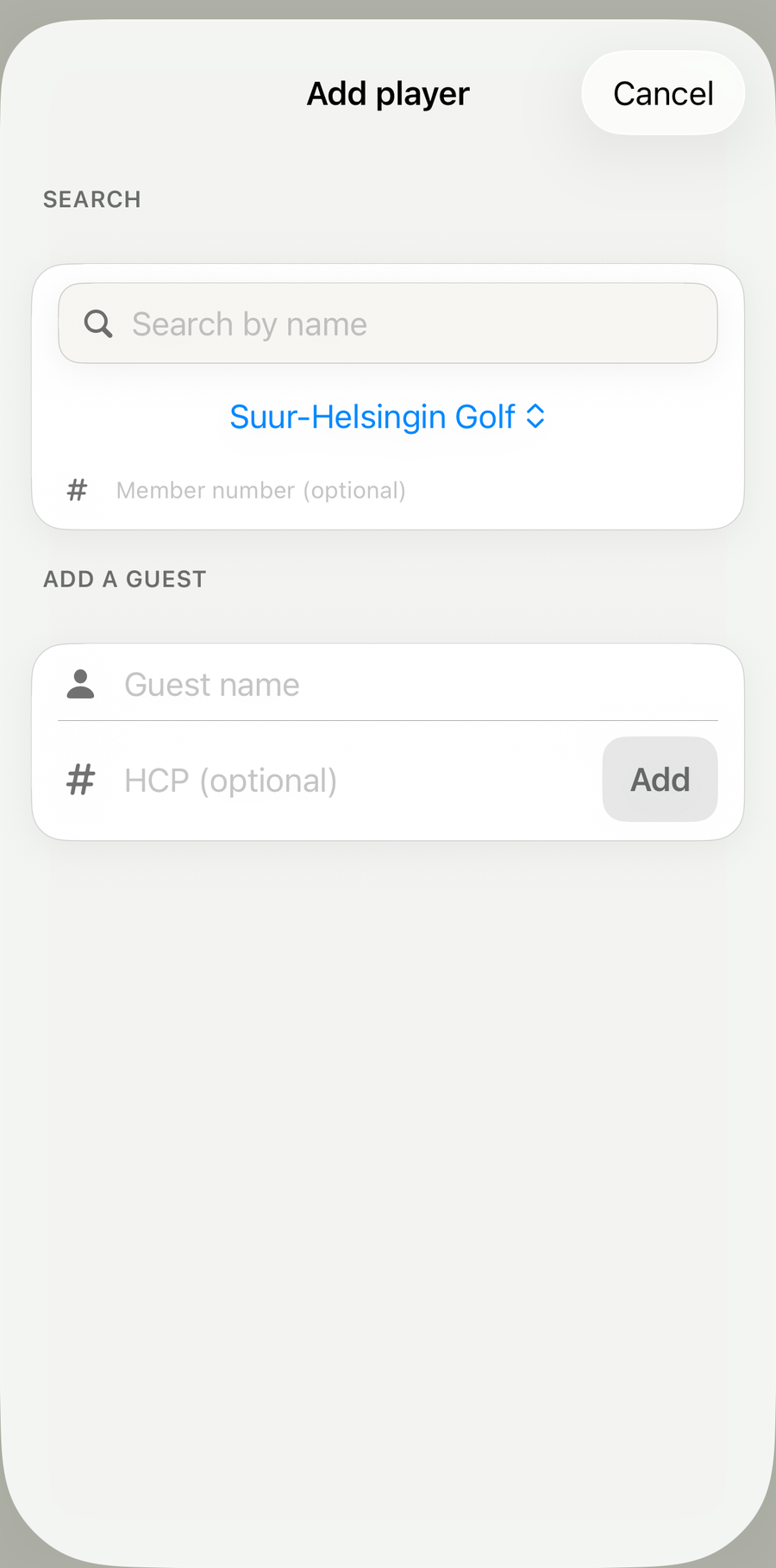
Managing the roster
- Reorder: hold the ≡ handle and drag.
- Remove: swipe a row left. The same swipe offers Skip — the player stays in the round and on the card, but this phone stops asking you for their score each hole (for someone tracking their own shots on their own device, or who has picked up). Unskip on the same swipe brings the prompt back.
- Individual tee: each player's row has their own tee chip. Tap it to play someone from a different tee than the group. Tapping a tee chip at the top afterwards puts everyone back on that tee.
Swipes on this screen
| Row | Swipe left | Swipe right |
|---|---|---|
| A player | Delete · Skip / Unskip | — |
| You | Skip / Unskip only | — |
4. Scoring mode
Choose how you'll keep score during the round: - Score tracking — enter strokes and putts (and optional stats) per hole. See the Score Tracking guide. - Shot tracking — tap a button before every shot to record GPS distances and lies. See the Shot Tracking guide. (With an Apple Watch, shots can be tracked from the wrist.)
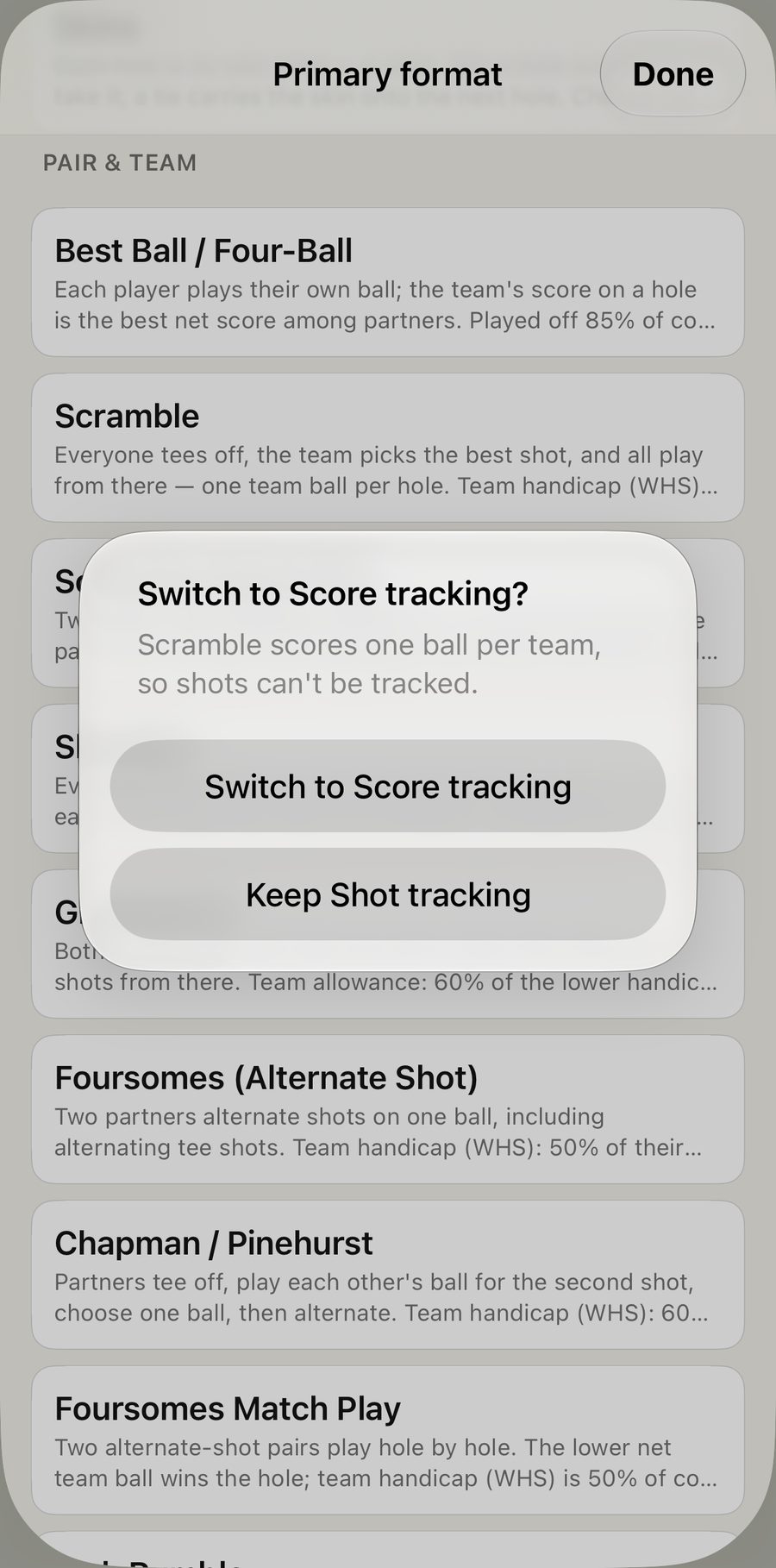
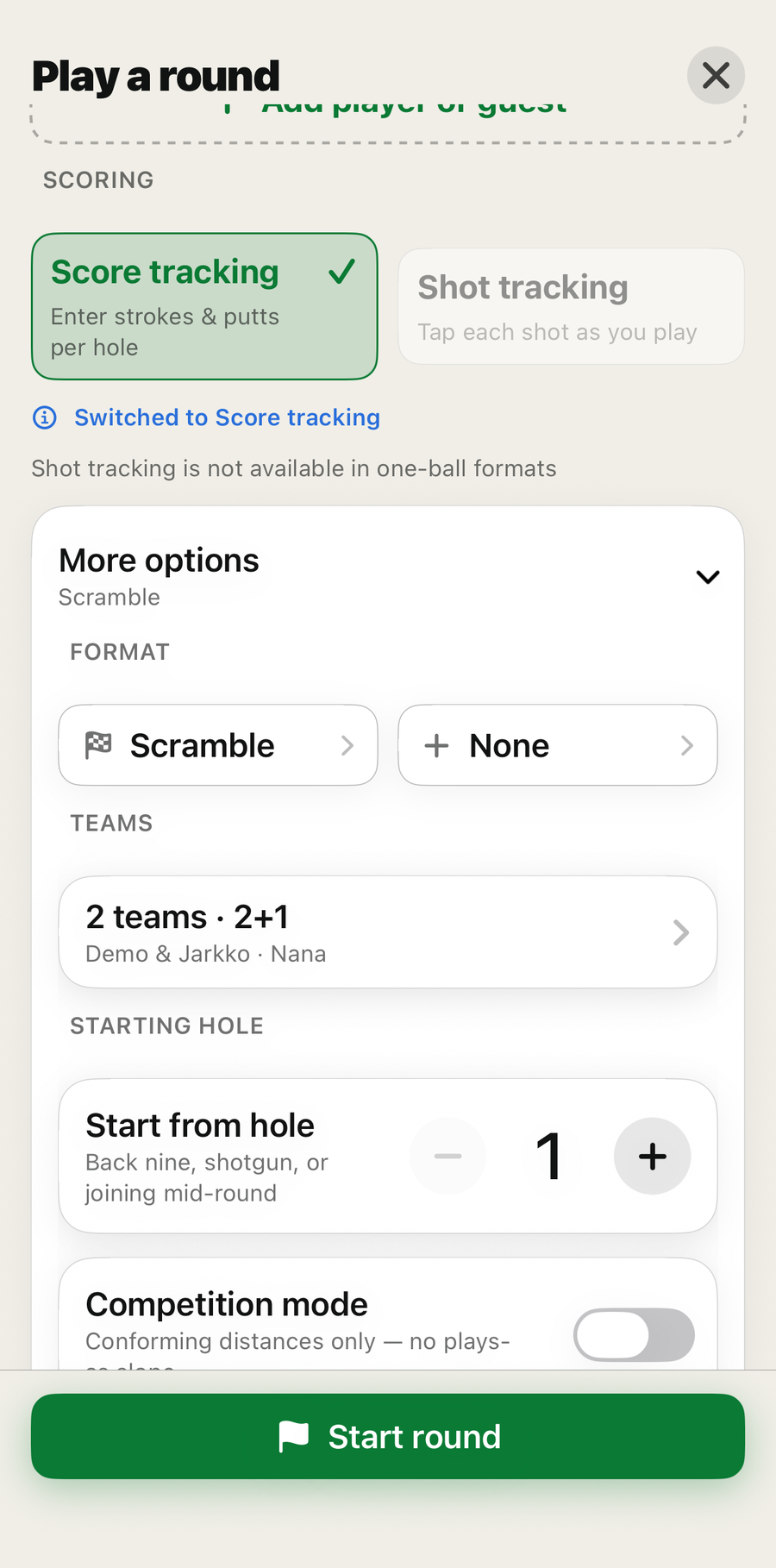
A one-ball format (Scramble, Scramble Match Play, Greensome, Chapman, Alternate Shot (Foursomes)) scores one ball per team, so shots can't be tracked: while one is chosen the Shot tracking card is off and reads Shot tracking is not available in one-ball formats. If you pick such a format while Shot tracking is chosen, MyGolf asks Switch to Score tracking? first: - Switch to Score tracking — the format is set and the round becomes Score tracking. The players Shot tracking skipped are back on the card (a player you skipped yourself stays skipped), and Switched to Score tracking shows under the cards. - Keep Shot tracking — nothing changes: the format stays as it was before.
5. More options
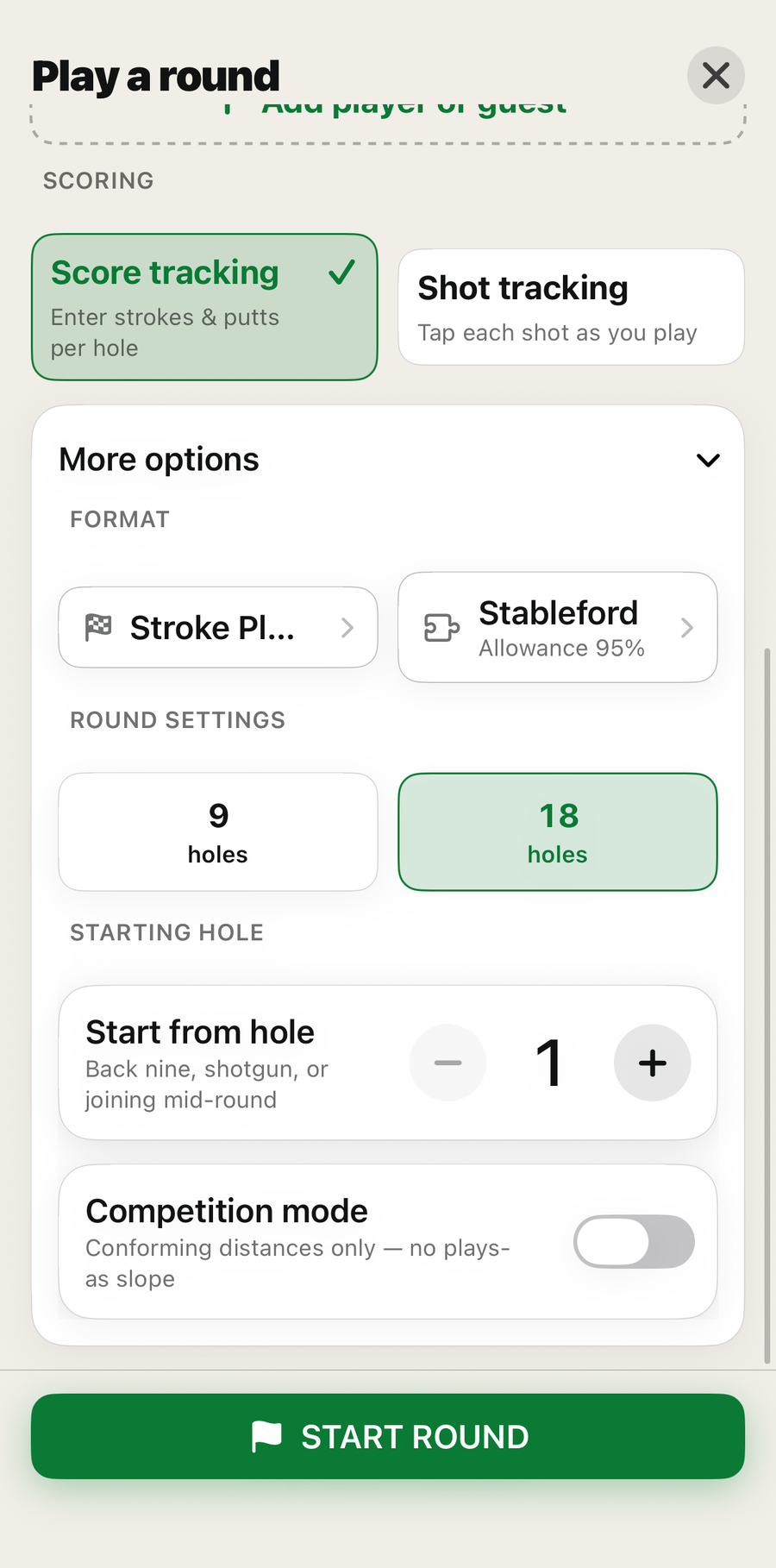
The More options row always names the format, the side game and the allowance in effect (for example Stroke Play (Net) · Stableford), so you can see them without opening it. Tap it to expand the format, the starting hole and competition mode. The holes choice is not in here: it sits on the main screen, under the course card.
Format
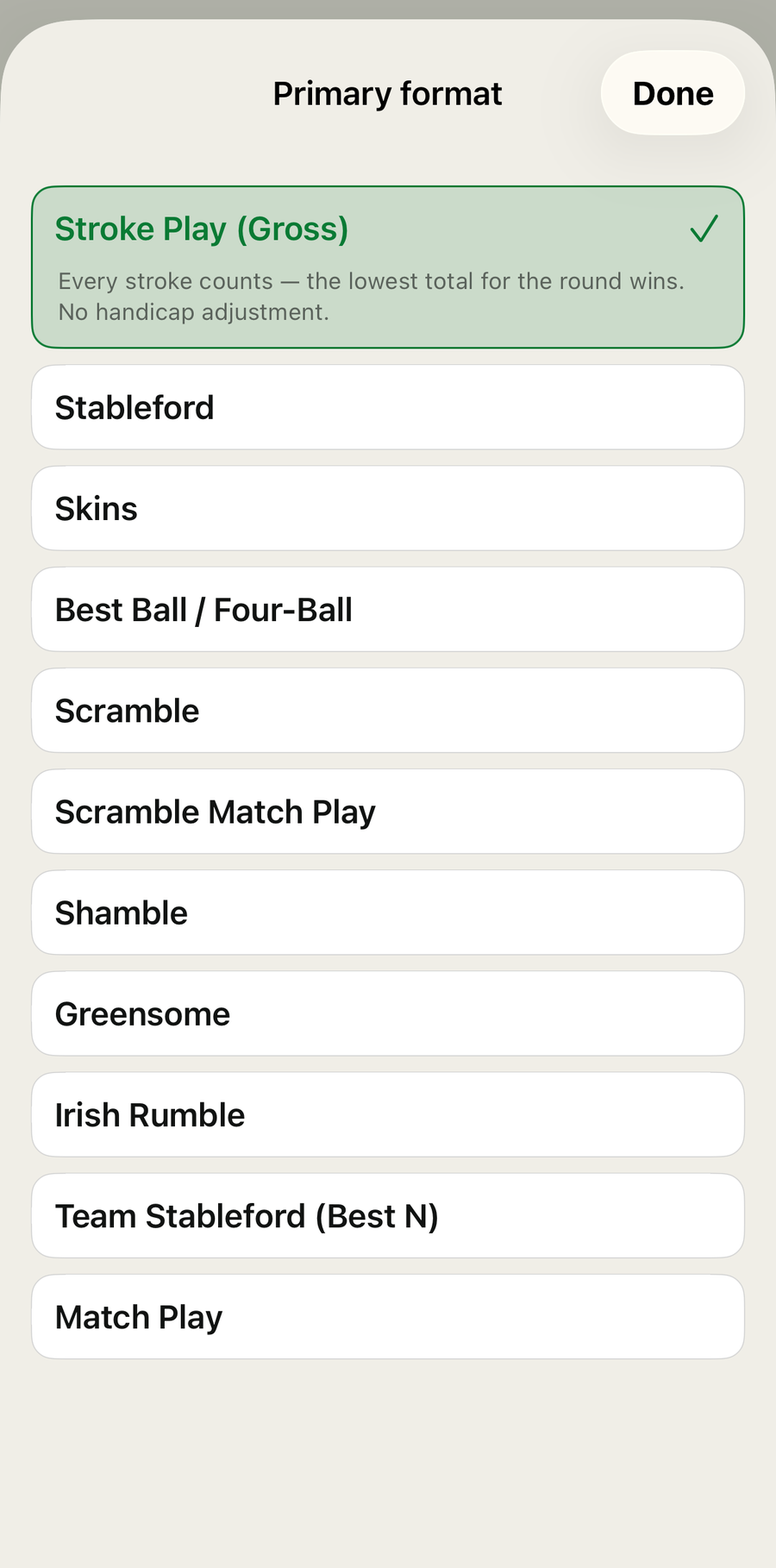
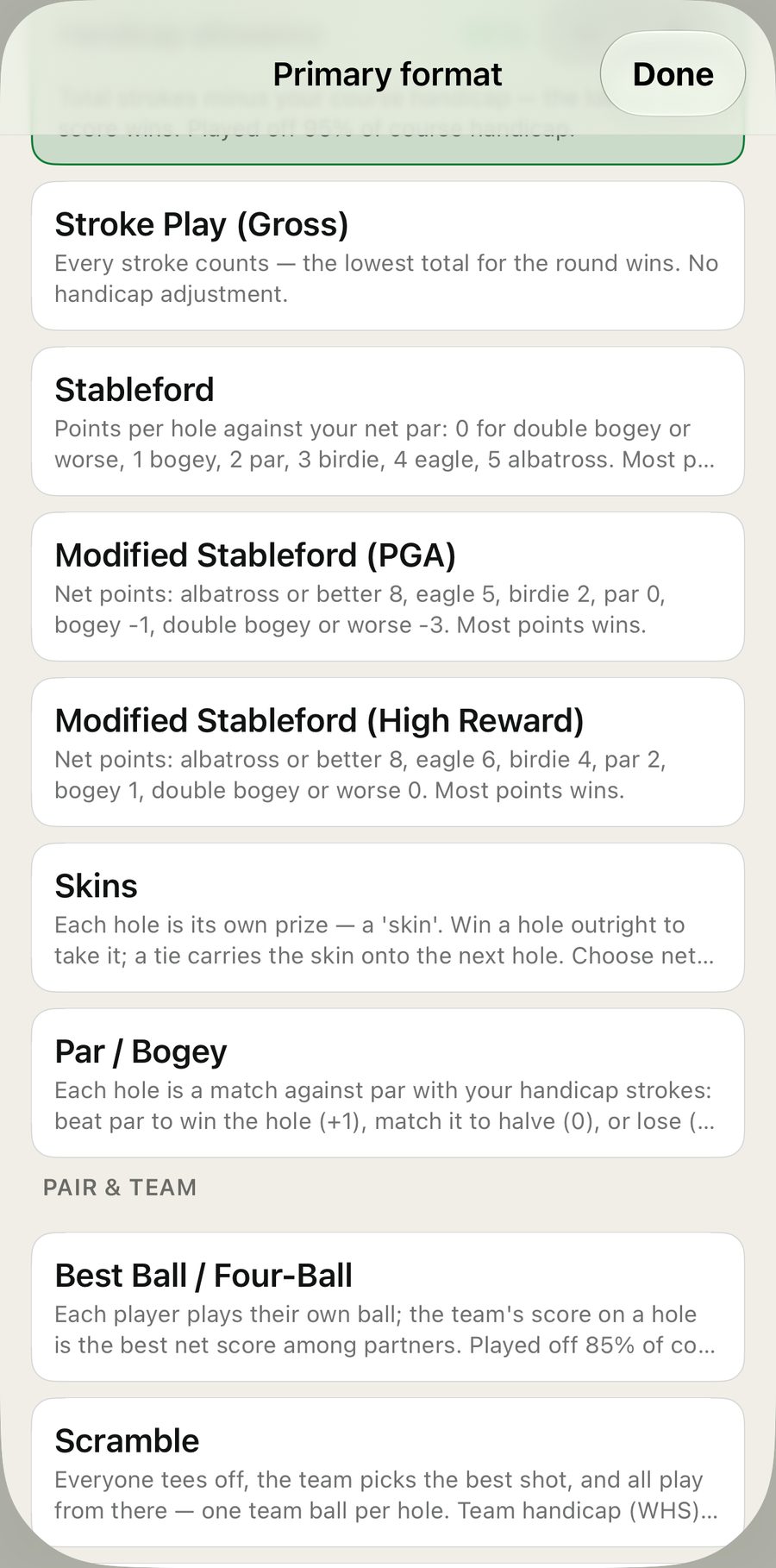
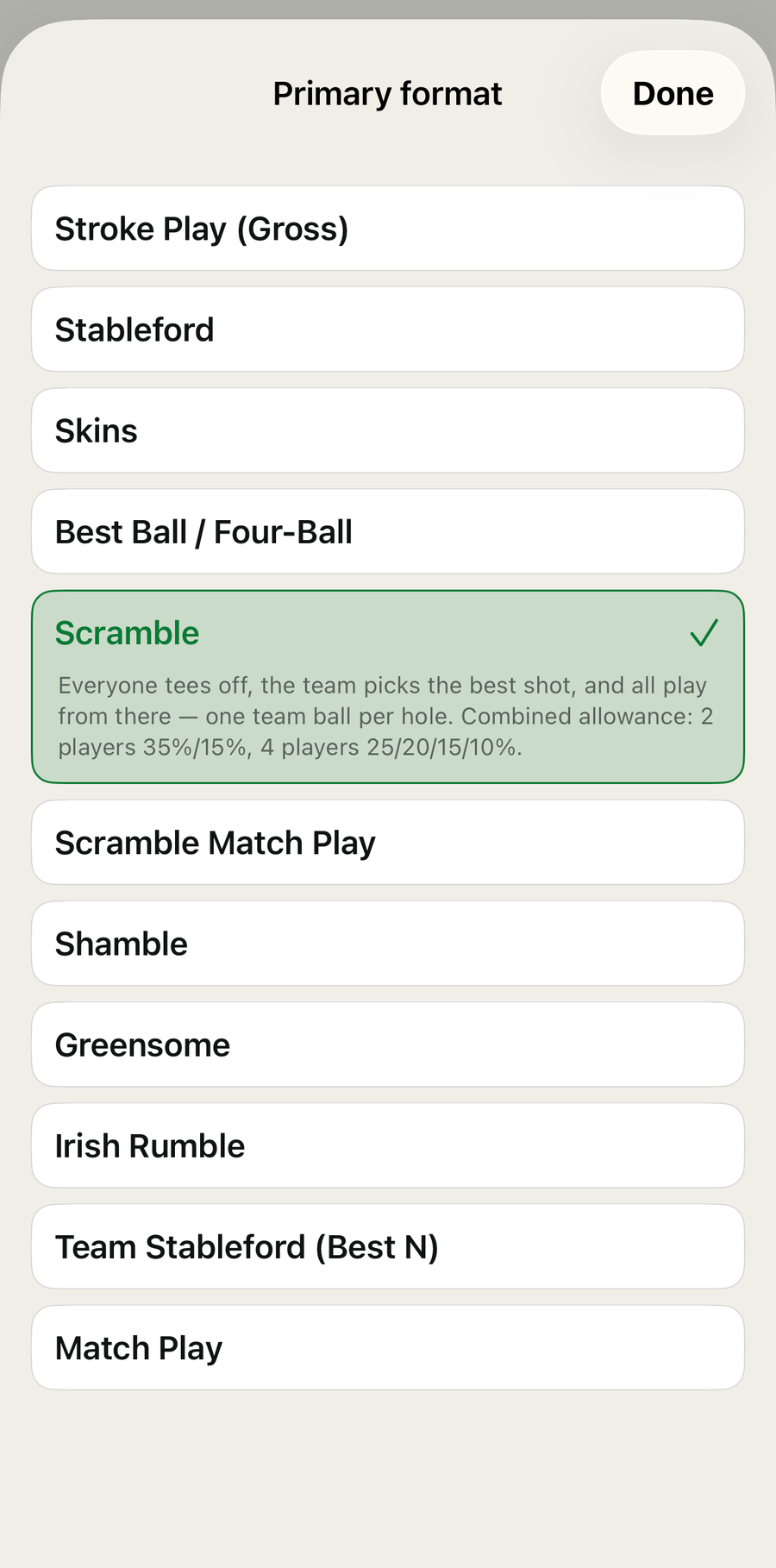
Two chips: the primary format (Stroke Play (Net) by default — your handicap strokes count; pick Stroke Play (Gross) for a scratch game) and an optional side game (for example Stableford with its allowance). Tap a chip to open the picker. The formats are grouped under Individual and Pair & team, and every format shows a one-line description under its name; team formats explain their combined allowance.
The list comes from the server's catalogue and includes individual, pair and team games: - Stroke Play (Net / Gross), Stableford, Match Play, and Skins. - Par / Bogey: every hole is a match against par with your handicap strokes. Beat par to win the hole (+1), match it to halve it (0), otherwise you lose it (−1); a picked-up hole is lost. The highest total wins, and it can be below zero. Played off 95% of your course handicap. The scorecard shows a Points row with +1, 0 or −1 on each hole. - Pair & team formats: Scramble, Scramble Match Play, Greensome, Alternate Shot (Foursomes) (partners alternate shots with a single ball; the pair receives 50% of their combined playing handicap), Best Ball, Shamble, Pair Skins, and The Marty (the three-squad game trips play, set up by your group on OurGolf).
Depending on the format you pick, format options appear right below the list: - Handicap allowance — a stepper from 50% to 100% (in 5% steps) on net formats with an adjustable allowance. - Best Ball — Net scoring toggle (on by default). Best Ball scores at the WHS 85% handicap allowance unless the round sets its own (a match-play fourball with a Best Ball base too); best-ball rounds made before this default stay at 100%. - Team handicap (Scramble, Scramble Match Play, Greensome) follows the WHS allowance unless the round sets its own weights or percentage: lowest course handicap first, a scramble pair gets 35% + 15%, a team of three 30% + 20% + 10%, a team of four 25% + 20% + 15% + 10%, and a greensome pair 60% of the lower plus 40% of the higher. It is never simply 100% of the combined handicaps. - Handicaps off (a round set to play without handicaps, for example from OurGolf) is gross in every format: stroke play, Stableford, net skins and match play as well as the team games. - Chapman (60% of the lower + 40% of the higher course handicap) and Alternate Shot (Foursomes) (50% of the combined) use those WHS figures unless the round sets its own weights or percentage. - Irish Rumble — Scoring: Net (the default: the lowest round total wins, and each stroke under par is a point, so −7 is 7 points) or Stableford (Stableford points on each hole's counted score; most points wins). Irish Rumble is an 18-hole game: it cannot be chosen for a 9-hole round. - Two-person formats — Better Ball Stableford, Greensome, Chapman, Alternate Shot (Foursomes) and Foursomes Match Play — need every team to have exactly two players; setup tells you if a team does not, for example "Greensome needs exactly two players per team." Pair Skins is only a side game and is not checked at setup. - Shamble — Best N scores stepper (1 to 4; it starts at 2).
Skins (as the format or the side game) has Net skins (off = gross, the default) and Carry over ties (on by default). It also has an optional Stake per skin: type an amount and pick the currency (your region's is proposed). For each skin won, every other player owes the winner the stake. Leave it empty for no money at all. The chip then reads, for example, "Gross · €2/skin". You can change the stake mid-round from Edit round. The new stake applies to every skin, including skins already won. MyGolf only keeps the ledger. It never takes, requests or moves money.
Round settings
The 18 holes / Front 9 / Back 9 choice is on the main screen, under the course card (a nine-hole course offers 9 holes only; Back 9 is nine holes from hole 10). The holes you play are saved with the round, so a nine on an 18-hole course keeps its nine-hole handicap wherever the round is opened. In a scramble, greensome or foursomes the same goes for the team: each player's handicap is the nine-hole one and the team's strokes go to the nine holes you play. The rest are in More options: - Start from hole — for a back-nine or shotgun start, or joining a round mid-way. - Competition mode — conforming distances only (no plays-as elevation/weather/wind adjustment).
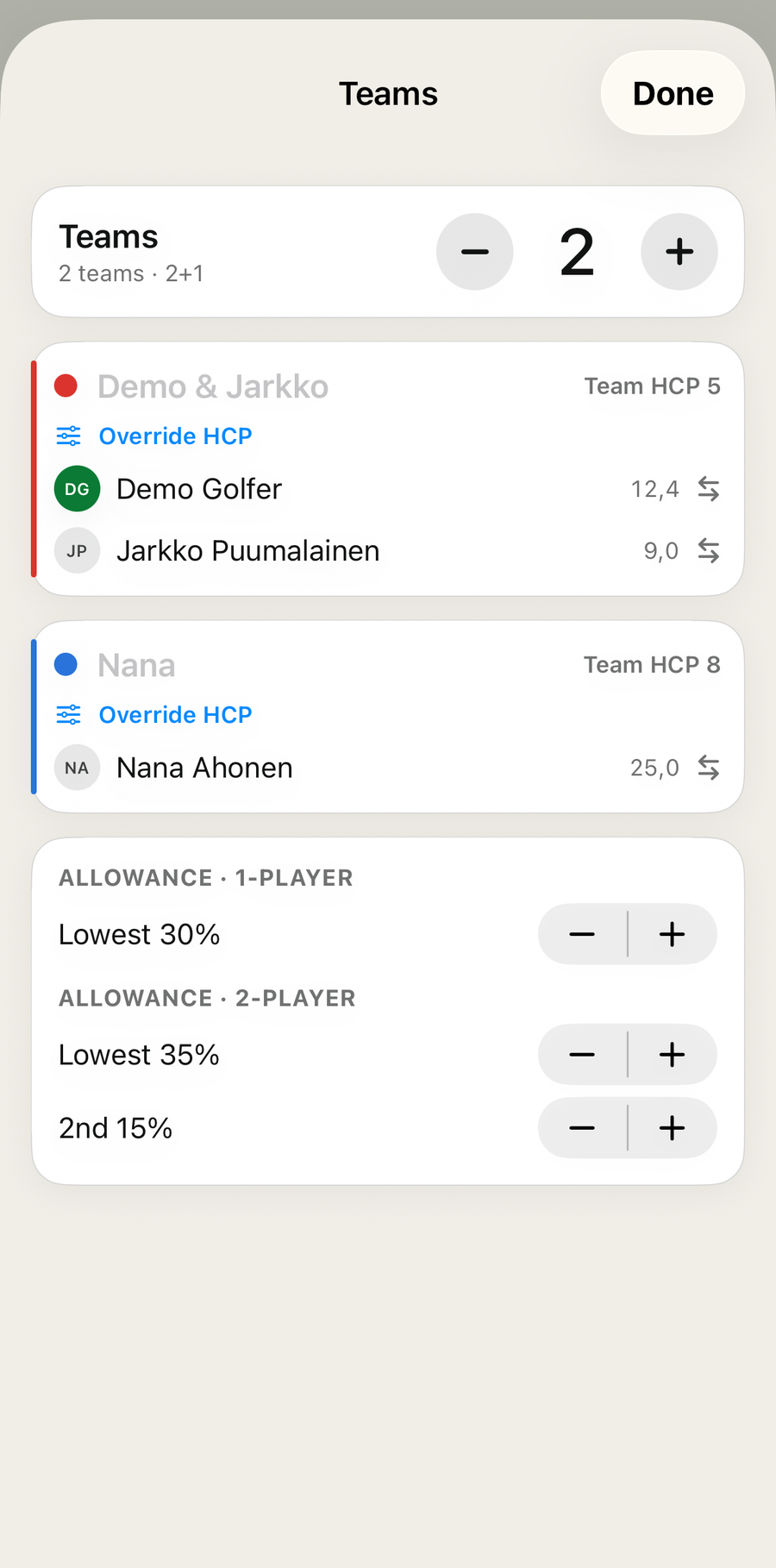
Teams
For a team format a Teams row appears under the format ("2 teams · 2+1 …"). Tap it to open the Teams sheet: - Team count — the stepper splits the roster. - Move players — tap the up-and-down arrow on a player to move them to another team. - Rename — tap a team's name, which has a pencil beside it (up to 100 characters). Leave it blank and the team is called "Team 1", "Team 2" and so on. - Team HCP — worked out from each player's course handicap on that player's own tee, so a group on different tees gets the same figure the scoring uses. - Override HCP on a team, and the format's allowances at the bottom, in 5% steps: one stepper per player position for each team size in a scramble (Lowest, 2nd, 3rd …), and Lower HCP / Higher HCP for Greensome and Chapman (60% / 40% to start) and for Alternate Shot (Foursomes) and its match play (50% / 50%). The figures you see are saved with the round, so the scoring uses exactly them. - Changing the number of teams re-deals the players, so it also clears any Override HCP you set; set them again afterwards.
6. Start round
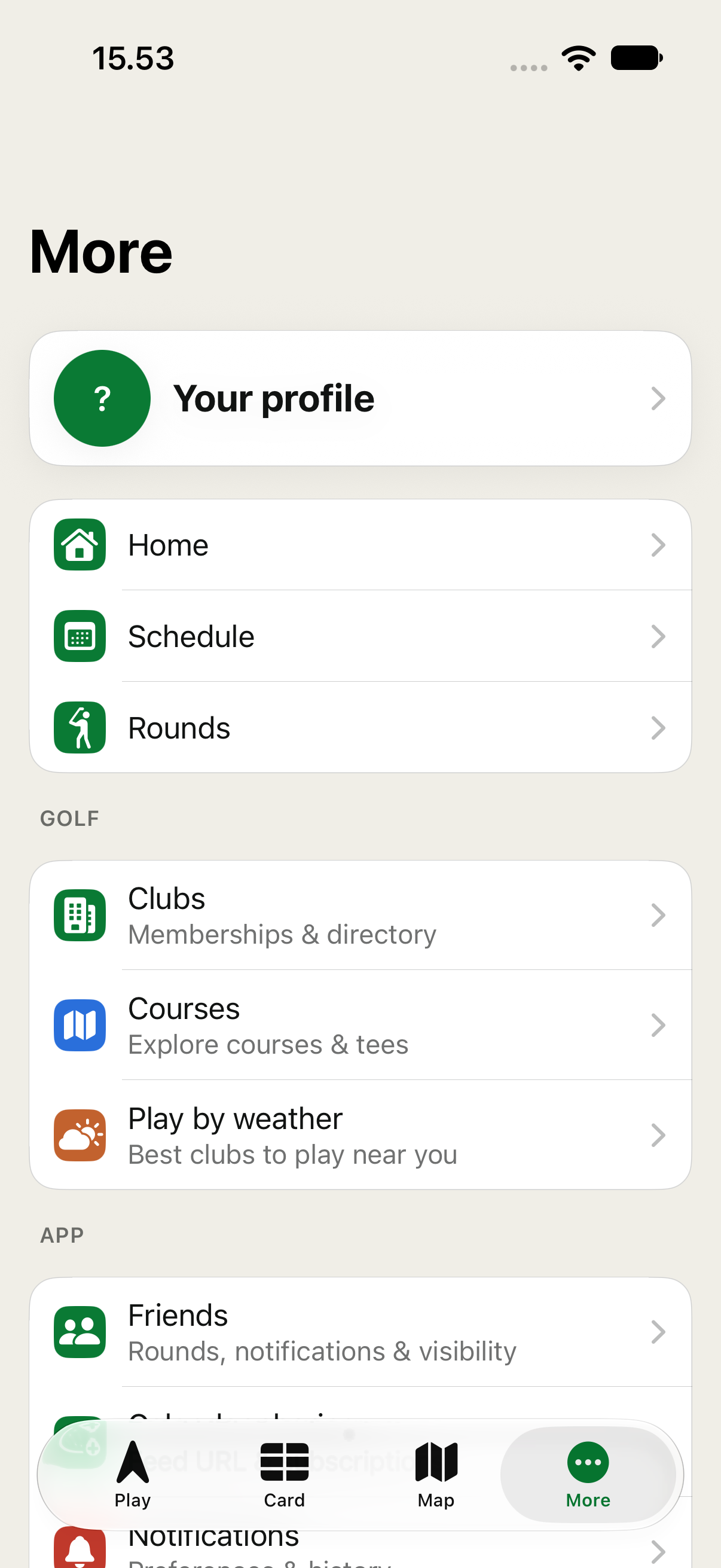
Tap Start round. The round opens on the Play tab, and the tab bar changes to Play · Card · Map · More for as long as the round is live. Home, Schedule and Rounds are the first three rows of More; opening one never takes the round's tabs away from the bar. Flightmates who use MyGolf can join the same round from their own phones.
Explore the holes before you go
Away from the course, an Explore the holes button sits under Start round. It is there when the course has a map and your phone is not at the course (more than 1 km from every tee and green, or no location). At the course it does not show, and setup works as before.
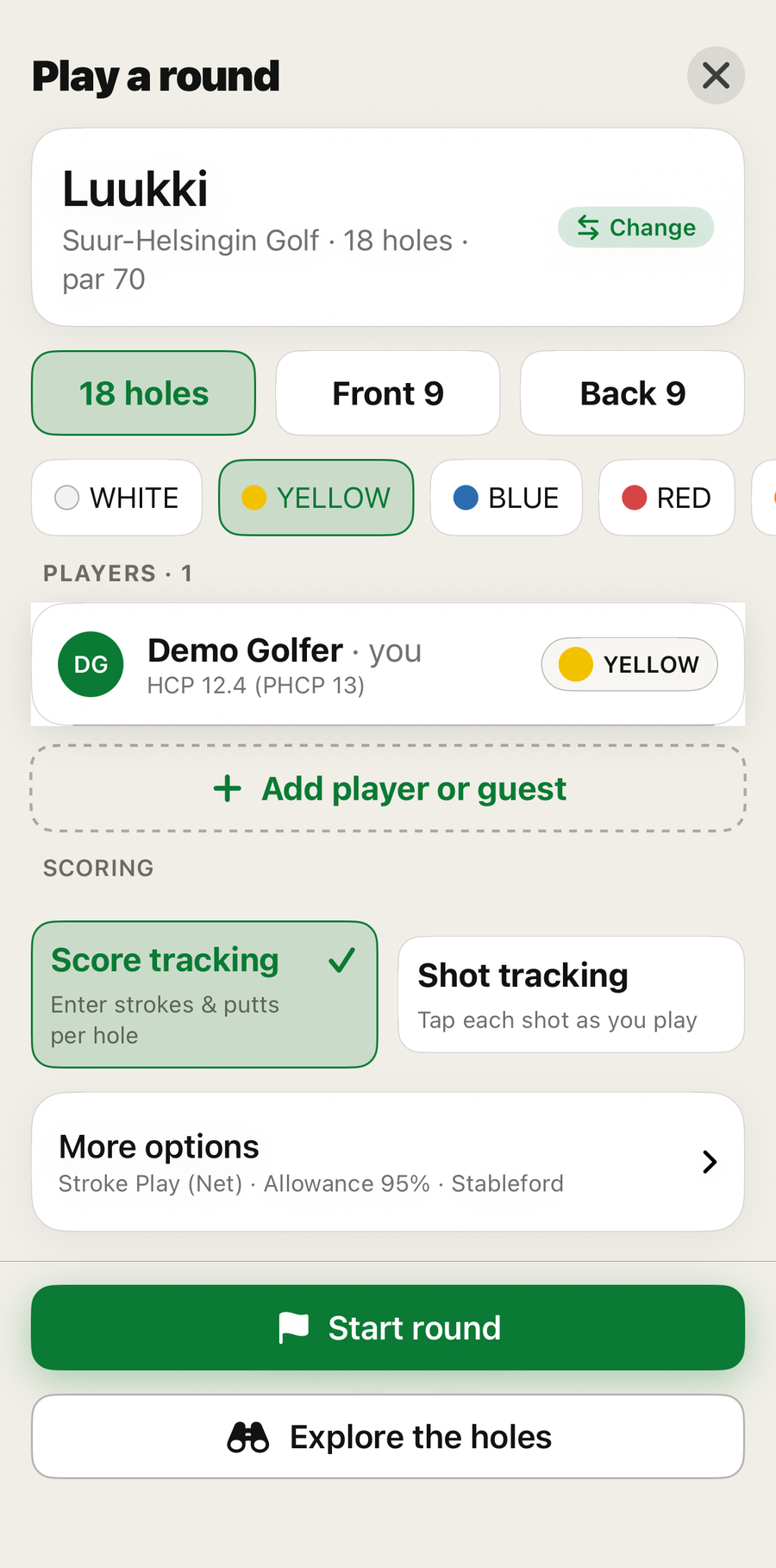
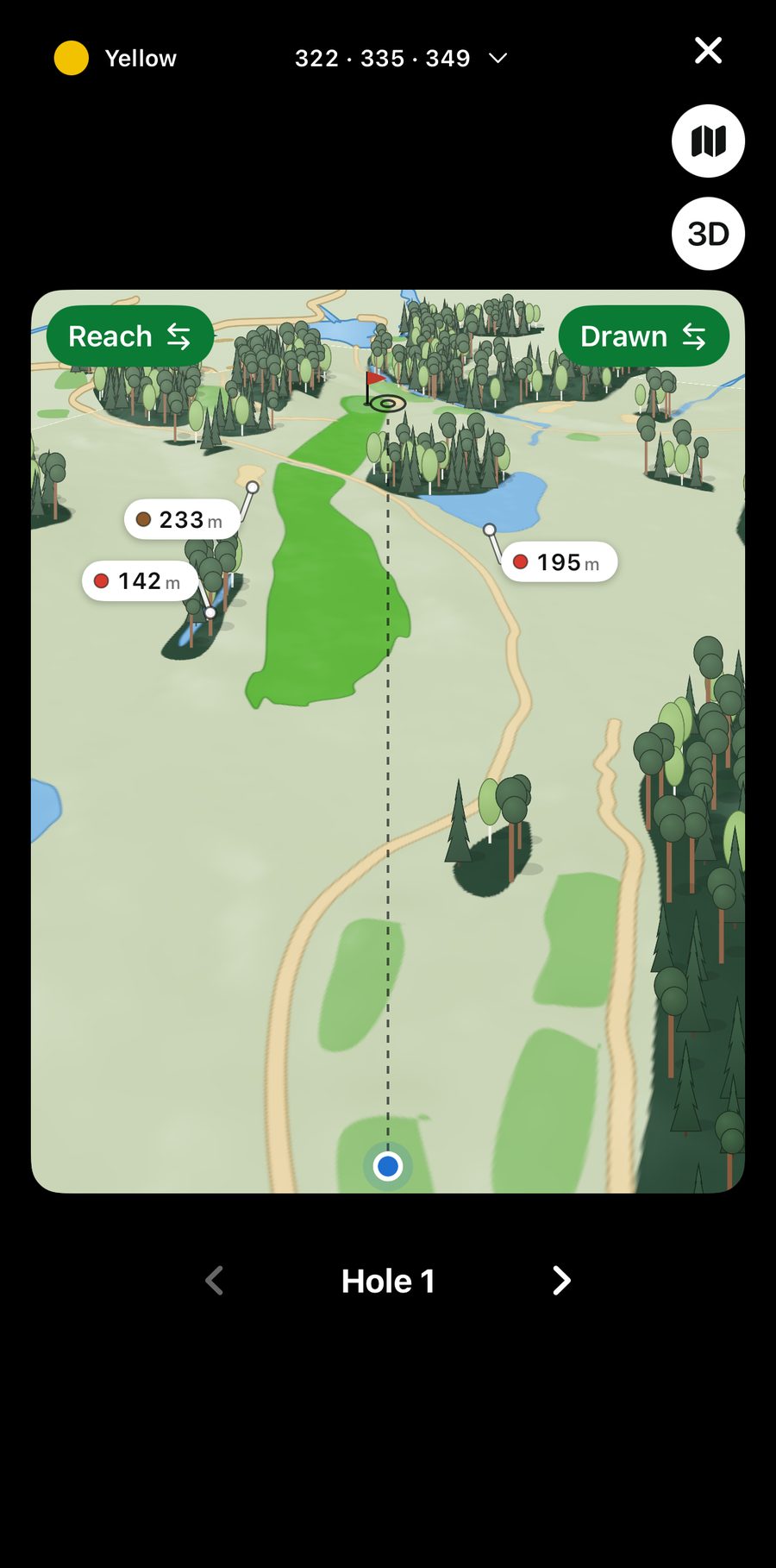
Tap it to look through the course from the tee you chose. Nothing is recorded. No round is started, no scores or shots are asked for, and nothing is shared with friends, competitions or your Watch.
- Hole view. It opens on hole 1 as you would see it from the tee, the same hole view as the Play screen, with its Drawn | Satellite and Reach | Carry controls. Tap the green for a close-up.
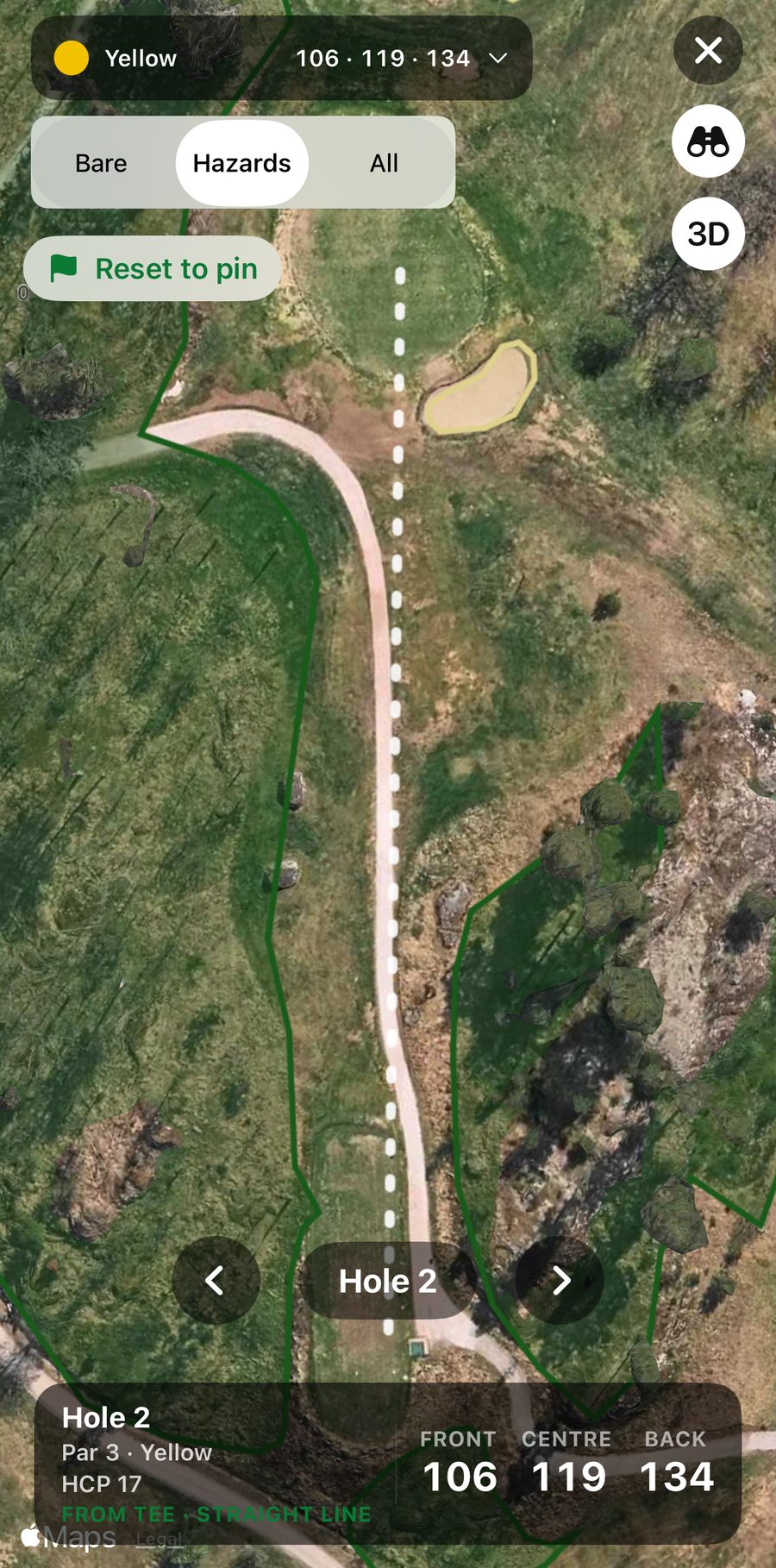
- Satellite map. The round button under ✕ switches between the hole view and the satellite map. The map has the same tee box, Bare / Hazards / All overlay and 3D view as the course's hole map.
- Tee. Tap the tee box in the top-left corner to change tees. Both views follow.
- Holes. The arrows at the bottom move to any hole, in either direction. You are never asked about the hole you leave.
Tap ✕ to return to setup. Nothing has been started.
7. Group rounds
If the booking you start belongs to a round your group has set up (a trip round or a round on the OurGolf site), the players, tees and handicaps are the group's, not the ones on this form: once you start, the round opens with the group's players. This form does not itself show a group state; the read-only view of the group's setup, with Add players through your group where a player would be added, is the Edit round sheet on a started round (see Group rounds in the Score Tracking guide). A flightmate from your booking whom the group's round does not contain keeps a row on your phone with the name: scores stay on this phone and aren't in the group round. MyGolf offers a started group round as a trip round whether or not it has flights; you can change how you track from Edit round. (Pictures: see Group rounds in the Score Tracking guide.)
8. Competitions
Your group can run competitions on the OurGolf site: a knockout, a season order of merit, a trip cup with squads. When you are entered in one, MyGolf shows it and lets you start its rounds.
More › Competitions lists the competitions you are in, with Entry open, In progress or Finished under each name. The row is there only while you are in at least one.
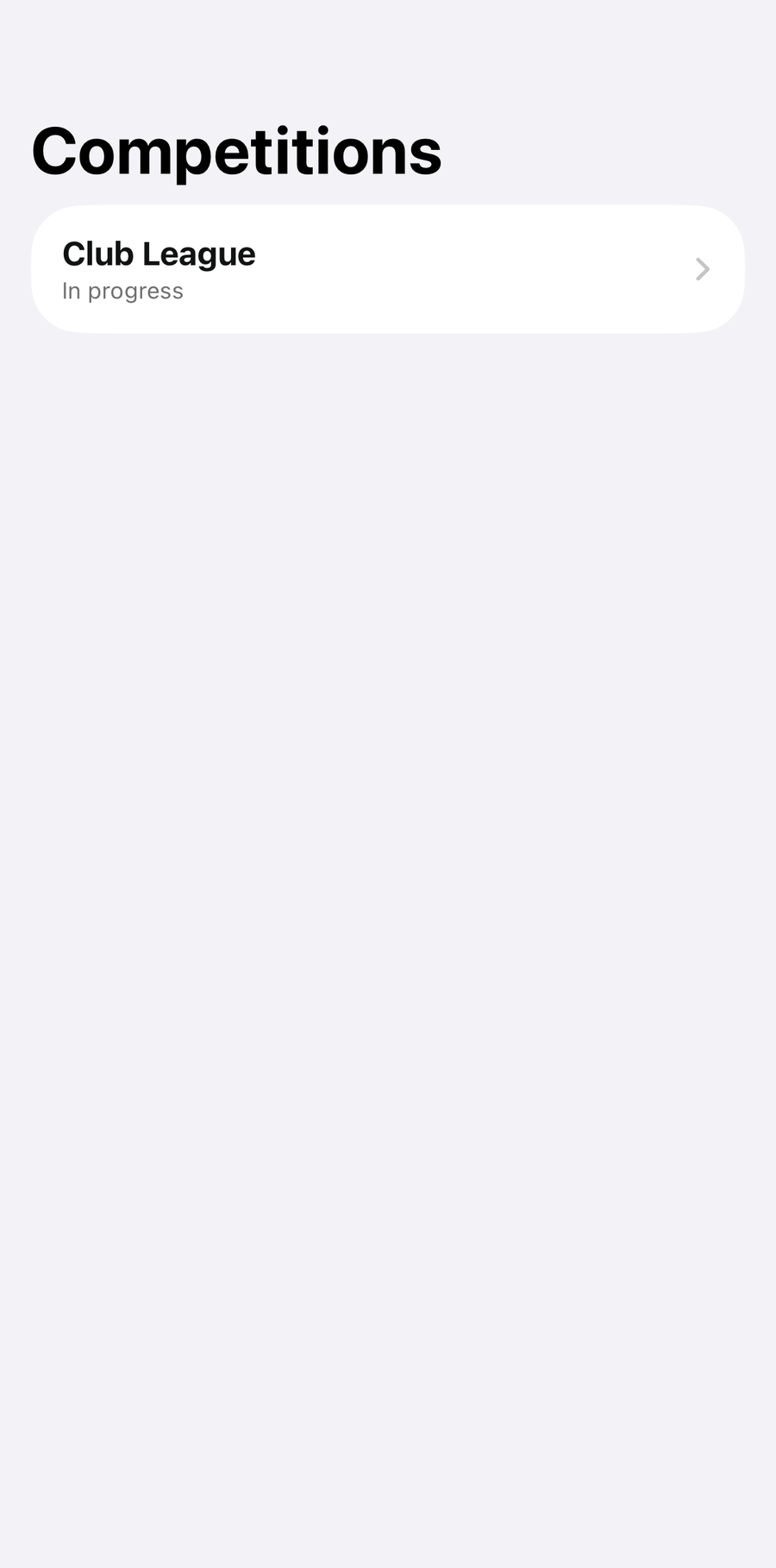
Tap a competition for its tabs.
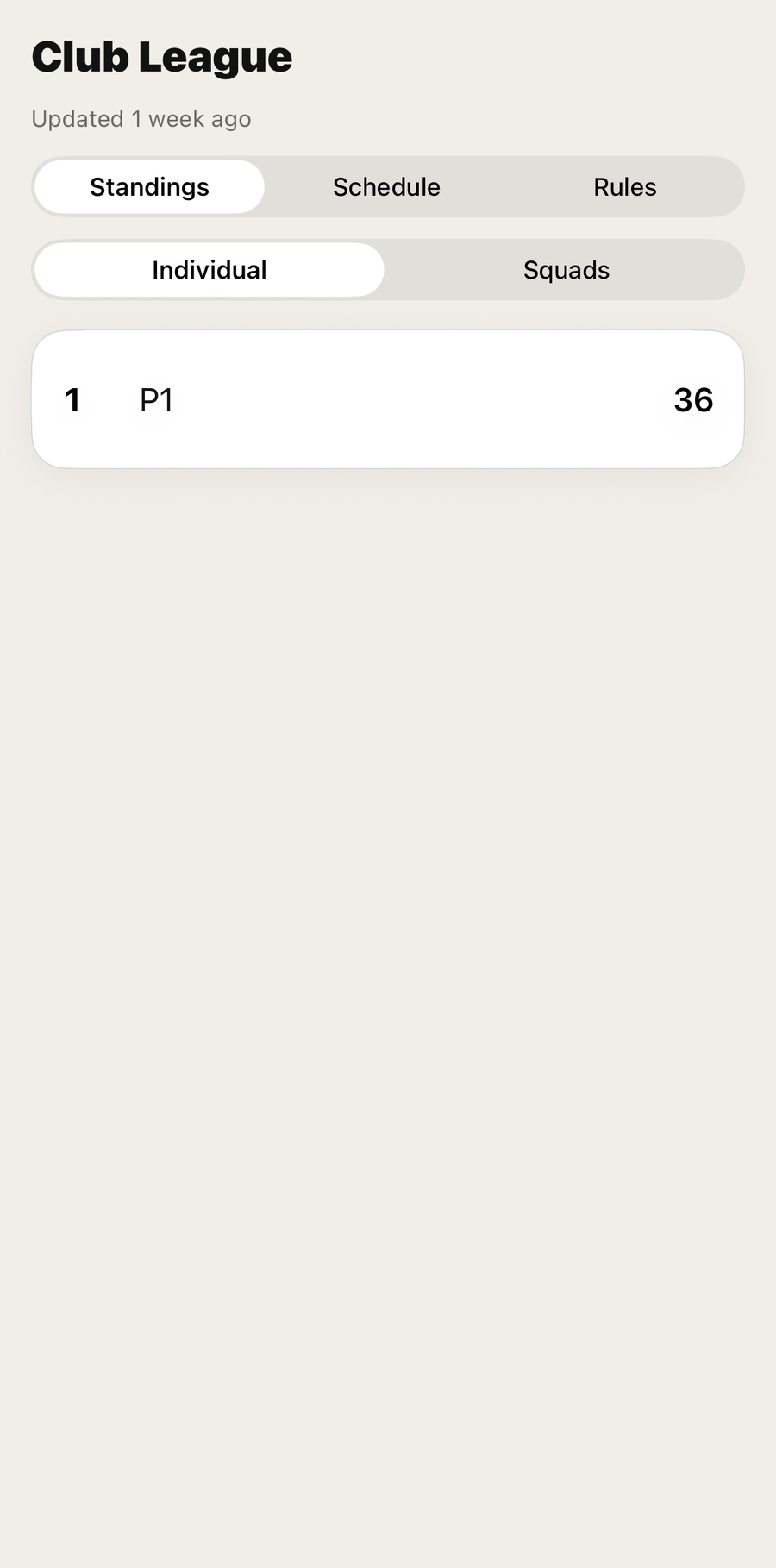
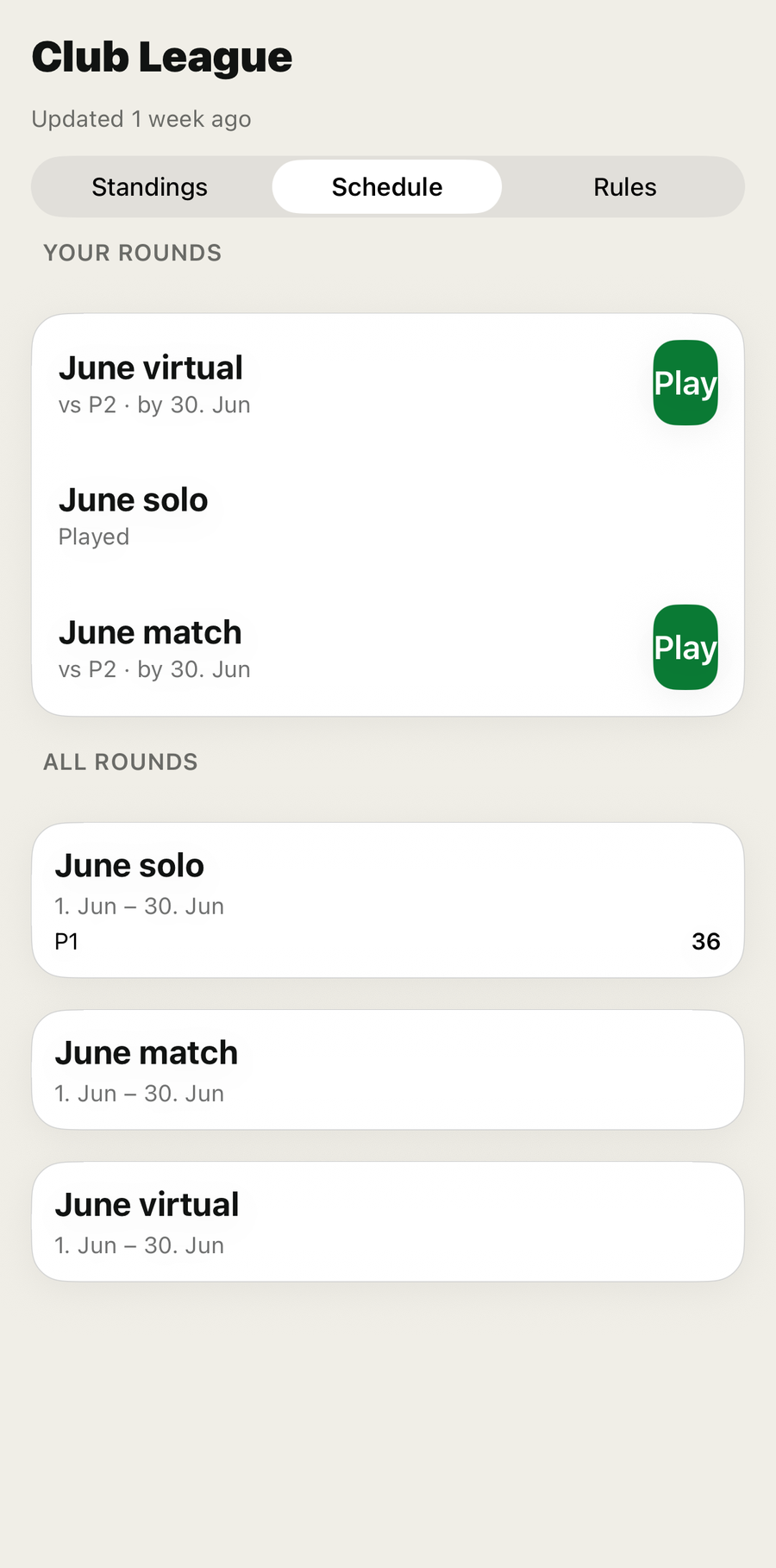
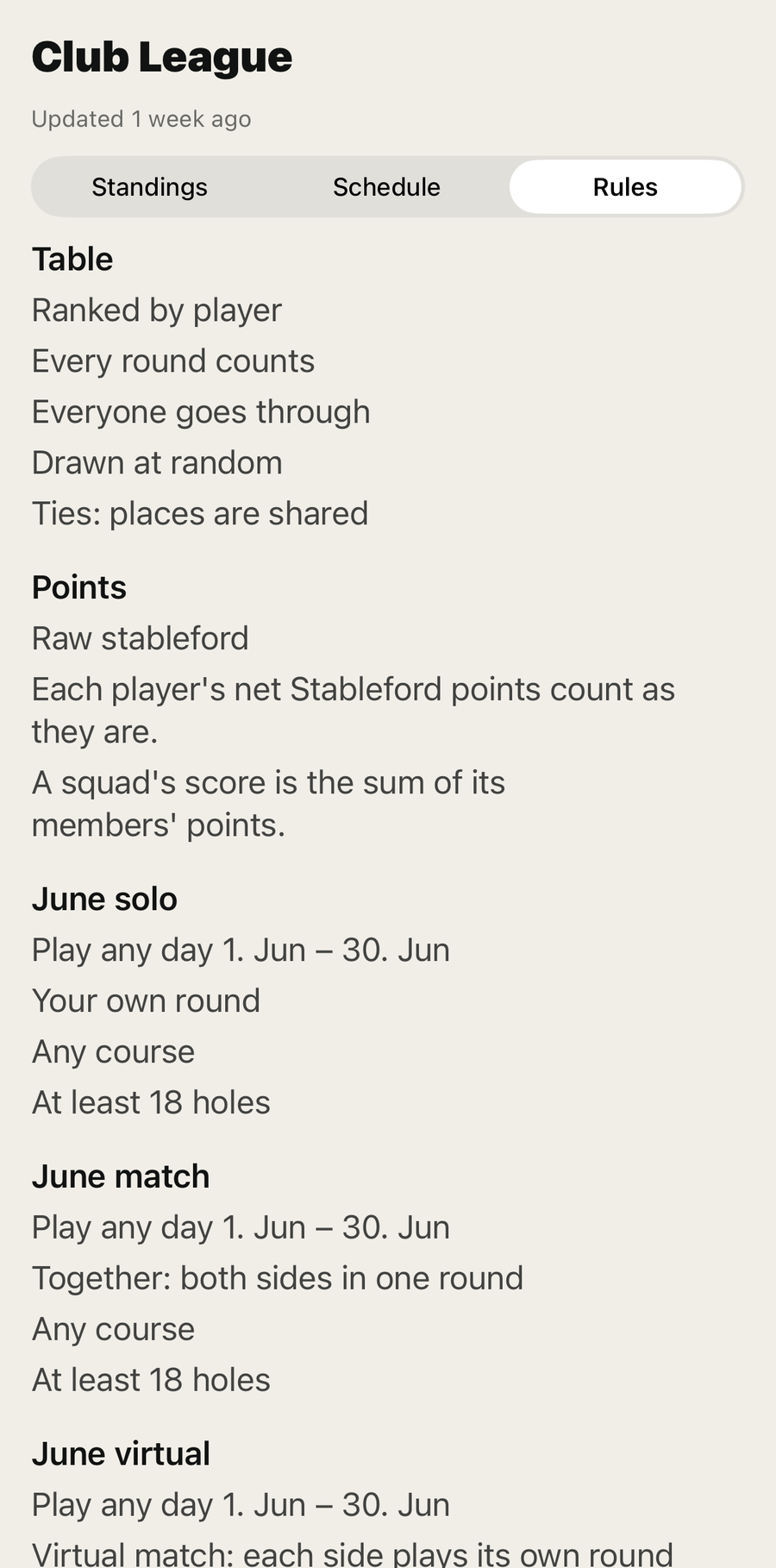
The pictures show a test competition, and they are from before the screens were redrawn: the words below are how the screens read now.
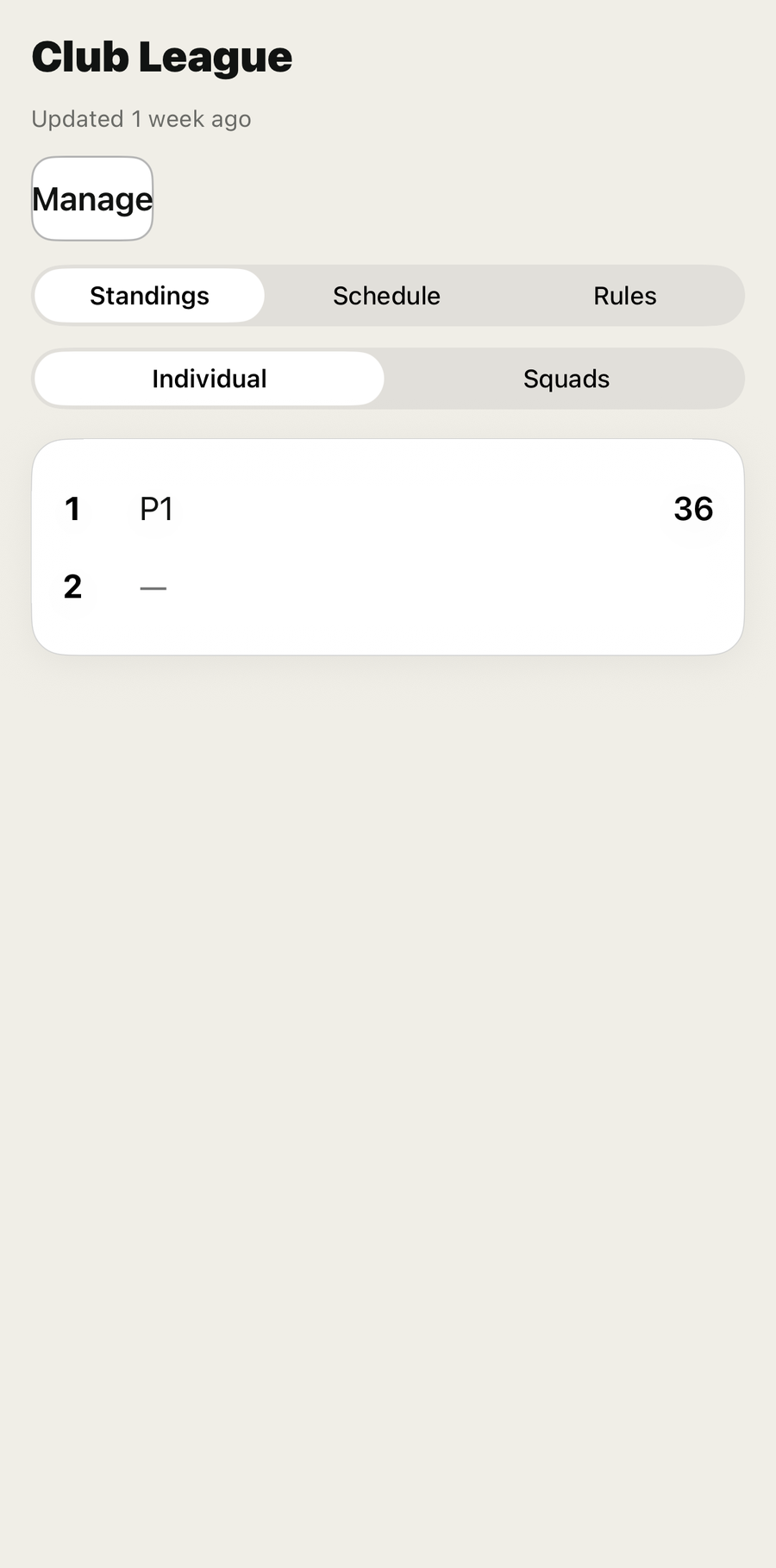
- Standings — the table, place by place with each entrant's points (your own row is tinted and reads (you) after your name), or the knockout bracket round by round (Round 1 of 4 …) with each match's result, In progress, Bye, To be decided or Awaiting the organiser. With squads, switch between Individual and Squads. Everyone is shown by their OurGolf name; a row naming no one the snapshot labels (for example someone whose scores are no longer shared) shows — with no points. With several stages, Standings shows the latest table and the latest knockout.
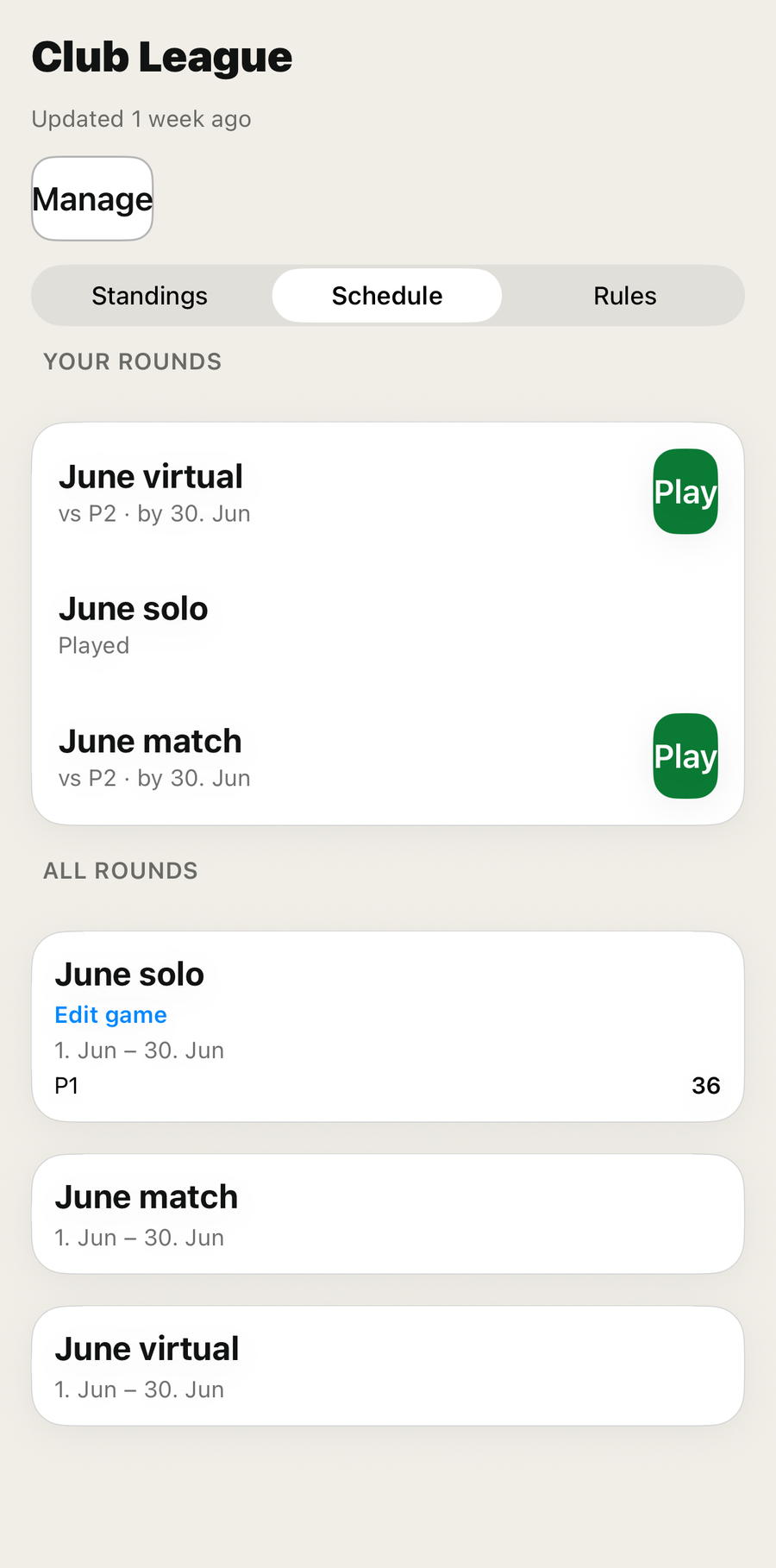
- Schedule — Your rounds first: each round you have to play, who against, and by its last day. While you can start a round its row has an arrow: tap the row to set the round up (until early the morning after its last day; after that the by line stays, and the row no longer opens). Then All rounds, every round of the competition with its dates and the results published for it. A round shows here once OurGolf has published it, which happens the day before its dates open; rounds further ahead appear only under All rounds. If you have been knocked out you still see the whole competition, but Your rounds is gone.
- A played or live round — in Your rounds, a round that is in progress or played opens its scorecard: every player, hole by hole, live while it is being played.
- Rules — how the competition is played and scored, written out in your language, one card per section: how each stage ranks, which rounds count, who goes through, how ties are broken, and how points are given. When the organiser has published no rules the competition has no Rules tab, only Standings and Schedule.
When one of your rounds can be started, a green button at the bottom of the screen names it, for example Play June virtual. It is the same button on every tab and opens that round's setup. If two rounds are open at once, the button names the one with the nearest last day; start the other from its own row under Your rounds.
Under the title, Updated 5 min ago says when OurGolf last published the standings. They change when a round is finished, not hole by hole. Once a round is closed and you have moved up, a push tells you your new place (turn it off under More › Notifications › Competitions). Without a connection you see the last standings the phone has.
Starting a competition round
- On Play: a Competitions section, after Trip rounds, lists the competition rounds you can start today, with the competition, who you play and the last day.
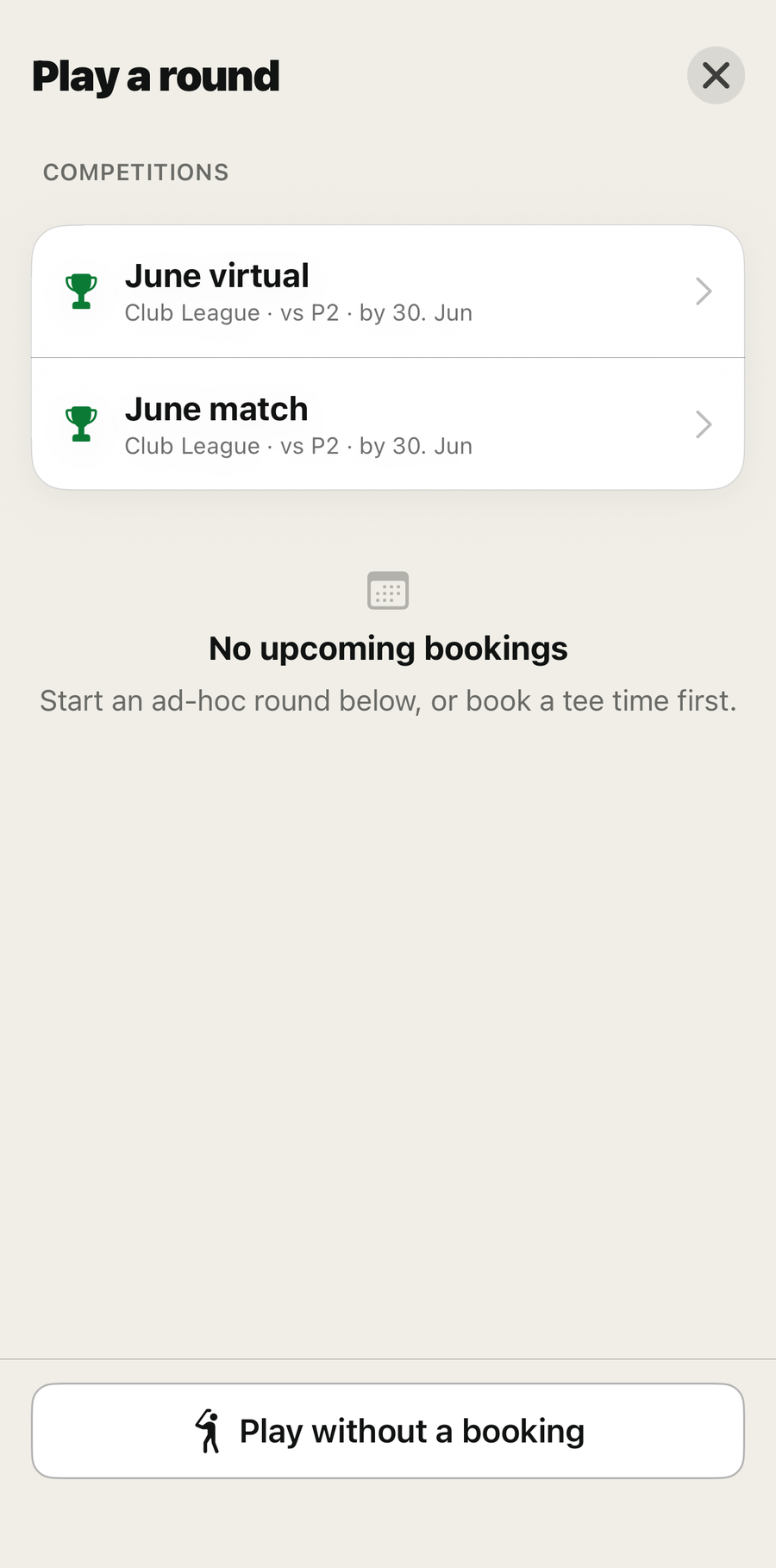
- On Home: when one is due within 7 days, a card names the round with the nearest last day, with Play.
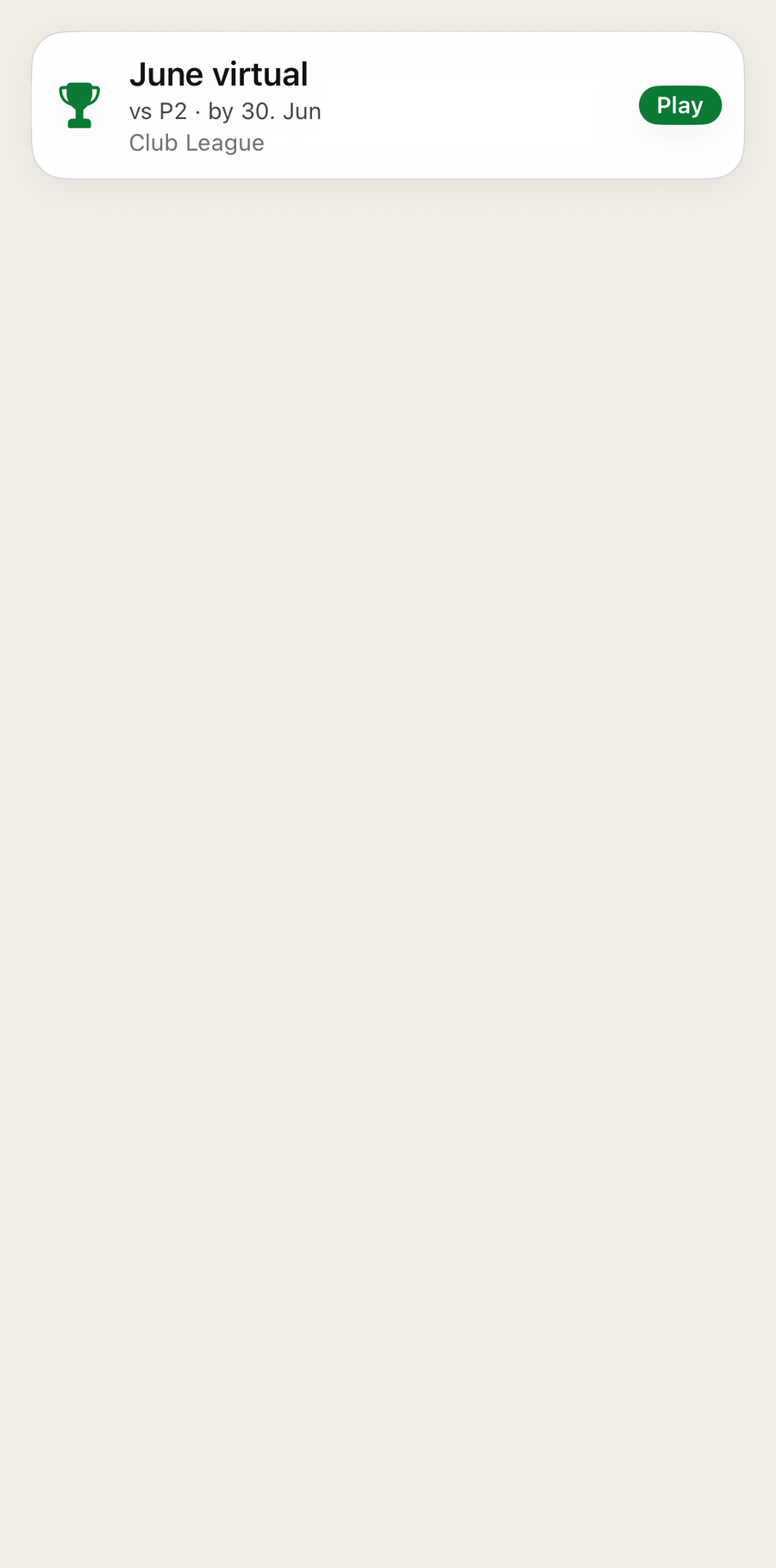
While a round is in progress on your phone, the section, the card and the competition screen's Play button are hidden, and the rows under Your rounds do not open a setup, so a competition round never starts on top of it.
Tap one and the Competition round sheet opens. Under the title it says which round this is and in which competition (June virtual in Club League.), then who you play and the last day. The players, format and handicaps come from the competition, so there is nothing to set up but the course and the tee. Each player's course handicap comes from the competition too; the round's allowance (for example 85% in best ball) is applied to it, so the playing handicap you see is that share, rounded. If the competition fixes the course it reads Set by the competition; otherwise MyGolf finds the course you are at, and Change picks another. The tees are listed with their lengths; the one MyGolf picked for you reads chosen and has a tick, and tapping another chooses it. Then tap Start round, which stays at the bottom of the sheet. The sheet needs a connection to load the course's tees (with none it reads No connection to the server; try again.), but once you tap Start round the round opens on the Play tab straight away, even if the signal then drops, and is scored like any group round (it opens in the tracking mode you last used, or in Score tracking in a one-ball format; change it from Edit round) (see Group rounds in the Score Tracking guide).
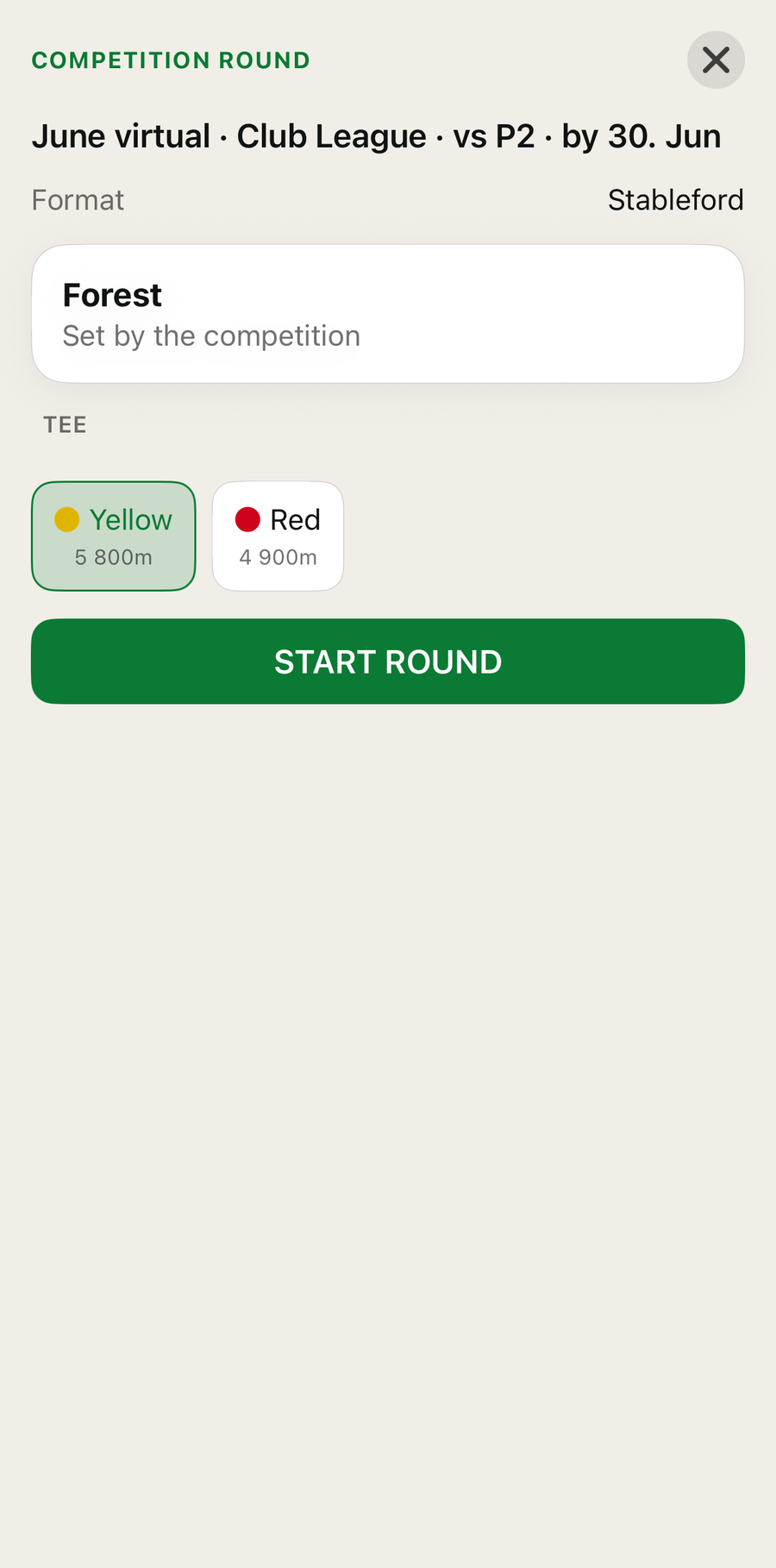
If someone on your side, or your opponent in a match played together, has already started the round, it reads In progress; tap it and Join round.
When a round can't count
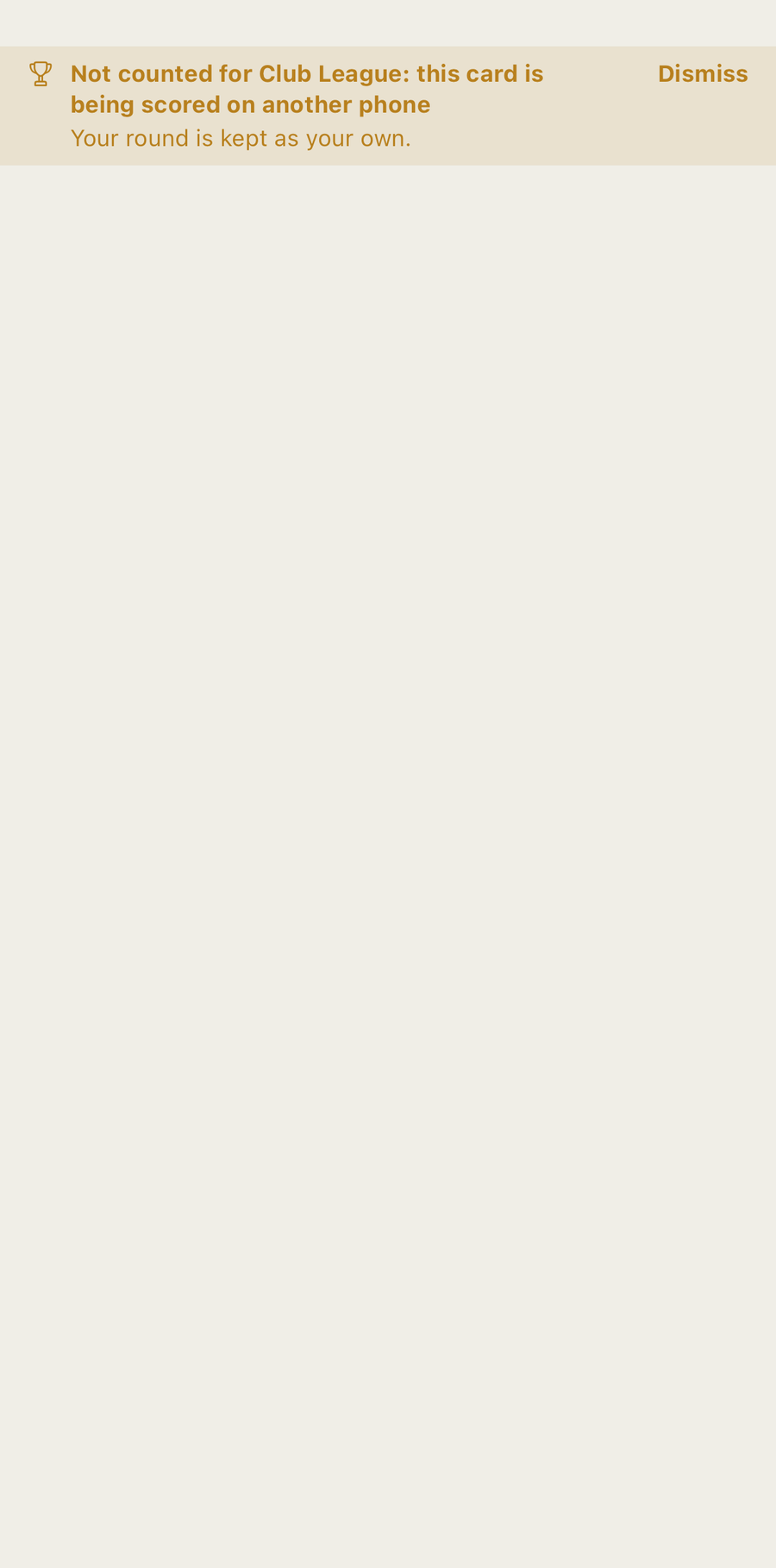
If the competition can't take the round — it was already played, it has closed, you started after its last day, or someone else's phone is already scoring your card — the Play tab says Not counted for the competition and why, and Your round is kept as your own. Keep playing: nothing on your phone is lost, and the round appears under Rounds like any other. A round the server has to name your seat for first (a match where the competition doesn't say which player you are) still starts if the phone gets no answer, as your own round, and the message gives the reason: No connection to the server; try again., or Update MyGolf to keep scoring this round when the app is too old. If the round has already left the screen when this comes back (say it was played offline), the message shows on Home. Tap Dismiss to close it. Two phones scoring the same card is settled by the organiser.
For game masters
If you run the competition, the Competition screen shows Manage in its top bar, and Edit game on each round under All rounds. They open the OurGolf game-master pages inside MyGolf. The first time, sign in with MyGolf (Face ID); after that you stay signed in unless 30 days pass without use. Tap Done to come back: the competition refreshes at once. A game master who is not playing in the competition uses the OurGolf website instead.
Reminders
MyGolf reminds you 7 days and 1 day before the last day of a competition round you haven't started, at 10 in the morning. The reminders come from what the phone already has, so they work offline, but a round only gets them once OurGolf has published it to your phone: a round whose dates are shorter than a week gets only the 1-day reminder. They use the notification permission you already gave MyGolf; there is nothing to set. Tap one to open the competition's Schedule.