Apple Watch Shot Tracking Manual
Welcome to the Apple Watch Shot-by-Shot Tracking guide. The Watch app is designed around quick, intuitive gestures so you can track your round without breaking focus.
1. Starting a Round
Open the app with no round in progress and tap Start round. The phone begins tracking, and the Watch shows a tee picker for the course you're at.
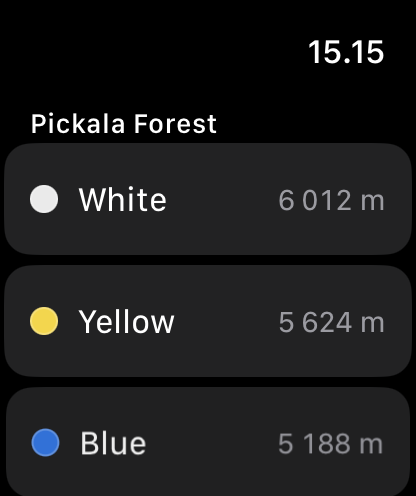
- Pick your tee (colour and length are shown for each) to begin. The distance screen appears as soon as the round is active.
2. The Distance Screen & Navigation
The main screen is the Distance Screen. From here, you control almost the entire app using simple swipes.
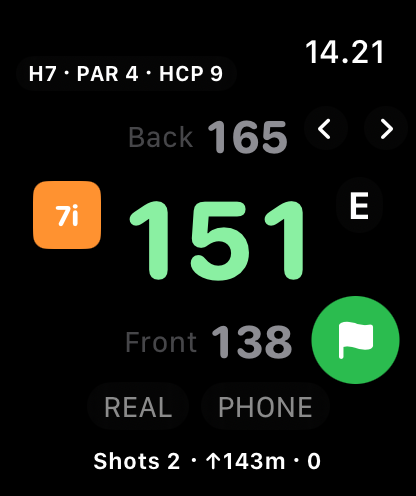
- Swipe Left / Right, or the ‹ › buttons: Manually navigate between holes (wrapping around between holes 18 and 1). The two small round buttons at the right of the Back distance do the same as the swipe: ‹ goes to the previous hole and › to the next. Going forward from a hole you have not finished asks Hole not finished first.
- Distances: View the distances to the Back, Centre, and Front of the green (an edge that is not mapped shows —).
- Hole Status (Bottom Line): Reads At tee before your first shot on the hole, and then shows your shot count, the distance walked from your last shot, and any handicap strokes you receive on the hole (for example
Shots 2 · ↑142m · +1). -
Watch GPS (badge): With Shot GPS set to Watch on the iPhone (More › Settings), the distances come from the Watch's own GPS and a small WATCH badge sits beside the REAL/PLAYS toggle. If the Watch has no fresh fix (location denied on the Watch, or no workout keeping the app awake while your wrist is down) the numbers fall back to the phone's and the badge reads PHONE. In Phone mode there is no badge.
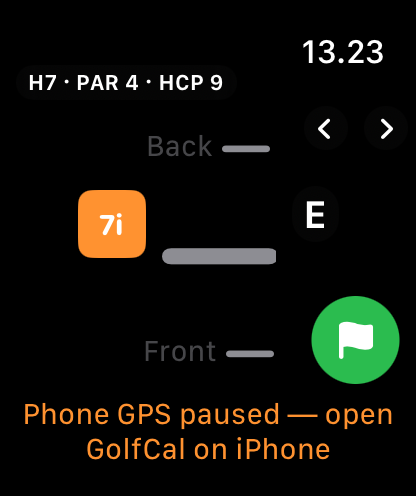
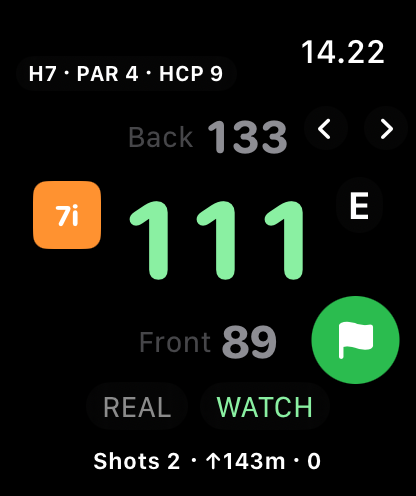 * Phone GPS paused: If the round sits idle for a long time (an hour without moving, or half an hour away from the course, for example a lunch break), the iPhone pauses its GPS to save battery. The round stays open, but the distances go blank and the bottom line reads Phone GPS paused — open GolfCal on iPhone. Nothing on the Watch can restart it: open GolfCal on the iPhone (or tap Resume GPS there) and the distances come back. While the Watch has a fix of its own (Shot GPS set to Watch), it keeps showing distances and this line does not appear.
 * Holed Out (Bottom-Right Flag): Tap the green flag icon in the bottom-right corner when you complete a hole. It stays dimmed until you have marked at least one shot on the hole — you cannot hole out a hole you have not played, and to move to another hole without playing it swipe left or right on the screen. The screen swaps the distances for the hole's score — your strokes, how that stands against par, and its name — and then you move on to the next tee. When your last marked shot was on the green and within about 25 m of you, the flag closes the hole at once. Otherwise it first lists Undetected putts? — full-width buttons 0 · Score 4, 1 · Score 5, 2 · Score 6, 3 · Score 7 (the Digital Crown scrolls; a double-tap picks 0). Answer only for putts you did not mark. The flag records where the hole was, which is not a stroke: a hole you holed out in four shows four, the same number the phone and your card show.
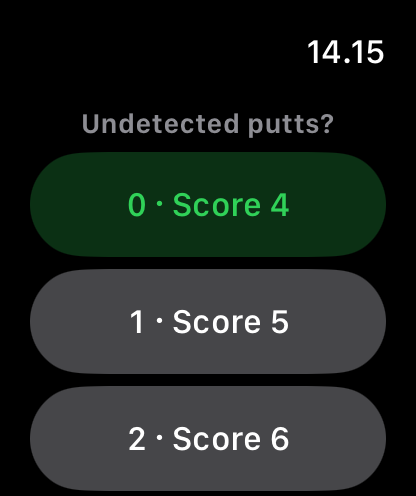 The list for four marked shots; it scrolls with the Crown.
* Round controls: Pause, Hand in card (End round when you play alone), Cancel round and Workout sit at the bottom of Quick actions — swipe up, or tap the shot line at the bottom (section 6). In a Score tracking round, tap Quick actions at the bottom instead.
3. Tracking Shots & Club Selection
Tracking a shot is designed to be instantaneous:
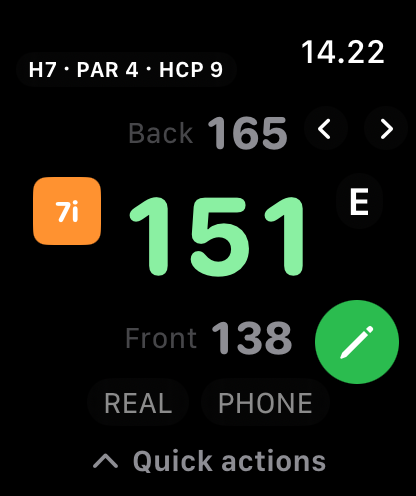
- Club Selection (Digital Crown): When you have clubs in your bag (More › Settings › My bag on the iPhone) and Track clubs is on, the Watch automatically recommends a club. If you want to change it, scroll the Digital Crown before tracking. Your selected club appears as an orange square (
7ion the Distance Screen above). -
Tracking without clubs — shot type instead: With Track clubs off (iPhone: More › Settings) — or before you have added clubs to your bag — the orange square shows the shot type the Watch will record, as a three-letter code, and the Digital Crown changes it instead of the club. The type is filled in for you from where the ball lies and how far the green is —
drvon the tee,shtfor a full shot,pchinside 80 m,chpinside 40 m,sndfrom a bunker,puton the green,recfrom trees, bushes or water — and a Crown pick overrides it for the next shot only (it reverts to the automatic pick after that shot, on a hole change, or after three idle minutes). The Club picker under Shot actions is absent, and shots are recorded with no club.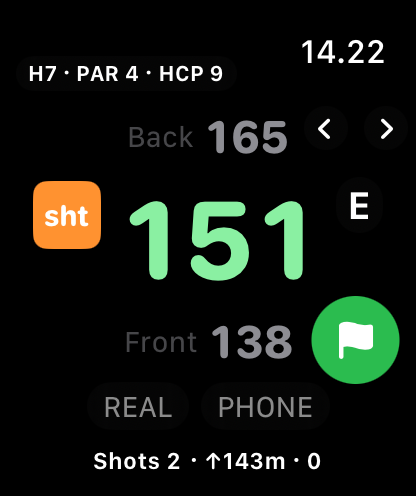 * Track Shot (Double Tap): Stand by your ball and double-tap the screen (or use the Apple Watch double-pinch hand gesture). The watch immediately logs the GPS coordinate and flashes a quick confirmation — the shot number with the club and the lie ("#3 7i · Fairway"), or, with Track clubs off, the shot type instead of the club ("#3 Pitch · Fairway"). The lie is left off when the type already says it: a bunker shot comes from a bunker, a putt from the green, a tee shot from the tee, so those read "#3 Bunker shot", "#4 Putt" and "#1 Tee shot". A recovery keeps its lie — trees, bushes or water.
[!IMPORTANT] Always track your shot by double-tapping while standing directly next to your ball before you hit it.
In a Score tracking round there are no shots to mark and there is no flag: a green Enter score (pencil) button sits in the bottom-right corner instead. Tap it, or double-tap, to open the hole's score, starting at par (or at the score already entered): turn the Digital Crown to change it — it names the score as it goes (Birdie, Par, Bogey…) — and tap Save, or double-tap again. The phone's card updates. In a team format with one ball, the score you save is the team's score for the hole.
4. Hazard Distances
If you need to know what hazards are in play:
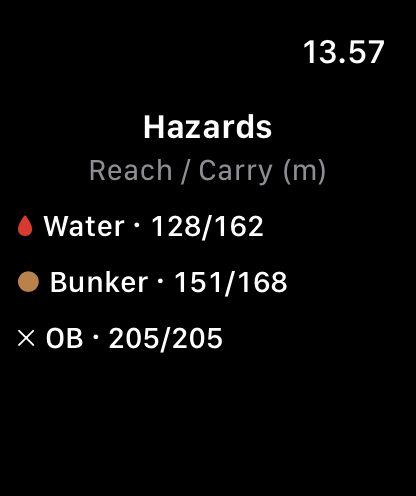
- Swipe Down from the main distance screen, or tap the hole line at the top (for example
H7 · PAR 4 · HCP 9), to reveal the Hazards view. - You will see a list of up to 5 nearby hazards, with the distances in metres to reach and to carry them (the caption under the title reads Reach / Carry (m)). Each hazard has its own symbol and colour — a red drop for water, a brown dot for sand, a white cross for out of bounds, a green flag for a green — the same colours as the signs on the phone's hazard view. Hazards that do not matter for the shot (more than 25 m behind the green, mostly hidden right behind a nearer hazard, more than 15 m from the edge of the green when beside it, or far off to the side of both your direct line to the green and the line along the fairway: more than 35 m, or 30% of its distance from you when that is more) are left out.
5. Quick Actions (Editing & Penalties)
If you make a mistake or need to add a penalty, access the Quick Actions menu:
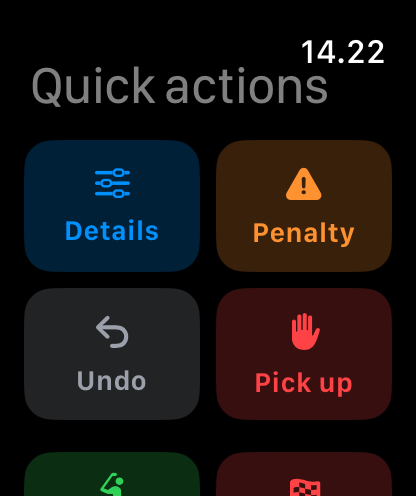
- Swipe Up from the main distance screen, or tap the shot line at the bottom (for example
Shots 2 · ↑143m · 0), to open Quick Actions. - Scroll (Digital Crown or swipe) below the four boxes below for the round controls (section 6).
-
Details: Tap to edit your last shot. Each field is one row showing its current value — tap a row to choose from that field's list, then tap Done (top corner) to save:
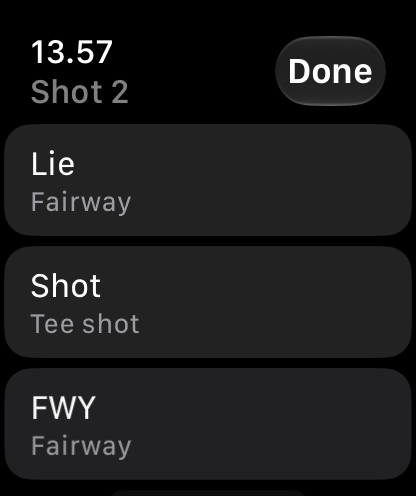
You can adjust: * Lie: Tee, Fairway, Rough, Bunker, Green, Fringe, Trees, etc. * Shot Type: Normal, Pitch, Chip, Recovery, Putt, etc. * FWY (Fairway In Regulation): If it was a tee shot, mark if you hit the fairway, missed left, right, or short. * Club: Correct the club used. * Penalty: Quickly log a penalty stroke. * Undo: Undo your last logged shot. On a hole you have already holed out, Undo takes back the hole-out instead — which is the way back from hitting the flag by mistake, even on a hole with nothing marked yet. The hole opens again and you carry on; your strokes are untouched. * Pick up: Pick up your ball to close the hole with no score.
6. Round controls
The round's controls are at the bottom of Quick actions (swipe up on the Distance Screen, or tap the shot line). The four shot boxes come first; scroll with the Digital Crown or a swipe — the first row of round controls peeks in at the bottom edge — to reach them:
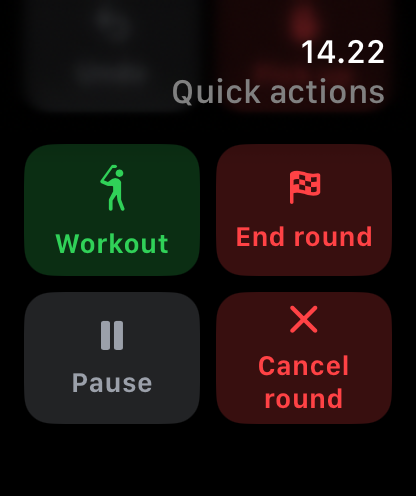
- Workout — whether MyGolf takes the Watch's workout slot: Automatically as soon as a round starts, Ask each round, or Never. The sheet ends with a few small lines of technical status (the workout session and GPS state), useful if you report a problem. A workout session is what keeps the app in the foreground for the whole round; without one, watchOS suspends it and you lose the distances on your wrist (the round still records on the phone). watchOS allows one workout at a time, so starting ours ends any workout you already have running — which is why the default is to ask.
-
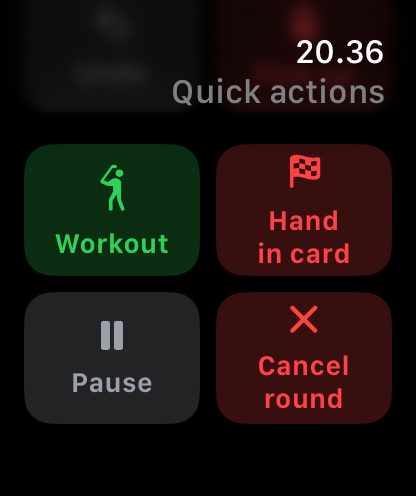
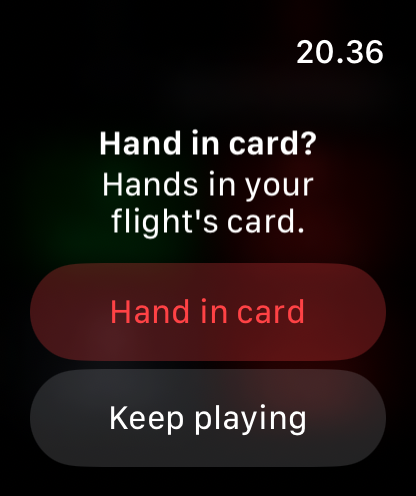
Hand in card — asks Hand in card? (Hands in your flight's card.), then hands in the card for your whole flight through your phone (section 7). Playing alone, the box is End round and asks End round and save?. Keep playing goes back.
-
Pause — steps the phone out of the round to its Home tab; the round keeps tracking underneath (GPS, the Watch link), and Continue a round on Home brings it back.
- Cancel round — asks Discard this round?, then deletes this round's scores and shots; it cannot be undone. Keep playing goes back. It needs your phone in reach: otherwise the Watch says Open MyGolf on your phone to discard. In a shared round only your own card is withdrawn (the scores stay for the others); in a group round the scores already sent stay with the group and the round just closes on your phone (scores your phone had not yet sent, because it had not joined the group round, are dropped).
Undo is the same box as in section 5. Change the workout choice later under Quick actions › Workout.
Two prompts can appear on their own during a round:
- Start a golf workout? — at the start of a round with the Ask each round setting: Start or Not now.
- Tee shot location — when you log a first shot more than 50 m from the tee on an empty hole, which is usually a forgotten tee shot: From the tee box records it as the tee shot, From here records it where you stand.
7. Finishing a round
When every hole is scored the Watch says so — Round complete · Every hole is scored — and offers Hand in card (Close round when you play alone), Edit round (go back and change something first) or Discard round (which asks for confirmation, like Cancel round). Swiping the prompt away leaves the round open; it returns if a hole becomes incomplete again.
Hand in card (or the same box under Quick actions) hands in your flight's card — never another flight's — and shows the summary; you can still fix scores on the phone until the round closes. Playing alone, Close round saves the round. On a round that has already closed the Watch says This round is closed. If the phone has no signal, it still closes the round and the Watch shows the summary; the phone uploads the closed round when it can. The Watch says Couldn't end — check phone and stays on the round only when the phone cannot accept the close (the round was deleted, the app needs an update, or the close was refused). The phone then says Couldn't finish — try again.
The summary:
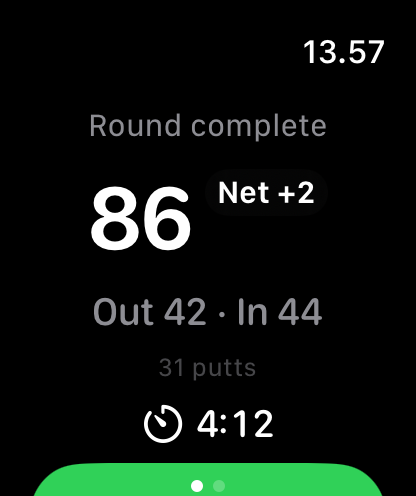
- The big number is your strokes; the small pill after it, Net +2, is your handicap-adjusted (net) score to par.
- Out 42 · In 44 — front-nine and back-nine strokes (only the front for a 9-hole round).
- Putts, when they were recorded.
- The elapsed time (hours:minutes, beside a timer icon) — how long the round took: first to last shot on a shot-tracked round, otherwise start to close. Under five minutes isn't shown: that is a round scored afterwards, not play time.
If the Watch ran a workout for the round (see Workout under Quick actions), swipe left for the Workout page: active energy with the total beneath it, average and maximum heart rate, and the distance you walked. A reading the Watch didn't collect is left out. The page can appear a moment after the summary, once the workout has finished ending; the page dots show only when it exists. The page appears only when Save rounds as workouts is chosen (More › Settings › Apple Health on the iPhone); these numbers are then stored with the round and shown on its detail on the phone. Without that choice the Watch collects none of them and sends MyGolf only the round's start, end and duration.
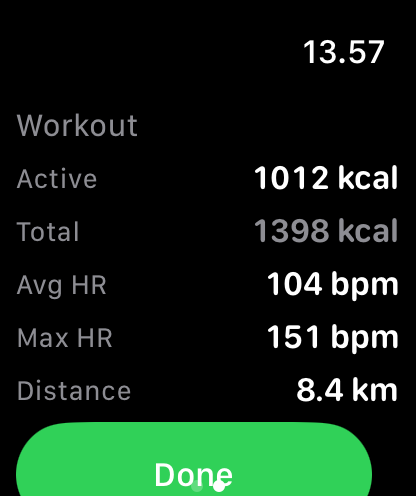
Tap Done to close the summary (a tap elsewhere does nothing). The round is on the phone under Rounds, editable like any other.
Finishing from the phone works the same way: the moment the round finishes there — including an early finish after a few holes — the Watch shows this summary and stops tracking, even while the phone is still showing its final scorecard.