iPhone Shot Tracking Guide
With Shot tracking you tap once before every shot and MyGolf does the rest: it measures each shot from GPS, works out the lie, and scores the hole when you drop the pin. While a round is live the tab bar is Play · Card · Map · More; More starts with Home, Schedule and Rounds, so the round's tabs never leave the bar.
Only you track your shots on your phone. If a flightmate opens your tile on their phone, they get a score form to correct your strokes, putts and other scoring values; they cannot tap in shots for you. Values calculated from your shots carry a blue From shots mark until someone corrects that value. When you finish each hole, a located first putt and an observed pin also supply the first-putt distance.
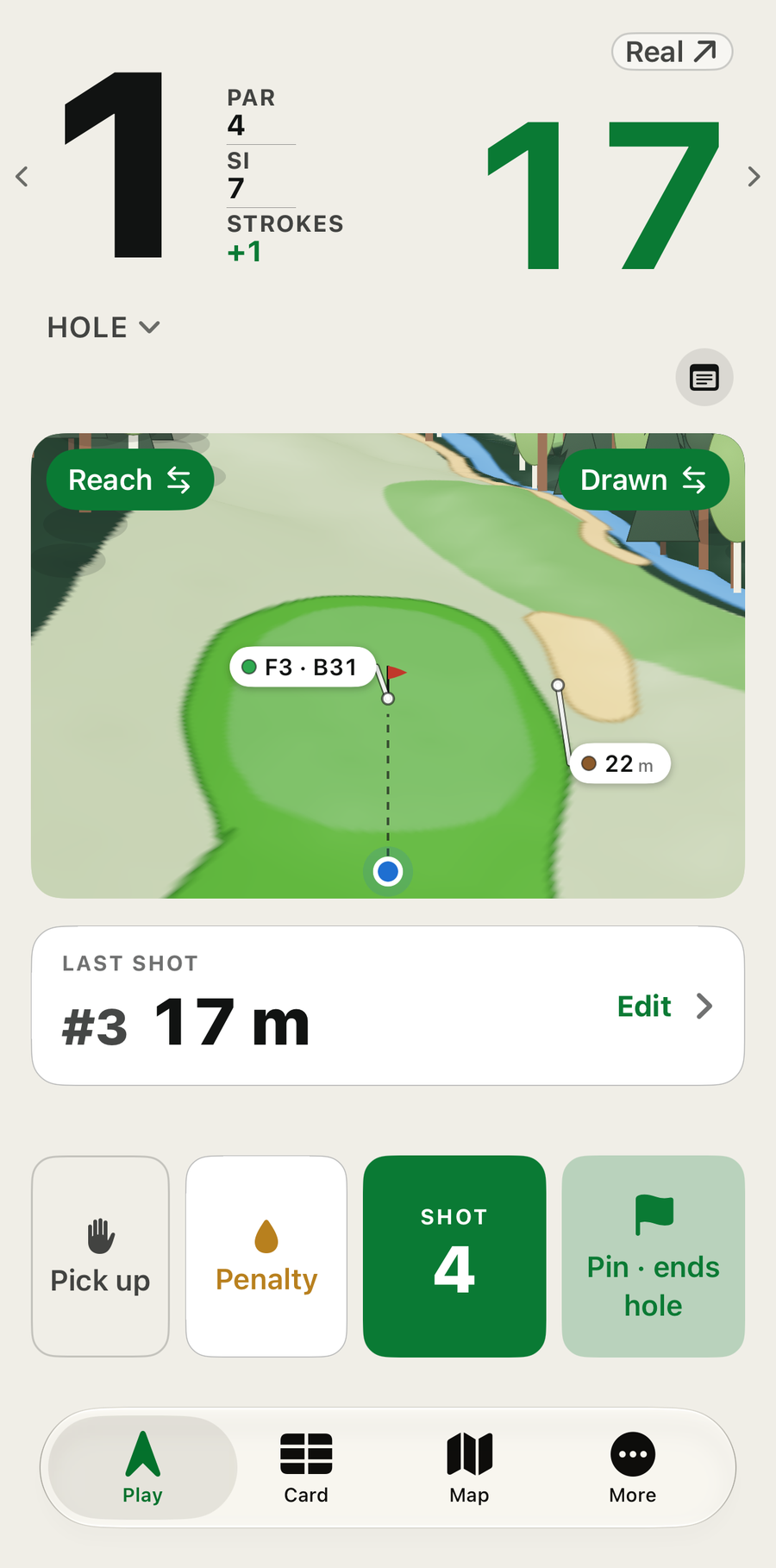
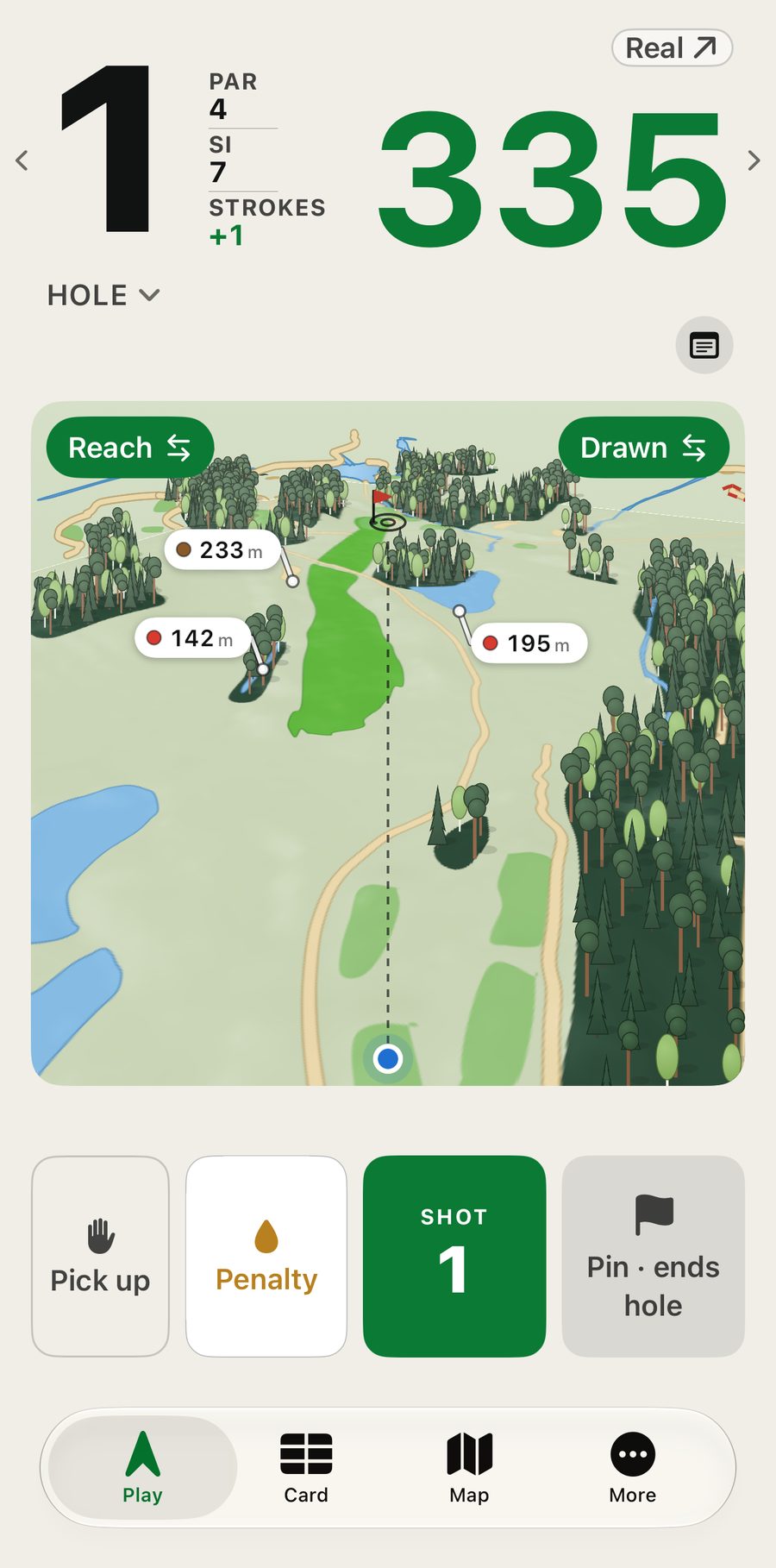 The Play tab at the start of a hole.
1. The Play screen
Hole header
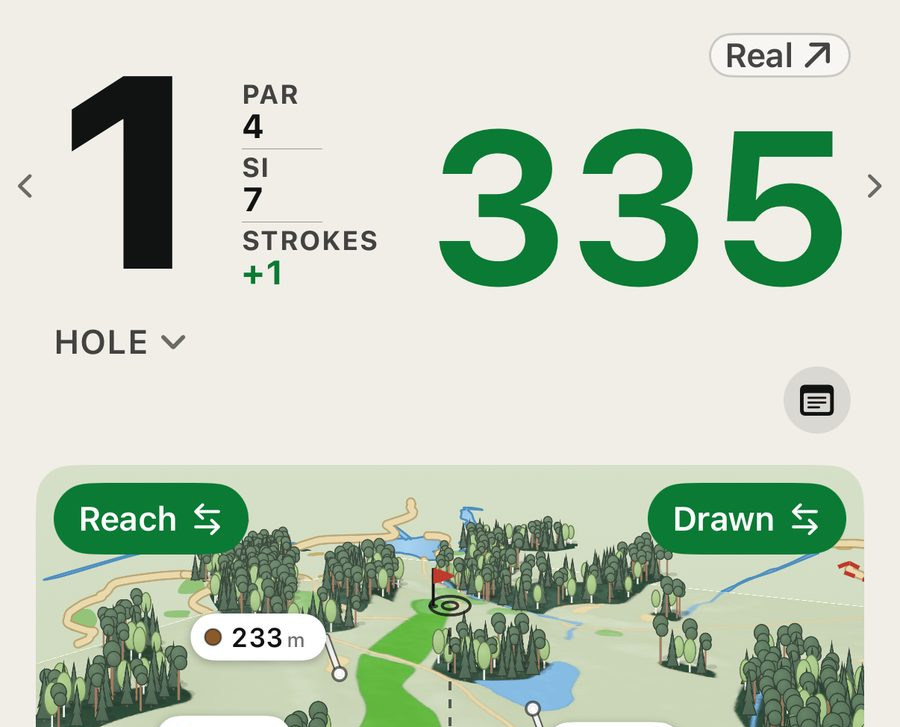 Hole number, the Par / SI / strokes stack, and green distances.
- Swipe across the header — the hole number, the Par / SI / strokes stack and the distances — to change hole: left for the next, right for the previous. A small grey ‹ › sits in each margin of the header as a reminder of the swipe; tap one to move a hole the same way. (The ‹ › arrows above "Hole · Par · SI" remain on a finished hole's review.)
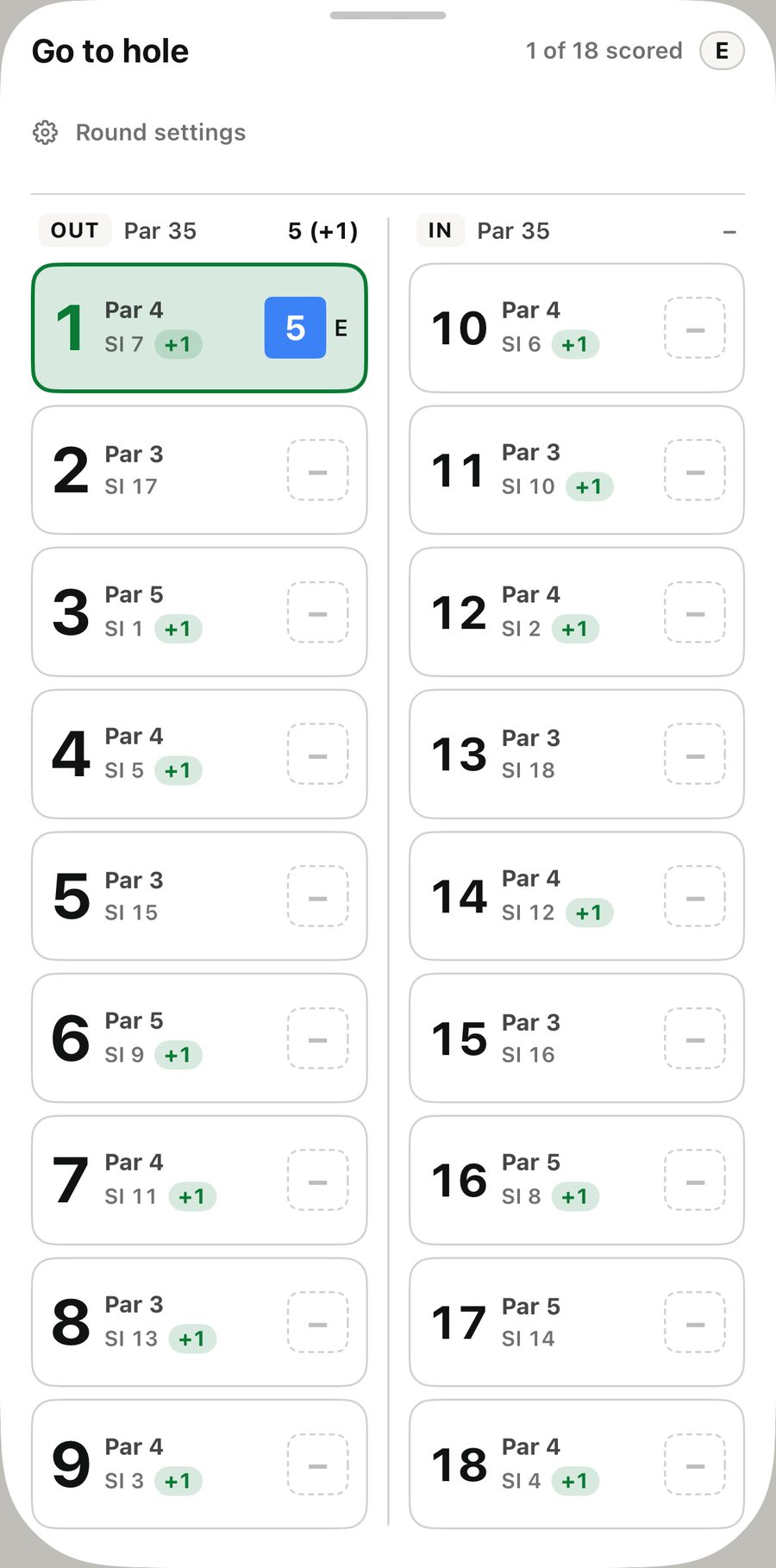
- The big hole number — tap it to jump to any hole. Beside it a small stack shows PAR, SI and STROKES — the strokes you get on this hole ("+1"; nothing when none; a plus handicap shows "-1"). Under the number sits HOLE ⌄ and your running score (thru 6 · +3). Tapping the hole number opens Go to hole: an 18-hole round is arranged in two vertical columns (OUT on the left, IN on the right) with each nine's par and live score subtotal, and each hole row shows the hole number, its par and recorded putts, and your scorecard mark on the right (no SI or handicap strokes: those are on the header and the Card). For each hole you have finished, the net sits next to the mark, written as on the Card's Net rows: net to par (-1, E, +1; under par in the under-par colour), or net strokes in a match-play format (and also left out, with the strokes kept, on a hole played after the match closed). It is left out on a hole not played, on a picked-up hole, when your handicap strokes are not known, and on a shared ball. VoiceOver reads it after the score (Hole 7, par 4, scored 5, net 1 over par).
- Edit round — tee, roster, scoring mode, format — opens from Round settings at the top of the Go to hole grid (tap the hole number, then Round settings), from the ⚙︎ in the Card tab's title bar, and from Home's Continue a round card (see the Score Tracking guide, section 6). On a group round, which the group sets up, Edit round opens too, but shows the game read-only and lets you change only how you track. There is no gear on the Play tab.
Distances
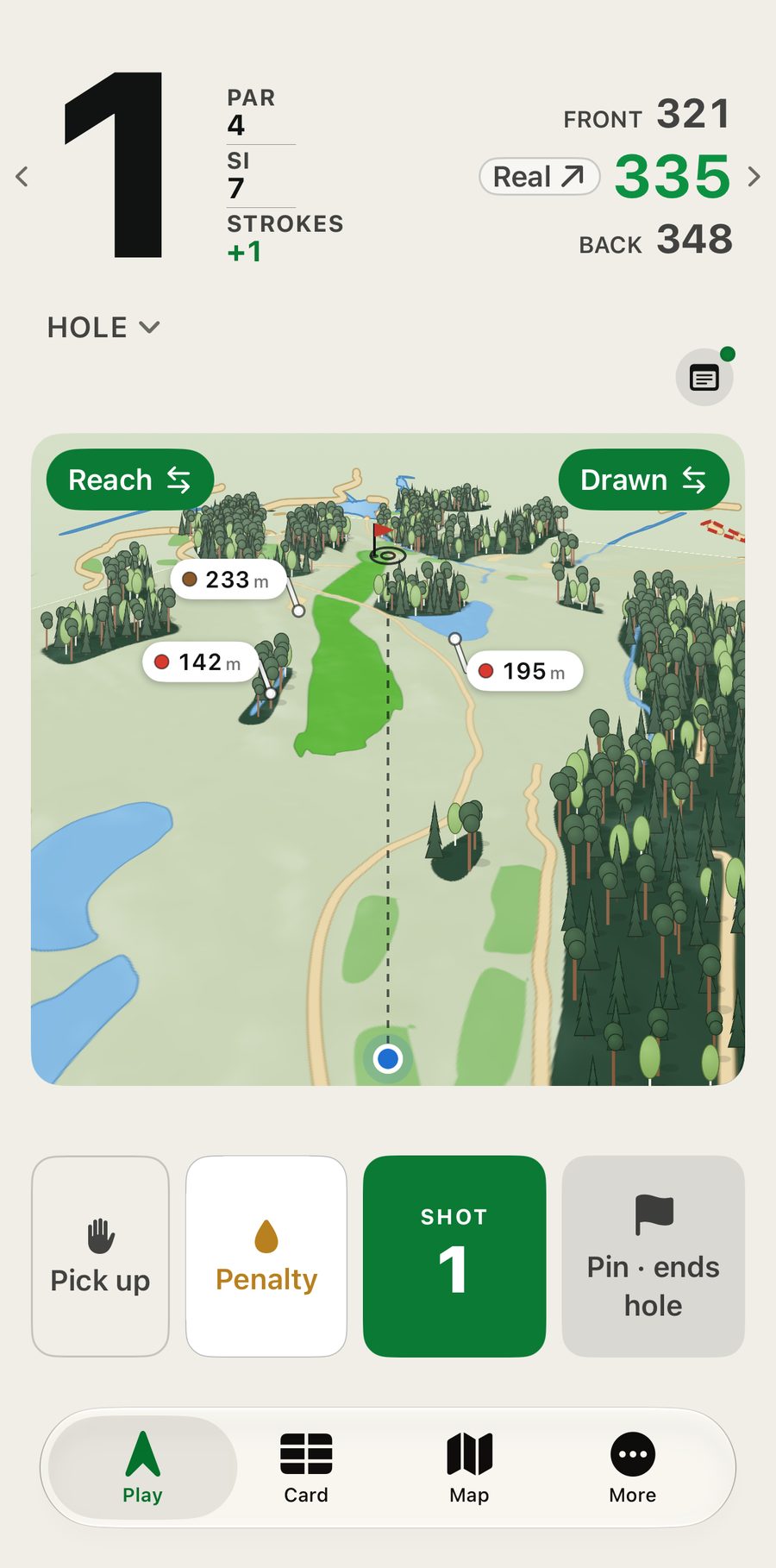
On the right of the header, the large Centre distance to the green updates live from GPS, the same as in score tracking; front and back are not in the header. Tap the distance to open the enlarged distance card: FRONT, CENTRE and BACK at full size (an edge of the green that is not mapped shows —, never a guessed number) with the Plays-as chip (green when on) — distances adjusted for how the shot plays today (elevation, temperature, rain and head/tailwind), with the total as a headline (Plays as: +11 m) and under it one row for each input that changed the figure (uphill / downhill, cold / warm with the temperature, rain, headwind / tailwind), each with its metres, adding up to the total; a row that rounds to 0 m is left out, and the wind row gives the wind along your shot in m/s (along the shot), not the wind speed. It reads Real distances while Plays-as is off; with it on but nothing to adjust, Plays as: no change and what is missing, such as no elevation or weather not loaded or too far from the green (no rows then). The weather is this hour's forecast for the course, fetched for every round (not in competition rounds) and refreshed each hour; if it cannot be fetched the last one is kept, and wind older than three hours is left out. At the largest text size the card scrolls if it does not fit. On Android the enlarged card is a sheet that slides up from the bottom (swipe it down or tap × to close; it scrolls if it does not fit), with the same content: the Plays-as chip, then the headline and rows in small text (+4 m uphill, +3 m cold 9 °C, +5 m headwind 4 m/s along the shot), adding up to the change in the PLAYS AS figure; when the figure does change but something is not counted, a last line says so (weather not loaded or no elevation). Away from the course it reads Plays as: no change · too far from the green. TalkBack reads the block as one item, starting with the total. While Plays-as is on, PLAYS AS appears above the centre figure in the header; while it is off, a small Real ↗ chip sits above the centre figure, and tapping it opens the same card. Off in competition rounds. If the phone cannot get a GPS fix on the hole, a banner offers Switch to Score tracking in one tap.
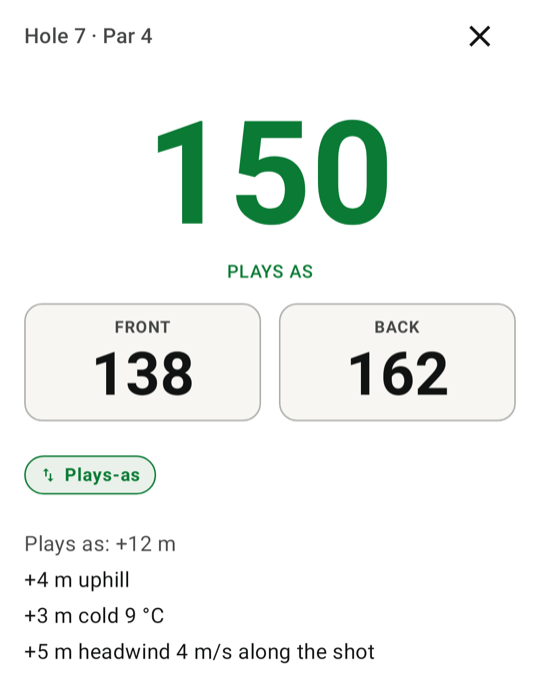 Android: the enlarged distances sheet, Plays-as on. Example figures.
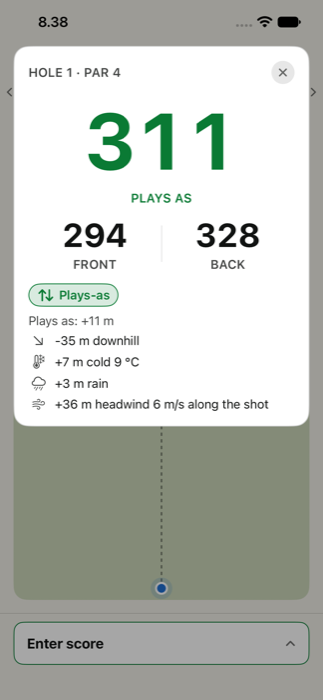
Below them, the hole view (next section) shows the hazards in play for this shot with reach or carry distances.
The hole view
Under the distances, a strip draws the hole low from just behind you, as if you stood 40 m back looking toward where you are about to hit. It looks at the green when it is within your longest club, and otherwise at the point a drive ahead along the fairway (at the corner of a dogleg). Every hazard is drawn: bunkers, water, and out of bounds as a red dashed line, with cart paths, trees and buildings where the course map has them. On a hole that has terrain, the drawn hole stands on the real ground with soft shading, so a raised tee, a bank or an elevated green shows. Beyond the strip of terrain the ground is flat, and it all works offline.
Trees are drawn one by one in the course's own style: Nordic forest of spruce, pine and birch, temperate broadleaf woods, or Mediterranean stone pines, olives and cork oaks. The style follows the course's country. The darker forest floor is drawn only under the trees along a wood's edge; deeper inside a wood the ground reads as rough.
(Capture owed.)
- Compact distance block. When the hole view is available, the header tightens so the hole view gets the middle of the screen: a smaller hole number (with HOLE ⌄ and your thru line under it), its Par / SI / strokes stack, and the centre distance (front and back open with a tap).
- Signs. Each hazard that is in play for this shot carries a small pill with one number: the metres to its front edge (Reach) or over its back edge (Carry). Out of bounds shows the metres to the line, and, while the green is within reach of your longest club, the green carries a sign with its front and back distances (F137 · B164; the centre is the big figure at the top). Hazards out of play are drawn without a sign, and so are hazards that do not matter for this shot: one more than 25 m behind the green, one mostly hidden right behind a nearer hazard (a bunker within 30 m behind a bunker that covers most of it), one beside the green that is more than 15 m from its edge, or one far off to the side of both the line along the fairway and your direct line to the green (more than 35 m, or 30% of its distance from you when that is more). Out of bounds is not hidden by these last two rules or by a nearer hazard (it still goes when more than 25 m past the green, outside the 30 degree sector, or more than 250 m away).
- Reach | Carry (top left) chooses which number the signs show. If it does not fit beside Drawn | Satellite (a narrow phone or a large text size), the control is hidden and each sign shows both, reach then carry (162 m/185 m).
- Drawn | Satellite (top right) switches to satellite imagery on the real ground. It needs the hole's terrain and the map imagery, which MyGolf fetches for the whole round when the round starts, so it keeps working without signal. If either is missing the strip says so and stays drawn.
- Near the far end of a drag, the picture keeps the green in view, looking back over it after you pass it.
- Drag the hole picture with one finger to look further down a dogleg or sideways, then tap Recentre to return (it also returns on a new hole or after you move 20 m); VoiceOver offers Look further down the hole, Look back in 50 m steps, and Recentre.
- Tap the green to zoom in on it: a close-up with the green centred and filling most of the strip, the pin on it, and the bunkers and water around it drawn. The signs are the same ones the normal view shows (a hazard that does not matter for the shot, such as water well off the line of an approach, is drawn without a sign), plus the green's sign (front and back). Tap the green again to come back. It works in Drawn and Satellite, and returns by itself when you go to another hole or have moved 20 m or more. VoiceOver finds the green as its own item (Green, double-tap to zoom). (Capture owed.)
- Far from the green, or no GPS yet. When you are more than 800 m from the middle of the green (not at the course), or GPS has no position for you (waiting for the first fix, location off or refused, or GPS paused), the strip is drawn from your own tee instead of from where you stand, and every number in it (hazard signs, aim, the green's front and back) is measured from that tee. There is no blue dot, because you are not there. It switches to your position by itself once you are within 800 m. The distance figures above it still read 999 when you are over 999 m away.
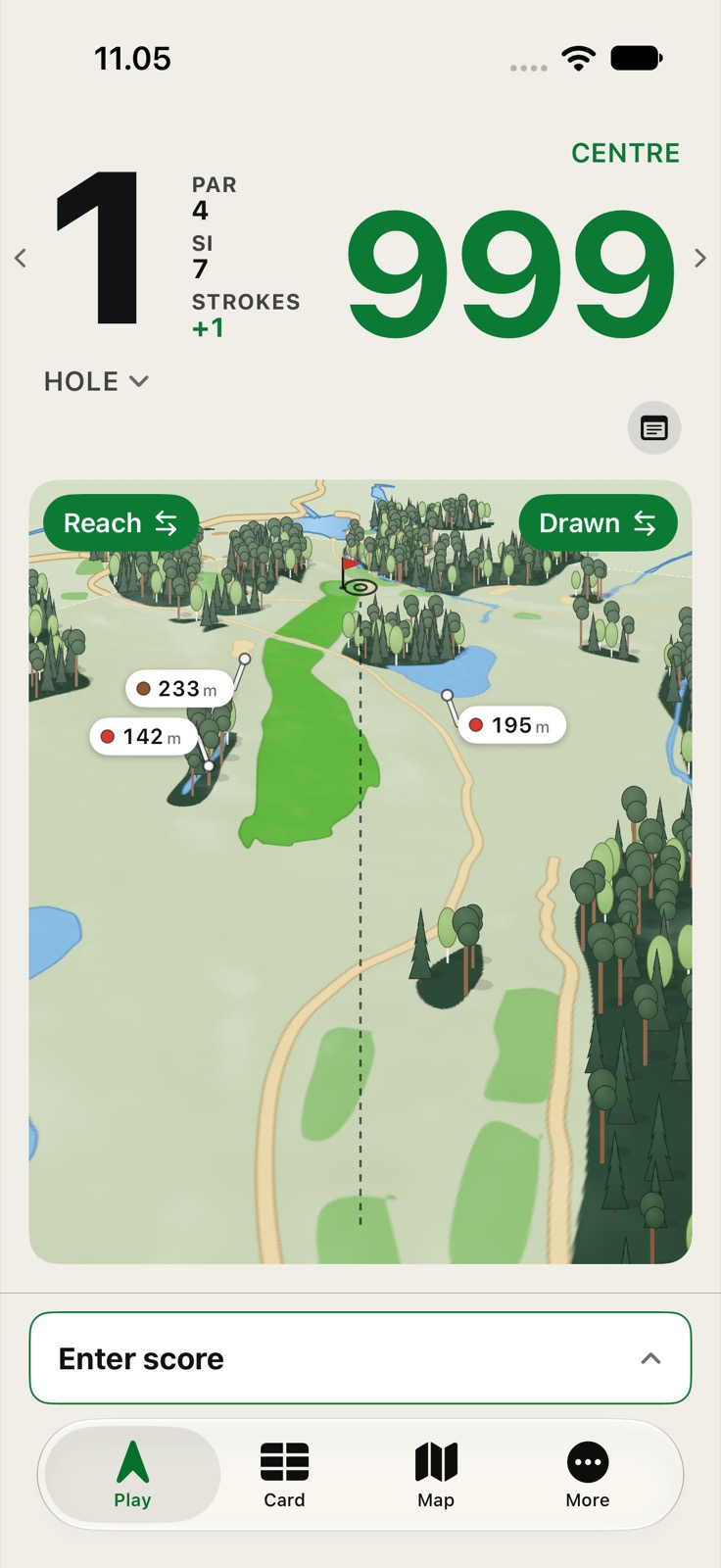 iPhone, hole 1 at Luukki with the phone about 20 km away: the strip is drawn from the tee, with no blue dot, while the distance figure reads 999.
- Tee boxes are drawn as a light green box, without a sign, including the tees of neighbouring holes. A sign never covers the flag.
- The hole view fills the space below the distances in both tracking modes. With no club bag set up, it aims by an estimate from your handicap. A hole with no mapped hazards says No hazards mapped on this hole and draws what the map has. Reach | Carry and Drawn | Satellite remember your last choices.
Last shot
Once you've marked a shot, a LAST SHOT card shows its number and how far you've walked from it — that distance becomes the shot's length. Tap Edit to open the shot editor.
Club and the mark button
With the hole view showing, the bottom of the screen leaves more room for it: when your bag has clubs (More › Settings › My bag) and Track clubs is on, the recommended club is a small chip above one row of four buttons, Pick up · Penalty · SHOT N · Pin. SHOT N is the mark button (green, read out as Mark shot N); the Tap this standing at your ball tip is not shown. At the largest text sizes the row becomes two rows.
Without a course map or GPS fix, the bottom block has the club (tap to pick; MyGolf recommends one from your bag and the distance) and the SHOT N FROM HERE button. A club you pick is for your next shot on that hole: if you move to another hole without marking, the chip goes back to the recommendation.
Tracking shots without clubs. When your bag has no clubs yet (More › Settings › My bag), or when you turn Track clubs off under More › Settings, the club disappears: there is no club chip above the bottom row (and without the hole view, SHOT N FROM HERE takes the whole width), the confirmation flash names the shot type instead of a club (e.g. #1 Shot · Tee), and no screen on the phone or the Watch asks you for a club or shows one. Shots are still tracked in full. Your bag and club distances are kept, and any club you recorded before is still stored: add clubs to your bag or turn the switch back on and it is all there.
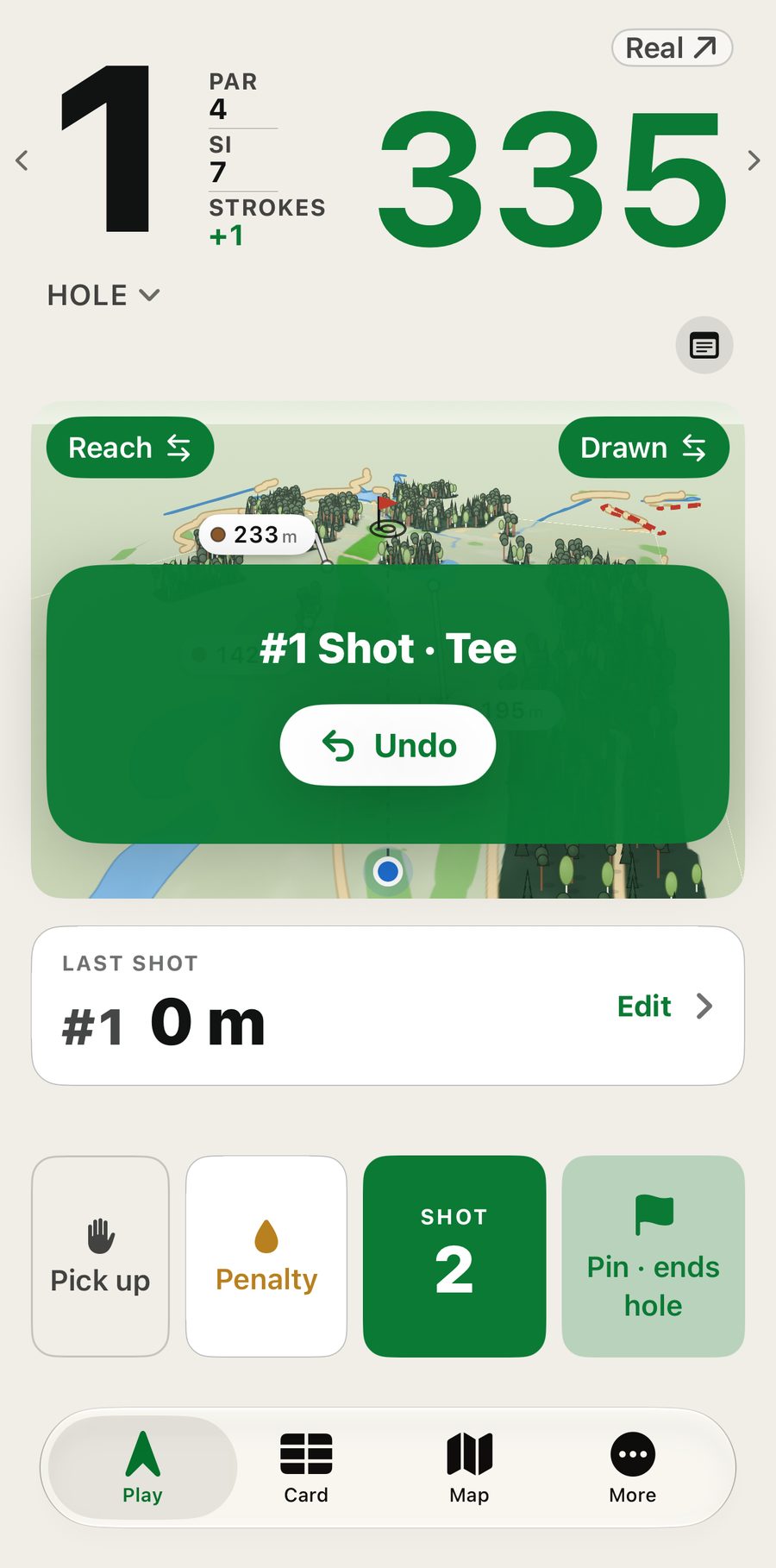 With clubs in your bag: the club chip sits above the bottom bar and the flash confirms the club (#1 Dr · Tee) — with Undo.
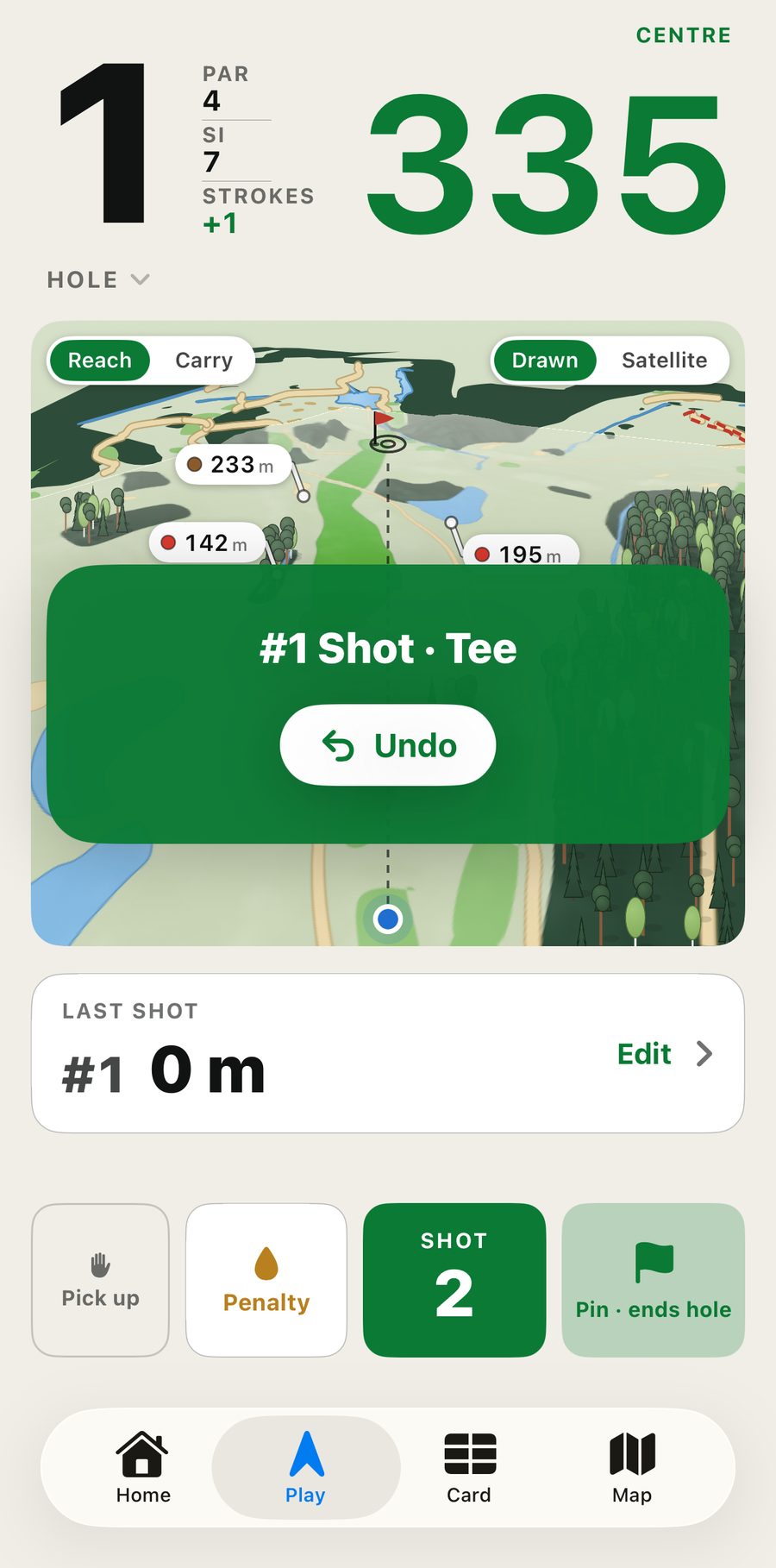 Without clubs (empty bag or Track clubs off): no club chip, and the flash confirms the shot type (#1 Shot · Tee).
Tap SHOT N FROM HERE standing at your ball, before you hit. That is the whole technique: the tap records where the ball is, so the previous shot gets its length and this one gets its lie. A flash shows what was recorded (e.g. #1 Dr · Tee); tap Undo in the flash if it was a mistake.
Thumb bar
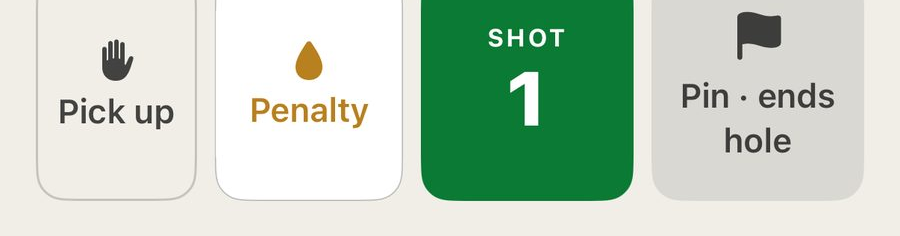 Pick up, Pin · ends hole, and Penalty — reachable by thumb under the mark button.
Under the mark button, left to right: - Pick up — close the hole with no score (counts as a net double bogey). - Penalty — add a penalty stroke. - Pin · ends hole — standing at the cup, this drops the pin, gives your last shot its length and closes the hole. It is on the right so it's under your thumb; it lights up once you have marked at least one shot.
Pocket reading (NFC club tags)
With NFC pocket reading on under More › Settings and NFC tags registered on your clubs (Settings › My bag › Club tags), a Pocket chip joins the thumb bar. Tap it before you pocket the phone: the screen goes black (it stays on, turned down to nothing — an iPhone cannot read tags with the display off) as a Reading clubs card and the phone keeps listening. Locking the phone or leaving the app ends pocket reading, and the screen brightness comes back as you leave. A call banner, Control Center or the scan sheet popping up does not end it: the screen briefly brightens, then goes dark again. Tapping a club's tag against the phone records a shot with that club in one motion — one buzz confirms. If you had already marked the shot from the thumb bar or the Watch, the tap assigns the club to that shot instead of adding another.
Slide to exit at the bottom of the card when you take the phone out — drag the pill all the way to the right; it does not notice by itself, and a tap does nothing, so a thigh cannot end it. While the phone is listening, iOS shows its own Ready to Scan sheet over the card; if its Cancel gets pressed (by you or your pocket) reading only pauses — two buzzes — and carries on after ten seconds unless you slide out or tap Keep reading. The card also tells you when the reader is unavailable (another app holds it); Try again restarts it. This needs a phone with NFC, so it cannot be shown from the simulator.
2. The Map tab
Map shows the hole full screen with your shots and the line to the pin. There is no close button and no compass (the map is always turned along the hole): the tab bar takes you back to Play. The hole strip and the green distances sit above the tab bar, so they are readable without moving the map.
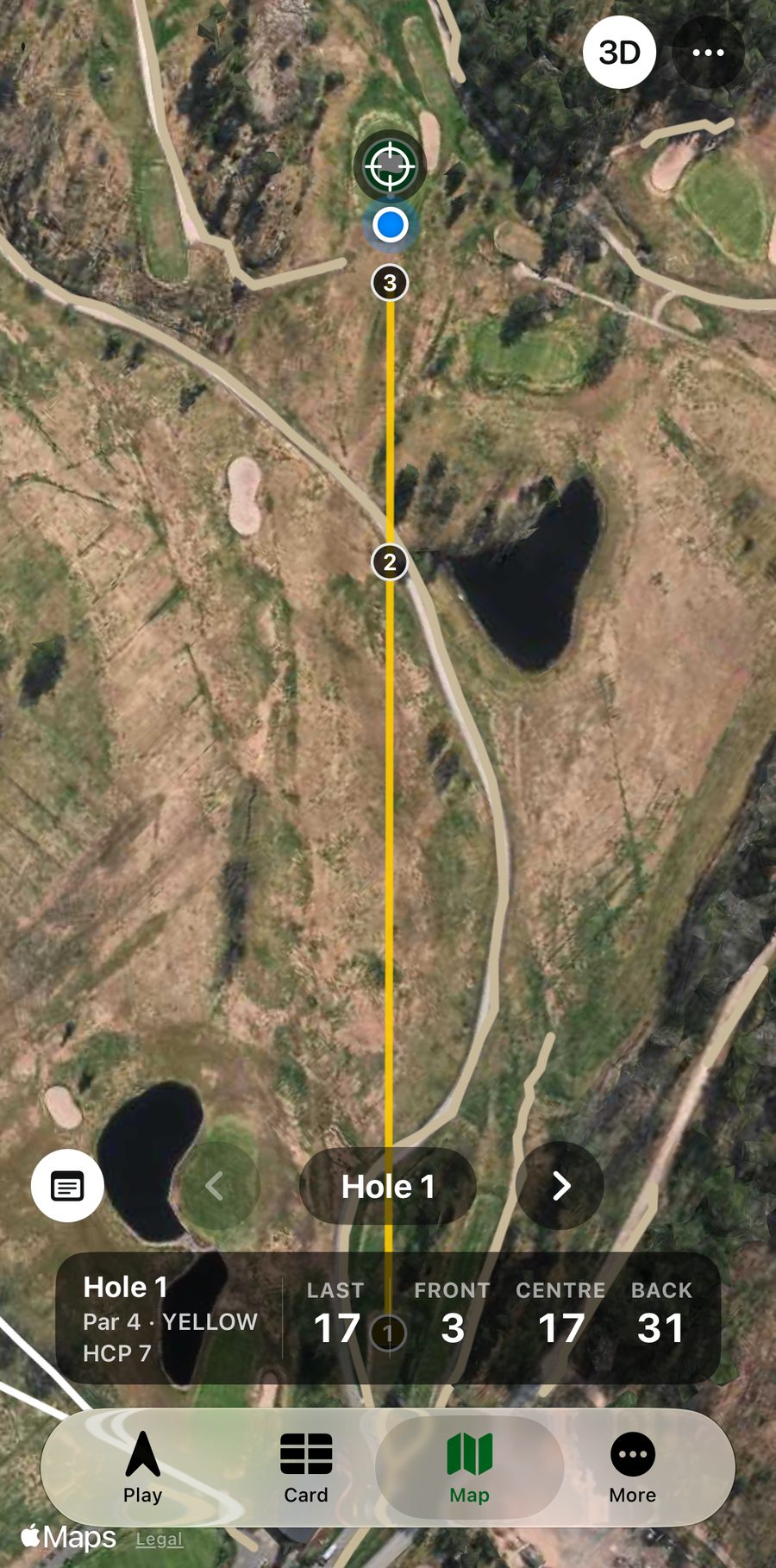
- The dashed line from your blue dot carries the metres to the aiming marker as one big number, written beside the line so it never covers the flag, the marker or your blue dot. Tap the map to plan a lay-up or a carry: the line then runs on to the flag, each part shows its own number — you to the marker, marker to the flag — and Reset to pin appears at the top left to put the marker back on the flag (and hides again once reset).
- 3D (top right) — tap to fly over the hole in 3D, or touch and hold 3D to choose Flyover or From here (From here starts from where you stand, or from your last located shot on the hole, and is dimmed when neither is available). Shown only for a hole that has 3D terrain, loaded when the round starts; without it the button is not shown.
- ‹ Hole N › at the bottom changes hole.
- A hazard couldn't be drawn on this course — shown above ‹ Hole N › when the course map has a bunker, water or out-of-bounds area whose outline is broken, so it cannot be drawn. The hazard is not on the map; play it from what you see, and consider reporting the hole. (Capture owed: no real course shows this yet.)
- My notes (the note icon at the lower left of the map, beside the hole chevrons, and under the right side of the distance header on Play) opens your private note for this course and hole, shared with the course pages and OurGolf. A green dot shows when a note or unsaved draft exists. Cached notes stay readable offline, and editing or saving a note never blocks shots or scores; see My notes per hole.
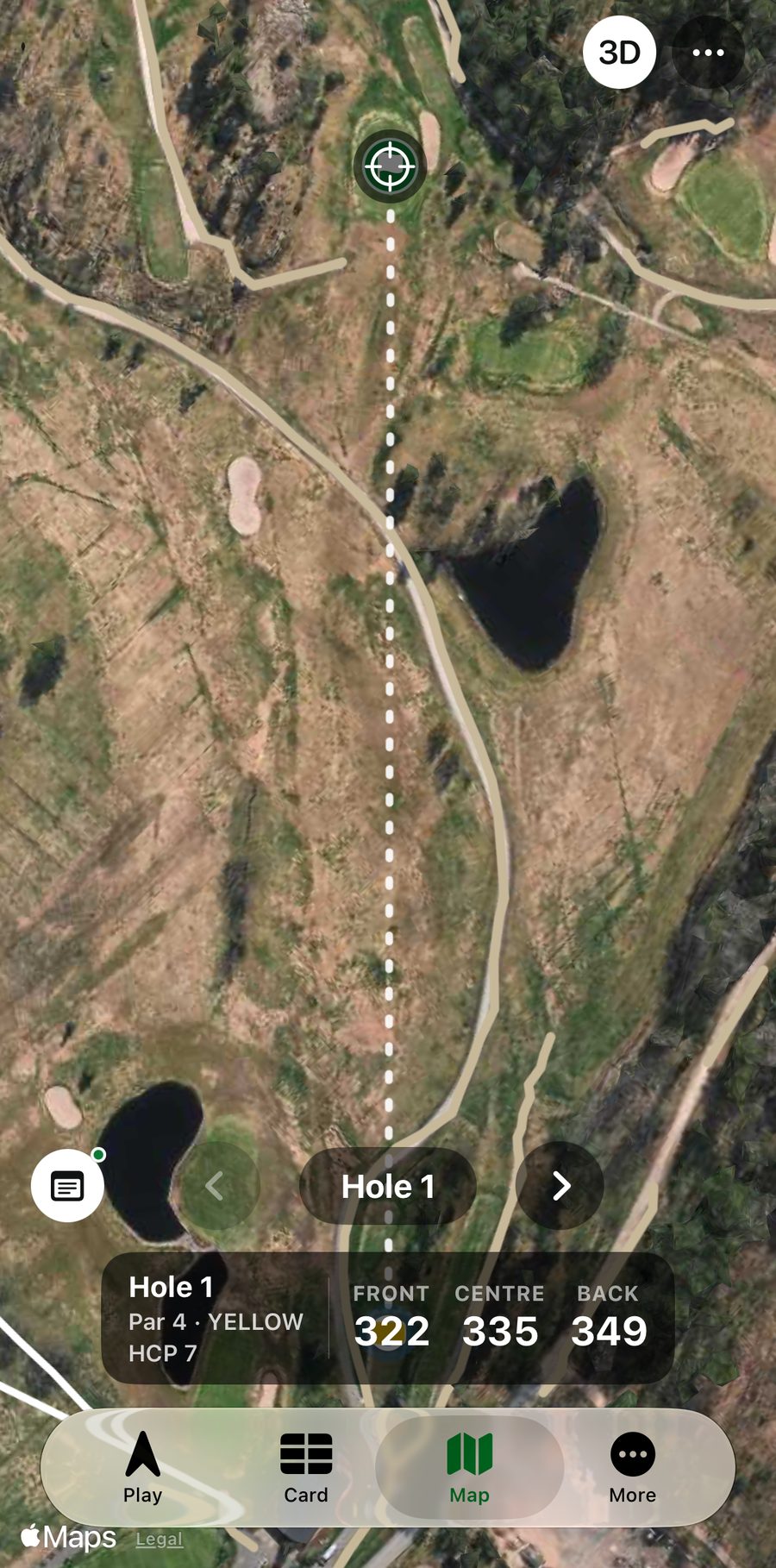 - Report a mapping problem (in the ⋯ menu at the top right of the map) tells the course editors that the map of this hole is wrong. Write what is wrong (1 to 500 characters), optionally add one photo, and tap Send. The hole and your position are saved with the report (if the phone has no GPS fix, the last known position or the hole's green is used; on an unmapped hole with no GPS fix yet, the item is dimmed as Report a mapping problem — needs a location until a location is available). It never affects your score: the report is saved on the phone and sent when you are online. The sheet says Report sent, or Saved, will send when online. (Capture owed: the menu and the sheet are not in the images yet.)
- Shot editing is not on the satellite map; use Edit on the Play screen's last-shot card, the finished-hole review, or the score sheet.
- Map data credit. A line at the foot of the map names where the course shapes on it come from: © OpenStreetMap contributors and/or © Maanmittauslaitos, CC BY 4.0, joined with ·. The hole view on the Play screen, the course's hole map (Courses) and the shot editor's map carry the same line for the shapes they show. Tap the line to open Map data credits (see that guide); a tap anywhere else on the map works as before. A course whose shapes are all your own or the detector's shows no line, except in Denmark: there a detector shape on the map adds © Styrelsen for Dataforsyning og Infrastruktur, because the detector drew it from Danish (GeoDanmark) aerial photos. (Capture owed: the line is not in the images above yet.)
3. Editing shots
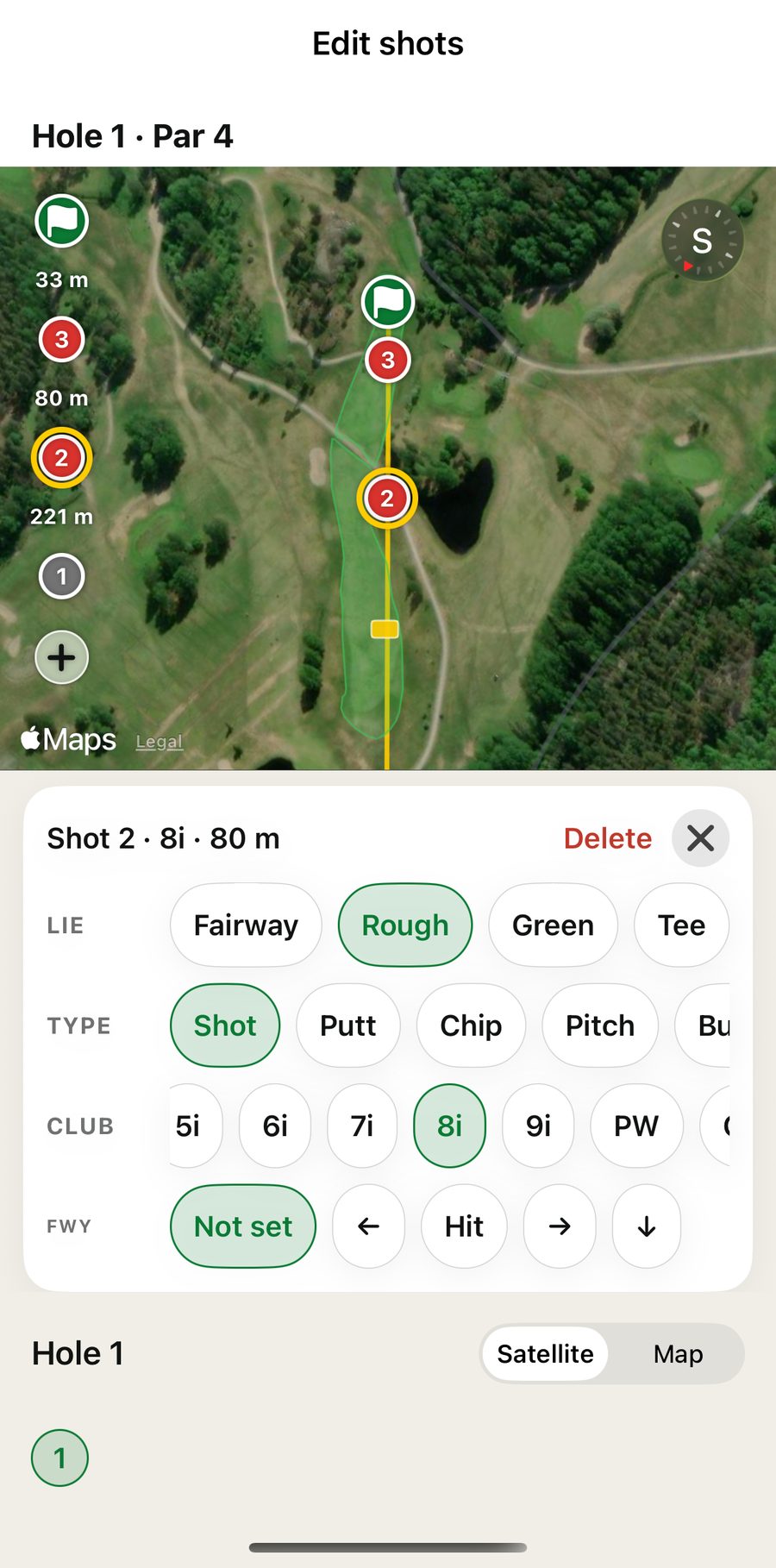
From Edit on the last-shot card (or Edit shots on a finished hole or score sheet) the Hole N shots sheet opens: the hole's map with your shots on it, and a rail down the left edge — one numbered stop per shot, the distance between them, read top to bottom like the hole (pin at the top, tee at the bottom).
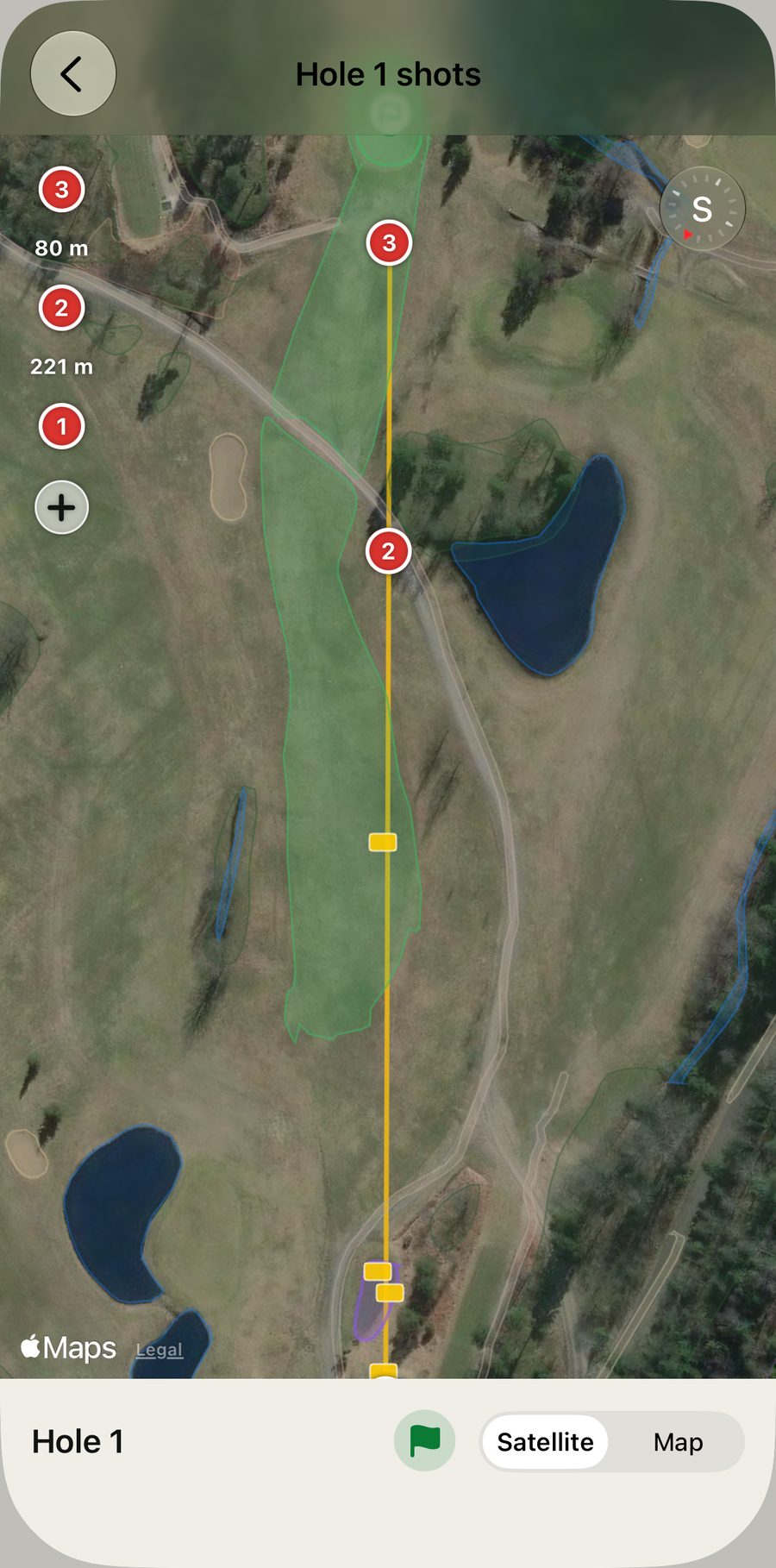
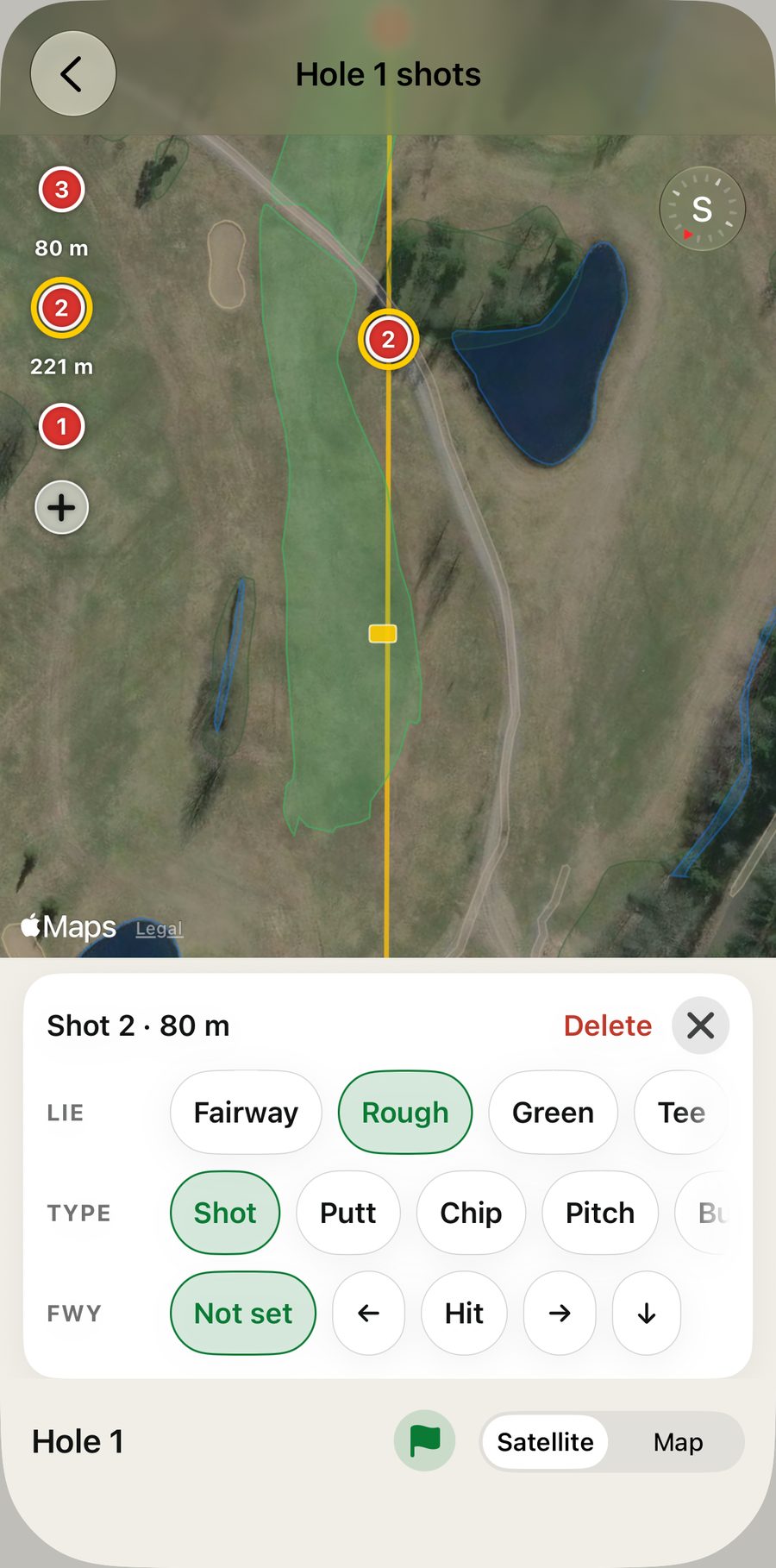
- Tap a stop (or its pin on the map) and the shot lights up; an editor rises under the map with Lie, Type and Club (when your bag has clubs and Track clubs is on; without clubs the Club row is omitted) as sizeable, easy-to-tap chips — tap one to change it, it saves at once. The chips are ordered by how often you need them: lies run Fairway, Rough, Green, Tee, Bunker, then the rarer ones; types run Shot, Putt, Chip, Pitch, Bunker shot, then Tee shot, Recovery and Penalty. The Lie, Type and Fwy rows open at the start so the common choices are always in view, scrolling only as far as needed to show the current one; a soft fade at the right edge means more choices wait off to the side. The Club row opens on the shot's current club. On the shot that decides the fairway (the second shot of a par 4 or 5) a Fwy row adds the result: ← missed left, Hit, → missed right, ↓ short. Delete is in the editor's header, × closes it.
- Drag a pin on the map to fix where a shot was played from.
- The + stop at the bottom of the rail holds Insert missed shot, Add tee shot (if you forgot to mark it) and Add penalty stroke.
- Without a course map for the hole you get a list instead: tap a shot to edit, swipe left to delete (a full swipe deletes at once), swipe right for Add shot (inserts a shot right after that one — the way to fix a missed shot between two earlier ones), and hold & drag to reorder. Under the list, Insert missed shot, Add tee shot and Add penalty stroke cover the usual case of a shot missing at the end.
Swipes on this screen
| Row | Swipe left | Swipe right |
|---|---|---|
| A shot in the list (no course map) | Delete — a full swipe deletes at once | Add shot right after it |
| A shot in the finished-hole review list | — | Add shot · Delete (asks first) |
4. Closing the hole
Tap Pin · ends hole at the cup. If your last marked shot was on the green and within about 25 m of the pin, MyGolf asks once:
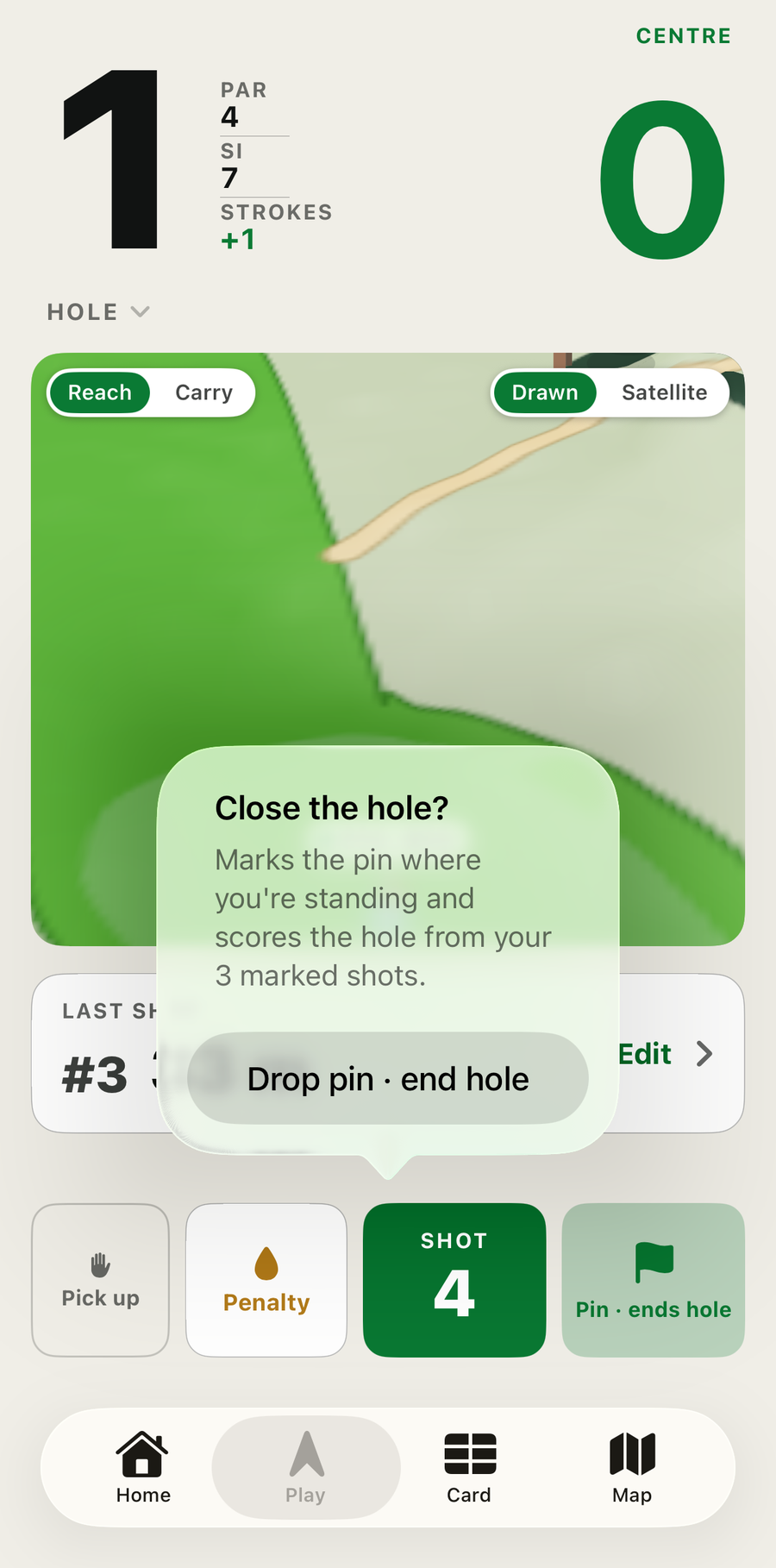
Drop pin · end hole scores the hole from your marked shots.
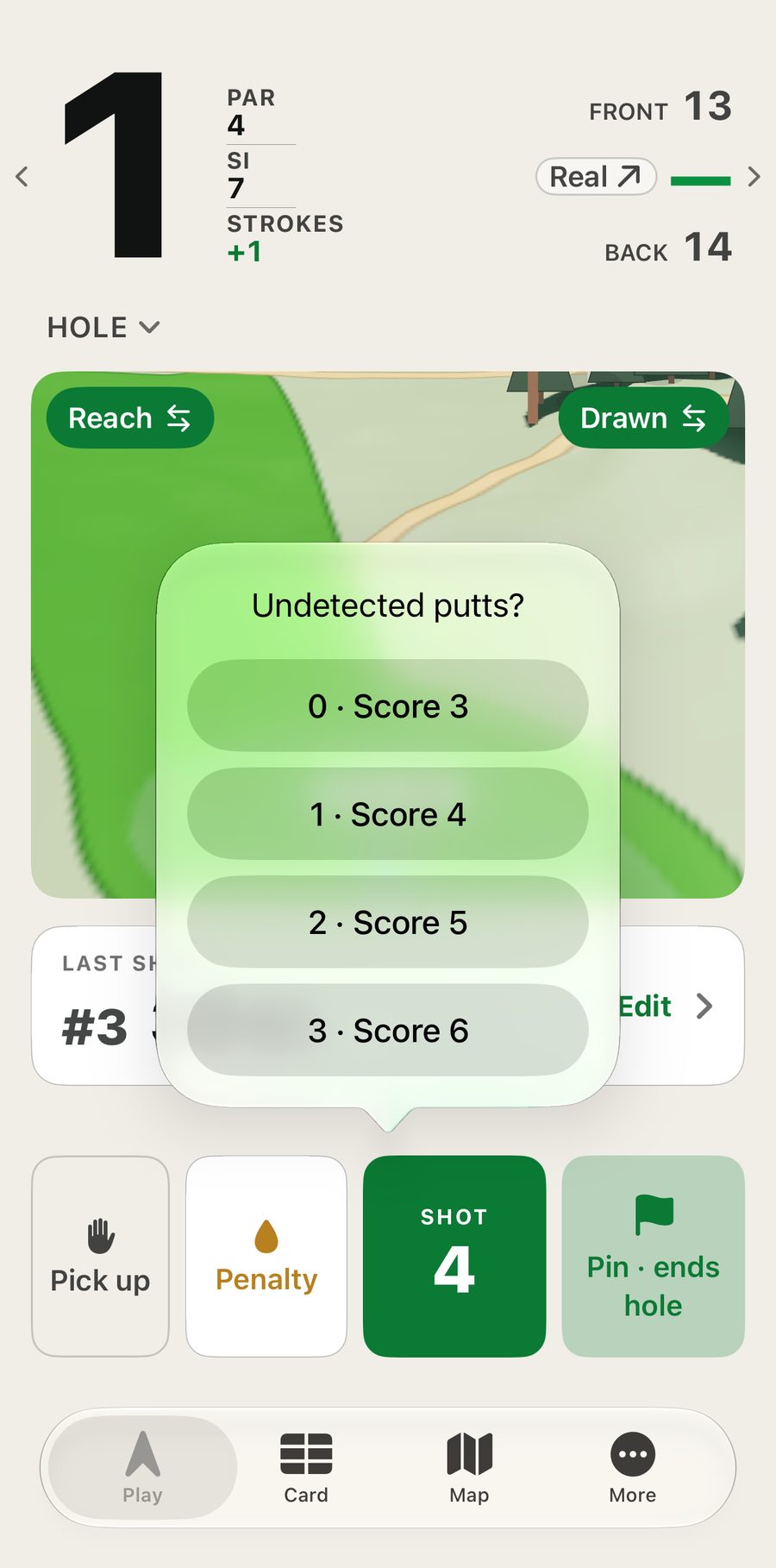
Otherwise (your last marked shot was an approach or a chip, was farther from the pin, or there is no GPS fix) it first asks Undetected putts? with the score each answer gives — 0 · Score 4, 1 · Score 5, 2 · Score 6, 3 · Score 7. Putts you marked are already counted, so answer only for putts you did not mark; 0 keeps the score as it is. After the hole, the hole summary shows the putts under the score (4 · 1 putt), so a wrong answer is easy to spot and one tap on Edit fixes it.
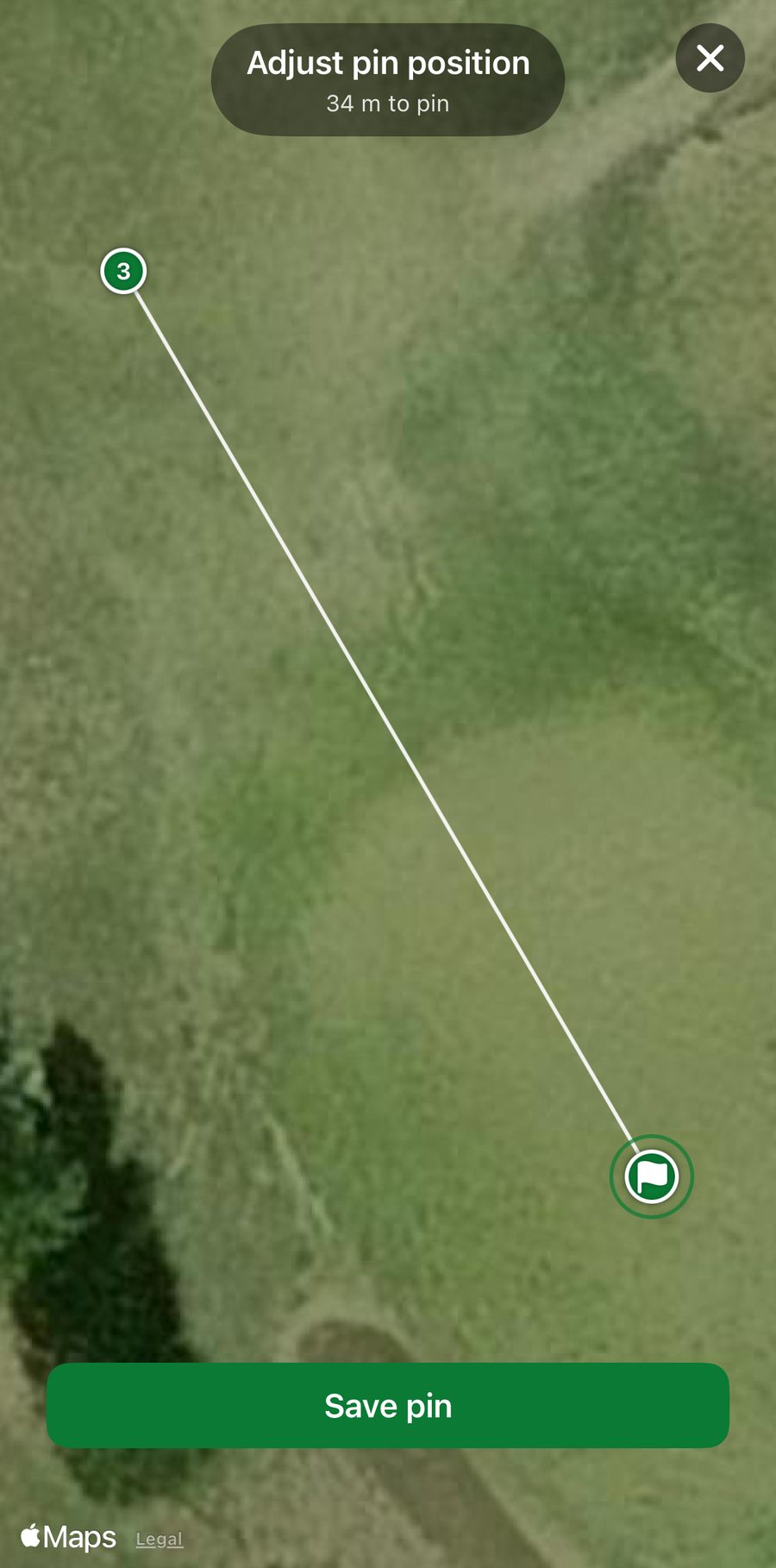
 If you have turned on Adjust pin after holing out (More › Settings › Preferences; it is off by default), it then shows Adjust pin position — a close-up of the green with the line from your last shot to the pin. Drag the pin if you weren't standing exactly at the cup, then Save pin; × keeps the GPS position as is. If you do nothing it closes by itself after 12 seconds — but the moment you touch the pin the timer is cancelled for good, so take your time. Either way the round moves to the next hole. With the switch off, nothing offers this close-up: the pin stays where you ended the hole.
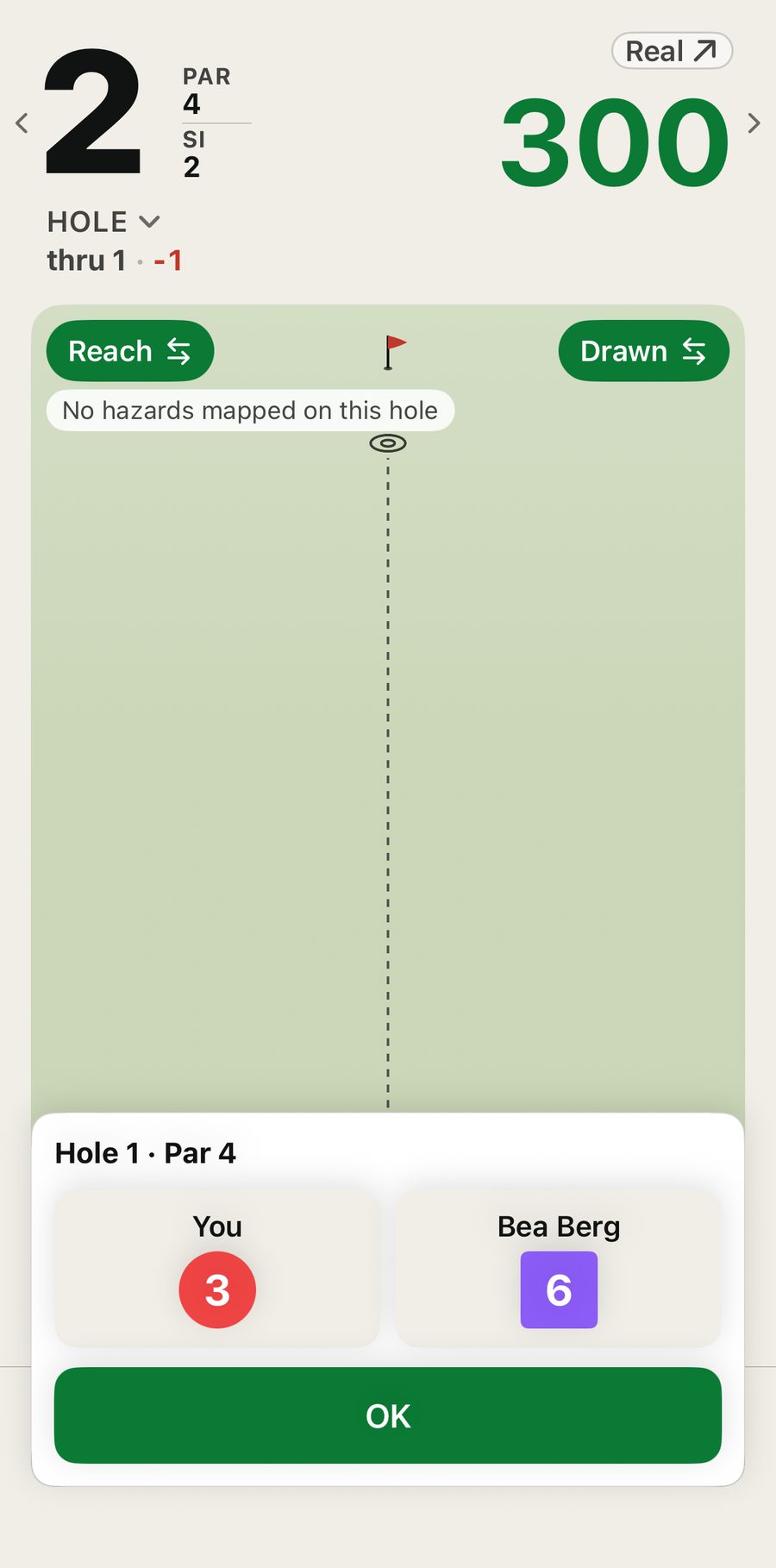
Open your tile or the Card score sheet in a shot-tracking round and you get the same review as a sheet, not a second way to mark shots: the score in its card mark, a This hole list of your shots with Edit shots (the shot editor), and the score form below to override the score the shots gave (or to enter one for a hole you did not mark). Only entering the score finishes the hole — a score chip, Other score or Picked up; tapping a fairway, green, putts or detail control on a hole you are still playing saves just that value and leaves the hole open (it is not counted as scored). A score you enter stays when you add or delete shots later, higher or lower than the shot count, unless you chose Follow my shots in Settings › Scoring (see the Account & Settings guide). Shots themselves are only marked on Play. Your flightmates are scored from the same sheet with the score form: their boxes sit in the bottom row, and a tap on one switches the sheet to them. When a hole ends without the sheet — you hole out in shot tracking or on the Watch — a card on the next hole shows everyone's score and putts; tap a player's box on it to open that player's sheet and fix a wrong answer, or OK to dismiss it.
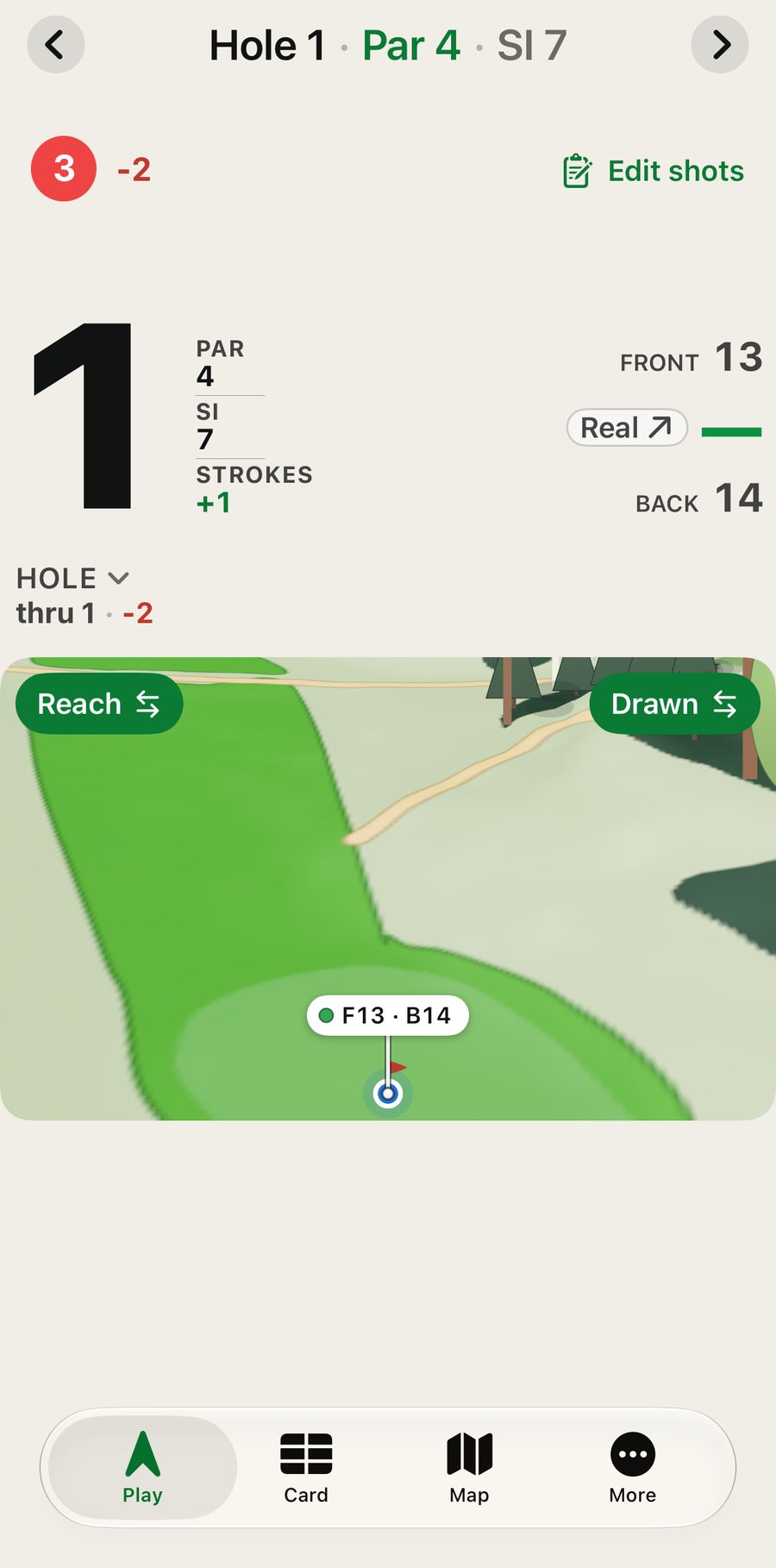
Go back to a finished hole (‹) and you get its review: the hole row (Hole 1 · Par 4 · SI 7) with chevrons to step between holes, your score and its result against par, an Edit shots button that opens the shot editor for corrections, and the hole drawn below with its distances.
5. The Card tab and finishing
On the round's last hole, once everyone in your flight has a result, the Play tab shows a green Review & hand in card button under the header (Review & finish round when you play alone); it opens the same review and confirmation as the Card's button. Card is the live scorecard for everyone in the round, with a green Hand in card button at the bottom (Finish round when you play alone). During play it is drawn in larger type and shows only scores; your putts, fairways and greens rows appear on the finished round's card.
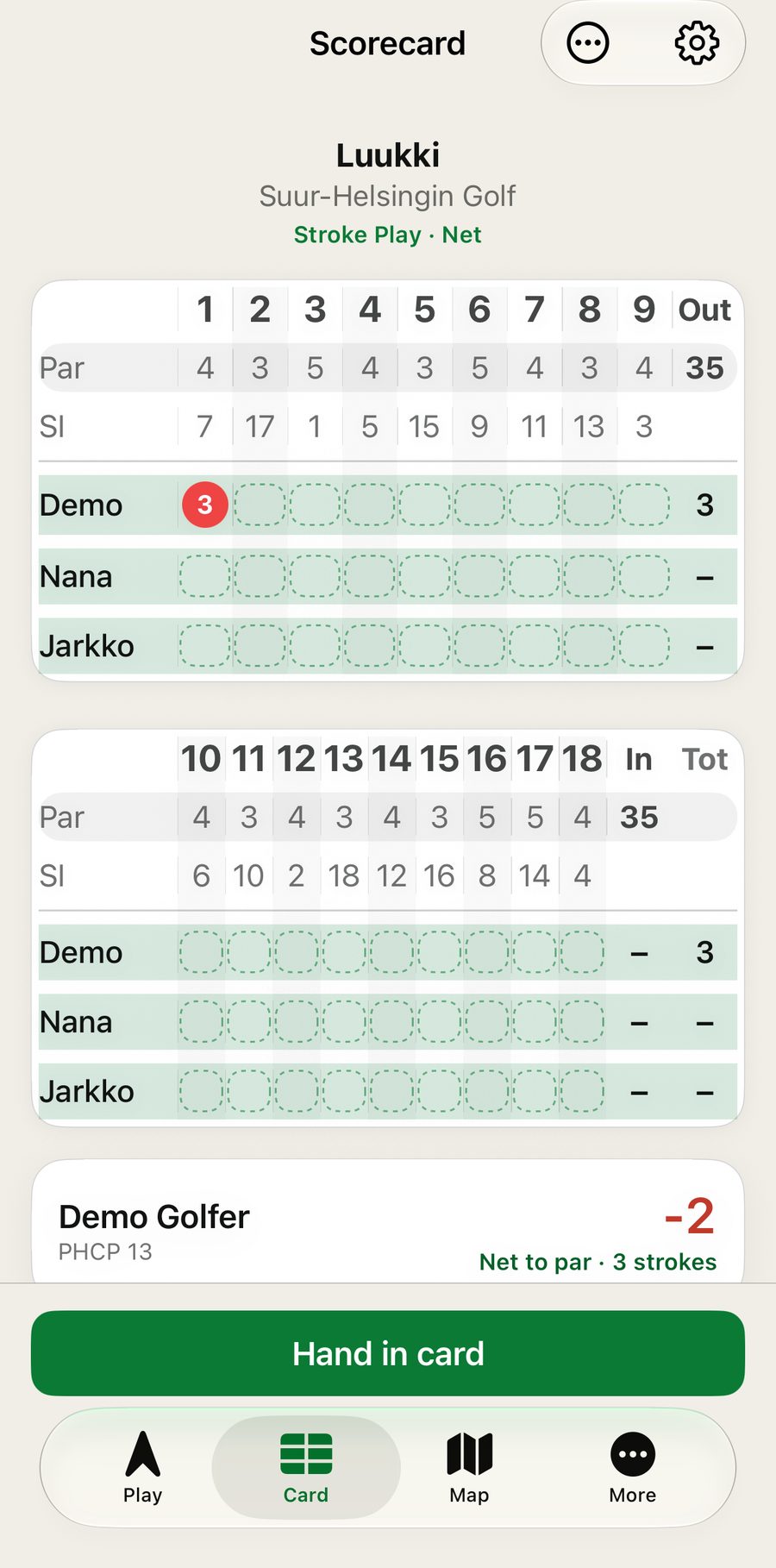
Handing in always opens a review of your flight's card first — whether prompted automatically after the last hole, from Play's Review & hand in card button, or from Card's Hand in card button — even when every hole has a score. Any holes that are actually unfinished — no score, or shots marked but the hole never closed — are listed there too so you can go back and fill them in. Tapping a score on the card ("Tap a score to change it.") closes the review and opens the score sheet on that hole for that player in your flight, so you can correct it; its Back to review button (or swiping it down) returns you to the review with the updated card, without moving the round on. Tapping Hand in card (Finish round solo) inside the review then raises the hand-in confirmation, and only confirming there hands in the card. A finished hole with no putts is only a notice on that confirmation: any shot can hole out, and a putt is sometimes read as a chip, pitch or bunker.
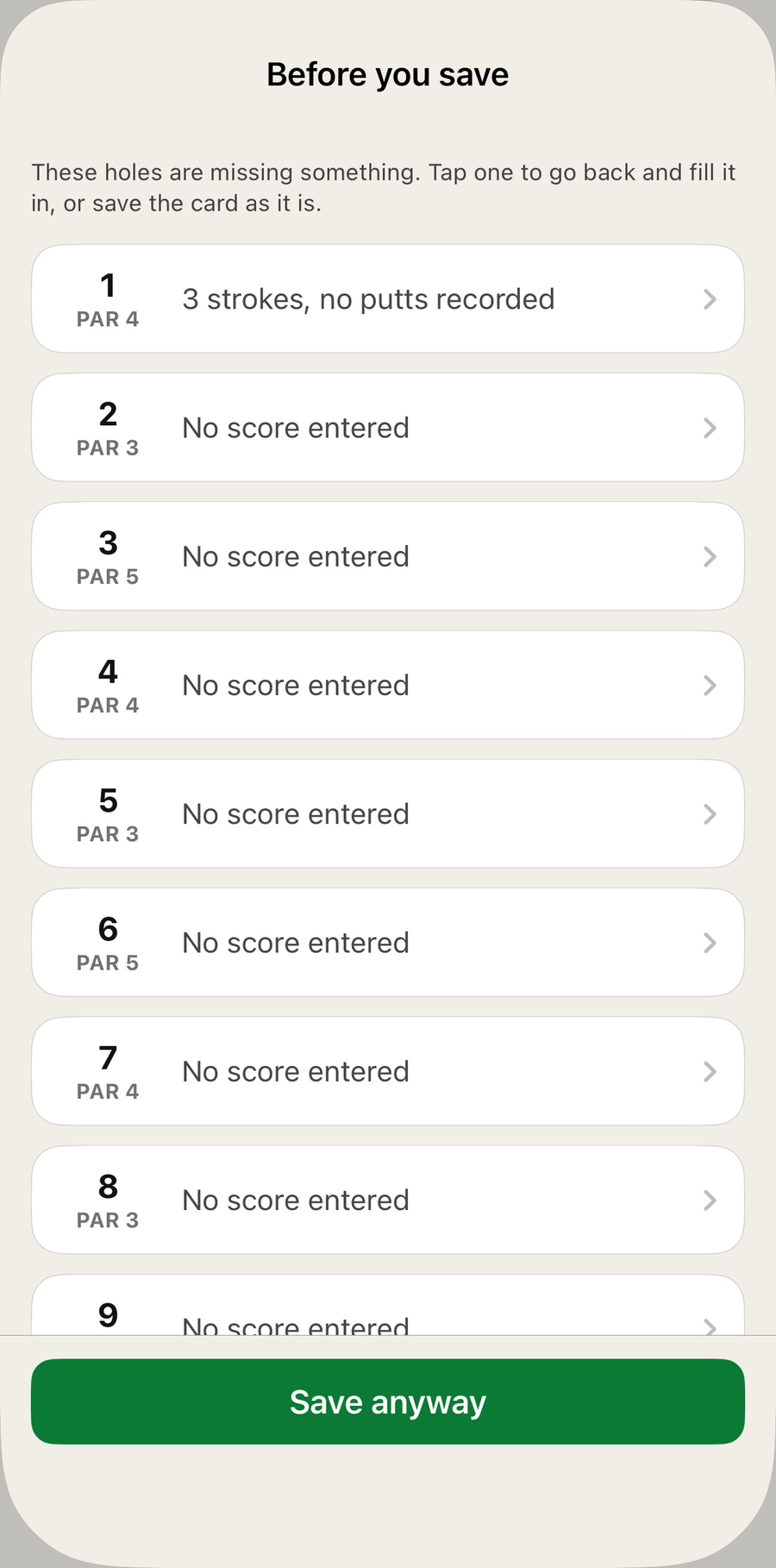
Hand in card hands in the card for your whole flight at once — everyone you are playing with, guests included — and never another flight's. It works without a connection; the phone sends it when it can. Playing alone, the button is Finish round. Confirming asks first: Hand in card or Not yet (with Enter missing scores first when holes have no score). Start again, Leave round and Discard round are no longer in this question: they are in the round's ••• menu at the top of the Card, and each asks before it does anything. On a group round, Leave round only removes the round from this phone; your scores stay with the group. (Capture owed: the flight-card review and hand-in confirmation.)
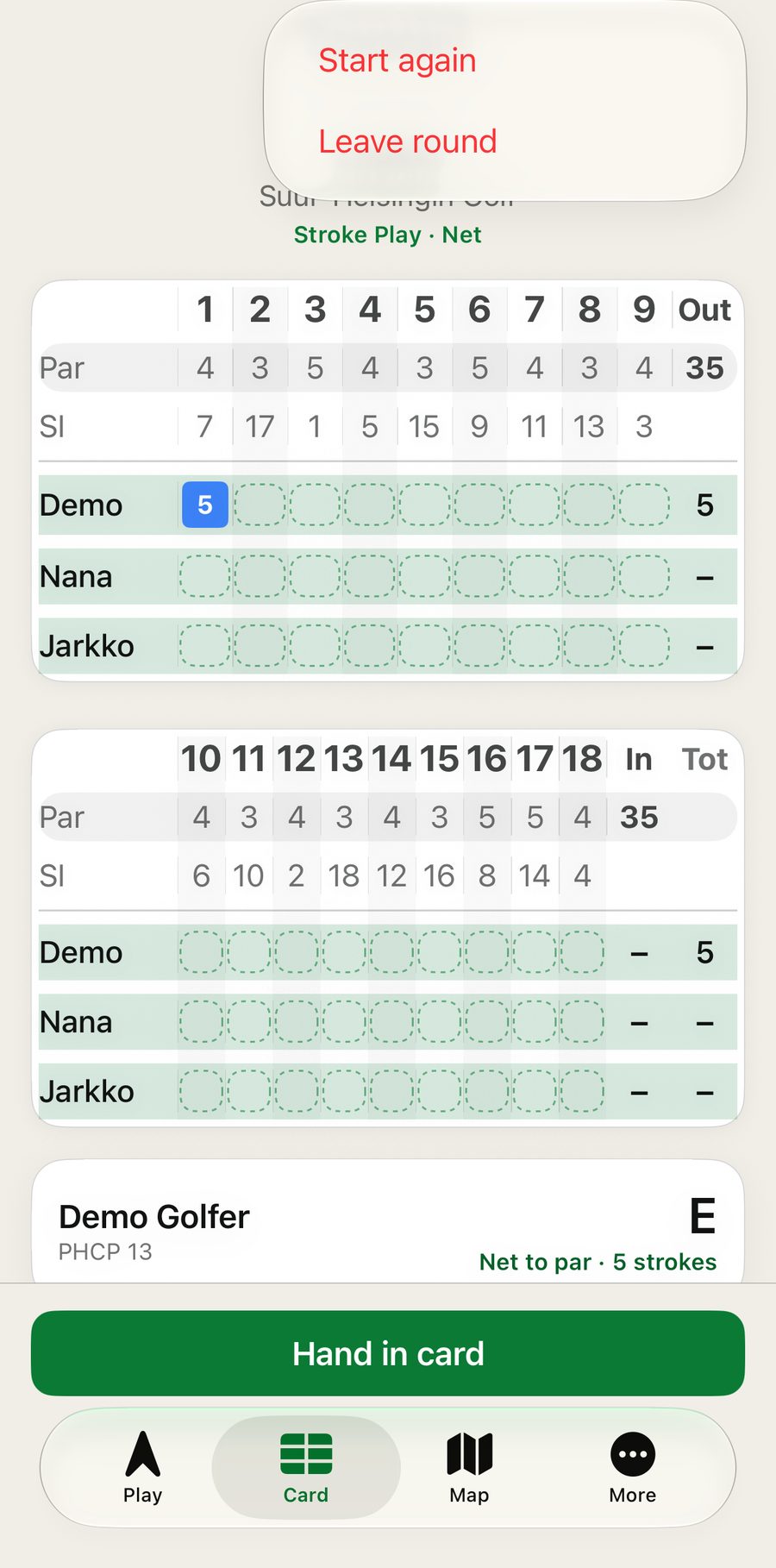
After you hand in, the card stays open and you can still fix a score. On a round run by an organiser (an OurGolf competition or group round) the Card says Handed in · you can fix scores until the round closes while other flights are still playing, then Handed in · you can still fix scores until 15:30 once every flight is in: the round closes one hour after the last card, or earlier if the game master closes it. After that the card is read-only and says Closed by the organiser (or Closed at 15:30). Handed in by mistake? Undo hand-in in the ••• menu opens your flight's card again, until the round closes. On a round you set up yourselves the round finishes when the last card is in, and you can edit it afterwards from Rounds. (Capture owed: the handed-in and closed lines.)
If the phone cannot reach the server, or the server asks it to wait, the round still closes on the phone. You see Round complete, and the phone keeps uploading that closed round until the server accepts it. You do not have to tap Retry. While the first attempts run, Finishing the round… covers the screen so a second tap cannot start a second close. A close the server will not accept — the round was deleted, the app needs an update, or you are not allowed to close it — stays open and says Couldn't finish — try again; on a round that has already closed it says This round is closed. If you handed in from your Watch and the phone saved it, the Watch shows its summary; it says Couldn't end — check phone only when the phone could not accept the close.
When the round has finished — the last flight has handed in — the card comes back titled Round complete — that is the confirmation. Your Watch is told at the same moment: it shows its own summary and stops tracking. You can still correct a score on this final card; Done (top right) saves any corrections and leaves the round. Finishing early leaves the unplayed holes empty, so Done asks once — Close anyway — before it closes. The finished card's Stats also shows the round's detail block of four: Score (your strokes, with small bars for how many holes were birdie or better, par, bogey and double or worse), Putts (the total and per hole, with bars for one putt or fewer — a chip-in counts here — two, and three or more), and Greens and Fairways as X's — hits in the middle, misses in the V on the side you missed (short at the bottom, long at the top). In a scramble or greensome they are your team's ball, marked Team ball.
6. Editing a finished round's shots
Open the round from Rounds and tap Edit shots. It is the same editor as during the round — the map, the rail of shots down the left, and the inline editor when you select one — with a strip of hole numbers along the bottom to move between holes. Corrections sync when you leave, and strokes gained is recalculated.
If the round was deleted while you were playing it — someone else ended it, or it was closed for being stale — the screen says so: This round was deleted. Your card is still here. Nothing you entered is lost; it is on your phone. Tap Save my card as a new round and everything you have scored is filed under a new round of your own, which you can finish normally.
A pin marked with a small "?" is a stroke the phone placed itself — it had no GPS fix when you marked it (just after a relaunch, or under trees), so it put the shot next to your previous one instead of leaving it off the map. It counts and is numbered normally, syncs like any other shot, and its lines to and from it are dashed to show they're a guess. Drag it to where the shot actually was and the "?" clears. Picking a lie or club for it works as usual and is kept even while the "?" is still there — only moving the pin clears the flag.
A hollow stop in the rail is now rare: it is a stroke that counted but has no position at all, because there was nowhere nearby to place it from (no tee, no previous shot on the hole, no recent fix) — the phone leaves it genuinely unplaced rather than guessing. Its number is kept so the rail still reads as the hole was played, it has no pin, and no distance is shown either side of it. To place it, long-press the map between the two shots either side of it — the stop fills in and the shot takes that number; nothing else is renumbered. The hole's score keeps counting it whether or not you place it.
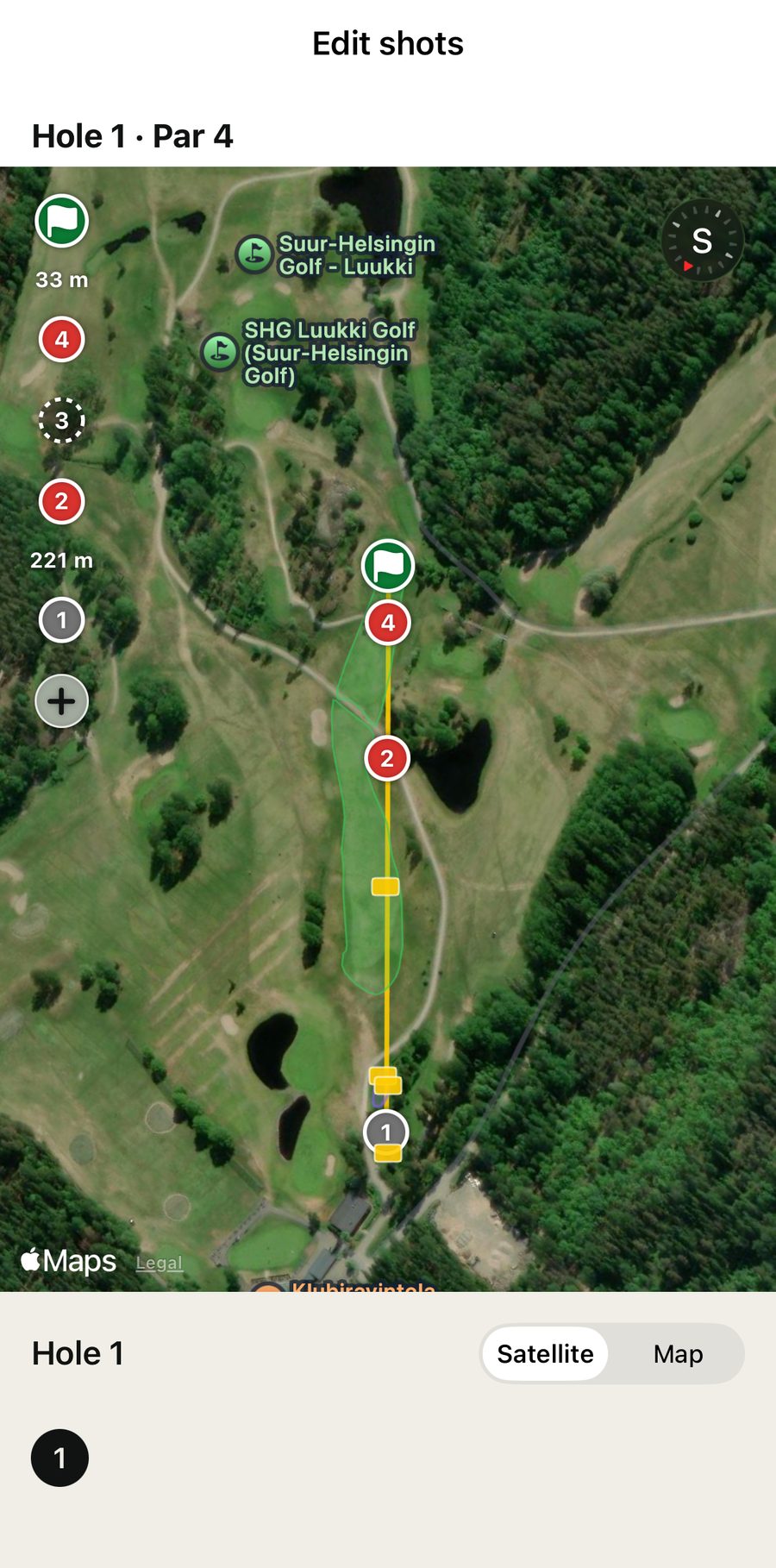 Shots 1, 2 and 4 have positions; stroke 3 was marked without one, so its stop is hollow and no distance is printed across it.
7. Group rounds
On a group round (a round your group sets up) shot tracking works as above, and the tracking style is your own: Edit round lets you switch between Shot tracking and Score tracking, and the change is saved to your seat. The group sets the game itself; see Group rounds in the Score Tracking guide for what is read-only, what to do when MyGolf asks you to update (Update MyGolf to keep scoring this round; your shots are kept on the phone and sync after the update), and what a player's row means when it says scores stay on this phone and aren't in the group round. The shots you marked for such a player stay on this phone, in your own card, and are never sent to the group. (The pictures are in Group rounds in the Score Tracking guide.)