iPhone Schedule Guide
The Schedule tab is your golf calendar: every tee time booked through your clubs, the rounds you have planned in MyGolf, your own events, the auto-book requests waiting for a booking window, your friends' upcoming rounds and your clubs' events — one timeline, in date order.
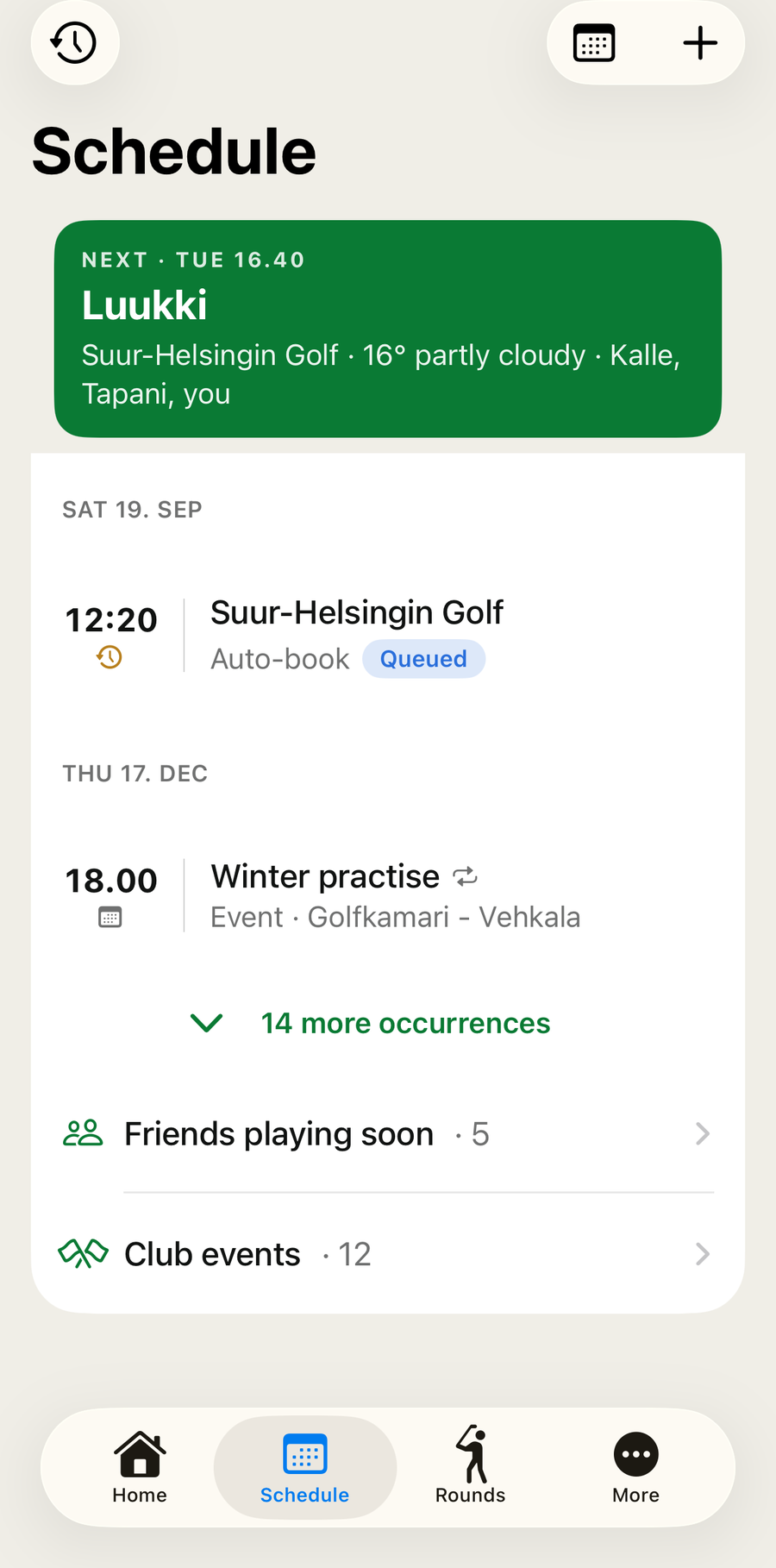 The Schedule tab with a tee time next up, a queued auto-book and a repeating event.
1. The timeline
Next up — when you have a tee time or a planned round ahead, it is the first thing on the screen: a green card with the day and time, the course, and one line with the club, the forecast and who is playing. Tap it to open the tee time. It is not listed a second time below. It stays up to 30 minutes after the start time, then gives way to whatever is next.
Under it, items are grouped under day labels. An event is listed under the day it starts and at its start time in its own time zone, so a dinner abroad shows its local time, not your phone's. Every row names what it is on its second line — Tee time, Round, Event or Auto-book — ahead of the club, venue or status, so a booked tee time never reads like a request that may not be granted. Tap a row to expand it in place: a tee time shows the flight and the forecast, an event its times, venue and description, an auto-book its status and when its window opens. Open at the end of the expanded block goes to the full screen.
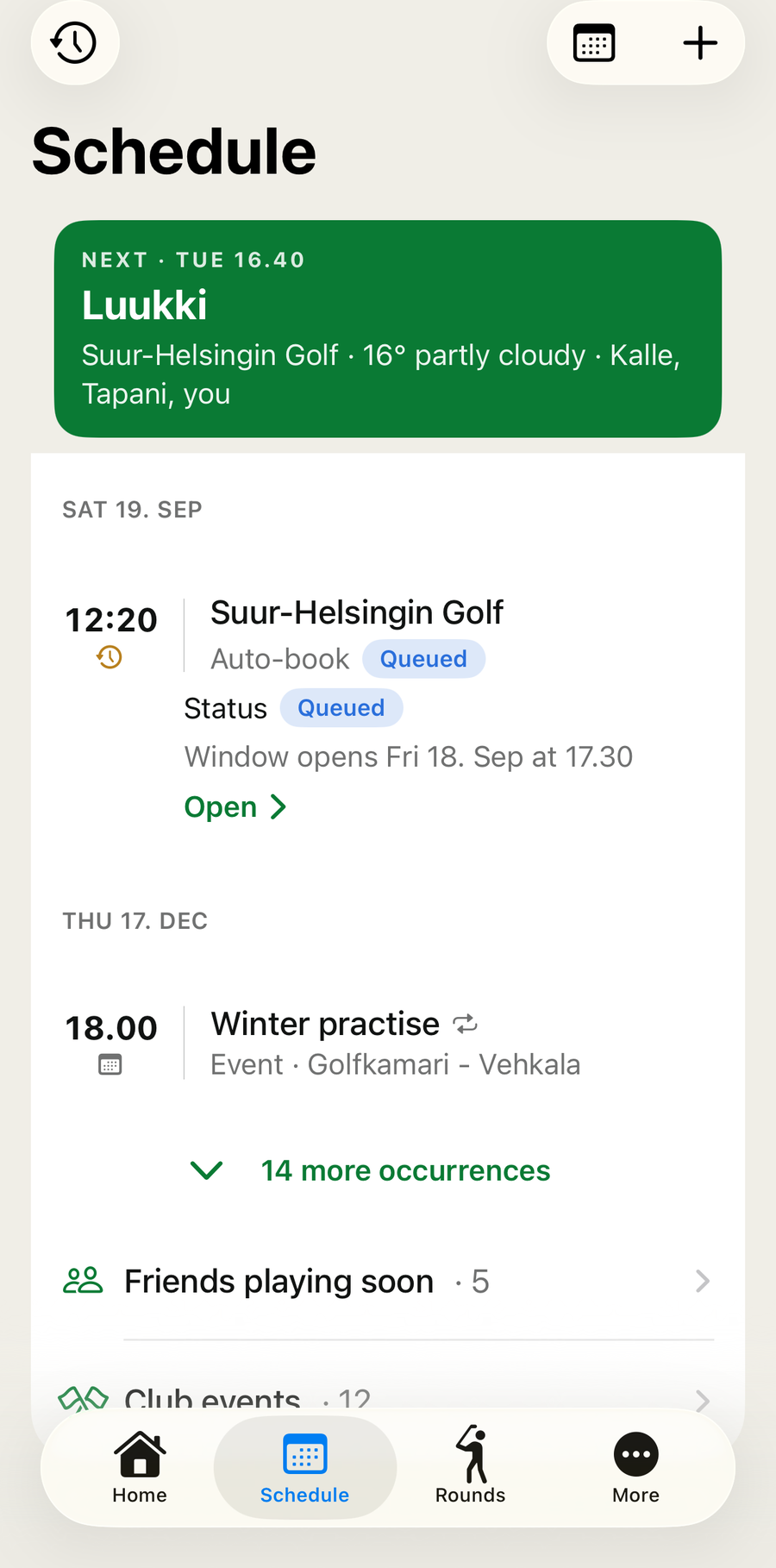 An auto-book row expanded: its status, when its booking window opens, and Open.
They come from several places:
- Tee times — bookings synced from your clubs (WiseGolf, GolfBox, ReadyGolf …) once the club is connected under More › Clubs. Tap one for its detail (section 2).
-
Scheduled rounds — rounds planned in MyGolf that have a course and a roster but haven't started. Tap one to see the setup (teams are named from their squad and flight, "Harem · Flight 2", when the organiser set them) and start or join it; it then opens on the Play tab like any round. Start opens 30 minutes before your tee time; until then the button shows when it opens (in the club's local time). Each row has a small chevron at its right: a tap opens it in place (and the chevron turns up); Open in the expanded row goes to the full screen.
-
Events — your own calendar entries (section 3). Swipe an event left for Edit, Duplicate and Delete. A repeating event shows only its next occurrence with a N more occurrences row beneath it; tap that to list every occurrence on its own day, and Show fewer to fold them back. An occurrence you have edited on its own always stays listed.
On the web Schedule, a repeating event also appears once at its nearest upcoming occurrence in the loaded list. N more occurrences expands its other loaded dates beneath it, and Show fewer folds them again. Individually edited occurrences and single events stay visible; opening an occurrence still offers its usual Edit and Delete actions. - Auto-books — WiseGolf bookings queued to be made when the booking window opens. Swipe left to Edit (while it hasn't run) or Delete. See the Auto-booking guide. - Friends playing soon — one row with a count after the timeline; it opens the upcoming tee times of golfers you follow, with Follow someone there. - Club events — one row with a count; it opens the competitions and events your clubs publish. They are read-only; turn them off per club under More › Calendar sharing.
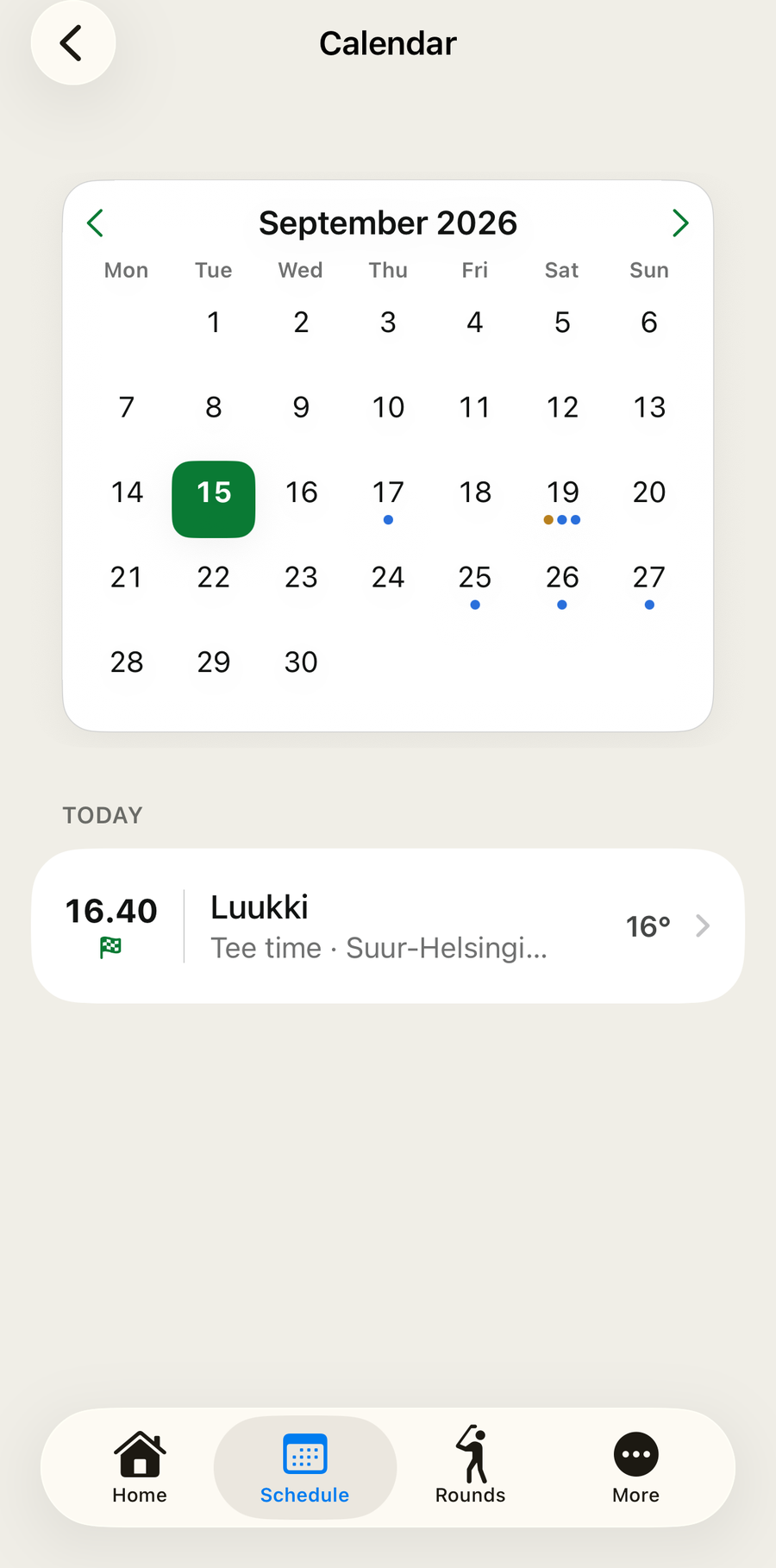 The month grid: a dot per entry on each day.
Calendar — the calendar button next to + opens a month grid. Each day carries a dot per entry — green for a tee time or round, amber for an auto-book, black for an event, blue for a club event — and tapping a day lists that day's entries under the grid. Chevrons move between months.
Pull down to refresh. The timeline is cached, so it opens instantly and updates in the background.
Not captured yet: a tee time's detail and a scheduled round will be added from an account with real bookings.
Trips and trip rounds — trips that your group sets up on OurGolf appear under More › Trips (when you are in at least one trip), on Home, and on the Schedule timeline. A trip stays in the More › Trips list through its last day and the two days after it (counted in the trip's own time zone), then it leaves the list, even if the organiser's competition is still published; the trip's rounds you played stay reachable for 60 days. (A new capture of the list is owed; none was taken for this change.)
- The trip card on Home. From the moment the organisers publish a trip, and once the trip has a first event time, Home shows a trip card with the trip name. More than seven days before the first event the card is quiet and reads Starts Sat 28 Nov (the date at the trip's location) and the organiser; only in the last seven days does it read In N days, the dates and the organiser, with the number of days and days to go in front as a countdown. The card looks like the other cards on Home. During the trip it reads Day N of M with the dates, and a Next line with the weekday, time and course of your own next tee time (
Next: Tue 09:10 · Montgomerie); until Start opens for that tee time, the line ends with Start opens HH:MM. The Next line appears only during the trip, not before it. Transport and meals are not shown on the card. The dates follow the app language (English 28 Nov – 5 Dec, Finnish 28.11. – 5.12.), here and on the Trip screen. Tap the card to open the trip. - The Trip screen (
More › Tripsor from Home). The title is the trip's name. Under it are up to four sections you switch between: Now, Days, Standings (when the trip has a competition) and Rules (when the trip is a published competition whose organiser has published rules; it prints the competition's rules, and is left out when there are none). If the four names do not fit, at a large text size or on a narrow phone, the control scrolls sideways and no name is cut. The screen opens on Now (next bullet). Days is the whole plan (each day of the trip under its own heading, today's heading reading Today, Wed 2 Dec, day 5 of 7; its rounds with their tee time and course — showing a small rounded thumbnail of the course's photo in place of the golfer icon when one is published, including before pairings and format are announced — and the round's state — Completed, In play, Open for play once Start has opened, or Scheduled; a finished round reads Completed even before the organiser approves it — and any flights, transport, hotel or dinners, each with its time in front; a plan that lasts all day reads All day there and comes first in its day). Standings has, for each competition: a card with the competition's name, one state label (Live while a round is in play, Provisional while a round awaits the organiser's approval, Official when every round played so far is approved) and, when the organiser publishes it, the line Event points after round 5 of 6; in the card one row per squad with its colour dot, name, published total and a bar (the squad's total against the largest total; when a total is below zero, or all are zero, the rows show the numbers without bars); and one sentence such as Atlas leads Eagles by 12 points after round 4. You play for Atlas. (or Atlas and Eagles are level.). Under the card, Players lists place, name and total; your own row is tinted, reads (you) and shows your squad; a member without a score reads No score yet; when the organiser hides personal event points the list is replaced by a short notice. Round by round lists the competition's rounds, one line each with the date, the format and the round's state label (or Open for play / Scheduled before the round starts). Full results on OurGolf opens the organiser's results page. The order of squads and players, the places and the totals are the organiser's; the app works out only the gap in the sentence and the length of a bar. When the organiser hides the squads, no squad, bar or sentence is shown.
Screenshot pending: Standings (with bars, with negative totals, and with personal points hidden).
- Now: what happens next for you. At the top a green band says where you are in the trip: on the day of your own round Today, Wed 2 Dec, day 5 of 7, Tee off 09:10 and the course (with the course's picture above it when the organiser has published one). Under it are your Start hole, your Flight and, once the round is on the server, your Hcp shots: the number of handicap shots the round gives you, as the server publishes them. Then Who you play with (Your match on a match round): your own flight as the same cart boxes the round's page shows, with the handicap rule described there; Round details, which opens the round's page (the game, hole contests and notes); Also today, the day's transport and meals with the time in front; Today's weather, a compact forecast for the course (the day's high and low, the strongest wind in m/s and the rain, and morning, afternoon and evening), which opens the round's page and shows only for today's round when the forecast is available; and a line for each competition, which opens Standings; during and after the trip the line also carries the standings sentence when the squads are shown (Atlas leads Eagles by 12 points after round 4.). While your round is being played the band reads In play with a Live label; when your flight has finished it reads Round finished and your result for the round is shown (unless the organiser hides personal points). Before the trip the band counts down (In 5 days) or reads Starts Sat 28 Nov, and under it Now lists, in time order, the plans of the first day (the journey out, under that day's date) and your first round; between rounds it reads Next: Thu 09:00; after the trip it reads Finished. When the organiser has not announced a round yet, Now says Your flight and tee time will appear here when the organiser announces them. and Format to be announced, and names nobody. Today's weather stays hidden for an unannounced format: Now needs your own round read, which is not fetched for hidden rounds; when only the pairings are hidden you see your own tee time but not who you play with.
- One button at the bottom. On the day of your own round the Now section has one button pinned above the tab bar (Days, Standings and Rules have none): Opens at HH:MM (disabled, in the club's local time) until Start opens 30 minutes before your tee time, then Start, Join round once someone has started the round, and View scorecard when your flight has finished. Start and Join open the same small start sheet as the round's page. When the round is not announced yet the button reads Opens when your tee time is announced and is disabled. On a day without a round of your own there is no button.
- Times are always local. Every time of a round reads in the local time of the round's club, and it is the same time wherever you see it: on Now (Tee off, Tee times from, Next: and the pinned Opens at), on Days, on the start sheet, on the round's page and its scorecard, and on the Home trip card. A flight, a bus, a meal or any other plan reads in its own time zone when the organiser gave one (a flight leaving Helsinki at 23:30 reads 23:30 and is listed under that day), otherwise in the event's time zone. These times are always written in 24-hour form, for example 08:40 or 14:30, whatever your phone's 12/24-hour setting, and no time zone name is shown after them (only a plan's own page names a zone other than the trip's). A round's day comes from the same clock as its time: a round played far from the event's time zone is listed under, and is today's round on, the day it is played at the club. A plan is shown on Now on the day it happens, where the plan is and in the event's zone alike. Once the app has learnt a club's zone it keeps it, also when a later refresh fails. The club's zone normally comes with the round itself, also for a round that is still hidden. The event's time zone is used for a round only when the app does not know the club's zone: no zone is known for the club, and the round is still hidden or not on the server yet.
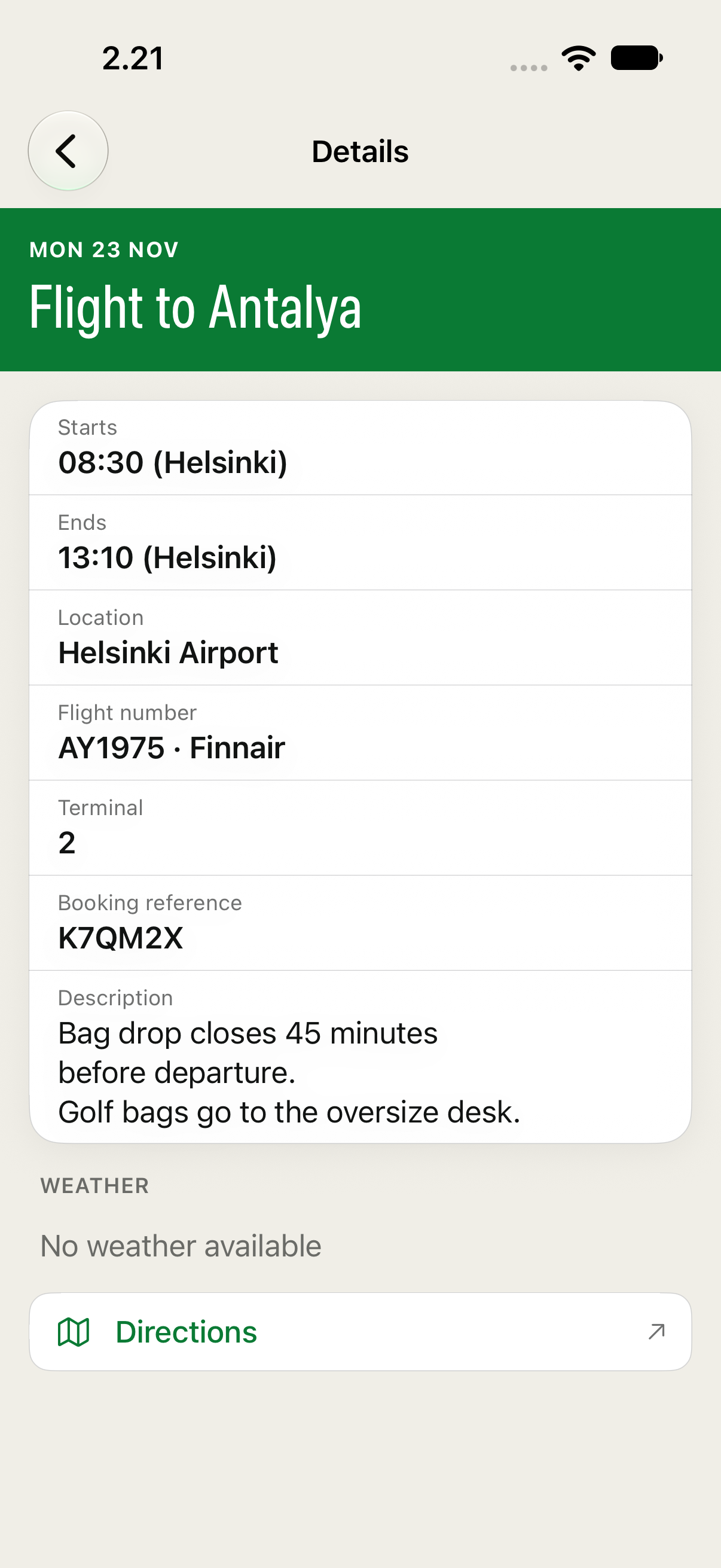
- A plan's page. Every plan row on Now (today's plans under Also today, and the first day's plans shown before the trip) and on Days has a chevron: tap a flight, a bus, a dinner or any other plan to open its page. The page shows the day and the plan's title at the top, then Starts with the time, Ends when the organiser gave an end time, and Location when a place is published. A plan that lasts all day has one All day row with its day (the first and the last day when it runs over several) and no clock times; on Now and Days it reads All day where the time is. For a flight the organiser can also publish the Flight number (with the airline after it), the Terminal and the group's Booking reference; press and hold the booking reference to copy it. A Description comes last, as the organiser wrote it (a web address in it is plain text, not a link). The page shows only what the organiser has published for the plan. Times are in the trip's time zone, unless the organiser gave the plan its own: then the time is in that zone and the zone's city follows it (a flight leaving Helsinki at 15:35 on a trip in Turkey reads 15:35 (Helsinki)). Times are in 24-hour form; in the trip's own zone no zone name is shown. When the organiser has put the plan on the map (a pin), the page also has a Weather section with the hourly forecast for that place, as on an event's page (shown up to 14 days ahead, until the plan ends; No weather available when no forecast came), and a Directions button that opens Maps there. With an address and no pin you get Directions (a Maps search for the address) but no weather.
- Manage. If you are a game master of the trip's competition, Manage in the top bar opens the same OurGolf page as Manage on the competition's own screen.
- Squad scoring. Tap a squad on Standings. The page shows the squad's colour dot and name, the state label and Place 1 · 96 points; under Team scoring one card per round, newest first, with the round's name and format, the squad's flights as "Flight 1", "Flight 3" lines (a Marty round lists none, since the squad is the team, and neither does a round whose pairings are not yet published), one line that says which published result the points came from (
Won 2&1,Lost 1 up,Halved, orScore: -2; left out when nothing is published for it), the round's points, Team game and Individual contribution. Each round card has a chevron: tap the card to open that round's page (the game, how its points are calculated, and View scorecard), the same page the round opens from Days. Under Players the squad's members with their points (your own row is tinted and reads (you); a row with a chevron opens that player's page); and a note that team totals are published by OurGolf and are not added up from player points.
Screenshot pending: squad scoring. - It keeps itself up to date. The Trip screen, a trip round's page and a player's page reload when you open them, when you return to the app, and when you pull down; while a round of the trip is in play or today's, they also reload every minute on their own, so results appear without you doing anything. A finished or idle trip does not refresh on a timer. - One trip round page, wherever you open it. Tapping a trip round in the Trip screen's Days, a round's line under Round by round on Standings, a round card on a squad's or a player's scoring page (each has a chevron), a planned round on this Schedule timeline (also the Next up card), or a round under Play › Trip rounds opens the same page. The page title is the course name. At the top a green band reads the day, the round's number and the event (
Wed 2 Dec, round 5 of the GolfNuts Cup), your tee time in large text (Tee off 09:10, in the club's local time; Round finished once your flight has finished) andStart hole 1, flight 1. If you have no flight in the round the band reads Tee times from 09:00. On a match round, once your flight has finished, the large line is your match as the organiser published it (Atlas won 2&1, or Halved). When the organiser has given the course a picture, it sits above the band. Under the band the page has these sections:
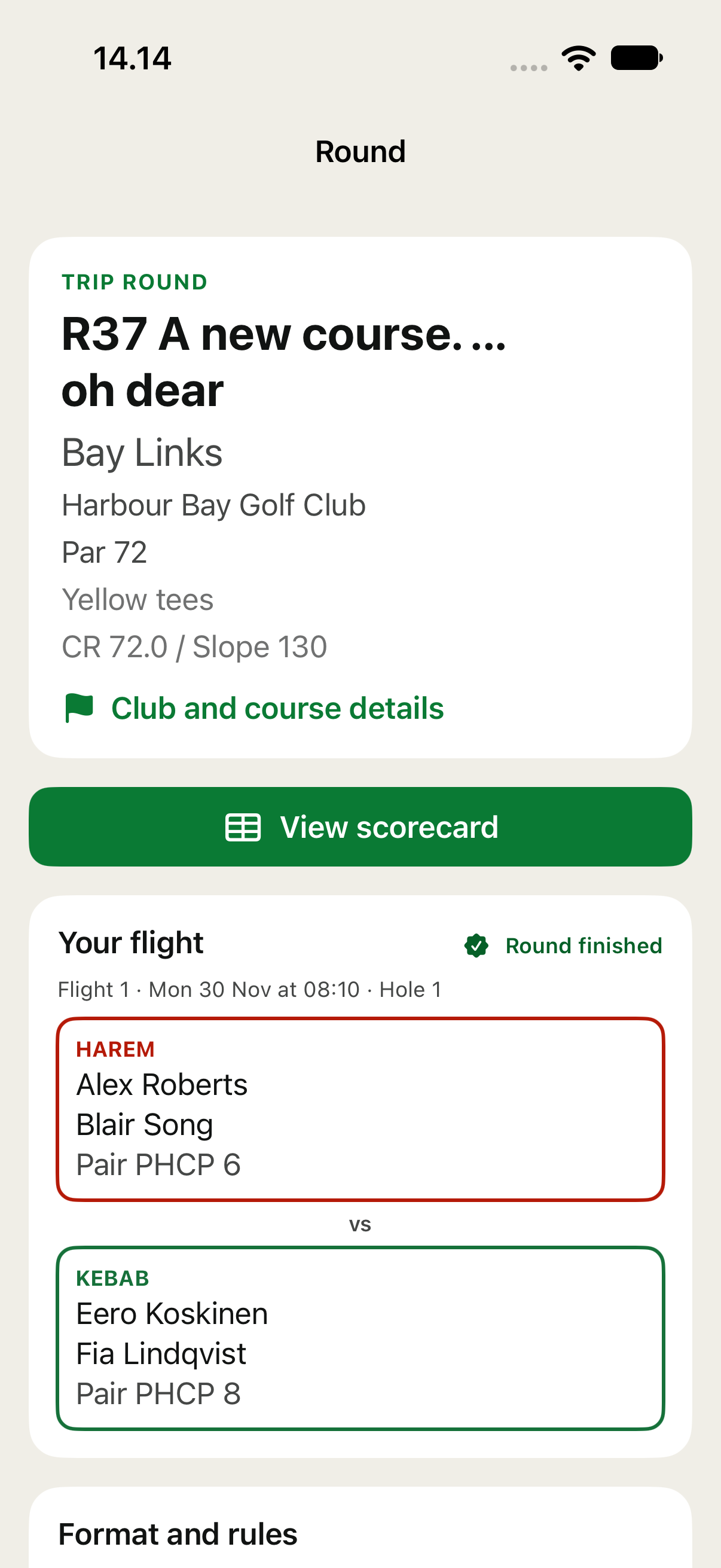
- Course — the round, the course and club, the par, your tee with its course rating and slope (for example
Yellow teesandCR 70.1 / Slope 125), and Saved for offline use when the course is on your phone. Under it the row Club and course details opens the course on your tee. -
Who you play with (Your match on a match round, with the round's state: Live, Provisional or Official) — a title row with Round finished (Kierros pelattu in Finnish; it was Flight complete) on the right once your flight has finished playing, a small line
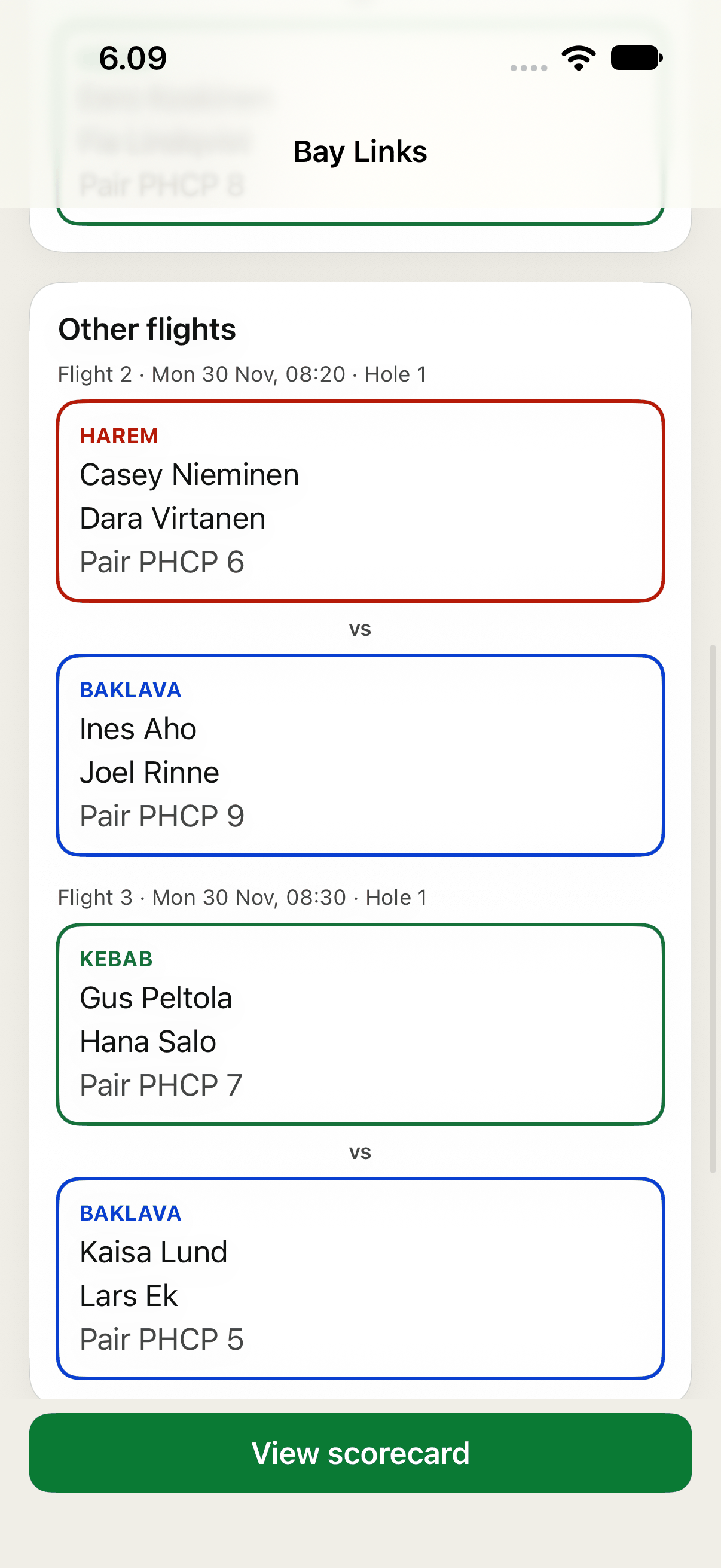
Flight 1 · Fri 6 Nov, 13:30 · Hole 1(the tee time in the club's local time), and the players in your flight. Which handicap is shown follows the format. A format played with one ball per team or pair (scramble, scramble match play, foursomes, greensome, Chapman) shows the team's or pair's playing handicap from the server (Pair PHCP 6; Team PHCP for more than two players; left out when there is none) and no player's own. Every other format, including plain match play, the Marty and Irish Rumble, shows each player's own playing handicap beside the name (Alex hcp 12; under the name when the text is large). In a match format (match play, scramble match play, foursomes match) the flight is shown as one box per side with vs between them (side by side on iPad, stacked on iPhone): the team name in the team's colour (the same colour as on the scorecard; in a trip or competition a squad has the same colour on every round of the event), the players one per line, and either the side's Pair PHCP (a one-ball match format) or each player'shcp(match play). The box header readsCart 1 · BAKLAVAwhen everyone in the side shares a cart; otherwise a line per cart follows below the boxes:Cart 1 · Alex, BlairandCart 2 · Casey, Dara(Auto 1 · … in Finnish). In every other format, when the flight has carts, the flight is shown as one box per cart instead (no vs, no cart lines below): each player with their ownhcp(Alex hcp 12), or, in a one-ball format (scramble, foursomes, greensome, Chapman), the names alone with the team's or pair's figure once under the boxes (Team PHCP 12 or Pair PHCP 6). When everyone in the cart is on the same team the header readsCart 1 · HAREMand the box is in the team's colour; when the cart mixes teams the header is justCart 1, the box is grey, and each name has a small pill with the team (squad) name in that team's colour. Players without a cart are in a last box with no header. Capture owed.Weather comes after The game: the hourly forecast for the club from your tee time (or the earliest flight while pairings or the format are not yet revealed), shown only when a forecast is available (not once your flight has finished and not beyond about two weeks ahead).
Other flights (Flights when you have no flight in the round) comes right after it: every other flight of the round in flight order, each with its
Flight 2 · Fri 20 Nov, 13:10 · Hole 1line and the same boxes as your own flight — one box per cart (each player'shcp, or the team's or pair's figure in a one-ball format), or one box per side with vs on a match round, or one player per line when there are no carts. Your own flight is not repeated. A flight whose players the app cannot see in your round lists the names only. While the organiser hides the pairings or the format, this section is not shown at all.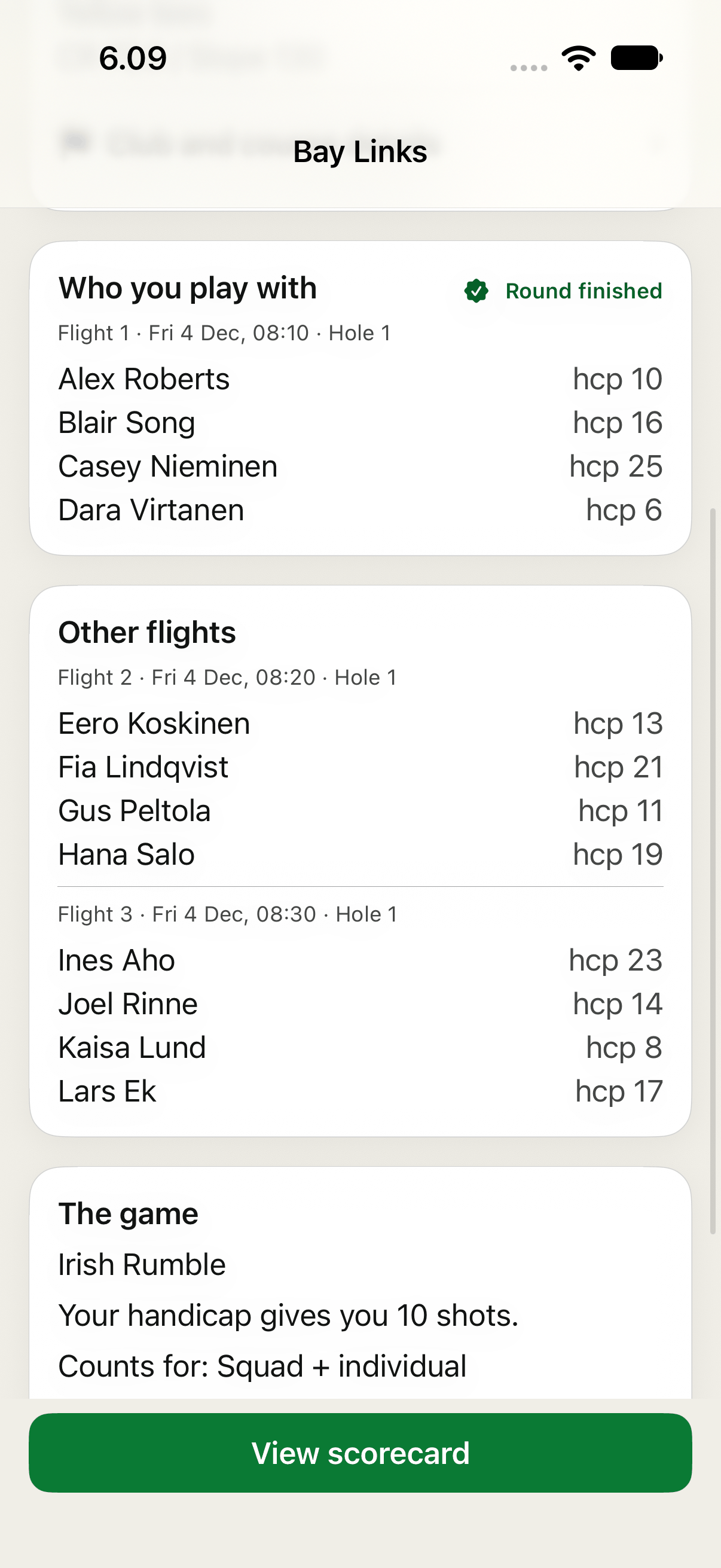
Shots (Lyönnit in Finnish): when someone in a flight has tracked shots in this round, that flight (your own and each of the other flights) shows a Shots link under its boxes. The same link is at the top of each open flight on View scorecard, and on the Card tab during play for an open flight other than yours. Tap it to see the round's shot map with that flight's shots: pick a hole at the bottom, and tap a shot for the player, the shot number and its length. Filter shots (top right of the map) adds or removes other flights and teams of the same round; a flight or team with no tracked shots cannot be picked, and Show all puts everyone back. The choice lasts while the map is open. Colours stand for the teams (or, on a round without teams, the flights), not for each player: a team has the colour it has on the scorecard, and with more than six teams the colours come back as rings, then squares. Each dot carries its shot number and the player's initials (
JA; a secondJAreadsJA2); the list under the map names each team or flight with its players. Tap a player in that list, or one of their dots, to show only their shots brightly; tap again to see everyone. Who you can see is the same as when you watch a friend's round: players who share their live rounds, in a round you play in or an event you belong to. When none of the flight's shots are shared with you the map says No shots to show. On Android the link opens the same read-only map (holes, shots, filter, list). Capture owed. -
The game — the format with net or gross (with a chevron: tap it to read how the format is played, the same description the format picker shows; it is plain text while the app has no description for the format, and while the format is still to be announced), then Your handicap gives you 12 shots. when the organiser's results give you handicap shots in this round (the number is the server's; the line is left out when it gives none, in a one-ball format such as a scramble, and offline), the handicap allowance, what the round counts for and the local rules. When the round's points go to squads, it also lists the results the organiser has published: Squads with each squad's points for this round, and for a match format Matches, one line per flight (
Flight 2: Harem beat Baklava 1 up,Flight 1: Kebab and Harem halved; when the organiser has not said which flight a match is, the line starts with the squads instead:Baklava beat Kebab 5&3). The figures are the organiser's; the app only shows them. The last row, How points are calculated, opens the points screen (below). -
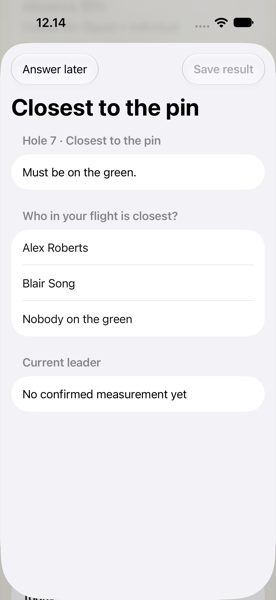
Hole contests, then Notes and Today's plans (the plans Now and Days list under the round's day, with the same times). Each contest is a row that opens its sheet. Closest to pin: one person per flight (one per tee, when the flight plays different tees). When your flight has hit off at the hole, a light strip on the Play tab asks Who in your flight is closest? Tap Enter, pick the player (or Nobody on the green), then type the distance in metres or tap Measure while you stand at the ball. The sheet shows Leader so far at the top, with the leader's flight and the time of the measurement when the app knows them (
Flight 2, measured at 11:52); the leader's distance is shown exactly as it was entered, never rounded to whole metres (Petri, 2.4 m), here and on the round page's contest row. The row you picked has a tick and the word Chosen. Save result is the button at the bottom of the sheet; Answer later at the top closes it without saving. When another flight already leads and nobody in your flight is closer, pick Nobody closer than 2.4 m (Skip measuring) and save (the row gives the same exact distance, so compare your own ball with that figure): you do not have to measure, the leader stays the leader, and the contest shows as answered for your flight. (The organiser sees this the same as Nobody on the green.) The skip row is not offered when your flight plays from different tees. Ignore the strip and it goes away when you move on; it never holds up scoring. You can only enter results for your own flight; other flights' results are shown but cannot be changed. Anyone in the flight can enter or change the answer later from the Hole contest button or this card, which reads Not entered until someone does. Straightest and longest drive are entered per player (a straightest drive is measured from the ball to the marked line, so its leader readsTimo, 4 m from the lineand its field Distance from the line, metres): the phone asks after the drive (as you walk off the tee, if the shot was not tracked), and longest drive starts from the distance of your tracked tee shot. When the shot was not tracked and the app knows your tee, longest drive also offers Measure on map: a satellite map shows your tee and your ball; drag the tee marker to where you really teed off, check the distance, and tap Approve to put it in the result (you can still edit it before saving; the cross discards it). If a player's tee is unknown there is no map and you type the metres. Every contest entry is optional. If the server cannot take a result for good, a note reads Result not saved with the reason; a result that fails because of the network is kept and sent later.Side games (yes or no, such as Hole in one on a par 3) on a competition round are listed in the same card after the measured contests, as Hole 7 · Hole in one or just the title when the game is not on one hole. Under the title you see who has answered yes (Yes: Timo, Ville) or Nobody yet. If you play in the round, tap Yes or No next to You, Your pair or Your squad, depending on who the game is for: your answer is always for yourself, your own pair or your own squad, never for someone else. You are never asked for a distance. A side game on a hole is also shown on the Play tab on that hole, and every side game, including the ones without a hole, is in the round summary when you finish, so you can answer there. The answer is kept on the phone and sent when there is a connection; you can change it later. Results the organiser marks on the website are not shown in the app.
Screenshot pending: the Measure on map sheet on iPhone (it needs a live round with a position).
The Android app shows the same map. Your tee is the red marker, your ball the green dot; the distance at the top follows the tee as you drag it:
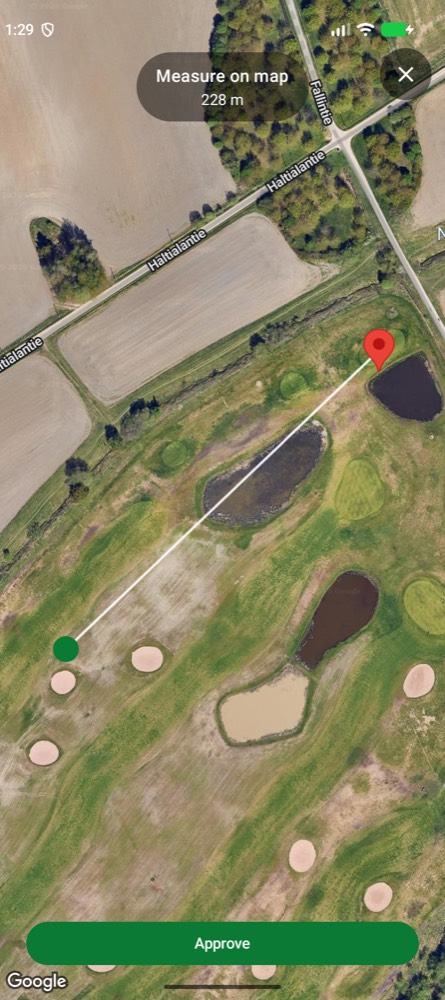 Android emulator (Pixel 9a, Android 17), 2026-11-12, DriveMeasureMapEmulatorTest: a real par 5 from OpenStreetMap, the ball placed about 230 m from the tee (layout real, data invented).
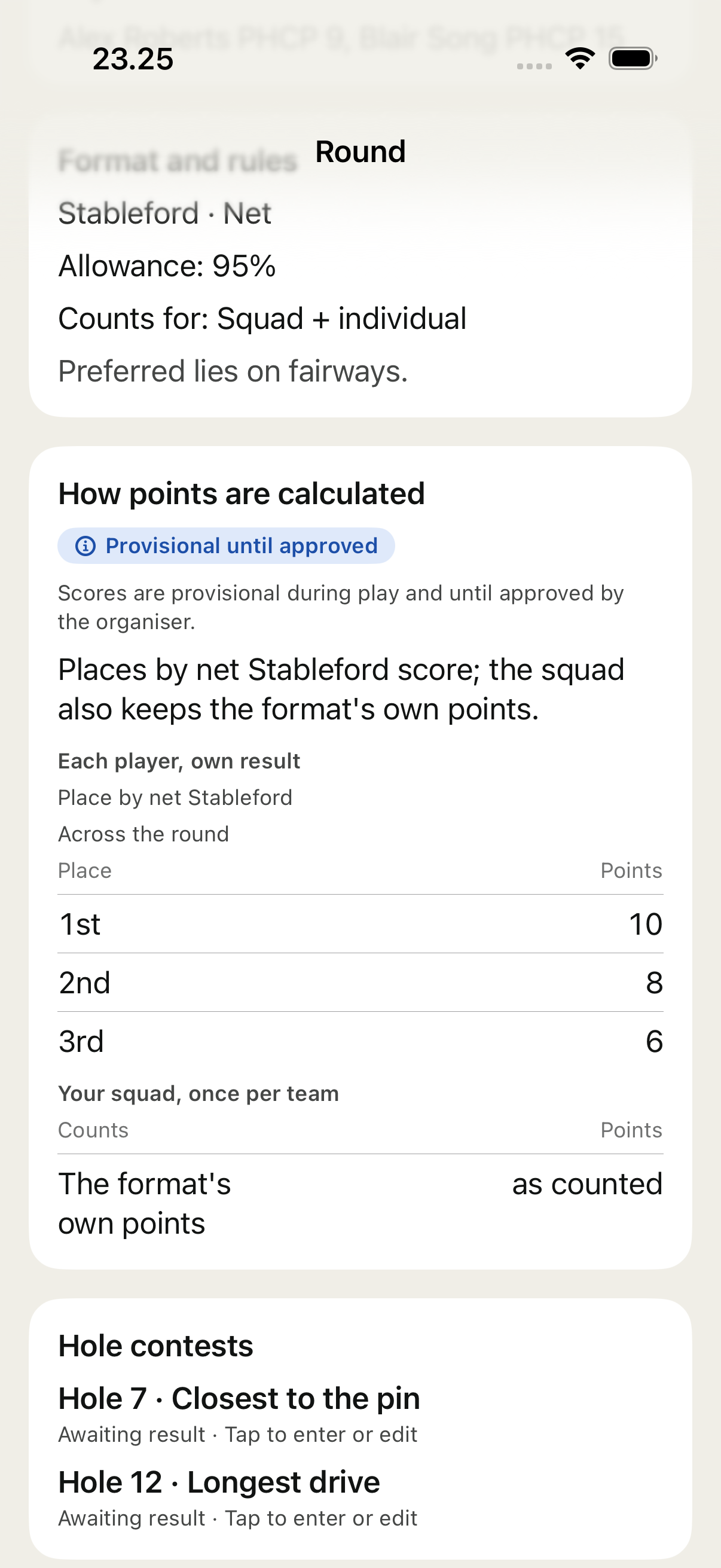
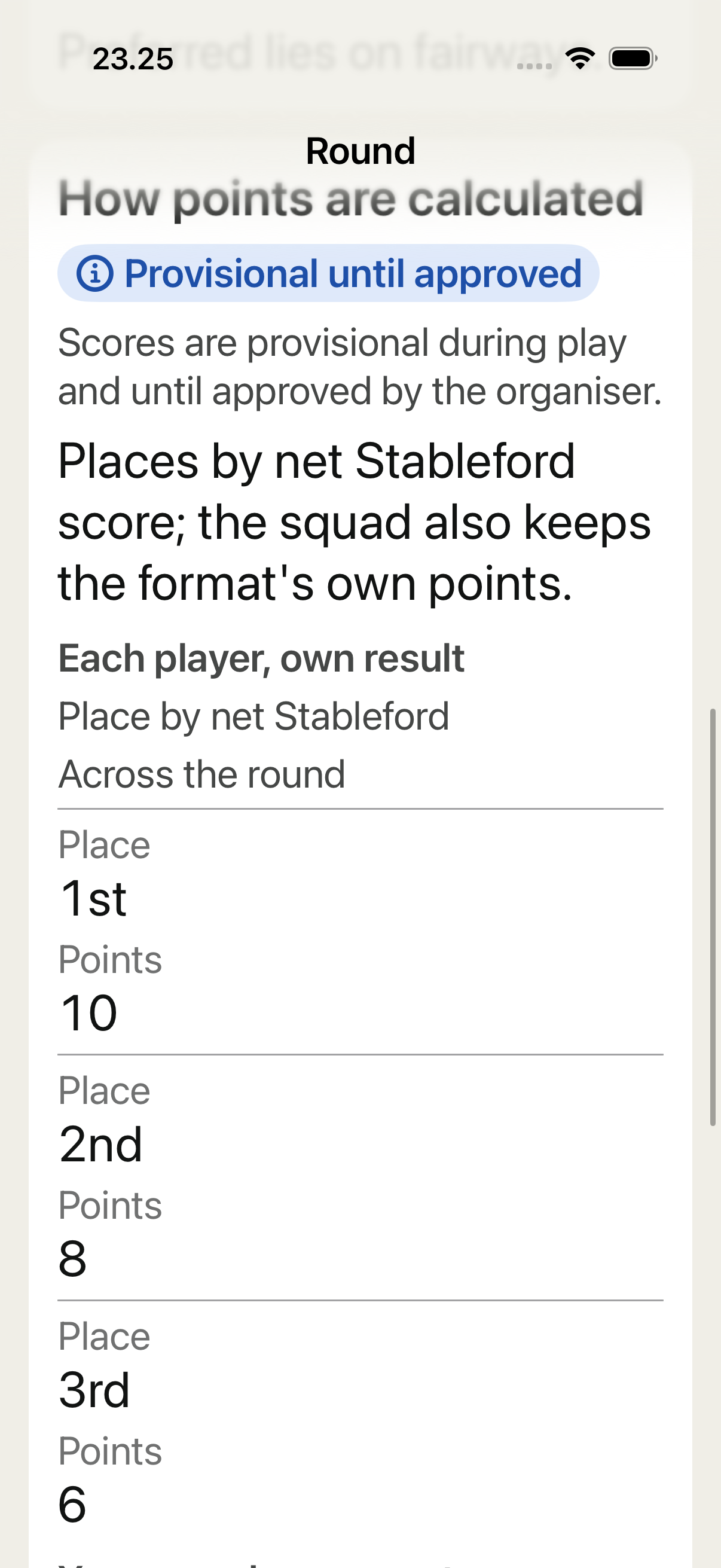
- How points are calculated. Opened from the last row of The game. At the top a card names the round with its state (Live while scores are coming in, Provisional before play and until the organiser approves the results, Official once approved) and the organiser's sentence when there is one. Then the rule the round is scored by, one card per receiver of the points (Your squad, once per team, Each player in the team, Each player, own result), with rows under Counts and Points (a Then column when a step is applied, such as
Multiplied by 0.1orRounded to a whole number (halves up), or Place and Points for a placement table such as1st 25). At the largest text sizes each row stacks, every value under its own title. VoiceOver reads a row as one sentence, for exampleHoles up at the finish (winner), 1 pointor1st place, 25 points. If the organiser sends no rule the screen shows their plain-language scoring text for the team and for you instead (Team points, Player points), as the organiser wrote it; when the organiser has no text for a round, that line is left out. Then the round points of every player, and Your result: your own points and score for the round, once the organiser has published them. If the organiser hides personal event points, the screen says Personal event points are hidden by the organiser. and shows no player's points. The app shows the rule OurGolf scores the round with and never works out points itself. - A player's round scores. A player's page in Standings shows the name (with (you) on your own page, and your squad), the state label and the place and points, then Round scores with one card per round, newest first. Tap a round card (it has a chevron) to open that round's page, the same page the round opens from Days. A round with a personal card also has a Personal scorecard row at the foot of its card, which opens that round's hole-by-hole card, and the View scorecard button at the bottom opens the newest started round that has one. A round played with one ball per side (a scramble, for example) has no personal score and no personal card. How a scramble round reads depends on the organiser's setting: when it pays the squad only, the round reads Played · squad points only (or the squad's match result); when it also pays each player, the round shows the player's points. On a player's page, a round whose points all go to squads has no personal points, so it reads what happened instead of No score posted: the squad's match (
Won 2&1,Lost 1 up,Halved), or Played · squad points only; a round not yet played shows its state (In play, Open for play, Scheduled). When the organiser hides personal event points the page is not offered.
Screenshot pending: player scoring, with a scramble round paying the squad only and one paying the squad and each player.
Screenshot pending: the light strip on the Play tab (it needs a live round).
Start (or Join round, Opens at HH:MM, or View scorecard once your flight has finished) is the button fixed at the bottom of the page: it stays in place while the sections scroll. A round whose pairings the organiser has not announced shows a disabled Opens when your tee time is announced there. Start shows for anyone who has a place in the round, even if the organiser has hidden who plays with whom (then Who you play with shows only you and your own playing handicap, with no one else's name or handicap). When the organiser hides a round's content, The game reads Format to be announced (Pelimuoto ilmoitetaan myöhemmin in Finnish) and its points row reads Announced when pairings and format are revealed. (Ilmoitetaan, kun ryhmäjako ja pelimuoto julkistetaan.) in the app's language. A round whose flights are planned but have no players yet keeps its real format. In Finnish the Counts for line reads Lasketaan: joukkue ja henkilökohtainen, points read pist. and a playing handicap reads Pelitasoitus (for example Pelitasoitus 9).
Pictures owed: the pictures in this section show the page before its redesign (the action under the Course card, the points as a card on the page, the contest sheet as a form). New captures are owed for the round page (top and scrolled), the points screen (normal and stacked), the contest sheet with the skip row, a match round with Your match, and a round with hidden pairings.
At the largest text sizes each row stacks, every value under its own title:
 Fixture data (invented players).
- Start opens a small sheet. Tapping Start opens a small sheet where you check the Starting hole; once someone has started the round it reads Join round. A planned round that belongs to no trip on your phone opens the plainer scheduled round page (below), whose Start round opens the same sheet.
- Start opens 30 minutes before your tee time. The tee time is your own flight's, not the round's first tee. Until then the button is disabled and reads Opens at HH:MM in the club's local time (the time zone of the club's country, for example Turkish time in Belek, whatever zone your phone is in), and it enables itself at that moment. Once open it reads Start (or Join round, which is never held back). Only trip rounds work this way; an ordinary round or a booking starts whenever you like. The game master changes tee times on OurGolf, never in the app; if a change moves your tee time, the opening time moves with it.
- The event shows as soon as it is published. A trip appears in the app when its organisers publish it to participants, not the day before.
Capture pending: the trip event screen (Now, Days, the button at the bottom), the trip round screen, and the Home trip card with its countdown will be captured from a live trip account.
Swipes on this screen
| Row | Swipe left | Swipe right |
|---|---|---|
| An event | Edit · Duplicate · Delete | Also on the event's own screen |
| An auto-book | Delete · Edit (while it hasn't run) | — |
| A hand-entered tee time you booked | Cancel round (asks first; it cancels for everyone on it) · Edit | Also on the tee time's own screen |
| Any other tee time, planned round, friend's round or club event | — | — |
2. Tee time detail
Tap a tee time to open it:
- Result — once the round is played and its scorecard has synced, your score sits at the top.
- Start round — on the day of the tee time, a green button under the title (not shown for a cancelled or already-scored tee time, or while a round is live). It opens the same flow as picking this booking on the Play tab.
- Players — the flight as the club knows it, with a marker on golfers you follow.
- Weather — an hourly forecast for the tee time (only when the course has coordinates): temperature, rain and the wind in m/s with an arrow for its direction.
- Booking — course, club and the booking system the tee time came from.
- Directions — hands the course off to Maps.
- Manage — for a round you entered by hand (section 4): Edit and Cancel round if you created it (cancelling notifies everyone on it), or Remove me if someone else did (only your spot is removed).
Check-in on the day happens on the Home tab, not here: when a WiseGolf tee time is inside its check-in window, Home shows a Check in card. The window runs from 59 minutes before the tee time to 15 minutes after it. Outside that window, with no tee time to check in to, the card is not shown at all. With two tee times on the same day the card names the first one until its window has closed, then the second; once a window closes the card goes away, except that a tee time you checked in to stays on Home for the rest of the day showing Checked in (the day is the tee time's own day at the course, not your home time zone). With Auto check-in for tee times on under More › Settings, the app confirms the tee time by itself when you are near the course.
A scheduled round from a group
A round a group has set up for you (a trip round) opens its own page, with the tee time, the format, the course and the players:
- Course row — under the tee time, "
· " with an arrow opens the course itself: its tees, scorecard and hole map. The same row appears in the sheet you get from Home's Join card and from Play › Trip rounds. The row is there only when the round names a course and a club. On a trip round's page the course link opens the course with your tee for that round listed first, marked Your tee, and the hole map opens on it. - Flight and pair handicaps — lists the players in your flight with their tee and playing handicap (
HCP N). When the organiser has put players in carts, each player's row also says which cart they ride in (Cart 1 or Cart 2, Auto 1 or Auto 2 in Finnish); the two players with the same number share a cart. Carts are shown only here, never on the scorecard or during play. The Android app shows the same line on each player of a planned round. In a one-ball pair format (Scramble, Greensome, Alternate Shot / Foursomes) where the group fixed a pair handicap, the pair row showsPair HCP Xalongside the partners' names. - Scoring — a plain-language summary of how the round is scored (the format, handicap allowance, skins rules or drive minimums, plus a Provisional or Final status badge).
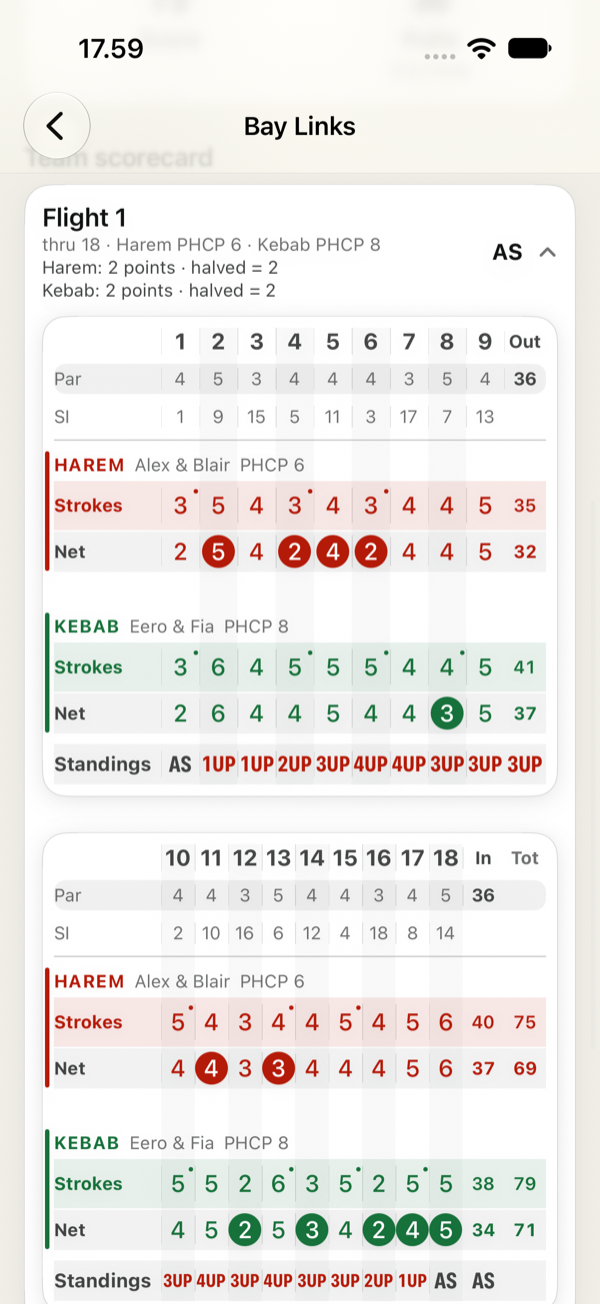
- View scorecard — once a flight has finished, View scorecard opens the round's read-only scorecard directly from the trip round page. A round you are not playing in yourself shows View scorecard too, once it is under way and the organisers have not hidden its pairings, so you can follow every flight of it; it never offers Start or Join round. When the organisers publish squad points for the round, each flight's header on that scorecard shows them: a match reads "Flight 3 · Kebab won 2&1" with "Kebab 4 points · Harem 0 points" under it, a flight that is one squad reads "Harem · 18 event points" (the points the round gave the squad in the event, not the game's own score); the figures are the organisers', the app only shows them.
The scorecard opened from a trip round is laid out for the event. Under the heading Flights, with the round's state beside it (Live, Provisional or Official), each flight is one card; your own flight is open and the others are closed. A flight's header is two lines. The first is the flight's name and, where the organisers have published it, the result in the same size: "Flight 3 · Kebab won 2&1" or "Flight 3 · Halved" for a match, "Harem · 18 event points" for a flight that is one squad. The second is Thru N (the holes with a score) and, for a match, each side's points: "Thru 18 · Kebab 4 points · Harem 0 points". The format is not repeated on every flight: it is at the top of the scorecard, and on the Marty one line under Flights says how the game is scored ("On each hole the four net scores take 7, 5, 3 and 1 points, and tied players share the points for the places they occupy."). The players' totals are in the card, not in the header.
One switch above the flights shows one nine at a time, Holes 1 to 9 or Holes 10 to 18, in every open card at once, so the numbers are large; it stays at the top while you scroll the flights. A nine-hole round has no switch, and a round that started on the back nine opens on it. Each open card has its own row of hole numbers, Par and SI directly above its scores, so you never have to look up past other flights to see which hole a score is on; a closed card shows none. The players sit under a heading row for their squad, in the squad's colour and with its name. Each player has a strokes row, labelled with the name and hcp N (the playing handicap), and under it a Points row where the format gives points per hole. Strokes are the shots taken. A small dot in the corner of a hole is a handicap shot on that hole (two dots, two shots), so the net score can be read off without a separate row. On a coloured score mark the dot sits inside the mark, in white (dark on the amber eagle mark), so it stays visible. A picked-up hole reads PU. The score marks are the same as everywhere in the app. The scorecard carries the hole's stroke index (SI) under Par on both nines — the course's own index, the one the handicap strokes (the dots beside a score) are given on, the women's index on a round played by women; a mixed round whose two indexes differ shows SI men and SI women. A team ball's strokes fall on the women's index when every player in the team is a woman, otherwise on the men's.
Under the flights, Squads lists each squad's total for the whole round across all its flights, as the organisers' scoring publishes it, with what the figure counts in beside the heading ("Squads · Marty points"). The list is there only when one round covers every flight, as in the Marty; on a round where each flight is its own match it is left out, and so it is when every squad plays as one flight of its own: that flight is the squad, and its card already shows the score. A squad spread over two flights, or a flight of two squads, keeps the list. The app adds nothing up itself.
- Personal scorecard — from a player's page in Standings, Personal scorecard opens that player's own card for a round. At the top are the player's name ("(you)" on your own), the round's state, the course and the format, and up to three figures: Strokes (shots taken), the game's own points for the round under their own name (for example Marty points) and Event points, the points the round gave the player in the event. Event points are left out when the organiser hides personal points. Then one card per nine with the rows Par, Strokes and Points; the handicap is on the Strokes row (hcp N) and the corner dots mark the handicap shots. Stats is closed at first, so you see the strokes and the scoring; tap it to show the same personal rows as an ordinary round's scorecard in the cards: putts, fairways, greens, bunkers, penalties and recoveries, where the round has them. A one-ball round (a scramble) has no personal card.
On the course row, Saved for offline use means the course is saved on your phone, so you can read its scorecard and map with no signal. Map not saved means only the tees and scorecard are saved. No mark means the course is not saved yet; it is saved automatically once the round is published to you, and again on Wi-Fi or when the app returns to the foreground until it is complete (see Courses saved for offline use in the Clubs & Courses guide). Opening the course never starts or joins the round. Offline, the page opens from the saved copy and Start round opens 30 minutes before your tee time by your phone's clock, online or not, and until then reads Opens at in the club's local time (it enables itself at that moment; Join round is never held back). Start round and Join round open the same sheet as on the trip round page, with the Starting hole; it works without a signal or when the server has trouble, and the start is sent to the server when the phone is back online.
Screenshot pending. The capture of the course row is taken with the next manual screenshot run, from a real build; none is included yet.
3. Events
Tap + in the top-right corner. The menu offers three things to add:
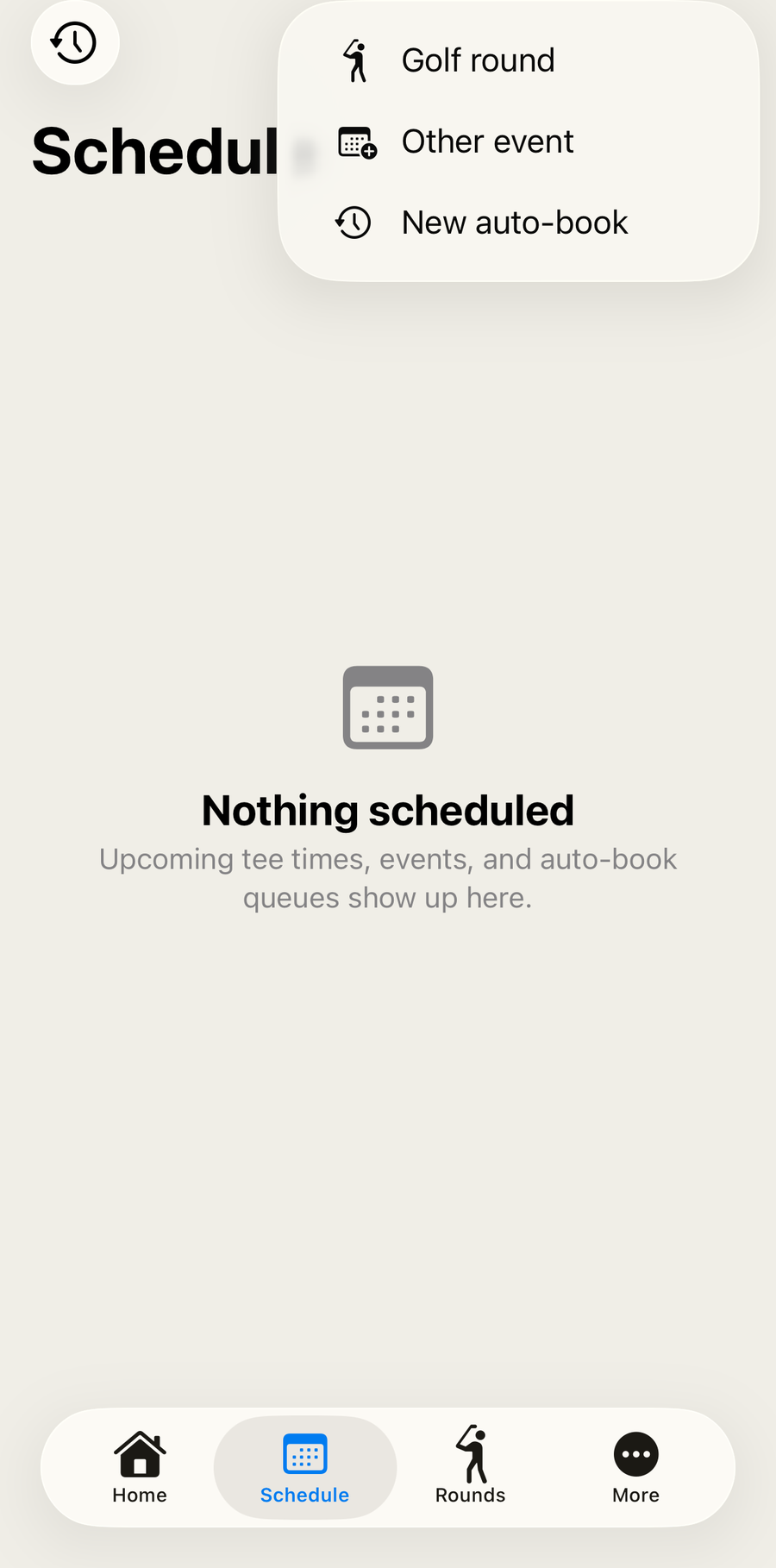 Golf round, Other event, New auto-book.
Other event opens the event form:
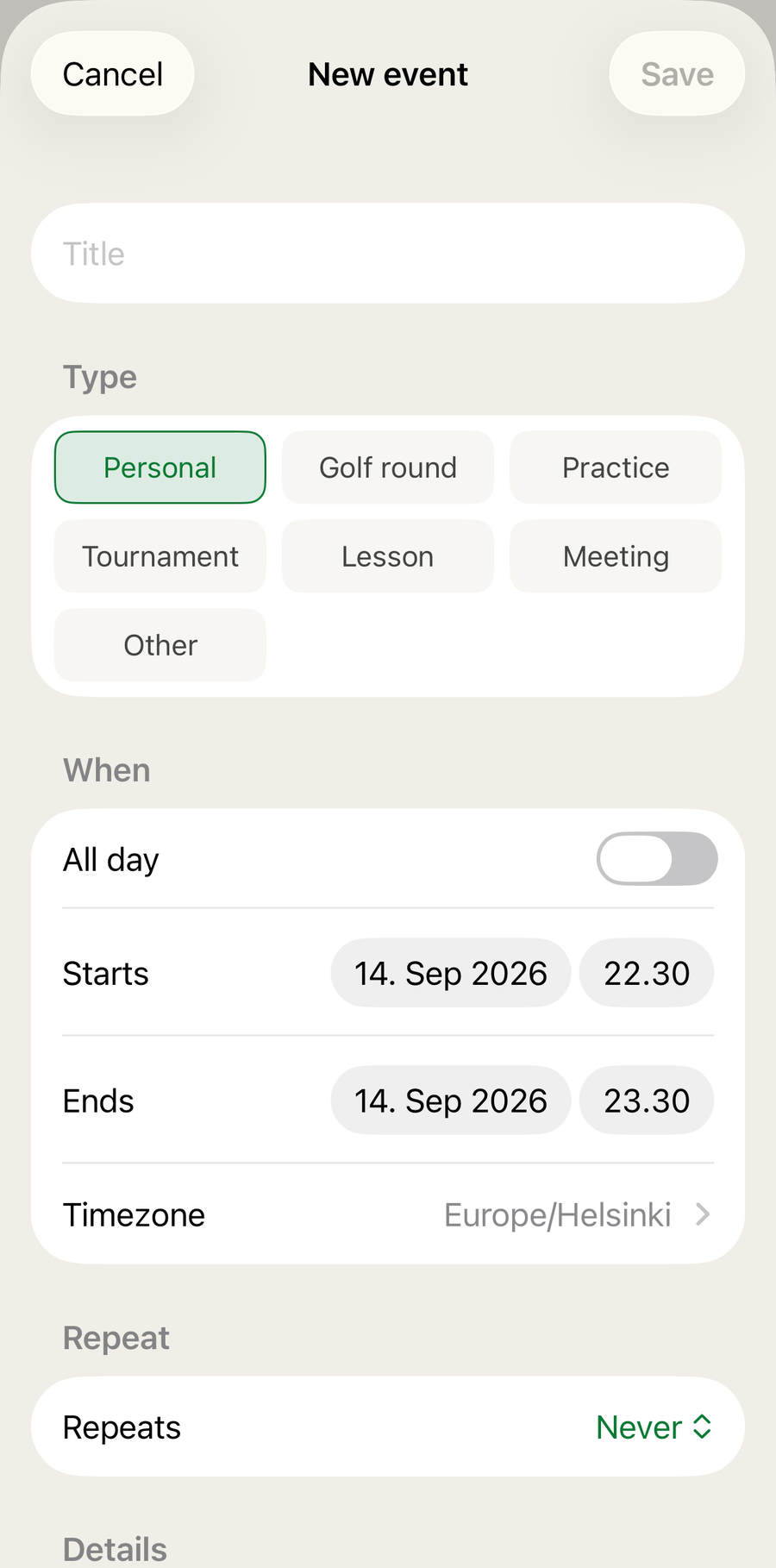
- Title, then a Type chip: Personal, Practice, Tournament, Lesson, Meeting or Other (a golf round is added with + › Golf round, section 4).
- When — All day or a start and end time, and the Timezone the times are in (tap it to search the list of zones by name).
- Repeat — Never, Daily, Weekly or Monthly; a repeating event also asks for the interval ("Every 2 weeks") and when the series Ends (never, on a date, or after N times).
- Details — location, address, Country and a description. A location or address always needs its country: tap Country and pick it from the list (search by name). Nothing is chosen for you — not even your phone's region — and until you pick one the form reads Choose the country of the location. and Save stays off. The place is looked up on the map only in that country. An event you saved before countries were asked keeps its location as you typed it; you can still change its title or times without picking one, but changing the location or address asks for the country.
- Invitees — search other MyGolf users by name and add them to the event. The picker shows names without private email addresses.
Tap Save. If the server refuses the event, the reason appears at the top of the form with a Retry button — the form stays open with everything you typed:
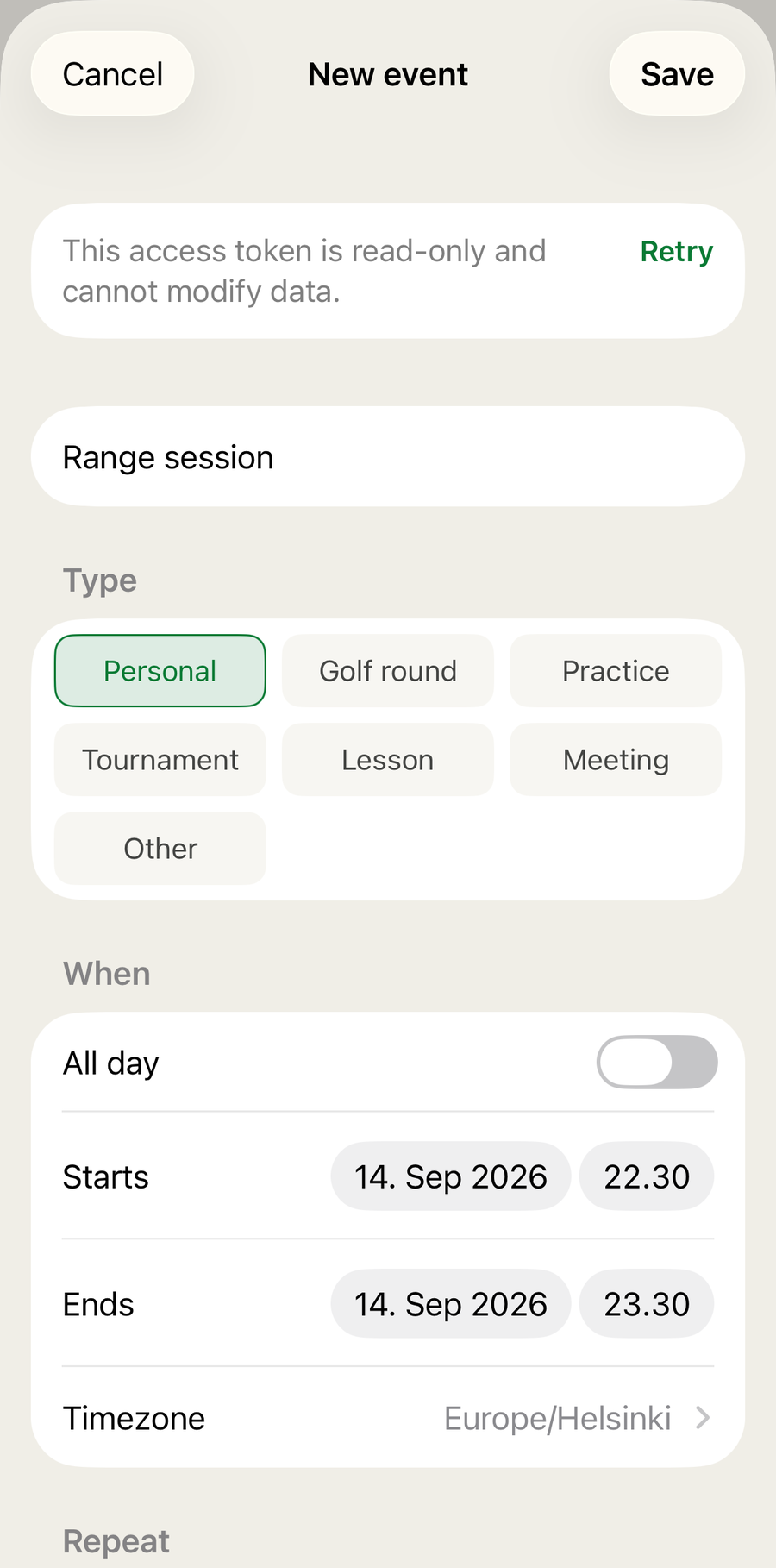 The demo account may not create events; the reason is the first row, Retry saves again.
To change an event later, open it from the timeline: the event's own screen carries Edit, Duplicate and Delete.
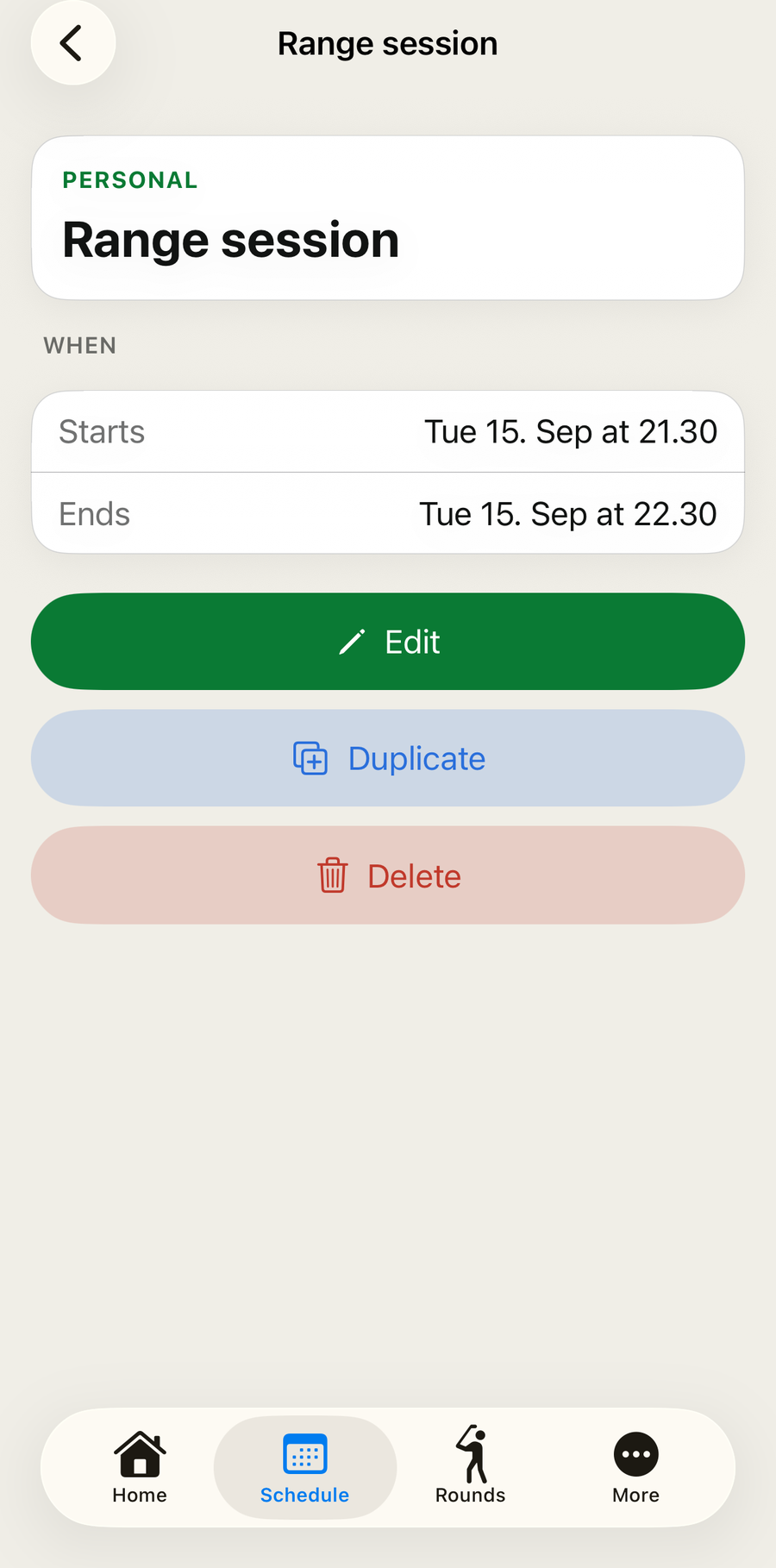
Coming with the next app build — this describes the event screen once that build ships. The event's times are always shown in the event's own time zone, in your phone's 12- or 24-hour clock — an Istanbul dinner reads Istanbul time even on a phone set to Helsinki.
- Weather — under the event's times: an hourly forecast, as on a tee time, at the event's local times, with the forecast's source: six hours for a golf round, otherwise the hours the event lasts (two to six). An event that is already under way shows the hours from now on. Shown when the event has a place on the map, has not ended, and the hours shown fall within the next 14 days; an all-day event has no weather (an event that merely starts at midnight is not all-day). If the forecast cannot be loaded, the section reads No weather available.
Under the event's place:
- Address — press and hold it to copy it.
- Directions — shown when the event has a place on the map or an address; hands the place off to Maps (on Android, to your maps app).
A cancelled event shows neither Directions nor Weather.
Capture owed: the event screen with Directions and Weather will be captured with the next manual screenshot run, from a real build; the picture above predates them.
The same three are on a left swipe of its timeline row, which is quicker once you know it is there. Editing or deleting one occurrence of a repeating event asks whether you mean This event, This and future events or All events — changing all discards edits made to individual occurrences.
Entries from your OurGolf group's calendar (a trip's flights, hotel and dinners, or the group's season events) show From and the group's name. Your group keeps them up to date, so they have no Edit or Delete; Duplicate makes your own copy if you want to change one.
(Capture owed: needs a published group calendar on ourgolf-test)
To change how a repeating event repeats, edit any of its occurrences: the Repeat section shows the series' rule. If you change it, the question offers only This and future events and All events, since a single date cannot have a rule of its own. Setting Repeats to Never with All events turns the series into one event; with This and future events the series ends at that occurrence.
4. Hand-entered golf rounds
+ › Golf round adds a round that wasn't booked through a club — a trip abroad, a friend's guest invitation, a course without online booking:
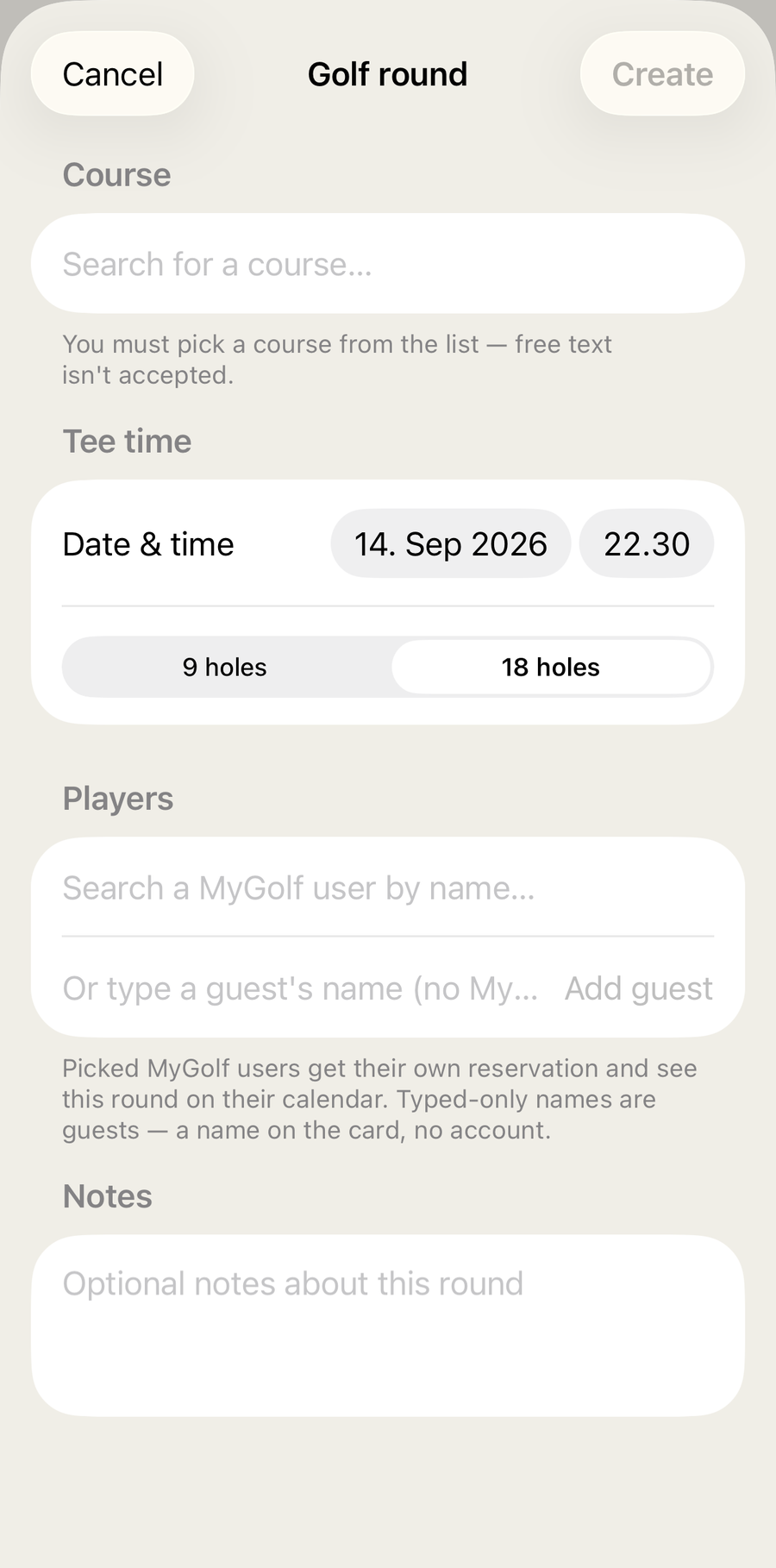
- Course — search and pick from the list; free text isn't accepted, because the course drives the scorecard and the distances later.
- Tee time — date, time and 9 / 18 holes.
- Players — search a MyGolf user by name to add them: they get their own reservation and see the round on their schedule. The picker shows names without private email addresses. Or type a name and tap Add guest for someone without an account — a name on the card, nothing more.
- Notes — optional.
Tap Create. The round appears on the timeline as a tee time and is offered under Play on Home like any other tee time.