iPhone Clubs & Courses Guide
Your club memberships — the link between MyGolf and each club's booking system — and the course directory: every course MyGolf knows, with its tees, its scorecard, a hole-by-hole satellite map and a 3D flyover you can browse from the sofa.
1. Clubs
More › Clubs has two tabs:
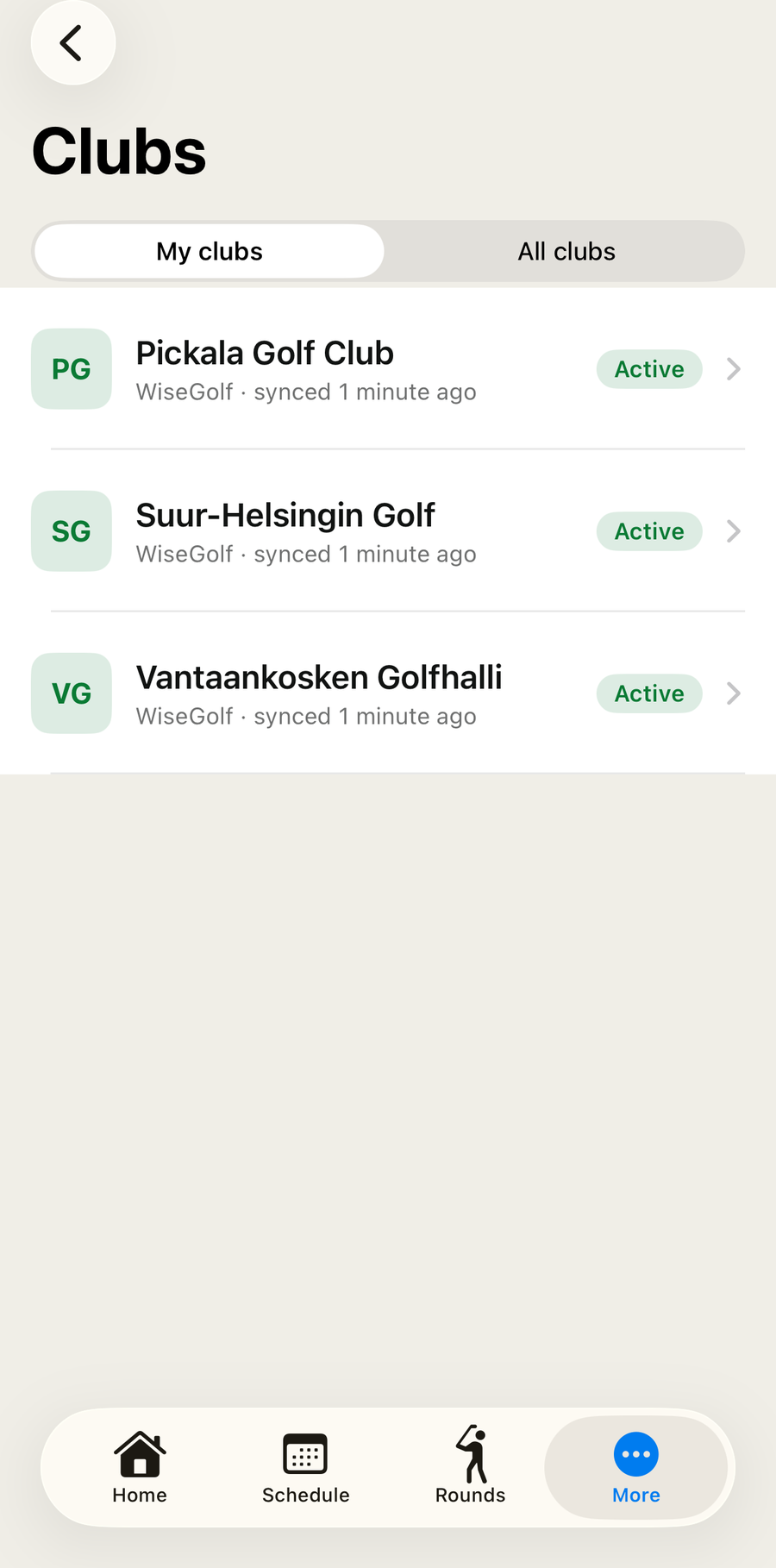 My clubs, before joining any.
- My clubs — the clubs you have joined in MyGolf. Tap one for its membership: status and last sync, your player record there (member number, handicap), the club's booking window (how many days ahead, when it opens), and your credentials — Update credentials when the club's password changes, Remove to drop the membership and its stored credentials.
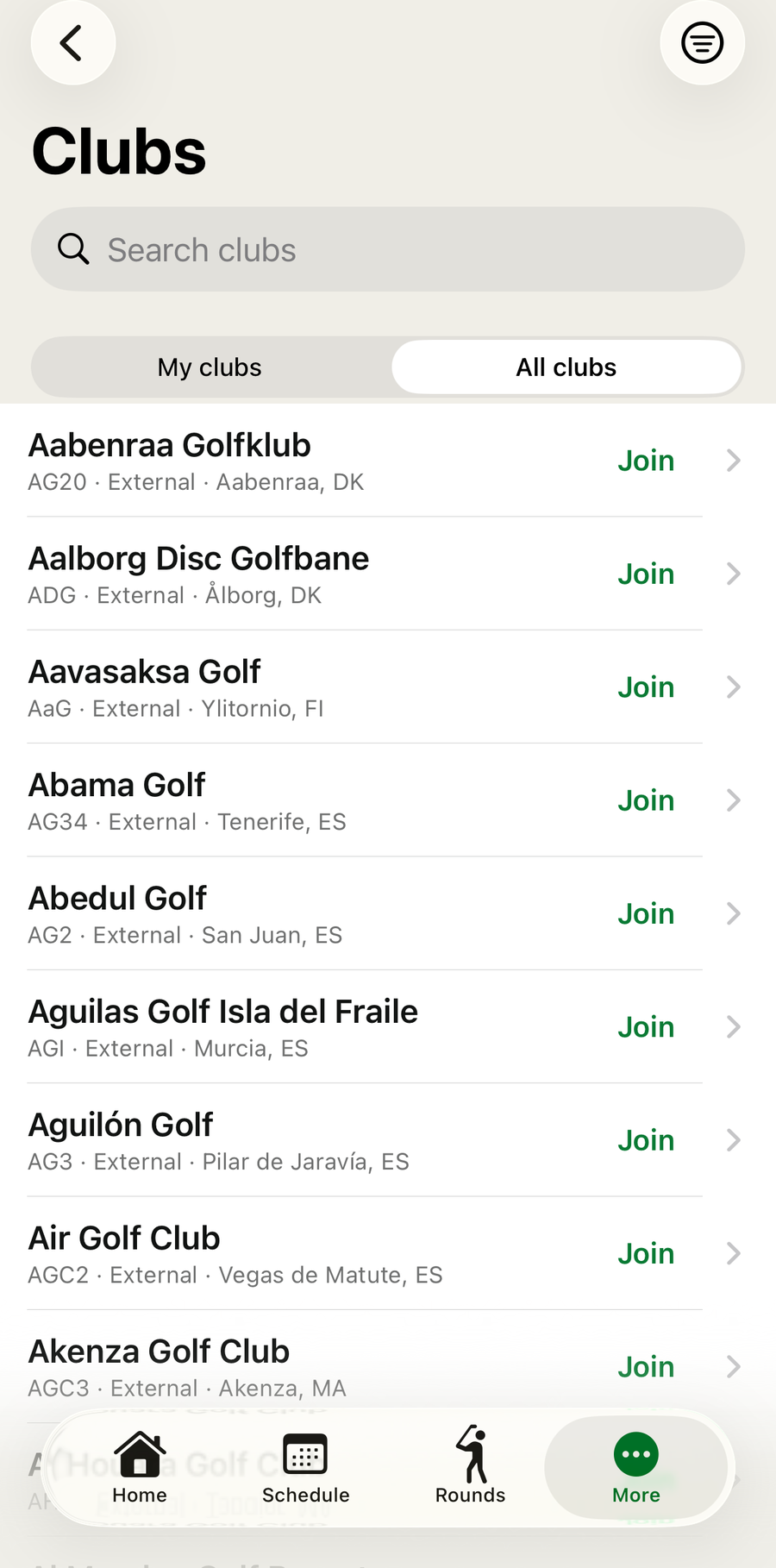
- All clubs — the directory, with a Filter clubs button for location and booking system. Each row names the club's booking system (WiseGolf, GolfBox, ReadyGolf, or External for clubs MyGolf only knows the courses of) and has a Join button.
Join club shows the club's facts (abbreviation, booking system, location, courses) and asks for your username and password for that club's booking system. They are stored encrypted on the server and used to sync your bookings at that club — joining is what makes the club's tee times appear on your Schedule and lets the auto-booker book there. External clubs cannot be joined; their courses are still in the directory below.
Not captured yet: a membership's detail and the Join club form need an account with memberships; the screenshots here come from one without.
2. Courses
More › Courses lists clubs alphabetically, with your own clubs pinned first under Your clubs; pull the list down for the Search clubs field and type a name, then submit. Tap a club for its courses — a club with a single course opens straight on that course:
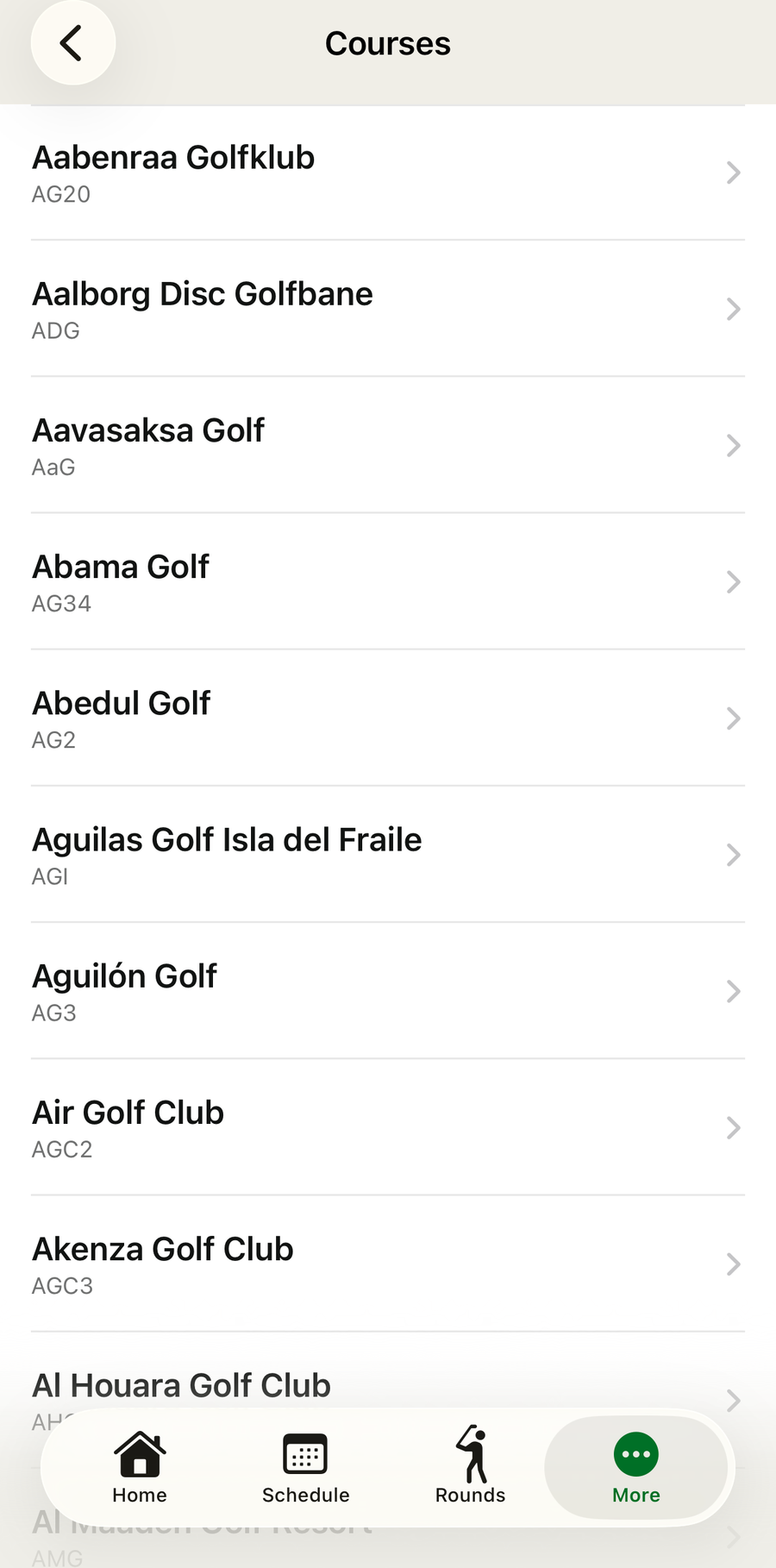
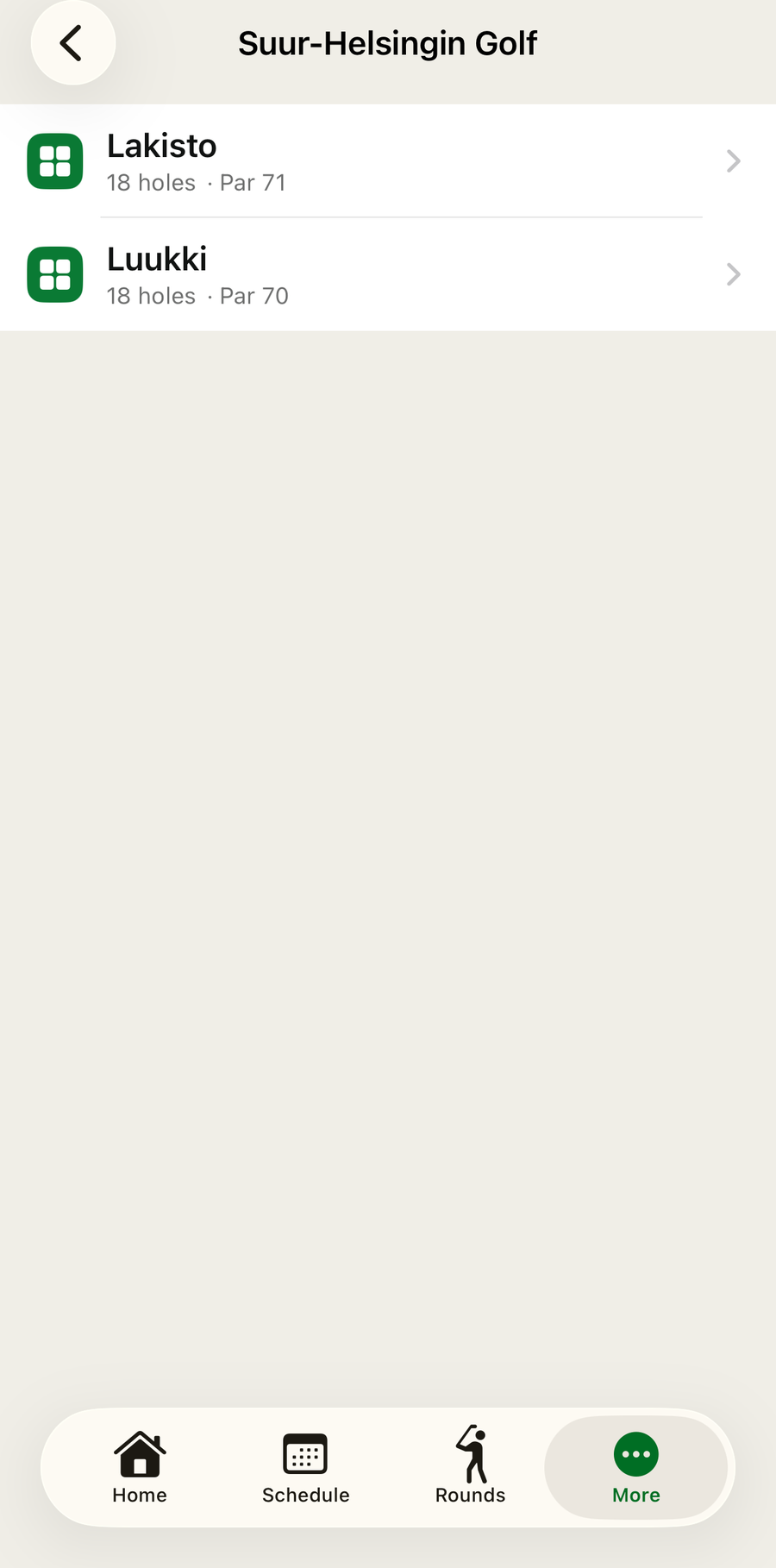 Each course with its hole count and par.
Course detail
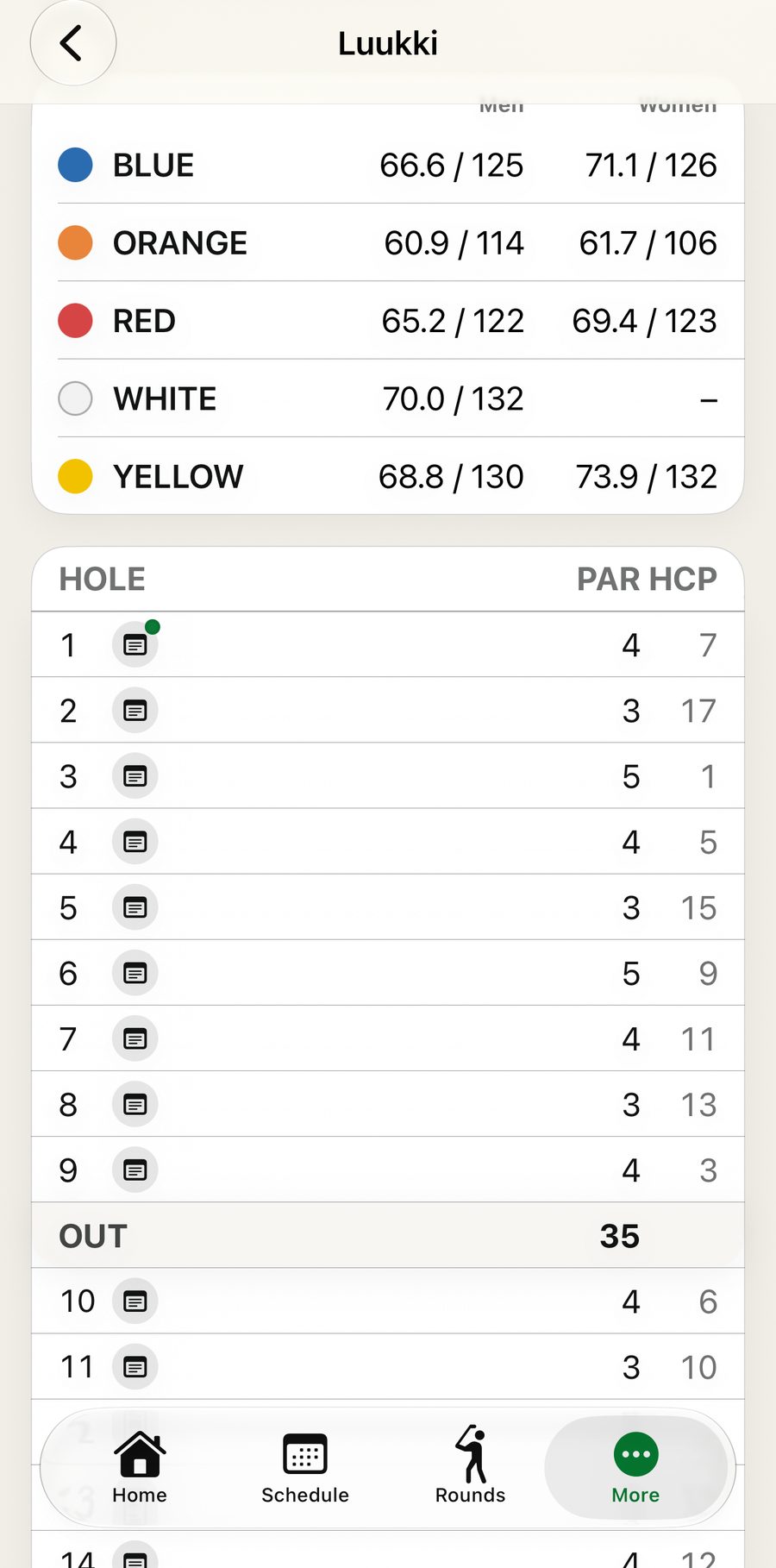
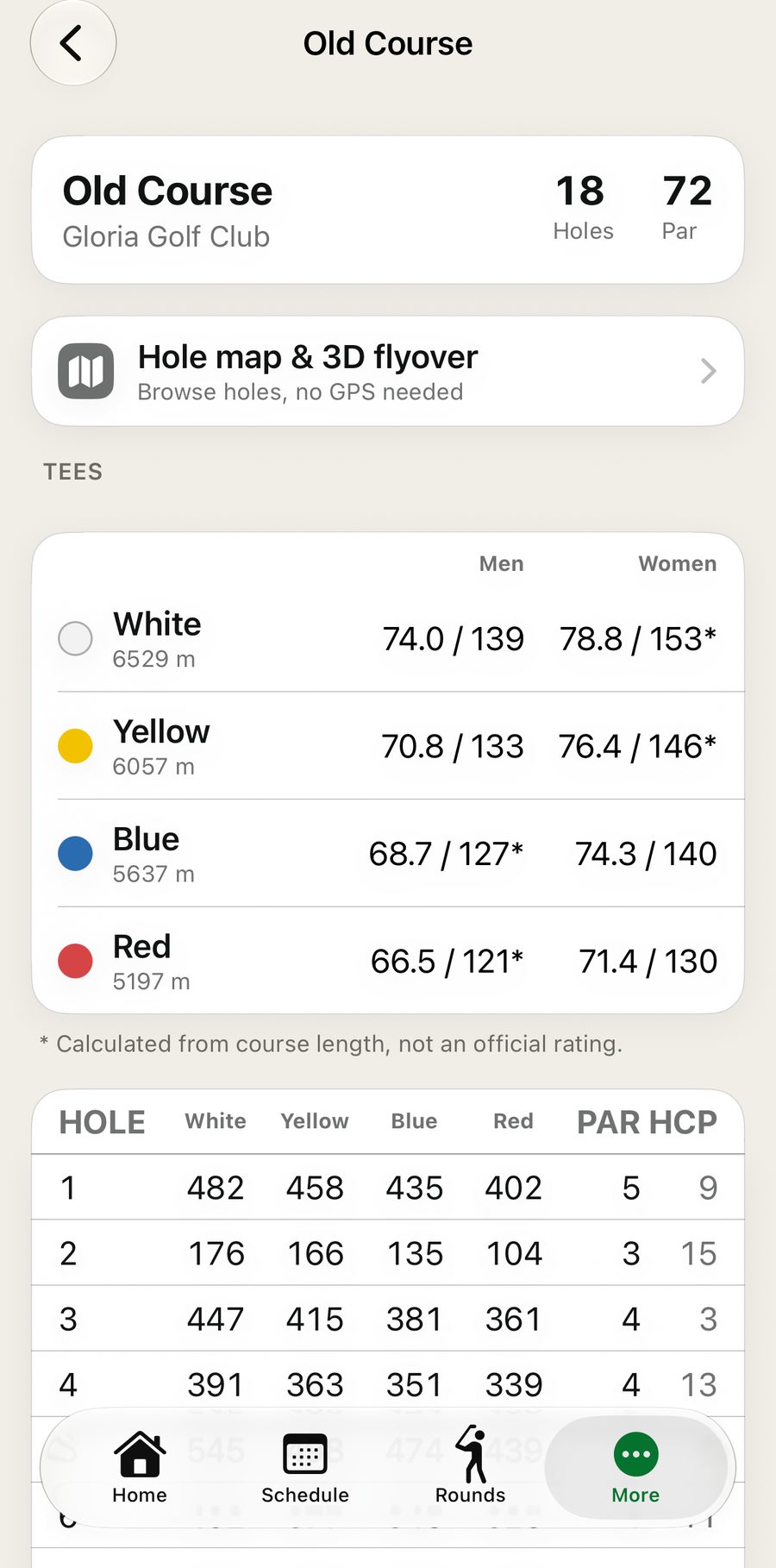 Gloria Old Course: the course name and club, with the holes and par beside them, then the tees with their ratings, then the yardage book.
- The overview: the course name and club, with the number of holes and the par beside the name (they move under it when the name is long or the text is large), the year it opened and the designer where known.
- Hole map & 3D flyover — section 3.
- Tees — every tee, longest first: its length and its course rating and slope for Men and Women (a tee with only a provisional rating shows it under Men with Provisional rating; a course whose data comes from an older version shows one unlabelled pair, and only when no tee of the course has a Men or Women rating). Where a tee has no official rating for one sex, the figure is calculated from the nearest tee rated for that sex, by length (0.1 course rating per 20 m, 1 slope per 70 m), and marked with an asterisk, for example 78.8 / 153*; a note under the card says so, and appears only when such a figure is shown. A tee with no length, or no other tee rated for that sex, shows –.
- The yardage book below it is one table for the whole course: HOLE, one metres column per tee, PAR and HCP (stroke index; a second column appears only when the women's stroke indexes differ), with OUT, IN and TOTAL. The header row (the tee names, PAR, HCP) stays at the top of the screen while you scroll down the holes. A "–" means the figure is not known. When there are too many tees to fit (or the text is very large), the tee columns scroll sideways, HOLE stays in place and the header scrolls with the table. Live distances on the course are on the Play screen.
- When you open a course from a trip round, your own tee for that round carries a Your tee chip and its column is tinted, in its usual place in the order; the Hole map & 3D flyover opens on it. If the course has no tee of that name, nothing changes.
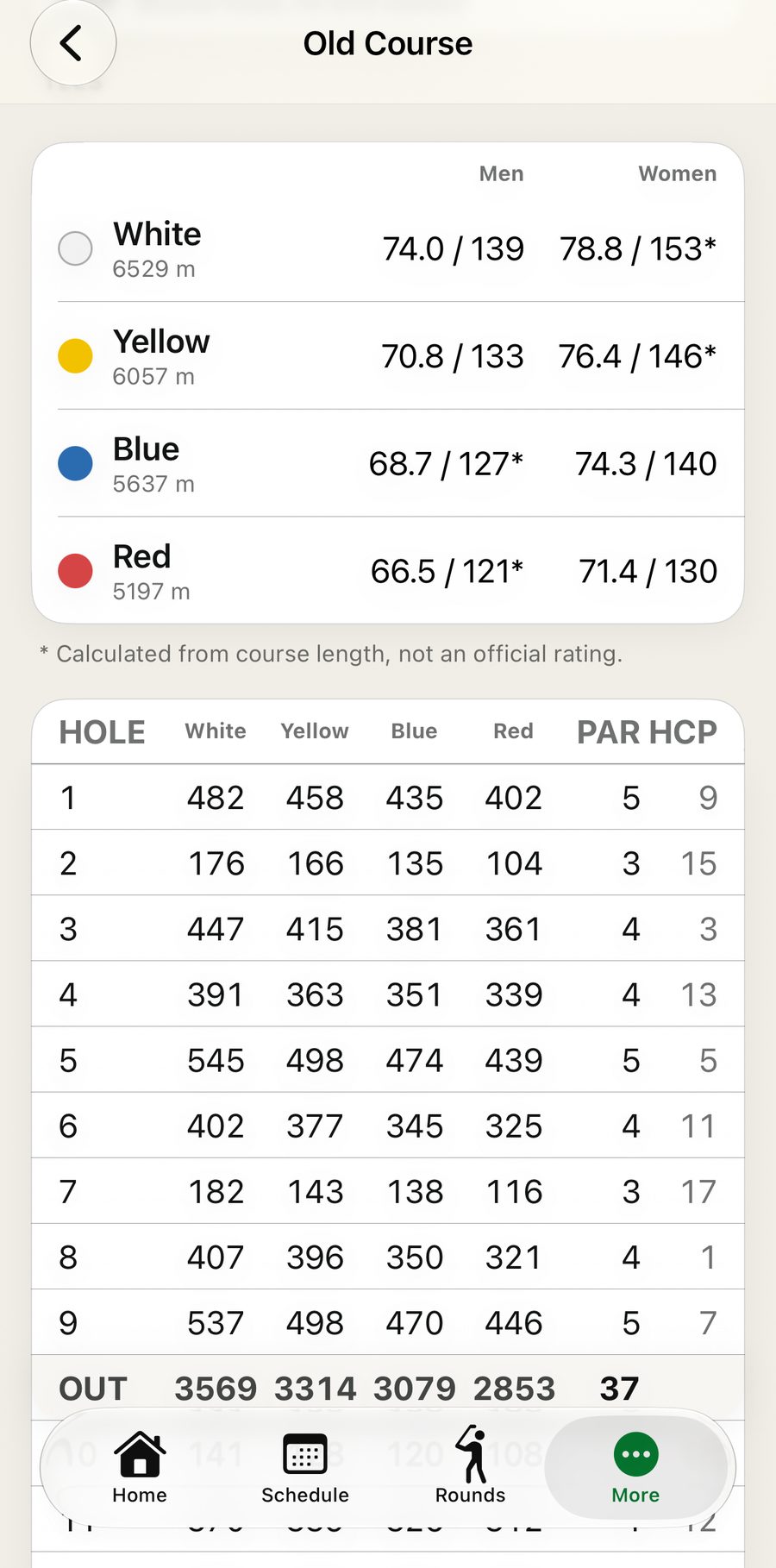 The tees with their ratings (a calculated figure carries an asterisk, explained under the card), then the table for every tee: one column per tee, holes 1-9 and OUT.
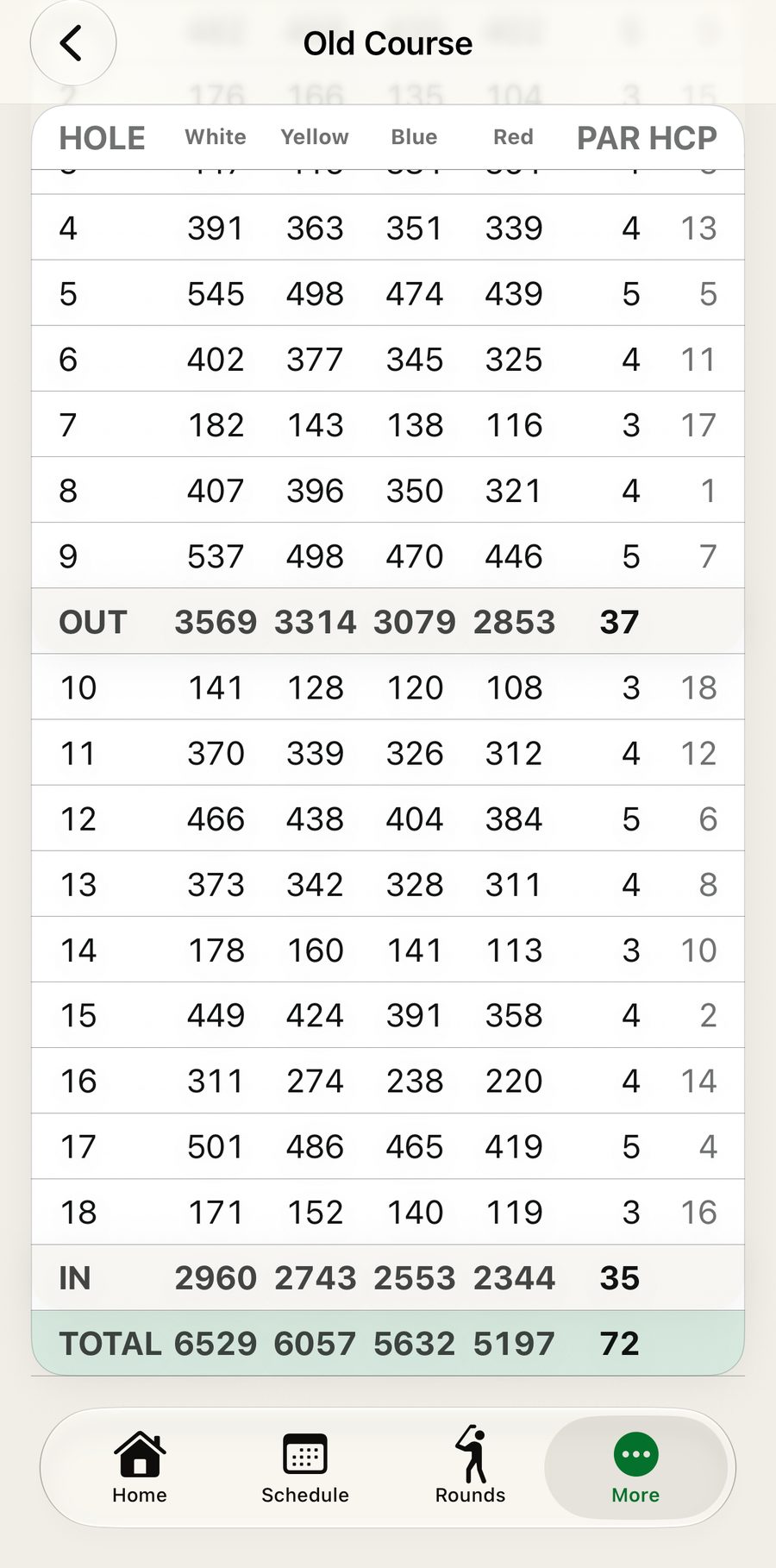 Further down: the header row stays pinned above the later holes, with IN and TOTAL at the end.
3. Hole map & 3D flyover
Hole map & 3D flyover opens the course on satellite imagery, one hole at a time:
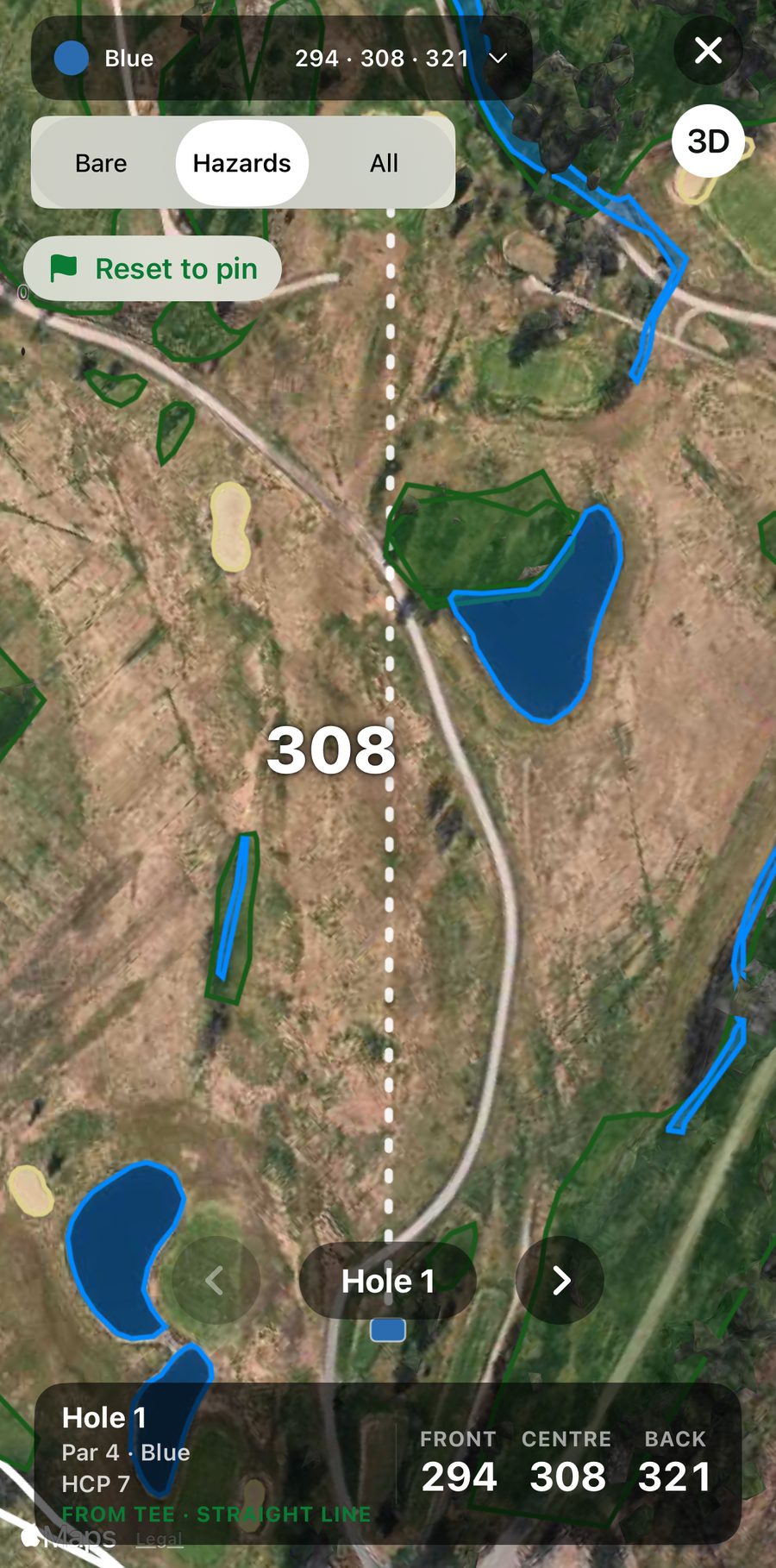 Hole 1 from the blue tee, overlay on Hazards: the dotted line from the tee with its length as one big number on the line, and FRONT / CENTRE / BACK in the bar below — straight lines from the tee, whereas the 332 m on the par line is the tee's rated length from the scorecard.
- ‹ › step through the holes (the map does not swipe, so panning and zooming never change the hole); the bar shows the hole's par, length and stroke index for the chosen tee.
- The tee box in the top-left corner shows the tee you are measuring from — its colour, its name and the distances from it to the front, centre and back of the green. Tap it and it opens into a list of every tee on the hole, each with its length and its own front / centre / back; tap a tee to switch to it and the box closes again: the tee marker, the dotted line, its metres and FRONT / CENTRE / BACK in the bar now measure from that tee, on this hole and the next ones (a hole with no marker for that tee measures from its first tee). Reset to pin sits below the switch.
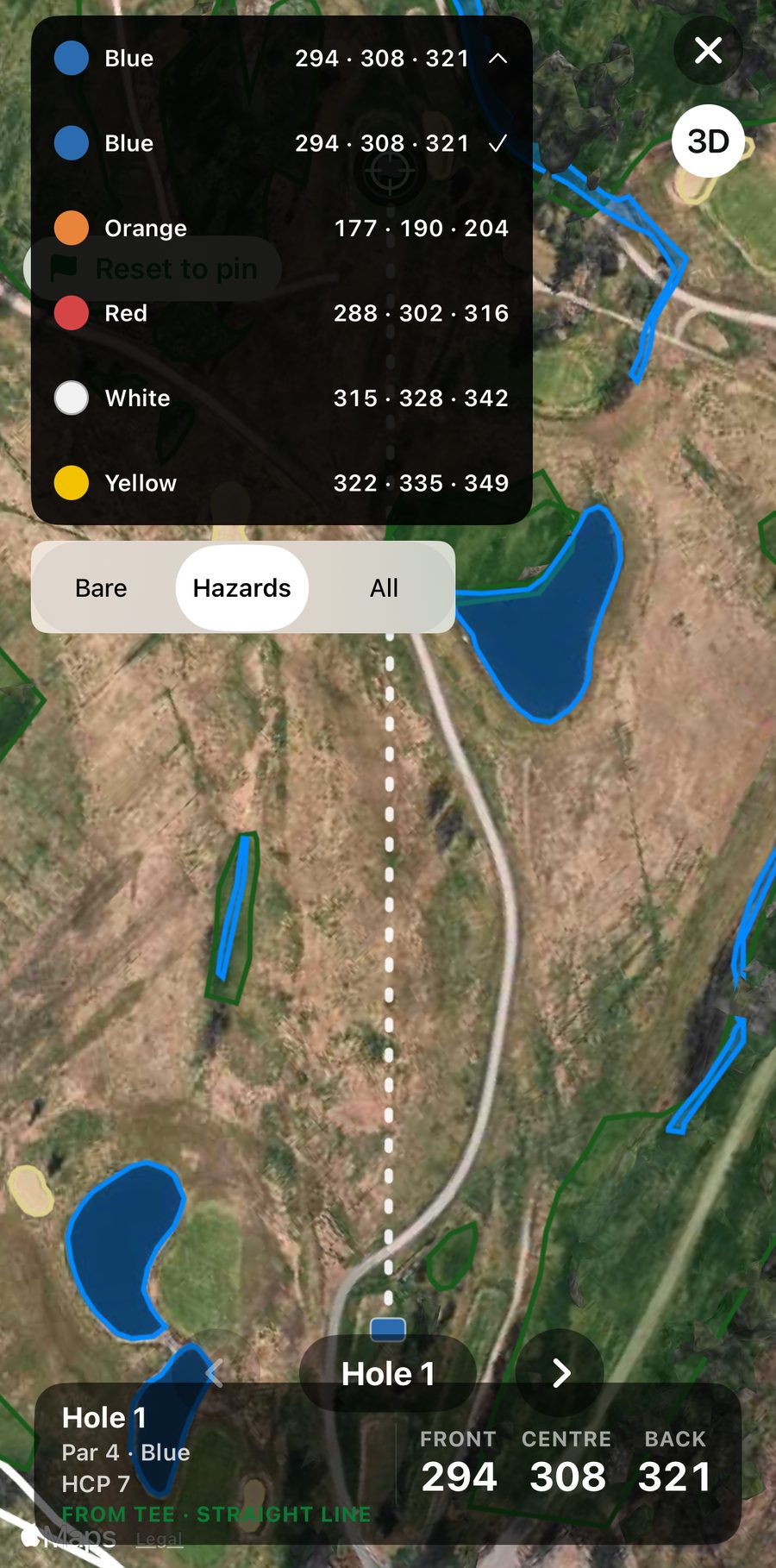 The tee box opened: every tee of the hole with its front / centre / back from that tee.
- The Bare · Hazards · All switch under the tee box chooses how much of the course is drawn over the satellite image, and remembers your choice. Bare is the image with the dotted line and the flag only. Hazards adds bunkers, water and out of bounds (the white line along the boundary, where the course has it mapped); trees are not outlined, they show well enough in the image. All adds fairway, green, tee boxes, rough, bushes, trees, waste areas, buildings and cart paths (the sand-coloured lines). Only finished, approved course drawings are shown. Water is drawn on every hole it borders: a pond saved on one hole also appears on the maps of the nearby holes.
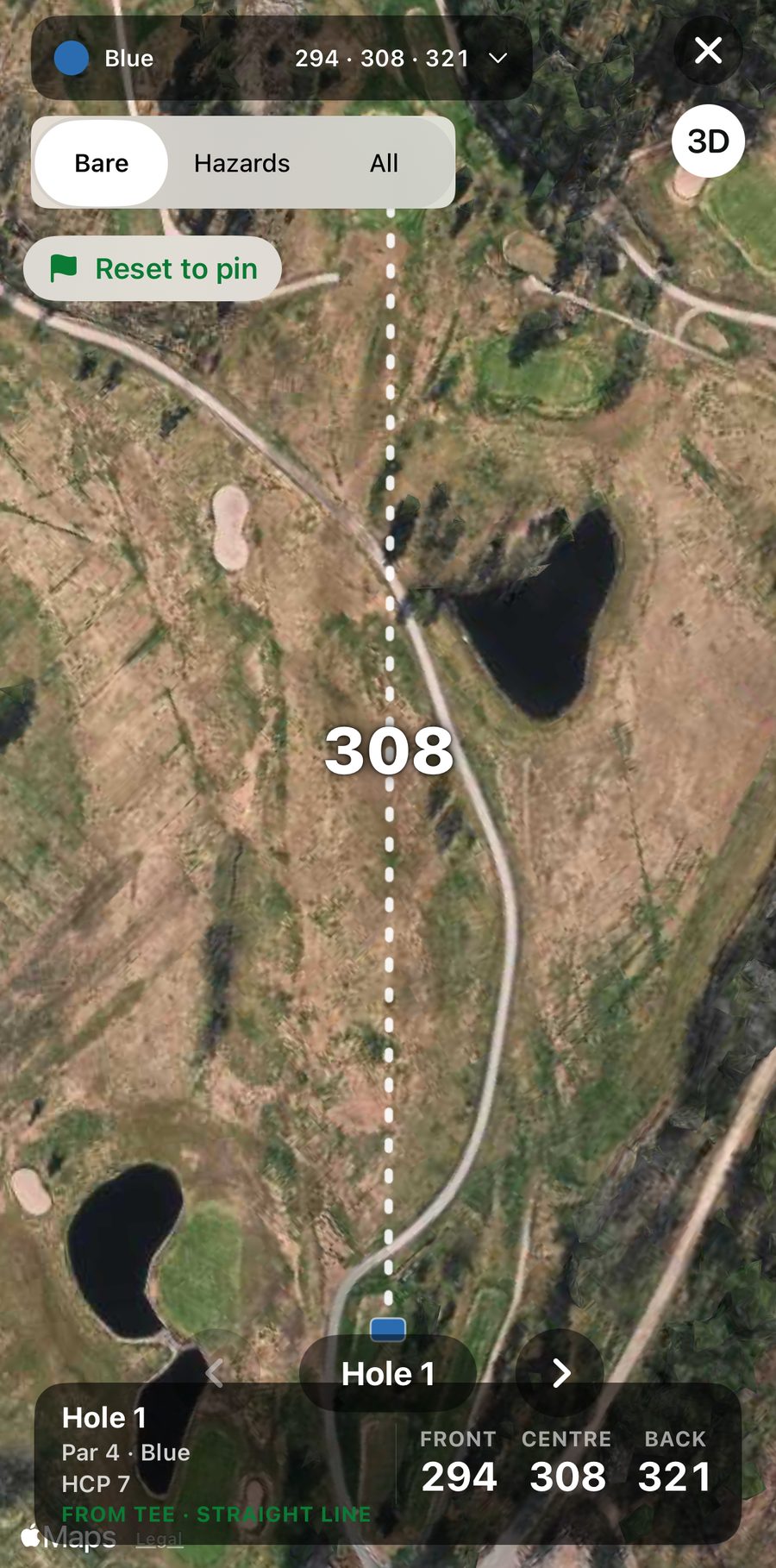
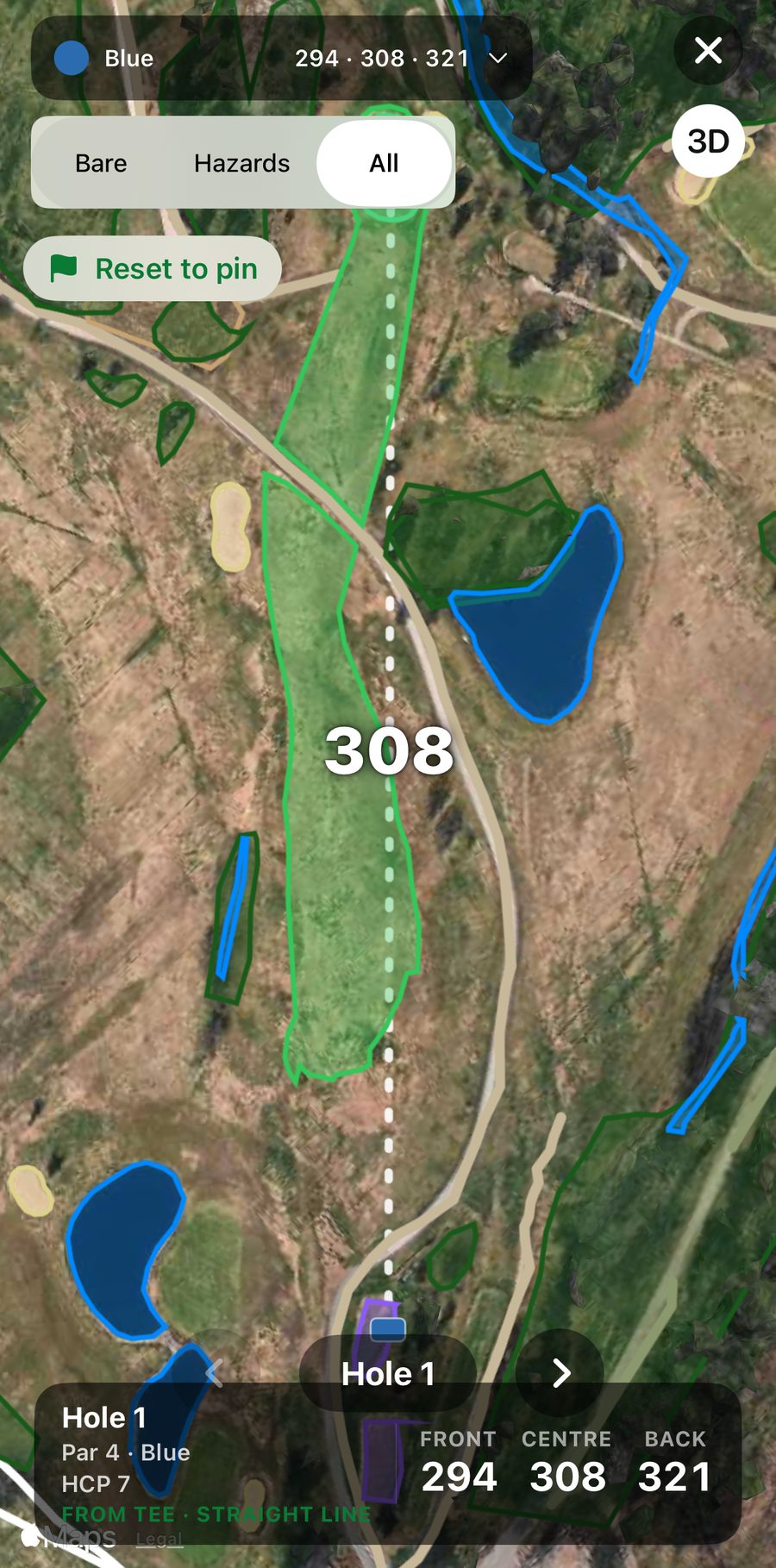 Bare (the image, the line and the flag) and All (fairway, tee box, cart paths and the rest). The first picture above is Hazards, the setting the first time.
- Drag the crosshair to any spot to measure to it — a lay-up, a carry over the water: the line splits at the crosshair and each part shows its own metres, tee to crosshair and crosshair to green; Reset to pin snaps it back to the flag and re-fits the hole. The compass returns a rotated map to north.
- 3D opens the flyover. The button appears only once the hole's 3D terrain has loaded; a hole with no 3D terrain (or none loaded yet, for instance offline) has no 3D button. The camera lifts off from the tee you have chosen in the picker and flies the hole toward the green, with the fairway tinted green and bunkers, water and the tees marked, trees standing along the edge of the woods, and distances drawn on the terrain. Only this hole's own ground is drawn — woods and boundaries elsewhere on the course are left out rather than floated past the horizon. Each tee marker carries its own name; the one drawn in green is the tee the distances are measured from, and the footer names it in the same green. The credit line at the bottom-left names the elevation data and the shapes drawn (tap it for Map data credits), above "Map data © Apple". Out of bounds stands on the terrain as a low white see-through wall along the boundary, and drawn buildings stand as grey blocks.
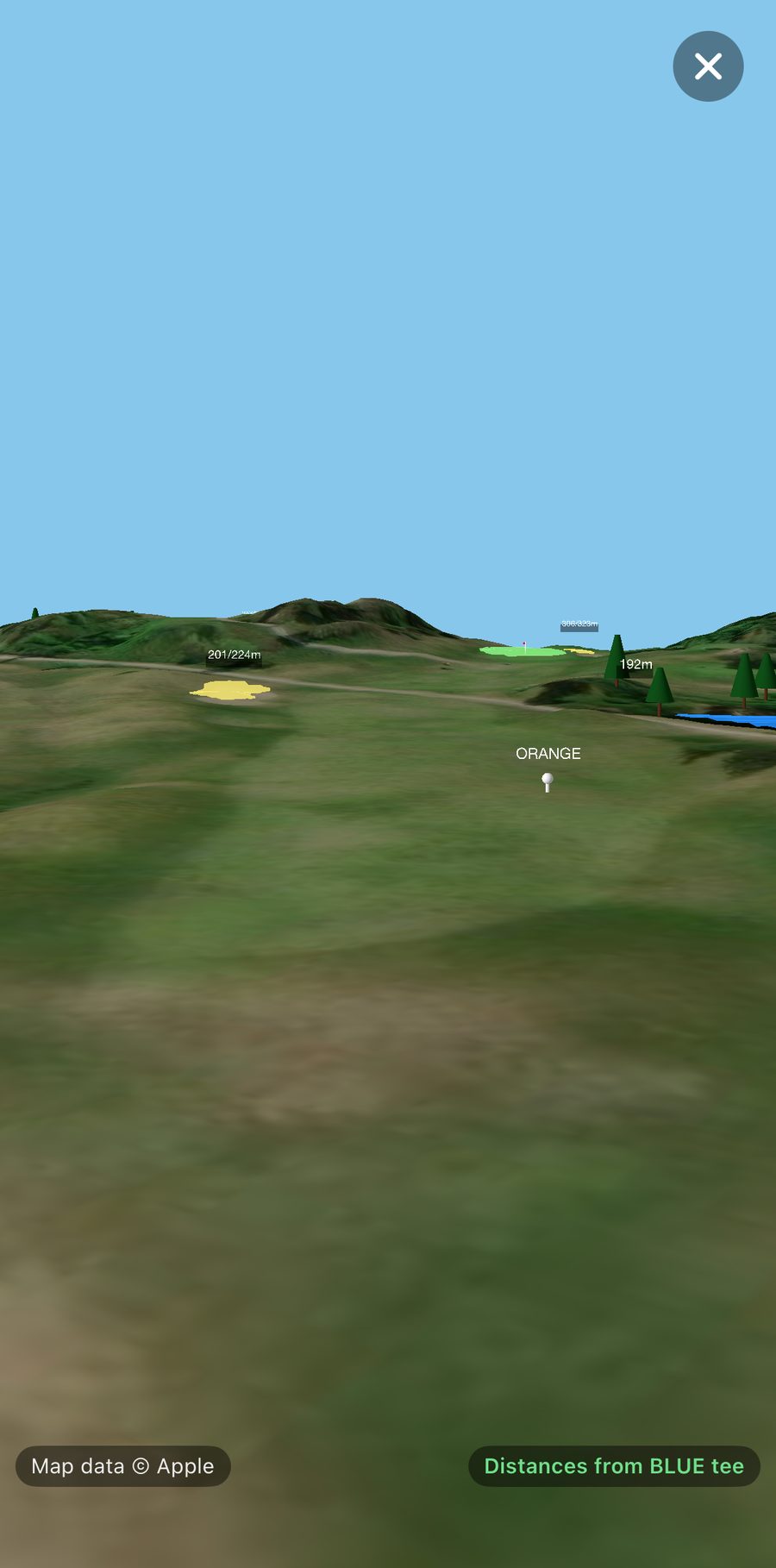 The flyover a moment after take-off from the blue tee: the footer names the tee the distances come from, the orange tee ahead keeps its own name.
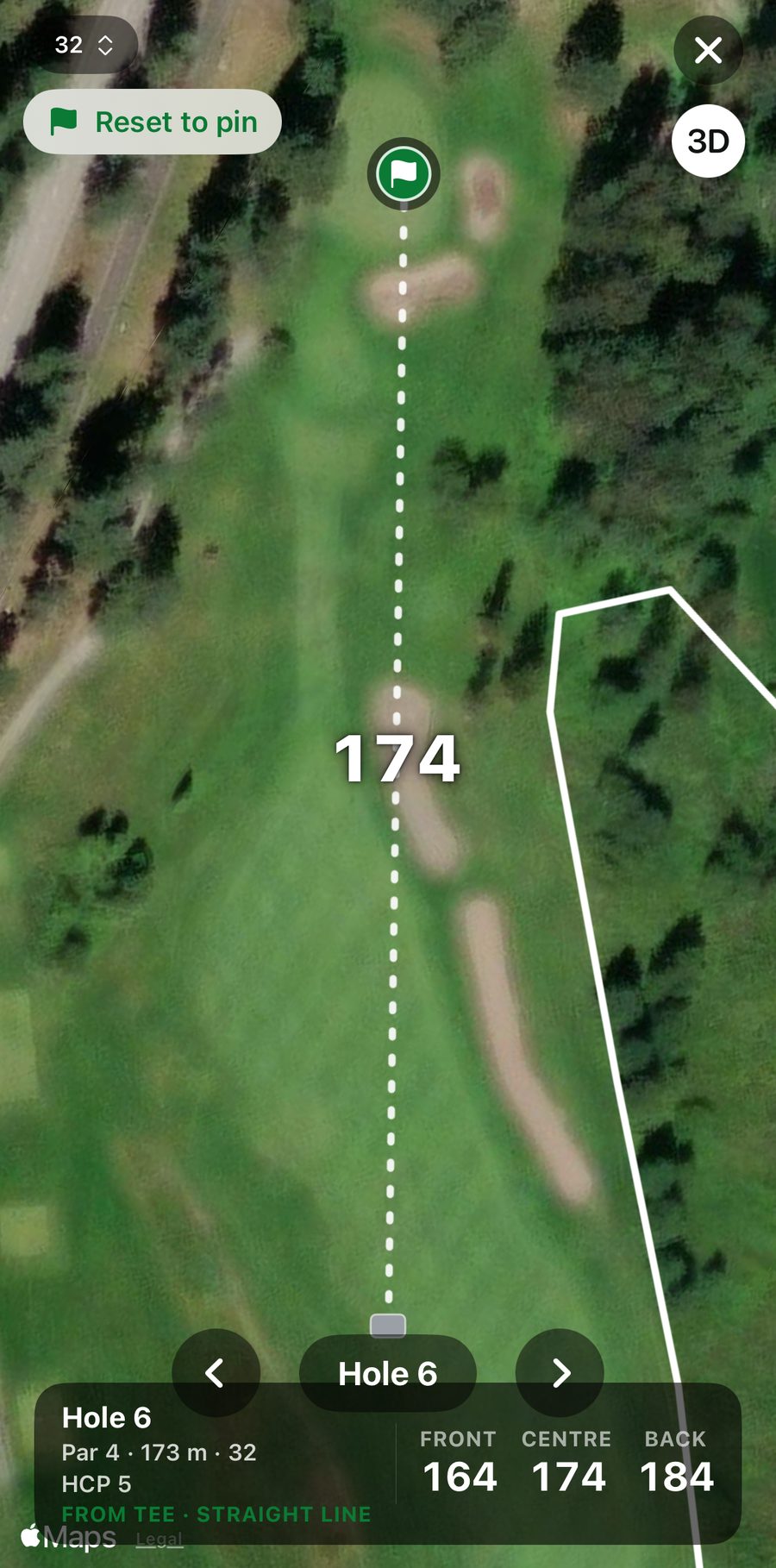 Pickala Seaside, hole 6: the white line along the right is out of bounds.
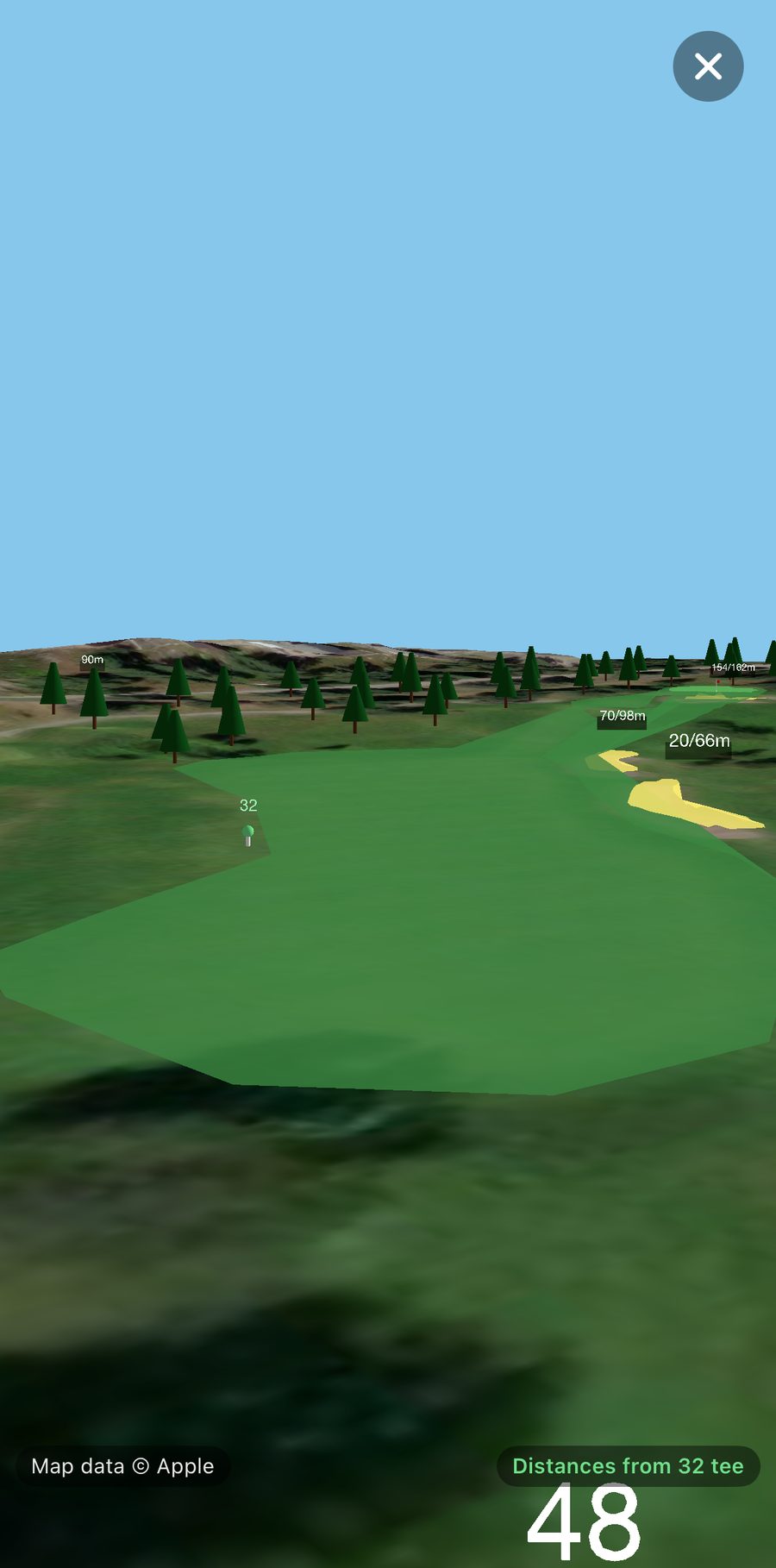 The same boundary in the flyover — a low see-through wall standing on the terrain; the green "32" marker is the tee the distances come from.
The same map and flyover are one tap away during a round, on the Map tab.
Courses saved for offline use
When you have a scheduled trip round coming up (one a group has set up for you), MyGolf saves that course on the phone as soon as the round is published to you (the next time the app refreshes) and for any scheduled round teeing within 14 days, not only when you first open it, so you can look at it with no signal: the course's tees, the scorecard (par, stroke index and the length from each tee) and its hole map and distances. If something is still missing, it tries again on Wi-Fi and whenever the app comes back to the foreground, until the course is complete. Every course on a trip round opens straight from the round, with no searching.
- A course you opened from a trip round carries a small mark under its name. Saved for offline use means everything is saved. Map not saved means the tees and scorecard are saved but the hole map is not. Then Save for offline downloads the map; it does it even with Low Data Mode on, because you asked.
- Without Low Data Mode the map downloads by itself too, mobile data included. With Low Data Mode on (iOS Settings › Mobile Service / Wi-Fi), MyGolf saves the tees and scorecard only, and the map waits until you tap Save for offline.
- When a saved copy is what you are looking at, a line says Saved for offline use ·
. MyGolf still checks for newer data whenever it has a signal; if that check fails, you keep the saved copy and the line. - Without a signal, tapping a course you have saved opens it from the saved copy; you never get an empty error while a copy exists. A course you have not saved and cannot reach shows the usual "Couldn't load tee data." with Retry. MyGolf never fills the gap with made-up data.
- A saved course is kept for at least 30 days from saving, and until three days after the event ends if that is later, and is removed when you sign out. A map is skipped, not half-saved, if it is unusually large; the mark then says Map not saved.
- Saved courses make the course screens work offline. A trip round can also be started without a signal, or when the server is having trouble; the first start of a trip round opens 30 minutes before your tee time by your phone's clock, online or not, and until then the button reads Opens at in the club's local time and enables itself at that moment (joining a round someone has started is never held back); the start uses the saved scorecard and says Using the course card saved on
, and is sent to the server when the phone is back online. - The satellite picture under the hole map is Apple's and is not saved; offline the hole outlines and distances still show over whatever picture the phone already has.
Screenshot pending. The captures for this section (the mark on a course, the "Saved for offline use" line) are taken with the next manual screenshot run, from a real build; none is included yet.
4. Play by weather
More › Play by weather ranks the clubs around you by playability — a score out of 100 from the forecast at each club:
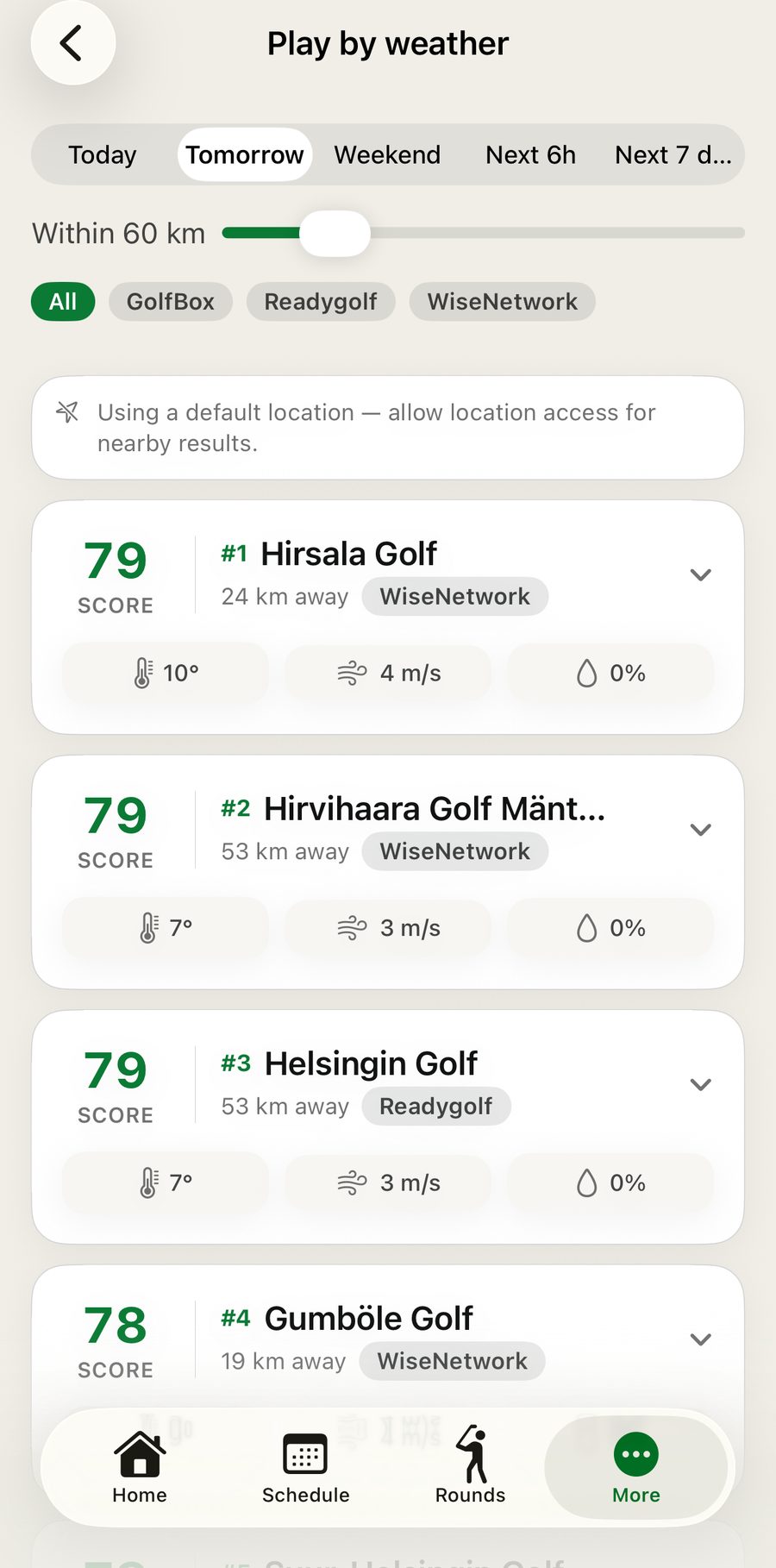
- Today · Tomorrow · Weekend picks the day; Next 6h · Next 7 days the window; the Within N km slider the radius.
- All · GolfBox · Readygolf · WiseNetwork filters by booking system, so you only see clubs you can book.
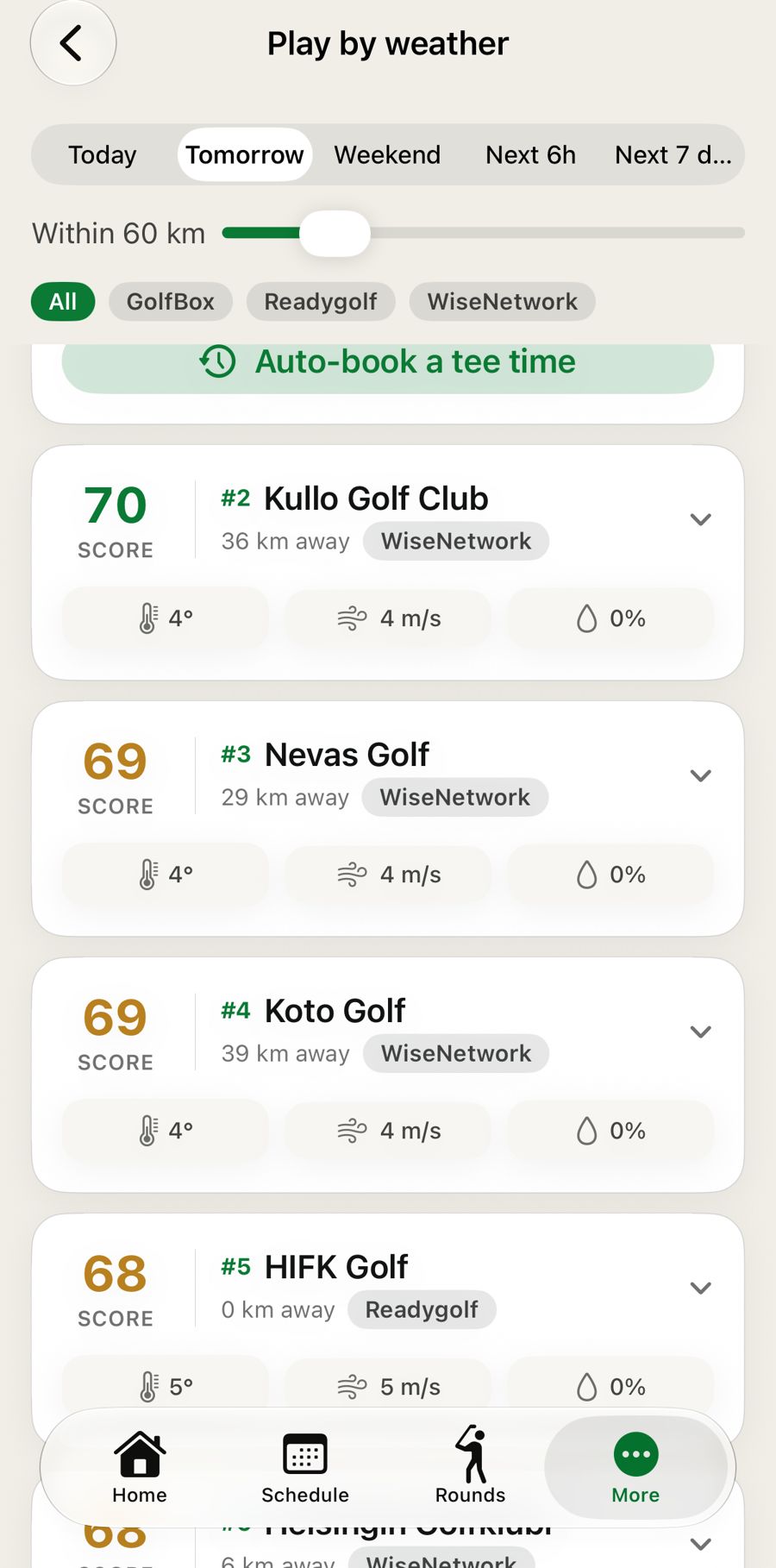
- Each club shows its rank, distance from you and score; tap one for the hour-by-hour forecast with rain probability and the score per hour. At the bottom of the expanded card, Auto-book a tee time opens the auto-book wizard (for clubs we can auto-book at; pick the club there), and Open booking site opens the vendor's own site for other systems.
My notes per hole
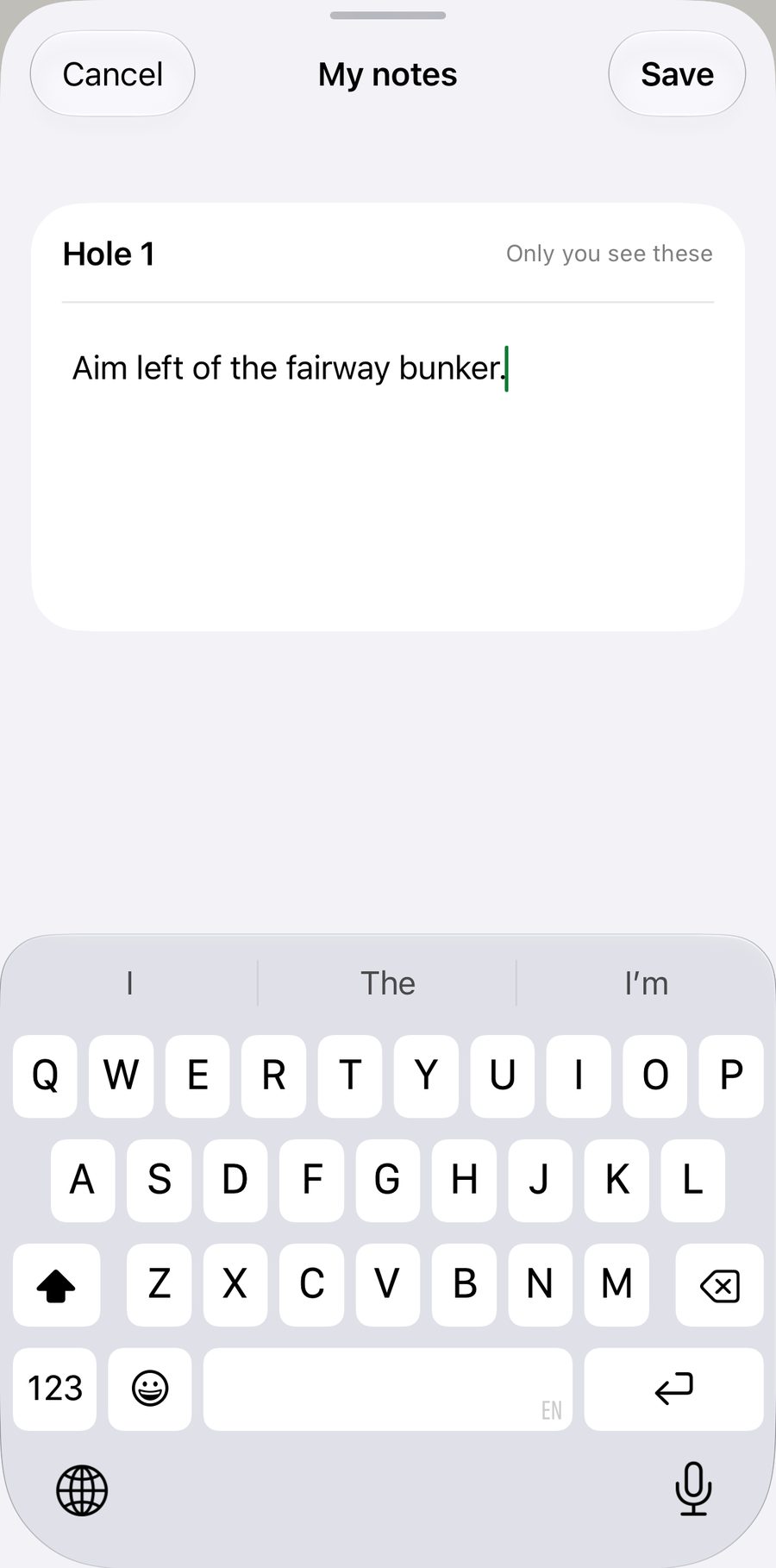
Tap the small My notes button on any hole row of the yardage book, in Hole map & 3D flyover, or in Explore the holes to read or edit your private note for that course and hole. Only you see these. A green dot marks a hole that has a note (or an unsaved draft). Enter up to 2000 characters and tap Save, or Cancel to leave the note unchanged; saving blank text removes it.
The same note appears across your iPhone (course pages, Play and the satellite Map during a round) and on OurGolf when linked to the same GolfCal account and course. Opening My notes refreshes the saved text without replacing what you are typing — if you type before the first load finishes (or retry after a failed first load) on a hole that already has a saved note, the saved note appears above a new line and your typed text so you can decide what to keep — and cached notes stay readable offline. The last save wins. If a save fails, your draft stays on this phone and shows Not saved. Try again. with Retry. Notes never change your round, score or shots. On Android, if a failed save conflicts with a newer server note, the server note appears above your draft (or on its own for review when the draft was a deletion), and Retry checks for newer text first without overwriting it; if that check fails, the draft stays unsaved.